

Call Tags#
The Call tags page lets you create and manage reusable tags for calls in your phone.systems™ App. Tags help you organize calls by category, make them easier to identify, and support call handling scenarios where labels are used across the system.
Use call tags when you want to:
Categorize calls by purpose, team, or workflow
Apply consistent labels such as Support, Potential Leads, or Callback
Make tagged calls easier to identify visually
Maintain a reusable set of call labels in one place
Add a New Call Tag#
Create a call tag to make it available for use in your phone.systems™ configuration.
Step 1: Open the Create Tag Window#
Go to Settings -> Call tags.
Click Add a new tag.
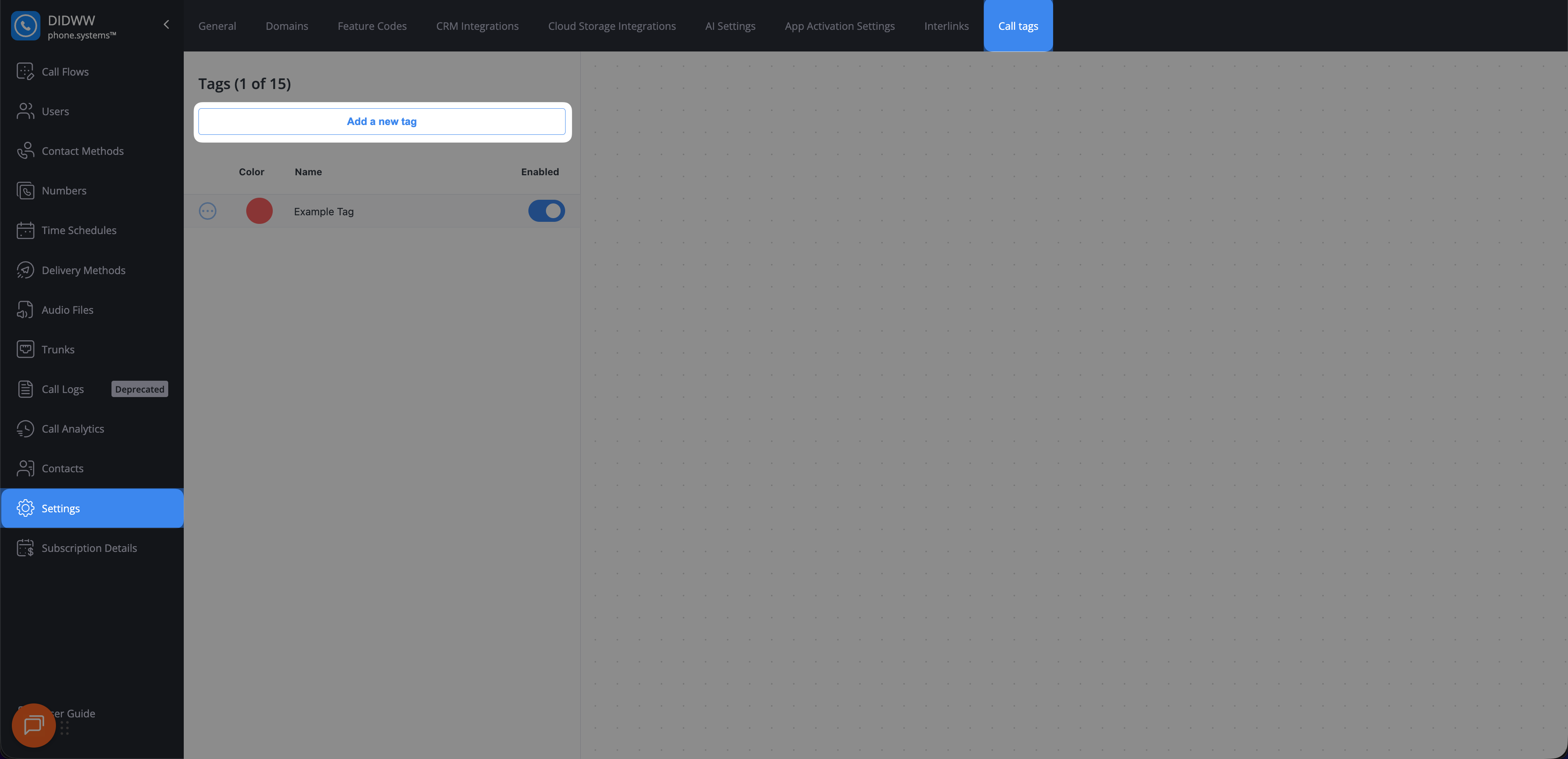
Fig. 1. Open the Create Tag window.#
Step 2: Configure and Save the Tag#
Select one of the predefined colors or select Custom to define your own color.
Enter the tag name in Title.
Click Save.
After the tag is created, it appears in the tag list with its color, name, and current status.
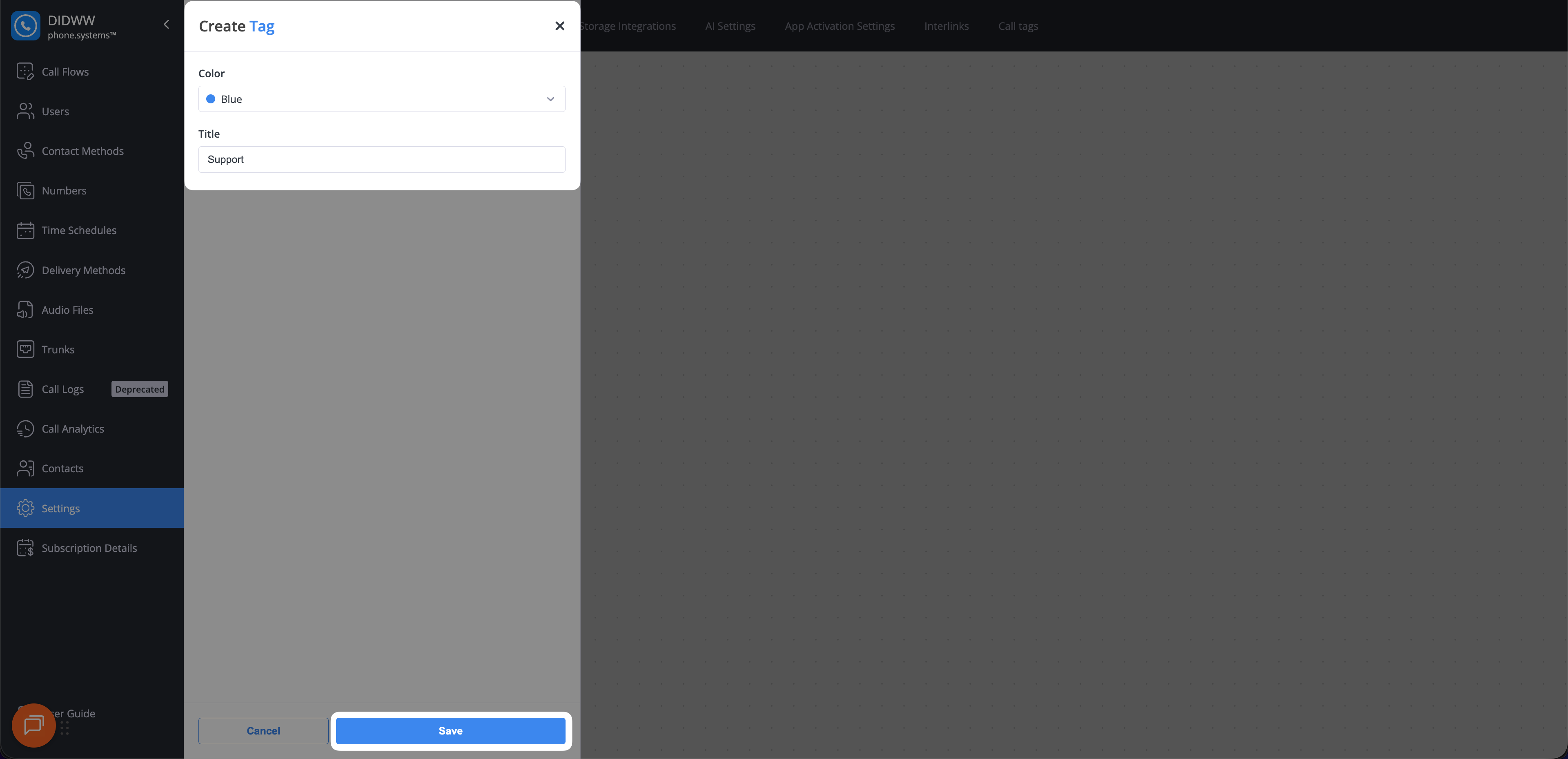
Fig. 2. Configure and save the new tag.#
Edit Call Tag#
Edit a call tag to update its name or color.
Step 1: Open the Edit Tag Window#
Go to Settings -> Call tags.
Locate the tag you want to edit.
Click Actions -> Edit tag to open the edit window.
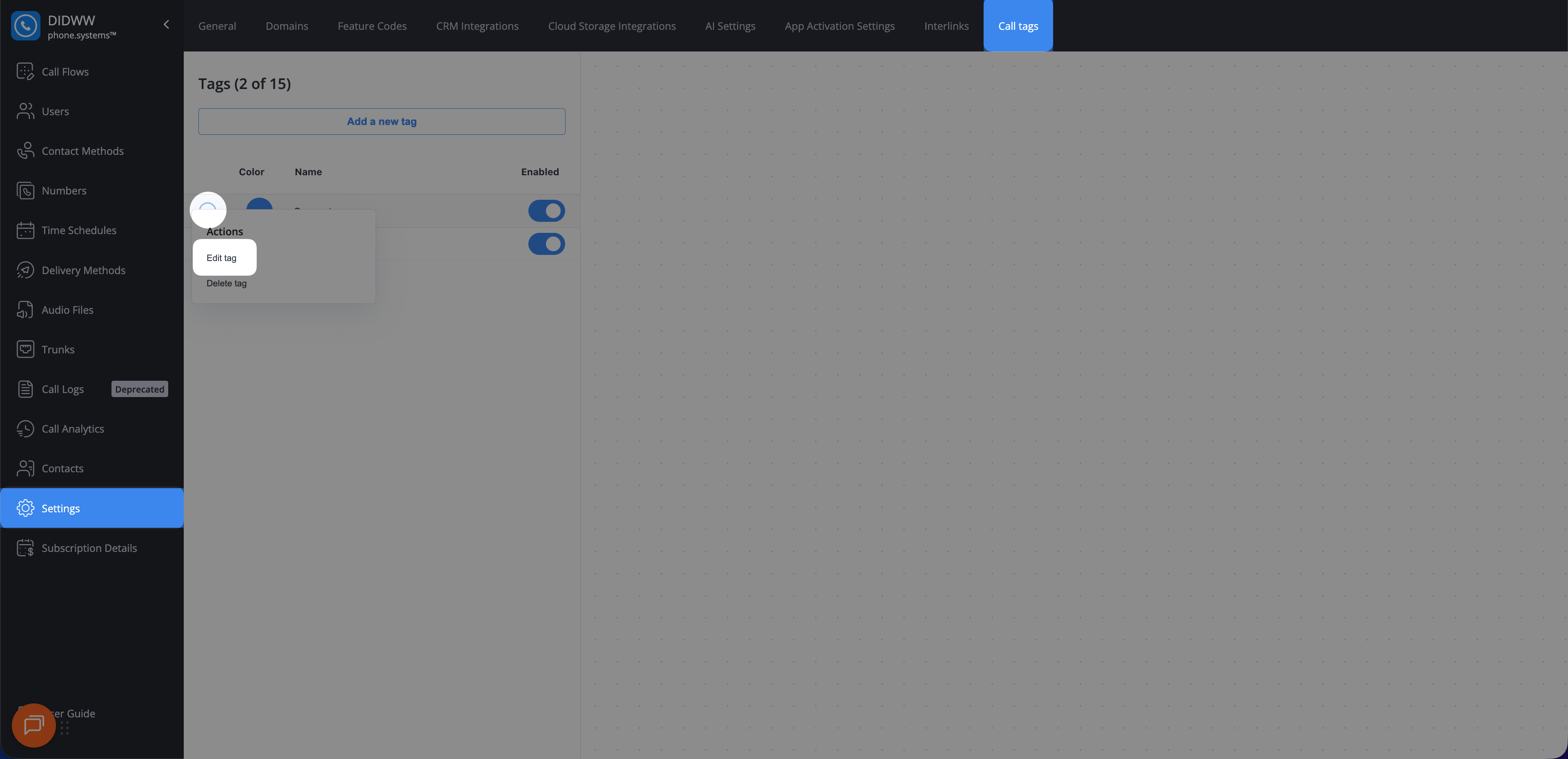
Fig. 3. Open the Edit Tag window.#
Step 2: Update and Save the Tag#
Update the required fields such as Color or Title
Click Save.
After the tag is updated, the changes appear in the tag list and phone.systems™ App.
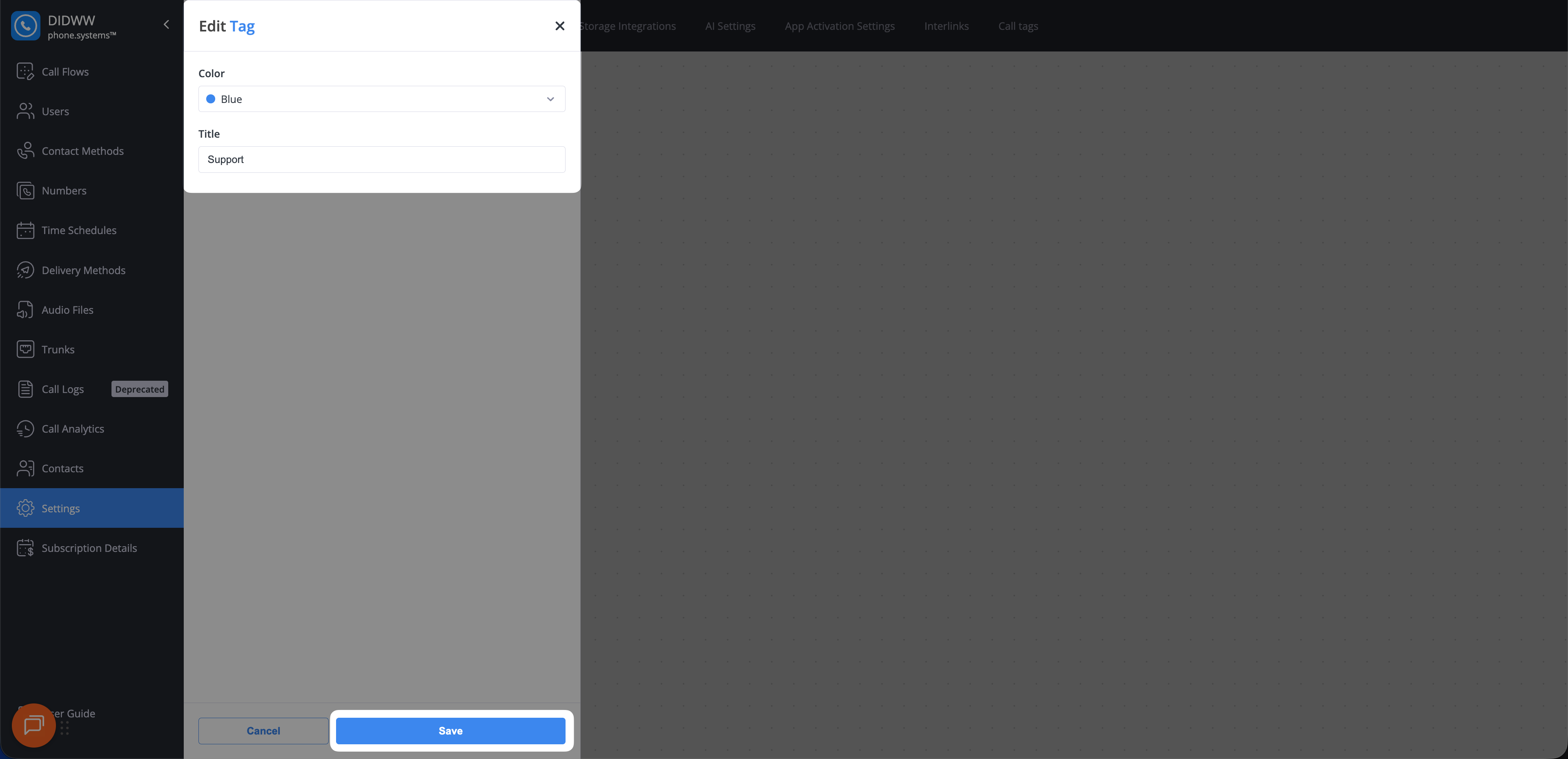
Fig. 4. Update and save the tag.#
Enable or Disable Call Tag#
Use this action to control whether a call tag is available for use without deleting it.
Go to Settings -> Call tags.
Locate the tag you want to enable or disable.
In the Enabled column, turn the toggle on or off.
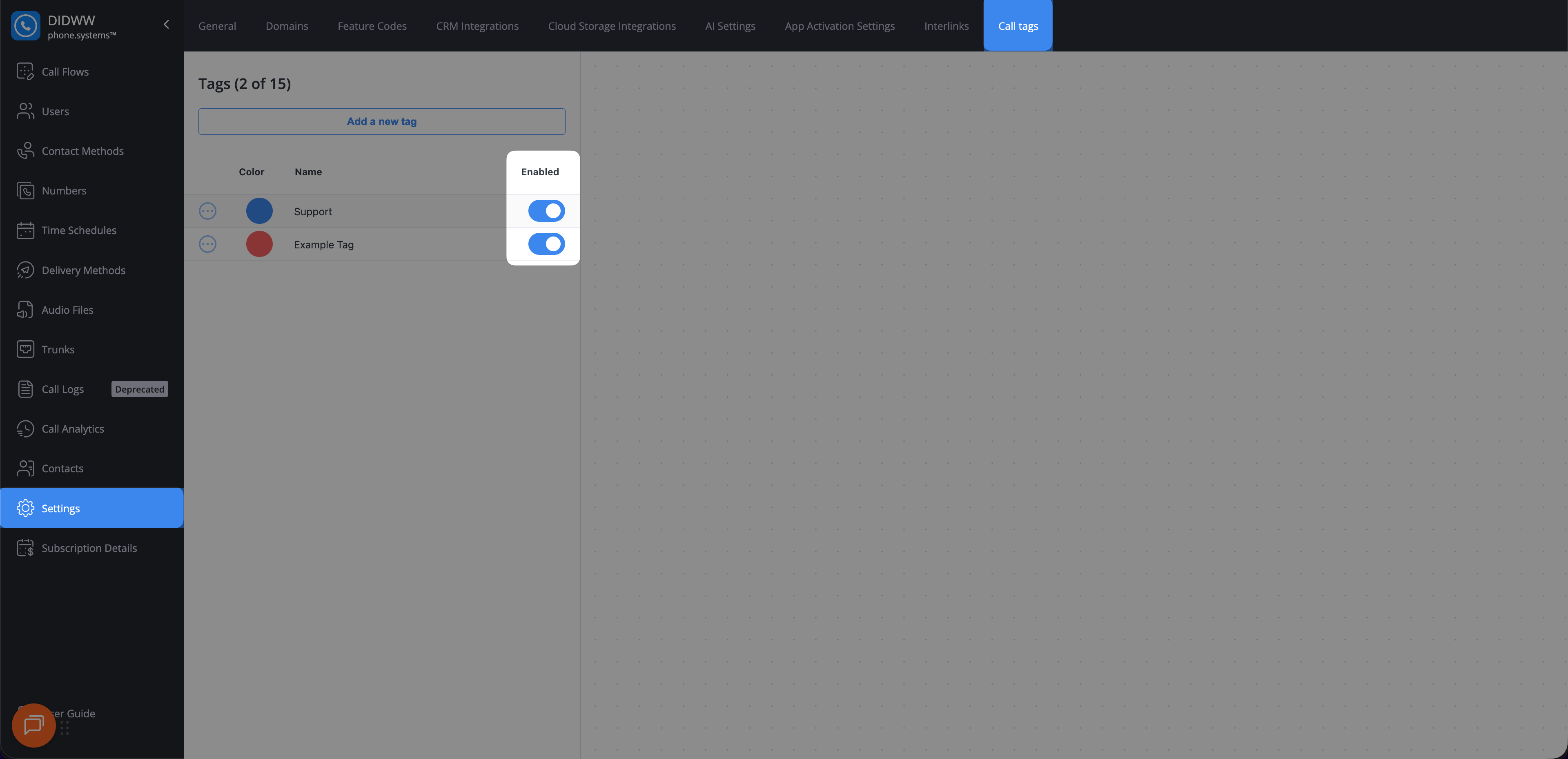
Fig. 5. Enable or disable a call tag using the toggle.#
Delete Call Tag#
Delete a call tag when it is no longer needed.
Note
Deleting a tag permanently removes it from the Call tags list and from all related call logs.
Go to Settings -> Call tags.
Locate the tag you want to delete.
Click Actions -> Delete tag.
Confirm the deletion in the pop-up window
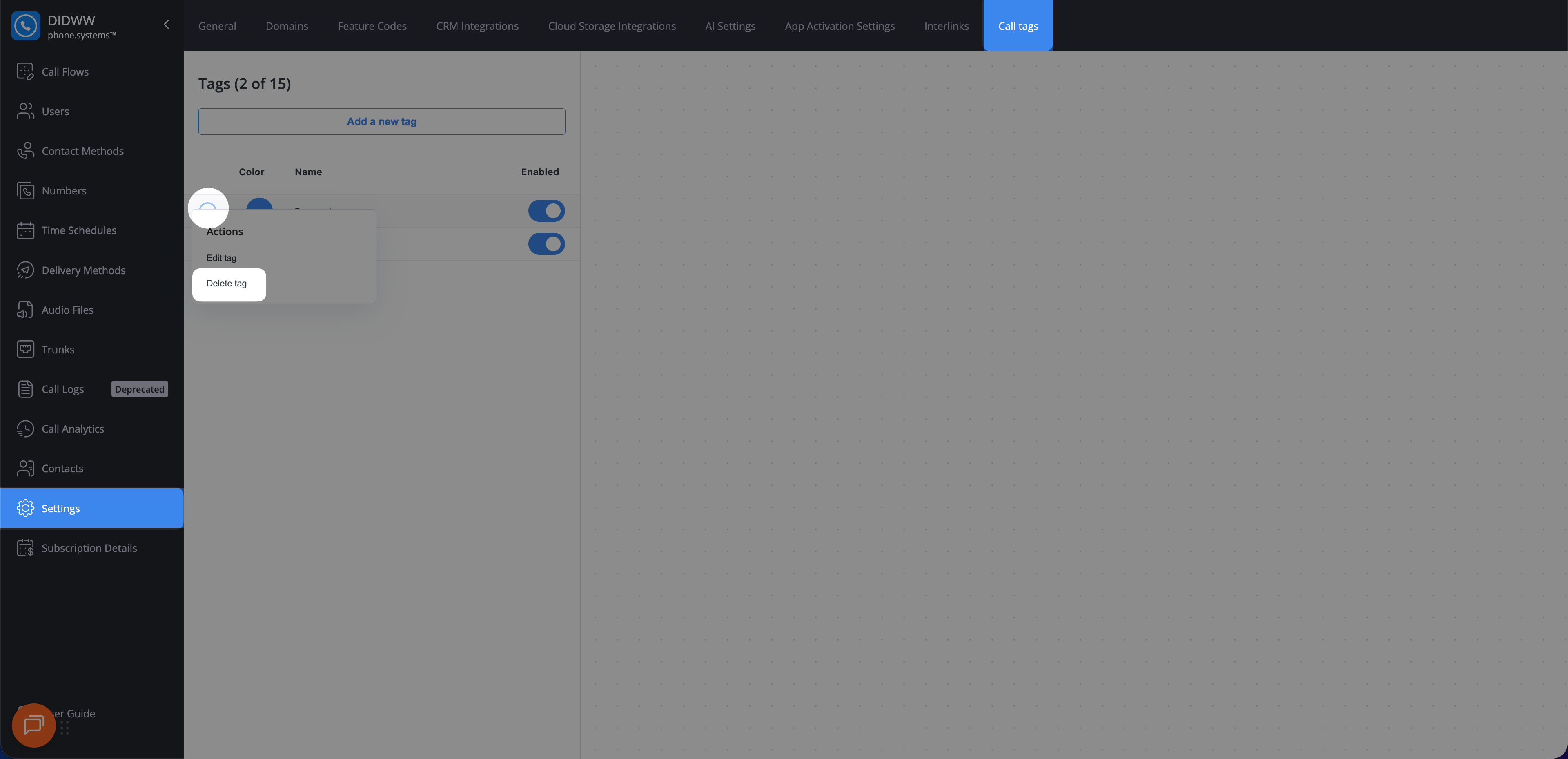
Fig. 6. Select Delete tag from the actions menu.#