

AI Call Scoring#
Use AI Call Scoring settings to create scorecards that evaluate recorded calls against criteria defined by your organization. Each scorecard determines which calls are evaluated, the available points, and the expected target score.
Key features:
Score calls automatically against criteria you define, with no manual review.
Scope scoring to inbound calls, outbound calls, or both.
Optionally compare results against a target score.
Review the AI’s reasoning and coaching suggestions for every scored item.
Important
AI Call Scoring requires AI Call Insights to be enabled for the phone.systems™ subscription in the DIDWW User Panel. If it is not enabled, AI Call Scoring settings and results may be unavailable.
How AI Call Scoring works#
A scorecard defines which calls to evaluate and the criteria to score them against. When a call matching an active scorecard is recorded, AI Call Scoring evaluates it against each item in that scorecard and stores the result. Results then appear in Call Analytics > AI Call Scoring.
        ---
config:
  fontFamily: Arial
  htmlLabels: false
  theme: base
  themeVariables:
    fontFamily: Arial
    fontSize: 16px
    lineColor: '#1f2d3d'

---
flowchart LR
    A["Create scorecard"] --> B["Call recorded"]
    B --> C["Matching scorecard"]
    B --> D["No matching scorecard"]
    C --> E["AI scores call"]
    E --> F["View results"]
    D --> G["Not evaluated"]

    classDef blue fill:#e0f2fe,stroke:#38bdf8,color:#1f2d3d,stroke-width:2px
    classDef teal fill:#ccfbf1,stroke:#2dd4bf,color:#1f2d3d,stroke-width:2px
    classDef yellow fill:#fef3c7,stroke:#facc15,color:#1f2d3d,stroke-width:2px

    class A,B,F blue
    class C,E teal
    class D,G yellow
Create a scorecard#
A scorecard determines which recorded calls AI evaluates and how each call is scored. It combines general settings with one or more scoring items that define the evaluation criteria and available points.
Go to Settings > AI Call Scoring.
Click Add scorecard.
The Create Scorecard form opens. Configure the general scorecard fields described in the following table. You will add the individual scoring criteria under Items in the next steps.
Field |
Description |
|---|---|
Name |
Enter the scorecard name shown in settings and reports. |
Description |
Optionally describe the purpose of the scorecard. |
Call direction |
Select Inbound, Outbound, or Both. The scorecard evaluates only calls in the selected direction. |
Target score |
Optionally enter the expected score. The value must be greater than zero and cannot exceed Total max score. |
Active |
Enable the scorecard for new matching calls. A disabled scorecard is not used for new evaluations. |
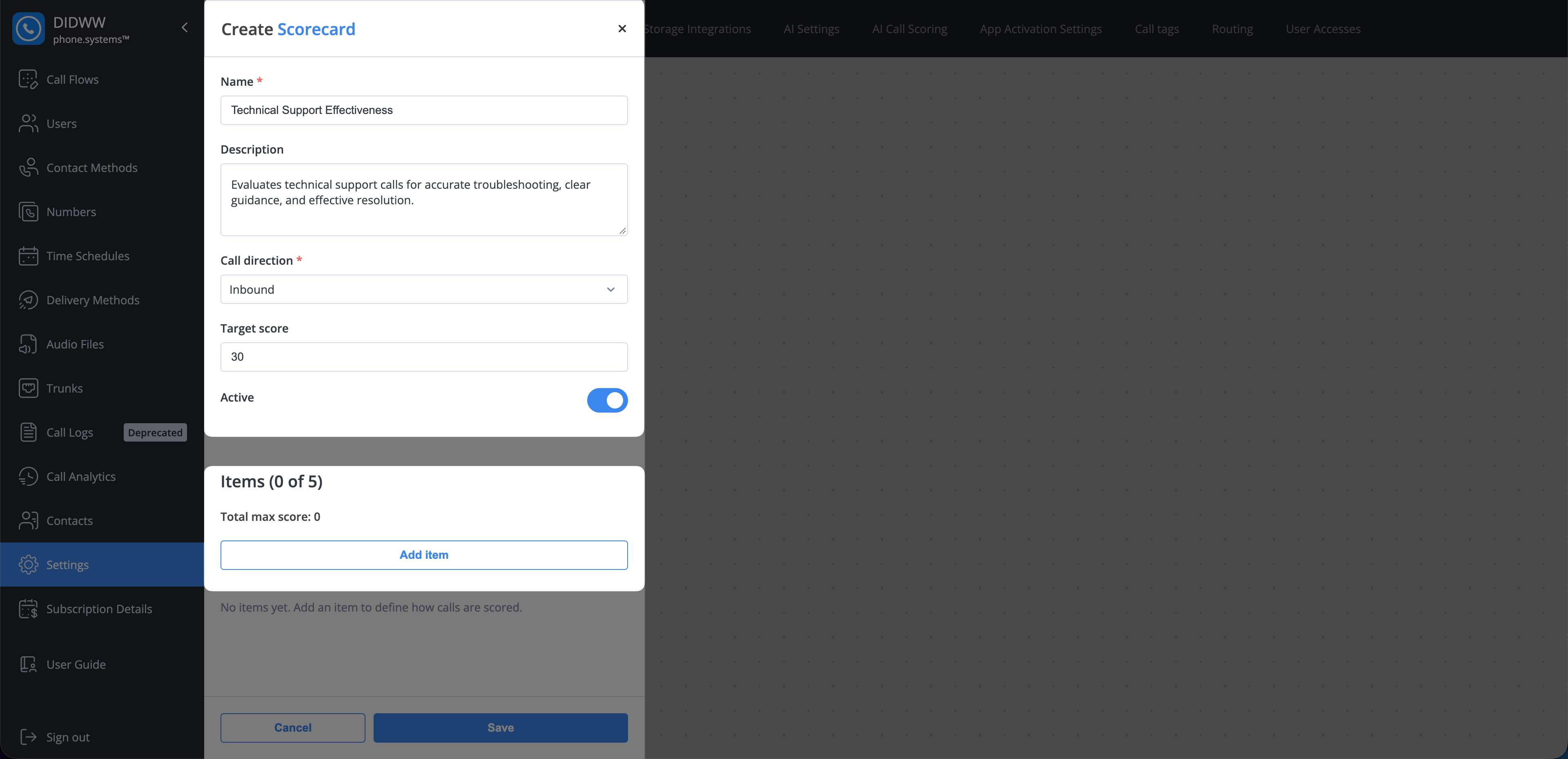
Fig. 1. Create a scorecard#
Scoring items are the individual criteria AI uses to evaluate each matching call. Each item includes a maximum point value and an evaluation prompt that tells the AI what to assess.
Under Items, click Add item.
The Add item form opens. Configure the scoring item fields described in the following table.
Field |
Description |
|---|---|
Name |
Enter the name of the scoring criterion. |
Max points |
Enter the highest score available for the item. |
Description |
Optionally explain what the item measures. |
Evaluation prompt |
Enter the instruction used to evaluate the call against the item. The counter shows how many of the 200 available characters are used. |
Suggested score and target ranges
Use the following ranges as a starting point when defining a quality standard. They are recommendations and are not fixed phone.systems™ classifications.
Score range |
Assessment |
Suggested interpretation |
|---|---|---|
Below 50% |
Poor |
The call misses several important expectations and should be reviewed. |
50–59% |
Needs improvement |
The call meets some expectations but requires substantial improvement. |
60–69% |
Acceptable |
The call meets the basic standard but has clear opportunities for improvement. |
70–79% |
Good |
The call meets the expected quality standard with only minor issues. |
80–100% |
Excellent |
The call consistently meets or exceeds the defined criteria. |
For a new scorecard, consider setting the target to approximately 60-70% of Total max score, then adjust it after reviewing representative call results. For example, a scorecard with a total maximum score of 50 could use a target score of 30-35.
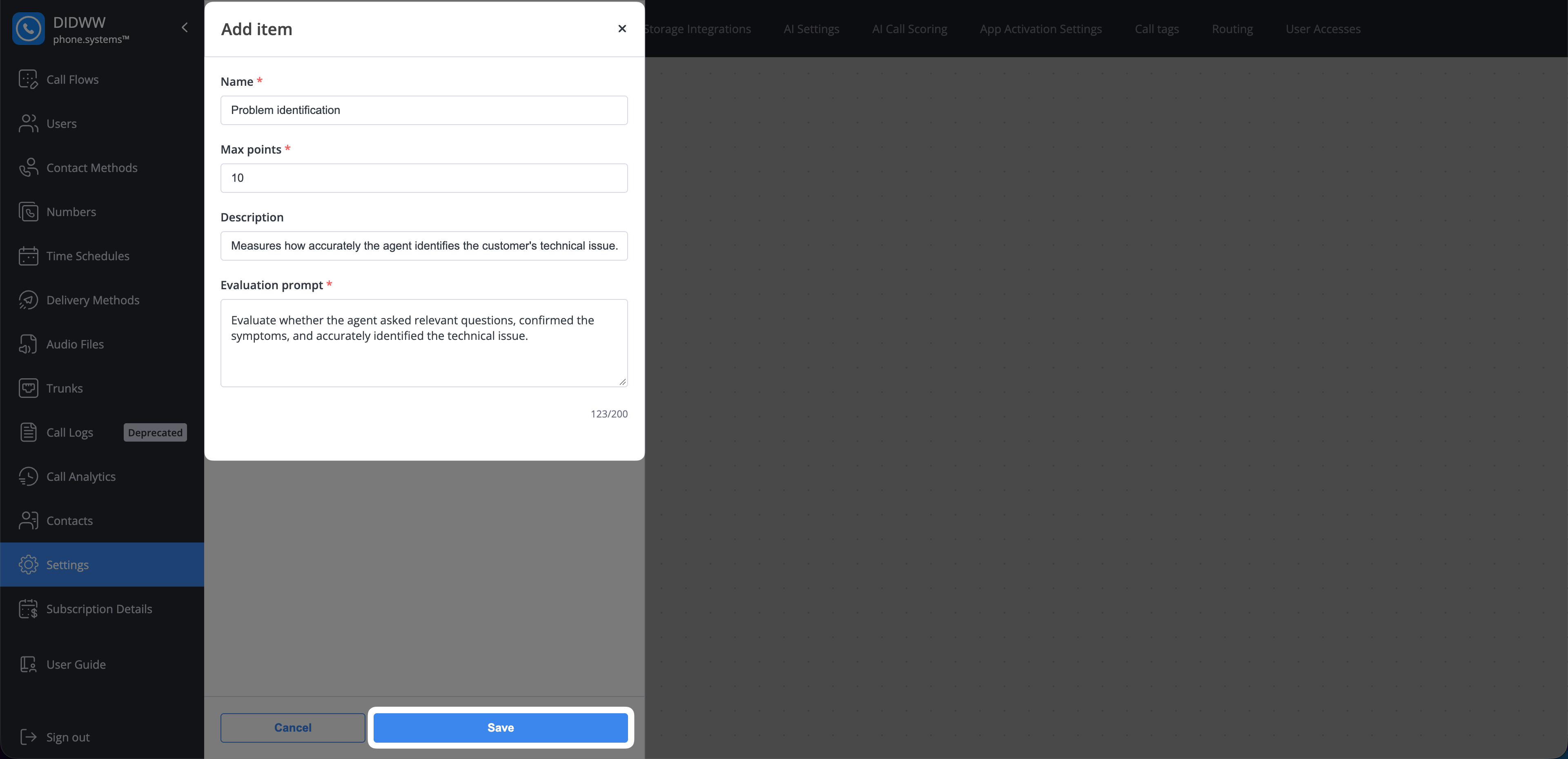
Fig. 2. Add a scoring item#
Click Save to add the item.
Add any other required items.
Review the configured items, then click Save to create the scorecard.
Note
Each scorecard must contain at least one item and can contain up to five. The Items (N of 5) counter shows the number of configured items. Total max score is calculated from the maximum points assigned to all items. An account can contain up to three scorecards.
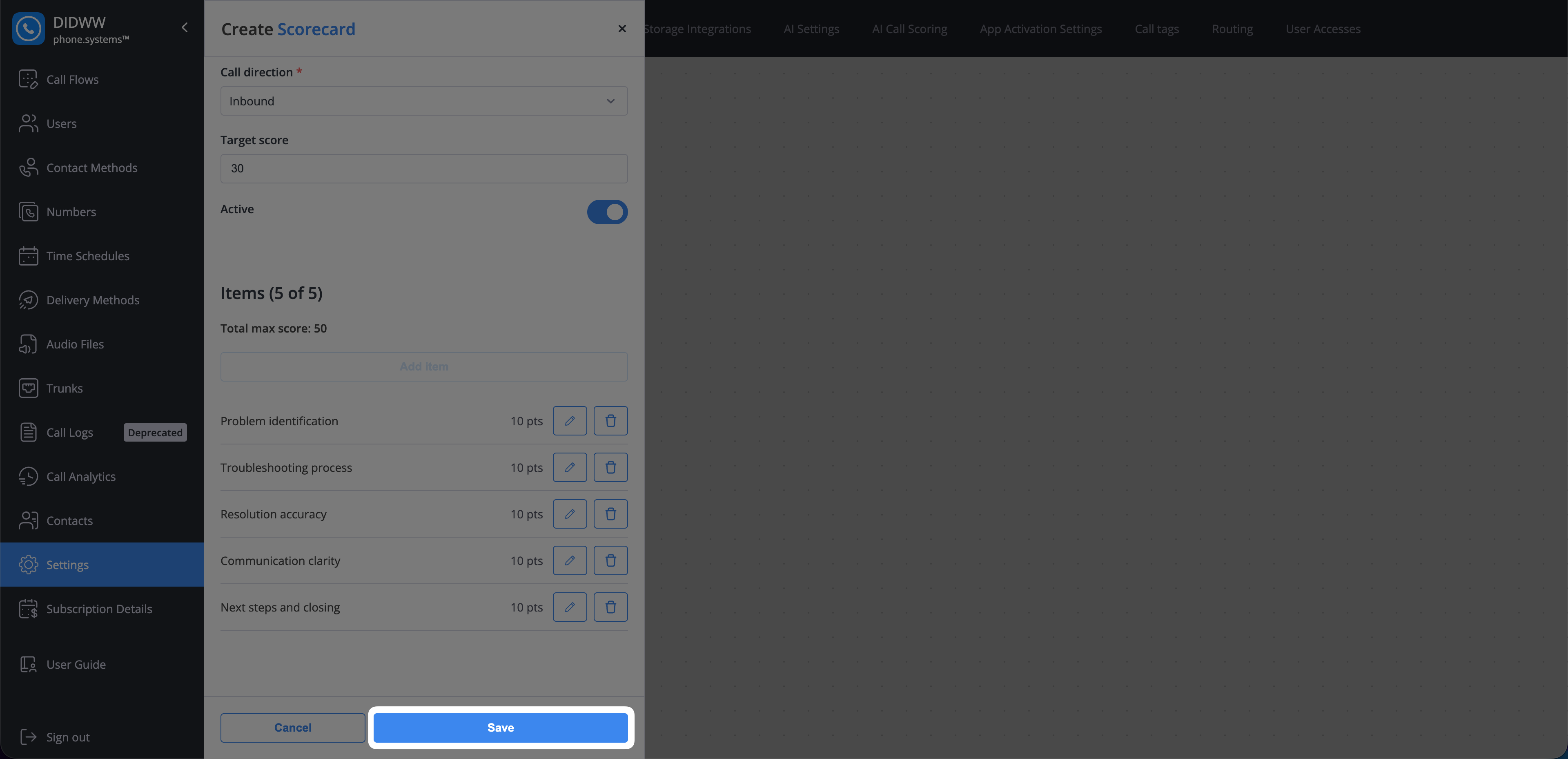
Fig. 3. Configured scoring items#
Edit a scorecard#
Update a scorecard when its criteria, scoring items, or target score need to change.
Go to Settings > AI Call Scoring.
Find the scorecard and open its actions menu.
Click Edit.
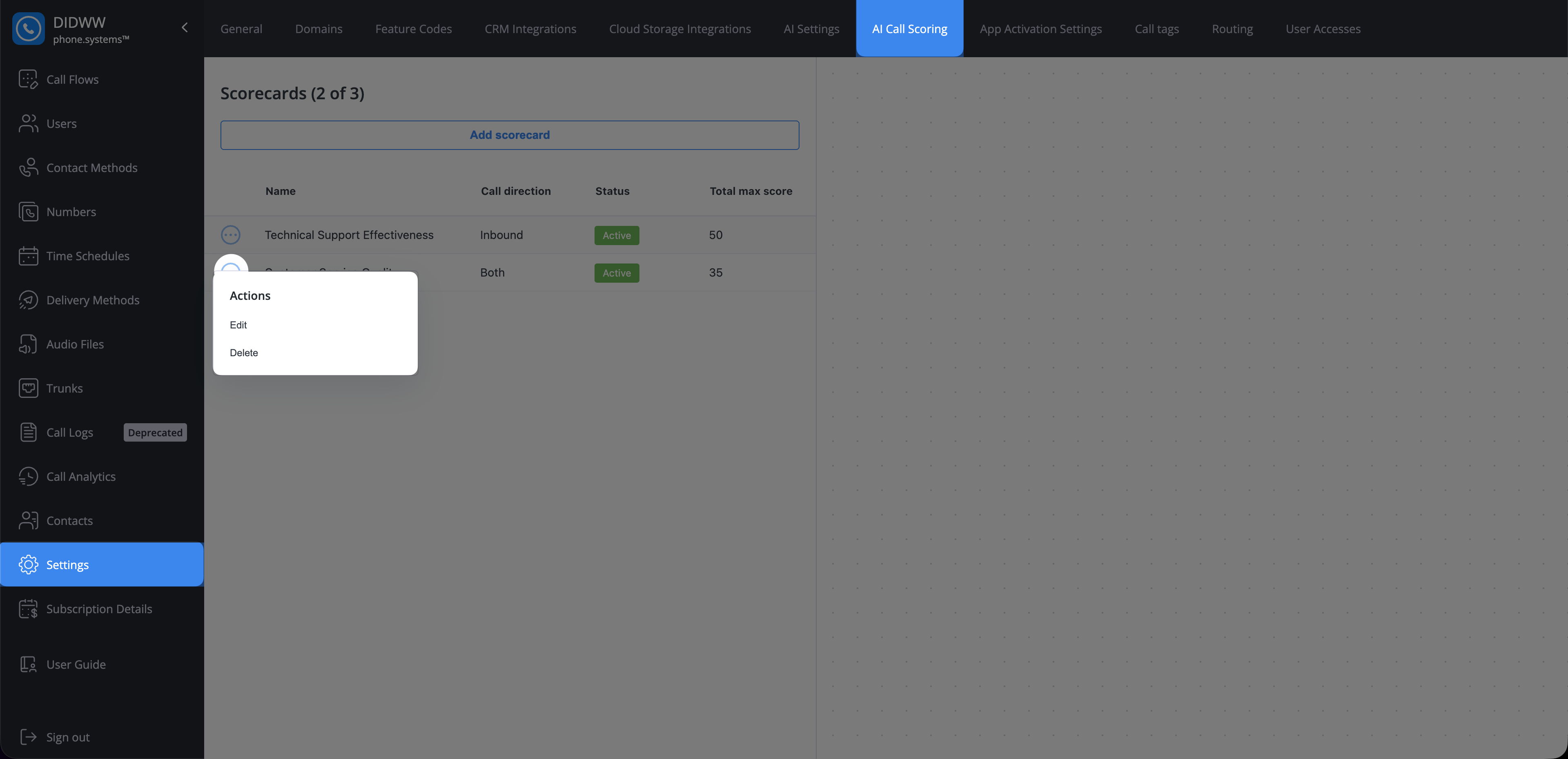
Fig. 4. Scorecard actions#
Update the scorecard details, scoring items, or Active state. Turn Active off to stop evaluating new matching calls while preserving stored results.
Click Save.
Note
Changes do not recalculate stored call scores or AI reasoning. Changing only the target score updates target comparisons in reports without re-scoring past calls.
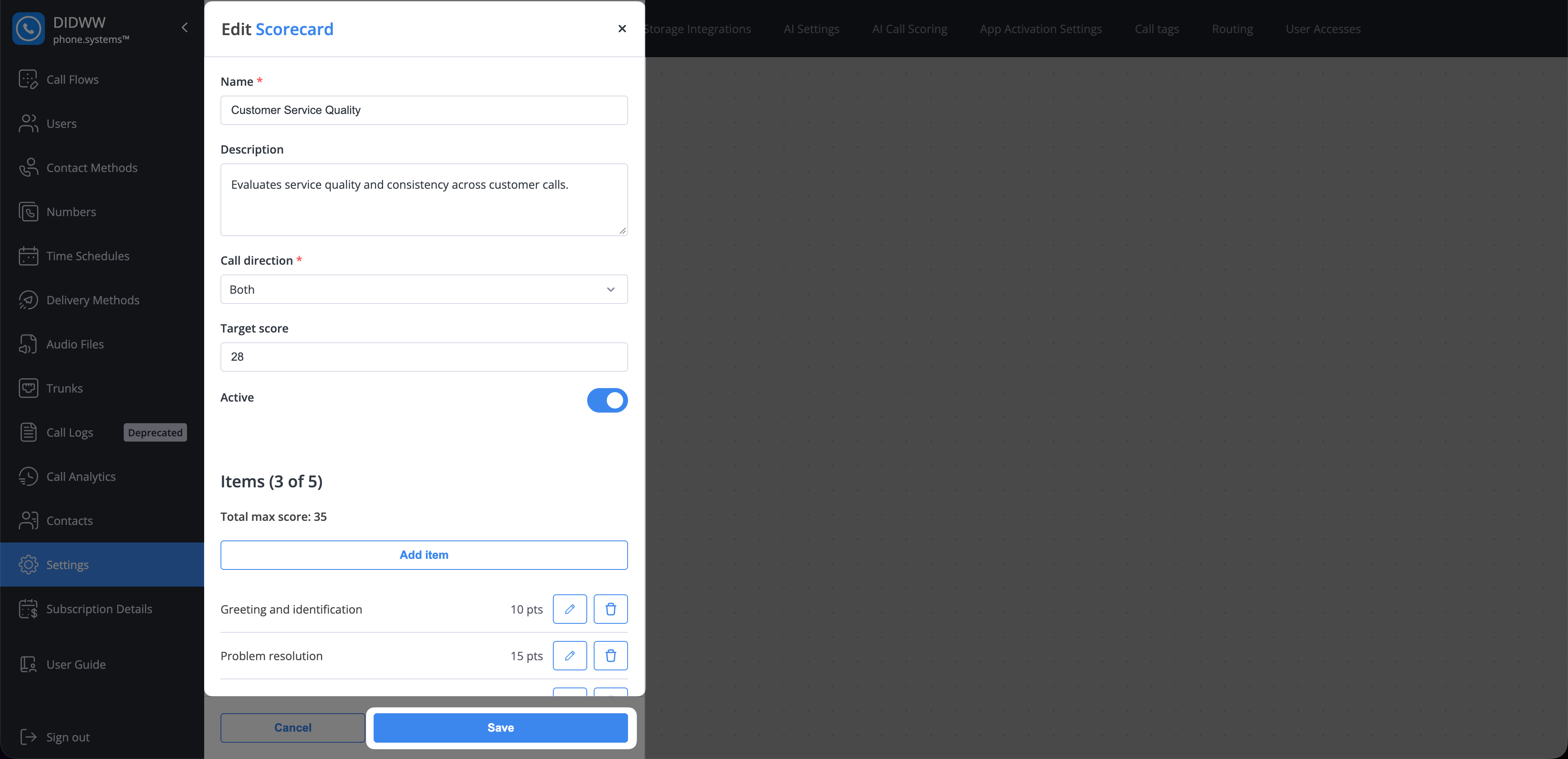
Fig. 5. Edit a scorecard#
Delete a scorecard#
Delete a scorecard when it is no longer required and has never been used for an evaluation.
Note
A scorecard with stored evaluations cannot be deleted. Disable it to stop evaluating new calls while preserving its historical results.
Go to Settings > AI Call Scoring.
Find the scorecard and open its actions menu.
Click Delete.
Fig. 6. Scorecard actions#
In the confirmation dialog, click Delete.
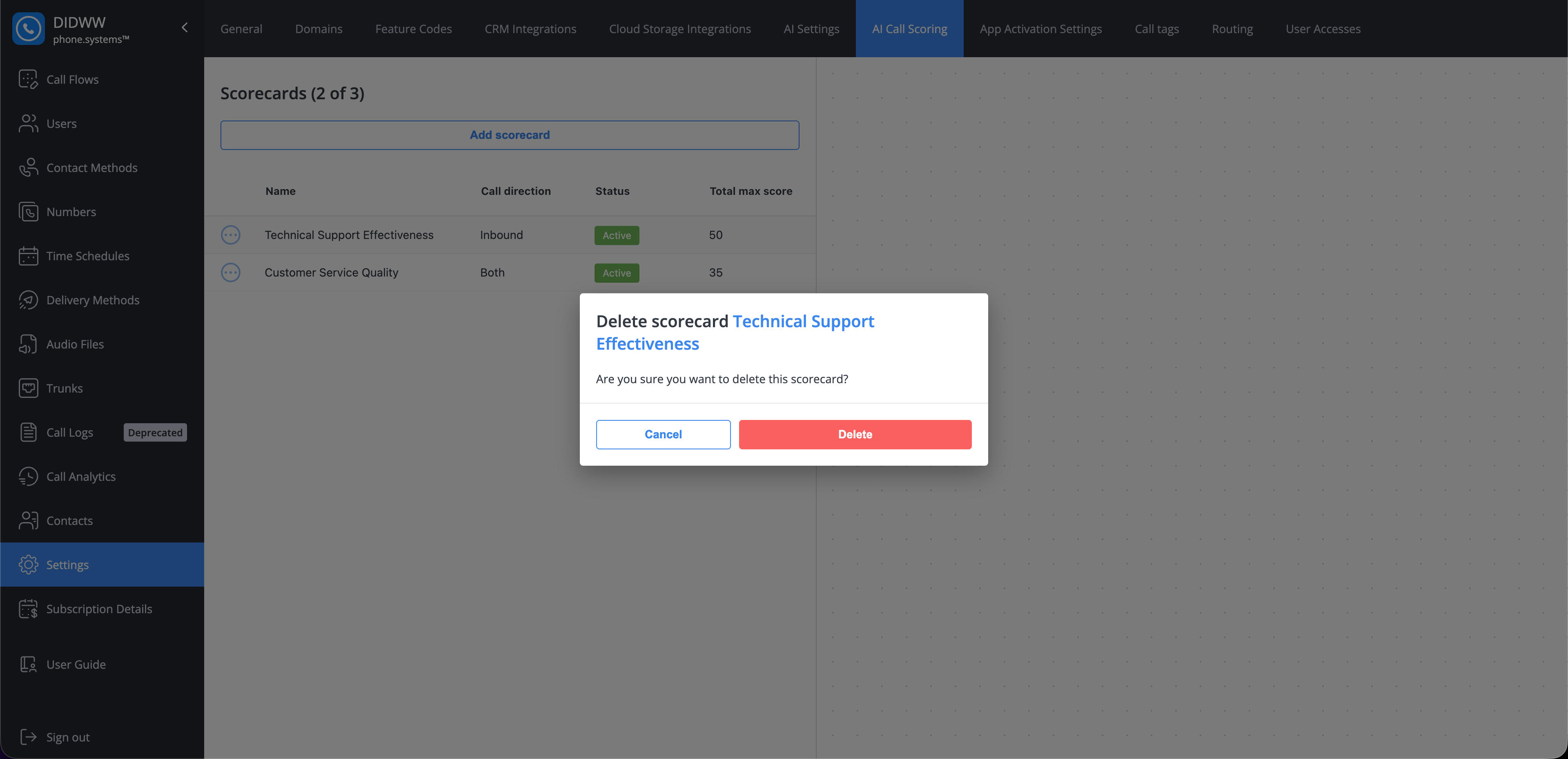
Fig. 7. Confirm scorecard deletion#