

Skysay#
Use Skysay voice AI agents with your DIDWW numbers to answer incoming calls, place outbound calls, and transfer callers to a live person. Skysay connects to your DIDWW account with a DIDWW API key and configures the SIP trunks and number routing in DIDWW for you, so you do not create trunks or enter SIP credentials yourself.
Connect your DIDWW numbers to Skysay with one DIDWW API key.
Route incoming calls from DIDWW numbers to a Skysay AI agent.
Let Skysay create and configure the DIDWW SIP trunks for you.
Place outbound calls through DIDWW with Skysay campaigns.
Transfer callers from your Skysay agent to a live person.
Show your DIDWW number as caller ID on outbound calls and transfers.
Before You Begin#
An active DIDWW account is required. Sign in to DIDWW or Create DIDWW account.
At least one active DID number with capacity to receive incoming calls is required. Buy Numbers.
Access to DIDWW Outbound Trunks is required for outbound calls and call transfers. See Get Access to DIDWW Outbound Termination.
Outbound trunk management through the API must be enabled on your DIDWW account. Skysay creates the outbound trunk for outbound calls and call transfers through the DIDWW API. If this feature is not enabled, Skysay can connect incoming calls only. To enable it, contact the DIDWW Sales team at sales@didww.com before you start.
A Skysay account is required.
Funds in your Skysay wallet are required for phone calls. The browser credit covers only browser tests. To add funds, in Skysay, go to Billing.
Note
This configuration is compatible only with DIDWW API v3 version
2026-04-16 and earlier, which use
API key authentication.
1. Create a DIDWW API Key for Skysay#
Create a DIDWW API key in the DIDWW User Panel. Skysay uses the key to list your DIDWW numbers and to configure the trunks and routing of the number you connect in 3. Connect Your DIDWW Number in Skysay.
Step 1: Open the DIDWW API Page#
In the DIDWW User Panel, go to APIs > DIDWW API 3.
In API Keys, click Create new API Key.
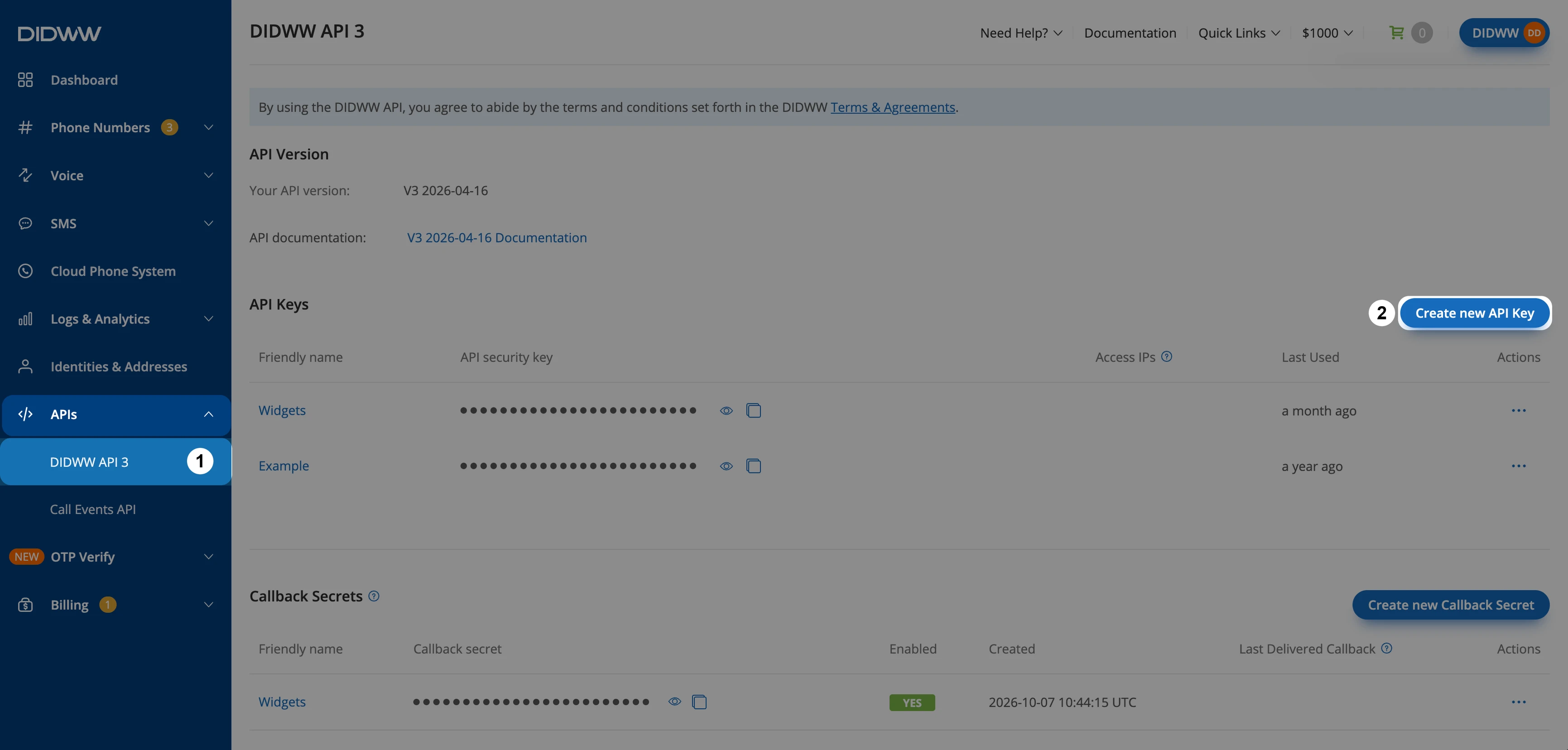
Fig. 1. APIs > DIDWW API 3: Create new API Key#
Step 2: Create the API Key#
In Friendly name, enter a name for the key (e.g.,
Skysay).Leave Access IP’s empty. Skysay does not support API keys restricted to IP addresses.
Click Create.
Warning
The API key gives access to your whole DIDWW account. Share it only with Skysay, and delete the key in APIs > DIDWW API 3 if you stop using Skysay.
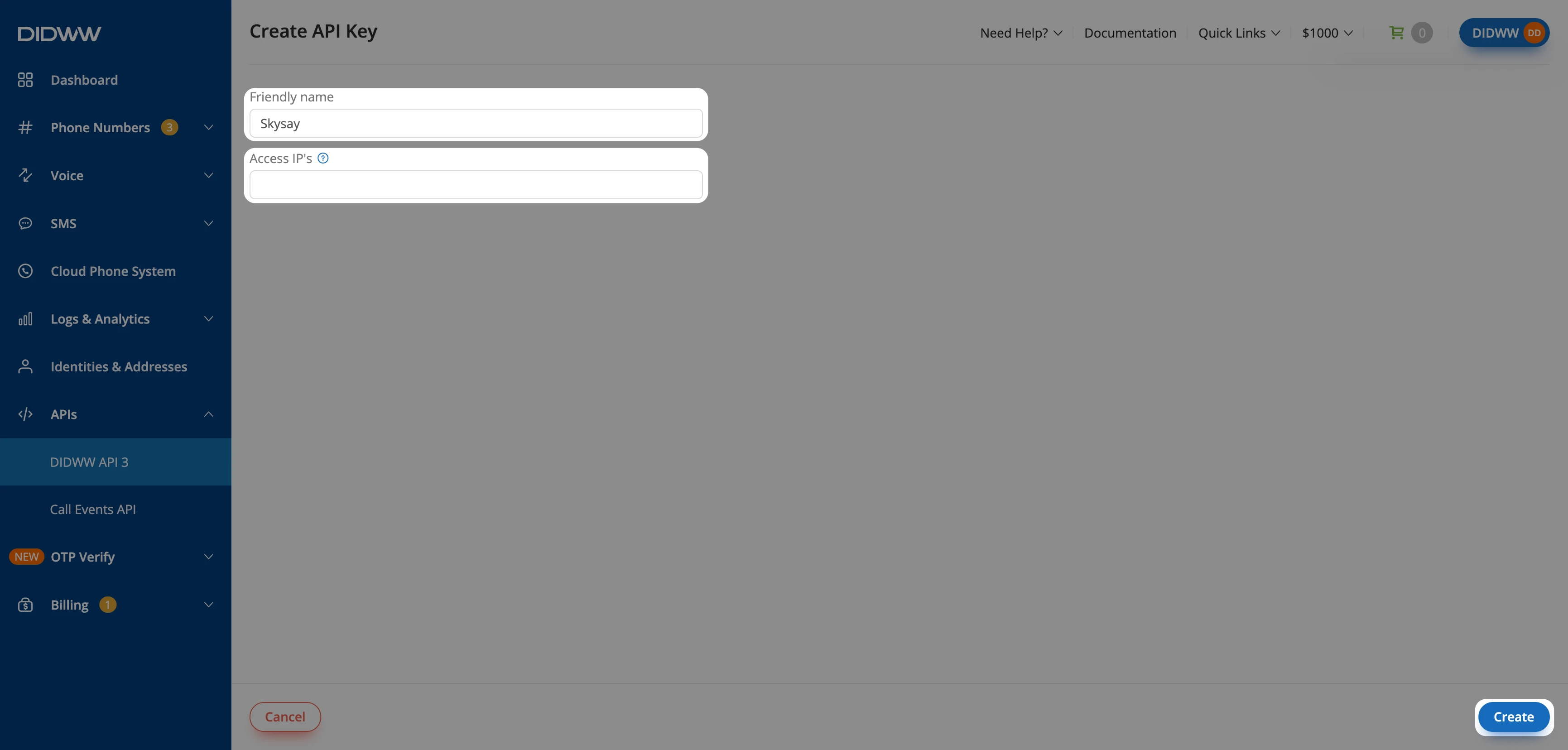
Fig. 2. Creating the API key for Skysay#
Step 3: Copy the API Key#
In API Keys, find the Skysay key and click the copy button next to the masked key.
You paste the key in Skysay in Step 1 of the next section.
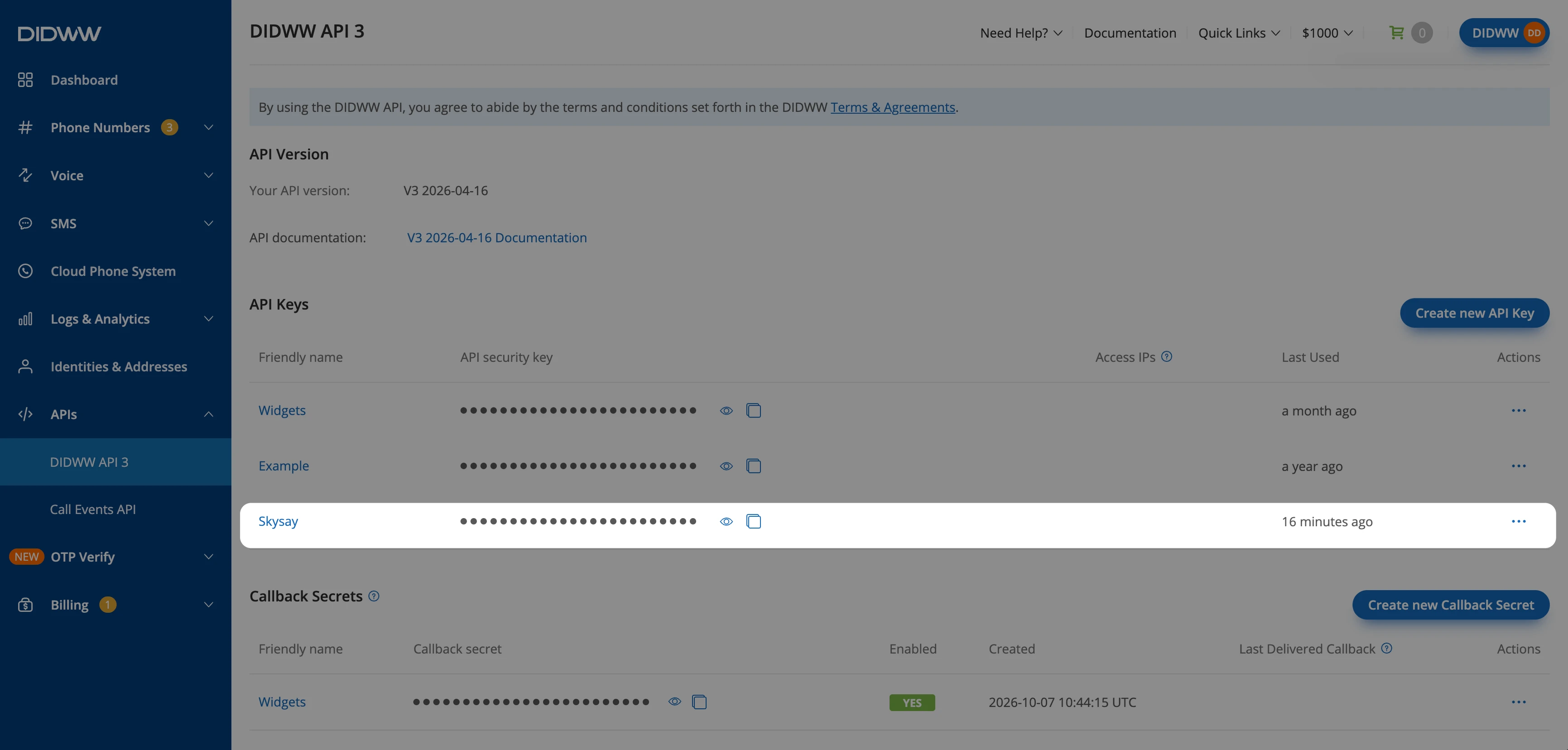
Fig. 3. Copying the Skysay API key#
2. Create a Skysay Agent with Call Transfers#
Create the Skysay AI agent that answers calls to your DIDWW number, and enable call transfers to a live person. If you already have a published agent, you can skip to Step 4.
Step 1: Create a New Agent#
In Skysay, go to Agents and click New AI Agent.
Select a preset (e.g., Receptionist) and click Continue.
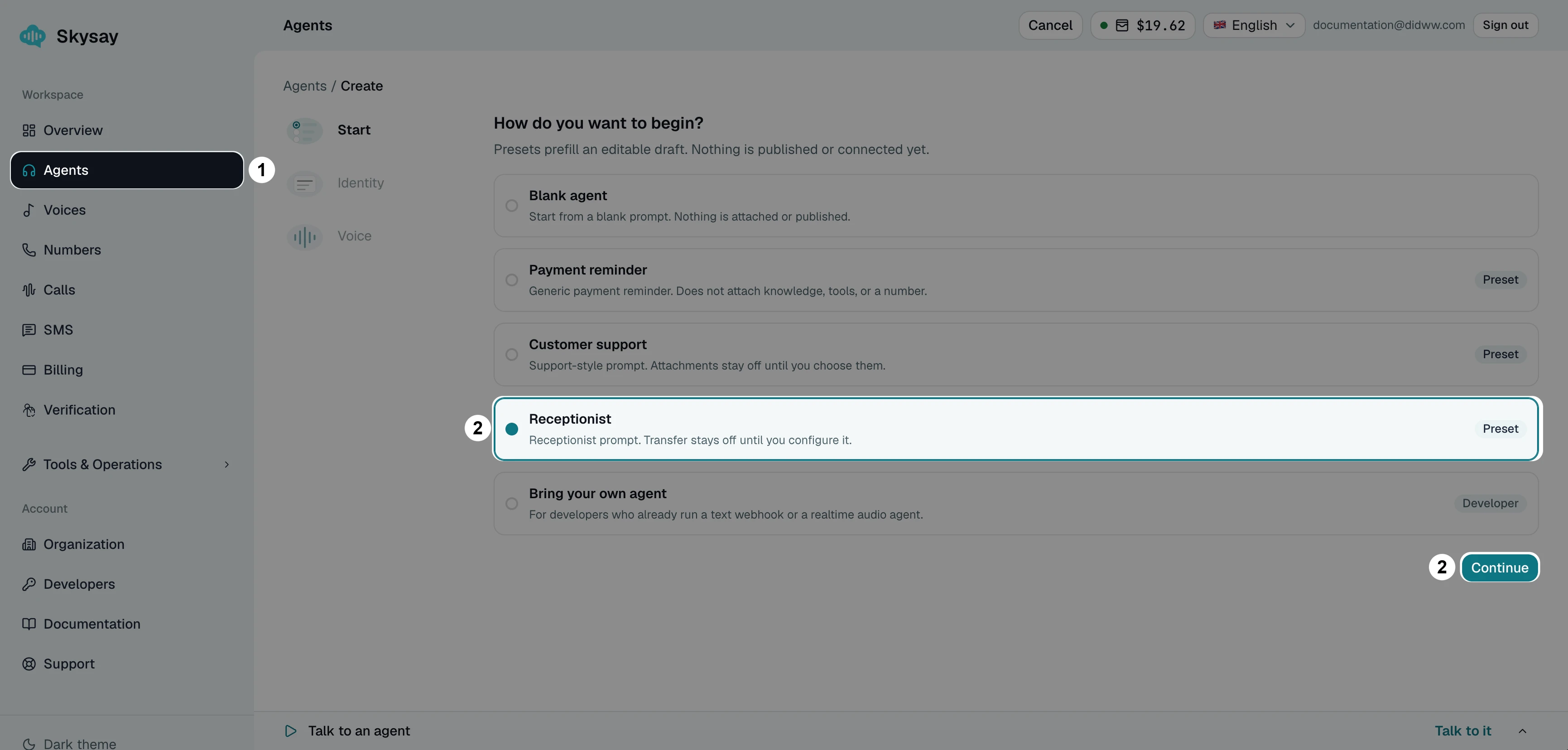
Fig. 4. Choosing the Receptionist preset#
Step 2: Set the Agent’s Identity#
Review the Agent name, First message, and System prompt suggested by the preset, and edit them if needed.
In Languages, select the language of your callers (e.g., English).
Click Choose voice stack.
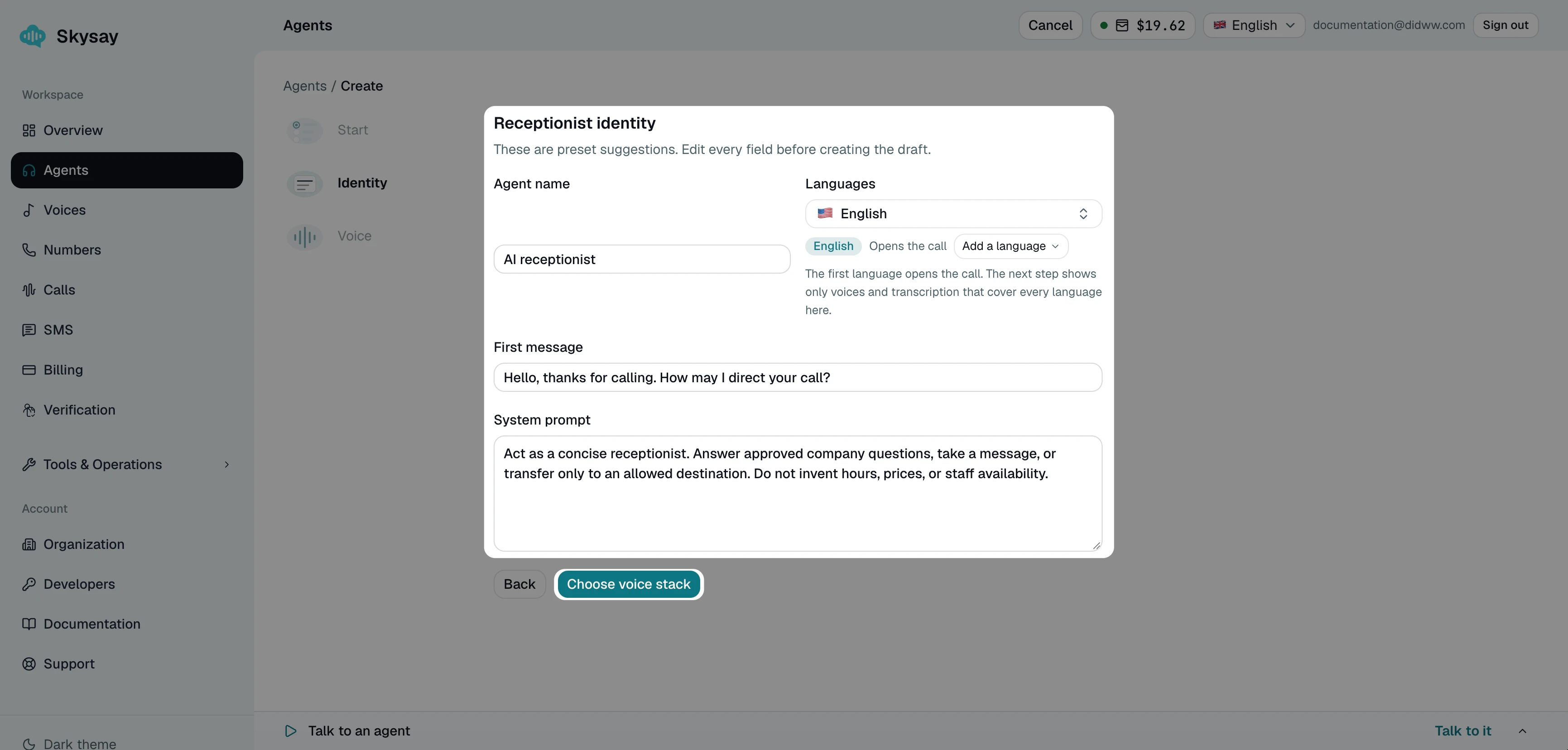
Fig. 5. Agent identity#
Step 3: Choose the Voice and Create the Agent#
In Conversation engine, keep Standard selected.
Select a Voice from the list. Skysay selects a matching Speech to text (STT) provider and Model, which you can change.
Click Create only.
Note
Agents on the Eleven Realtime engine cannot use Transfer to a human. This guide was tested with the Standard engine.
Step 4: Add Call Transfers to Your Agent#
Call transfers in Skysay are configured as the Transfer to a human tool of your agent. When the agent transfers a call, Skysay places a new call through your DIDWW outbound trunk to the transfer destination, keeps the agent on the line while it rings, and connects the caller when the person answers.
Call transfer at a glance
        %%{init: {
  "theme": "base",
  "themeVariables": {
    "fontSize": "14px",
    "primaryColor": "#e0f2fe",
    "primaryBorderColor": "#38bdf8",
    "primaryTextColor": "#1f2d3d",
    "secondaryColor": "#ccfbf1",
    "secondaryBorderColor": "#2dd4bf",
    "secondaryTextColor": "#1f2d3d",
    "lineColor": "#0066cc",
    "textColor": "#1f2d3d",
    "nodeTextColor": "#1f2d3d",
    "edgeLabelBackground": "#ffffff"
  }
}}%%

flowchart LR
    caller["Caller"] -->|"1. Dials your DID number"| didwwIn["DIDWW<br/>Inbound trunk"]
    didwwIn -->|"2. Inbound SIP trunk"| skysay["Skysay<br/>AI agent"]
    skysay -.->|"3. New outbound call<br/>Transfer to a human"| didwwOut["DIDWW<br/>Outbound trunk"]
    didwwOut -->|"4. Call to recipient"| recipient["Person / team<br/>Transfer recipient"]

    classDef endpoint fill:#e0f2fe,stroke:#0066cc,color:#1f2d3d,stroke-width:1.5px
    classDef process fill:#ccfbf1,stroke:#2dd4bf,color:#1f2d3d,stroke-width:1.5px
    class caller,recipient endpoint
    class didwwIn,didwwOut,skysay process
    linkStyle default stroke:#0066cc,stroke-width:1.5px
Note
A transfer creates an additional outbound call through DIDWW. Review the applicable DIDWW and Skysay charges before using transfers.
Transfers work only after outgoing calls are connected for the number. See 3. Connect Your DIDWW Number in Skysay.
The person who receives the transfer sees your DIDWW number as the caller ID.
+15105550199 is a fictional number used only as an example for demonstration purposes. Replace it with your actual transfer destination number.
In your agent, open Tools.
Select Transfer to a human.
In Transfer destination number, enter the number in E.164 format, starting with
+and the country code (e.g.,+15105550199). Do not use a DIDWW number that is connected to your Skysay agent, or the transferred call returns to your agent.
Note
The agent decides when to transfer from its instructions. By default, it transfers when the caller asks for a person, or after the caller accepts an offer to transfer. Skysay makes one transfer attempt per call. If nobody answers, or the line is busy, the caller stays with the agent.
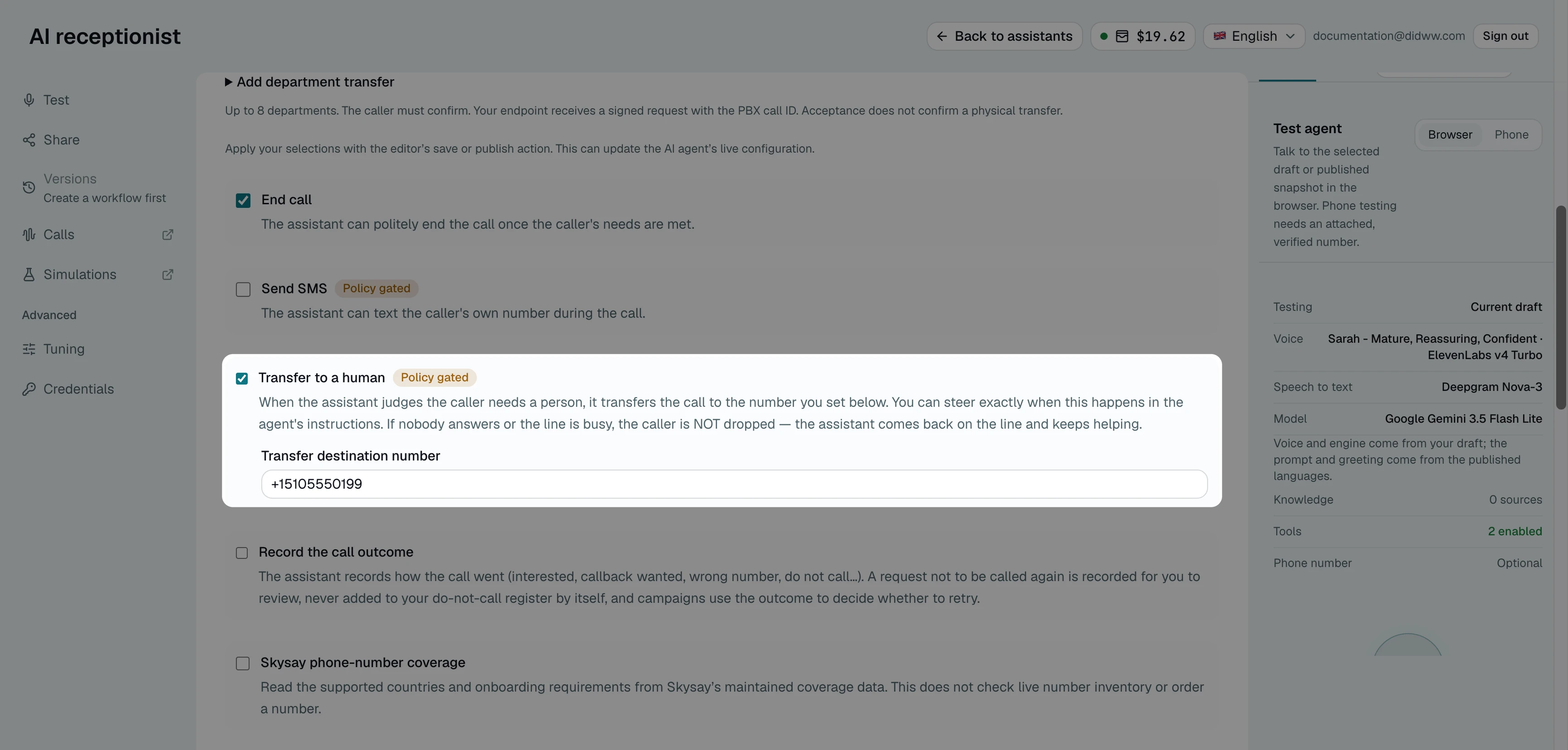
Fig. 6. Transfer to a human with the transfer destination number#
Step 5: Publish the Agent#
Click Publish changes.
In the Publish this AI agent window, click Publish.
3. Connect Your DIDWW Number in Skysay#
Import your DIDWW number in Skysay with the DIDWW API key. Skysay creates the DIDWW trunks, assigns the inbound trunk to the number, and routes incoming calls to your agent.
Before You Begin#
The DIDWW API key from 1. Create a DIDWW API Key for Skysay is required.
A published Skysay agent is required. See 2. Create a Skysay Agent with Call Transfers.
Connecting incoming calls replaces the current inbound trunk or trunk group of the number in DIDWW. Other numbers do not change. Do not edit the routing of the number in DIDWW while Skysay connects it.
Step 1: Enter the DIDWW API Key#
In Skysay, go to Numbers and click Import a number.
In Carrier, select DIDWW.
In DIDWW API key, paste the API key.
Click List my numbers.
Note
Listing your numbers does not change anything in DIDWW. Skysay uses the API key during setup only and clears it when you finish or close the window.
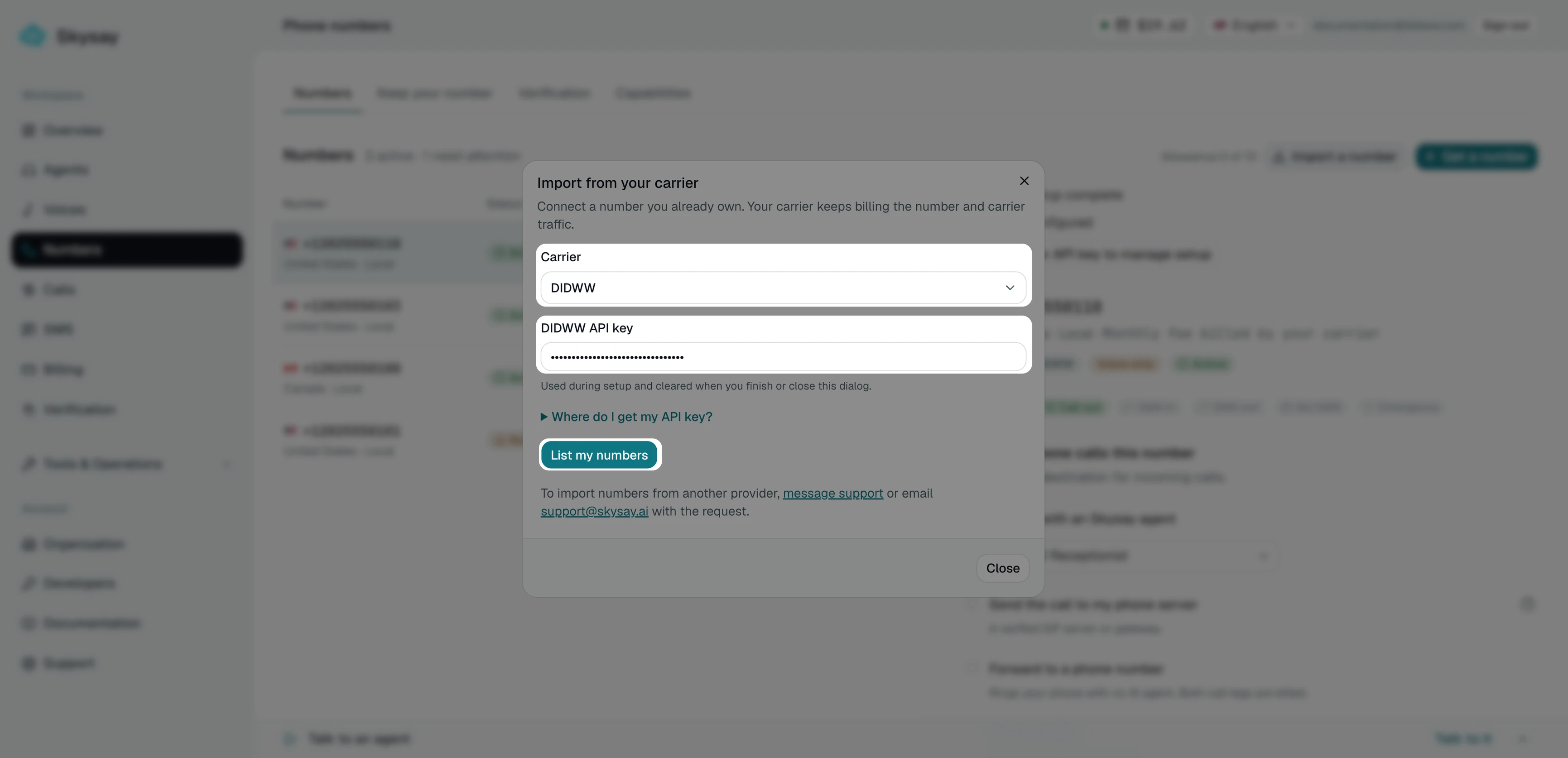
Fig. 7. Entering the DIDWW API key (key masked)#
Step 2: Select Your DIDWW Number#
Next to the DIDWW number you want to connect, click Select. To find a number on a large account, enter the full number in the search box and click Search.
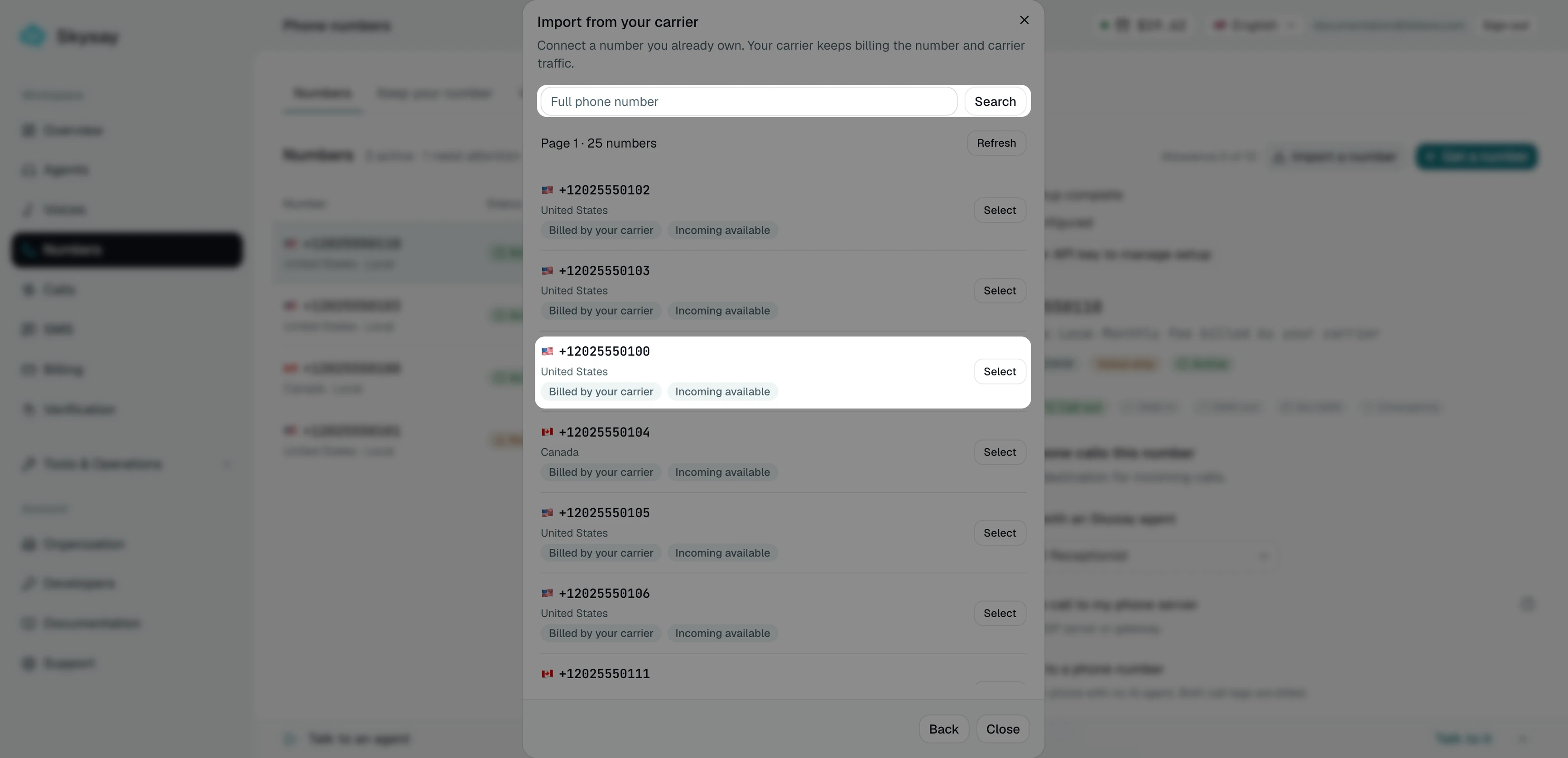
Fig. 8. Selecting the DIDWW number (example numbers)#
Step 3: Choose the Agent and Connect Outgoing Calls#
In AI agent for incoming calls, select your agent (e.g.,
AI receptionist).Select Connect outgoing calls. Outgoing calls are required for outbound calls and call transfers.
Click Review setup.
Note
To keep the current routing of the number for now, select Set up incoming later. To connect it later, open the number in Skysay, click Re-enter API key to manage setup, and enter the API key again.
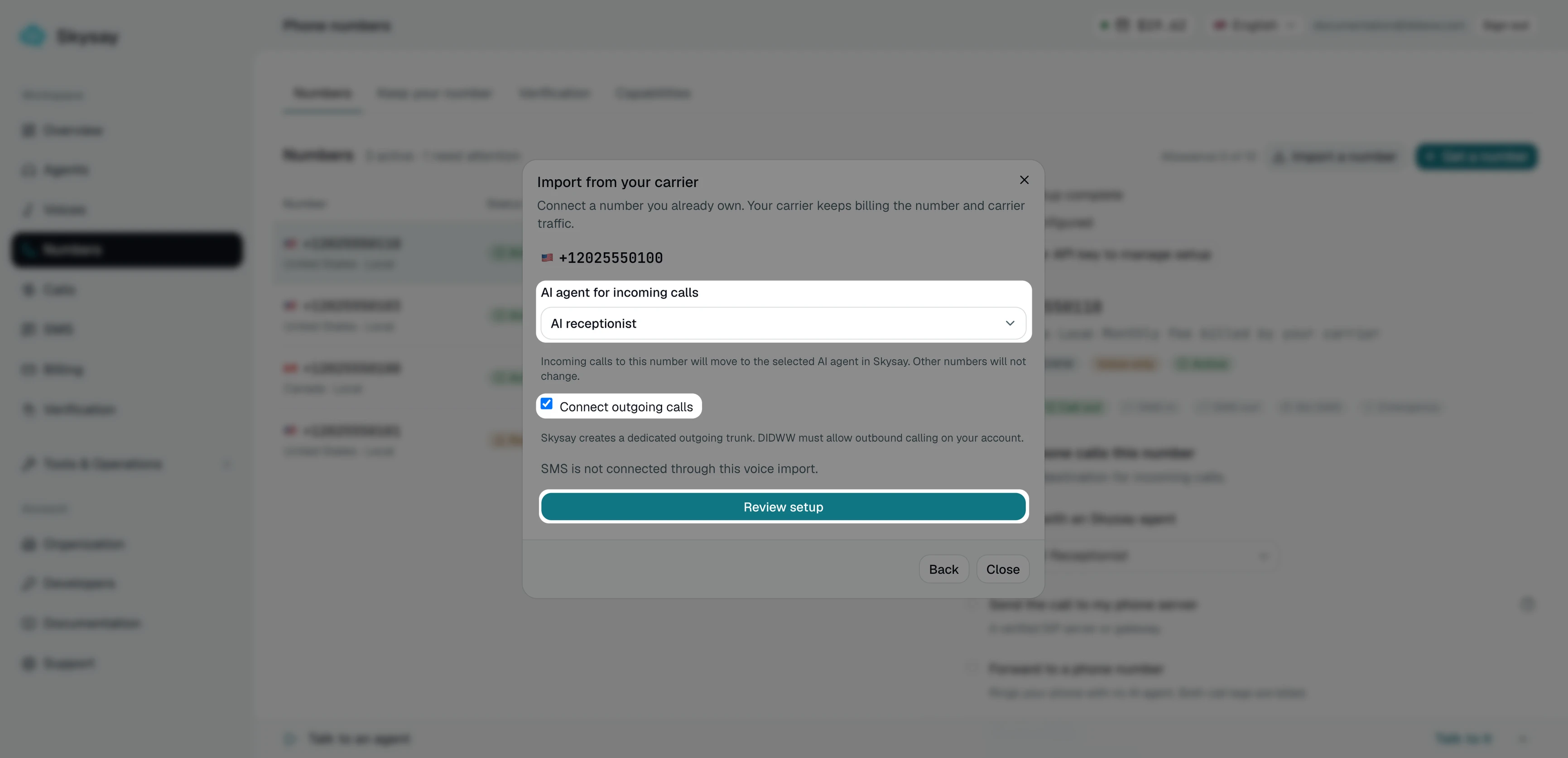
Fig. 9. Choosing the agent and connecting outgoing calls#
Step 4: Review and Connect the Number#
Check the Current incoming route of the number. Skysay replaces it with the selected agent.
Select Replace this number’s incoming route with the selected Skysay AI agent.
Click Connect this number.
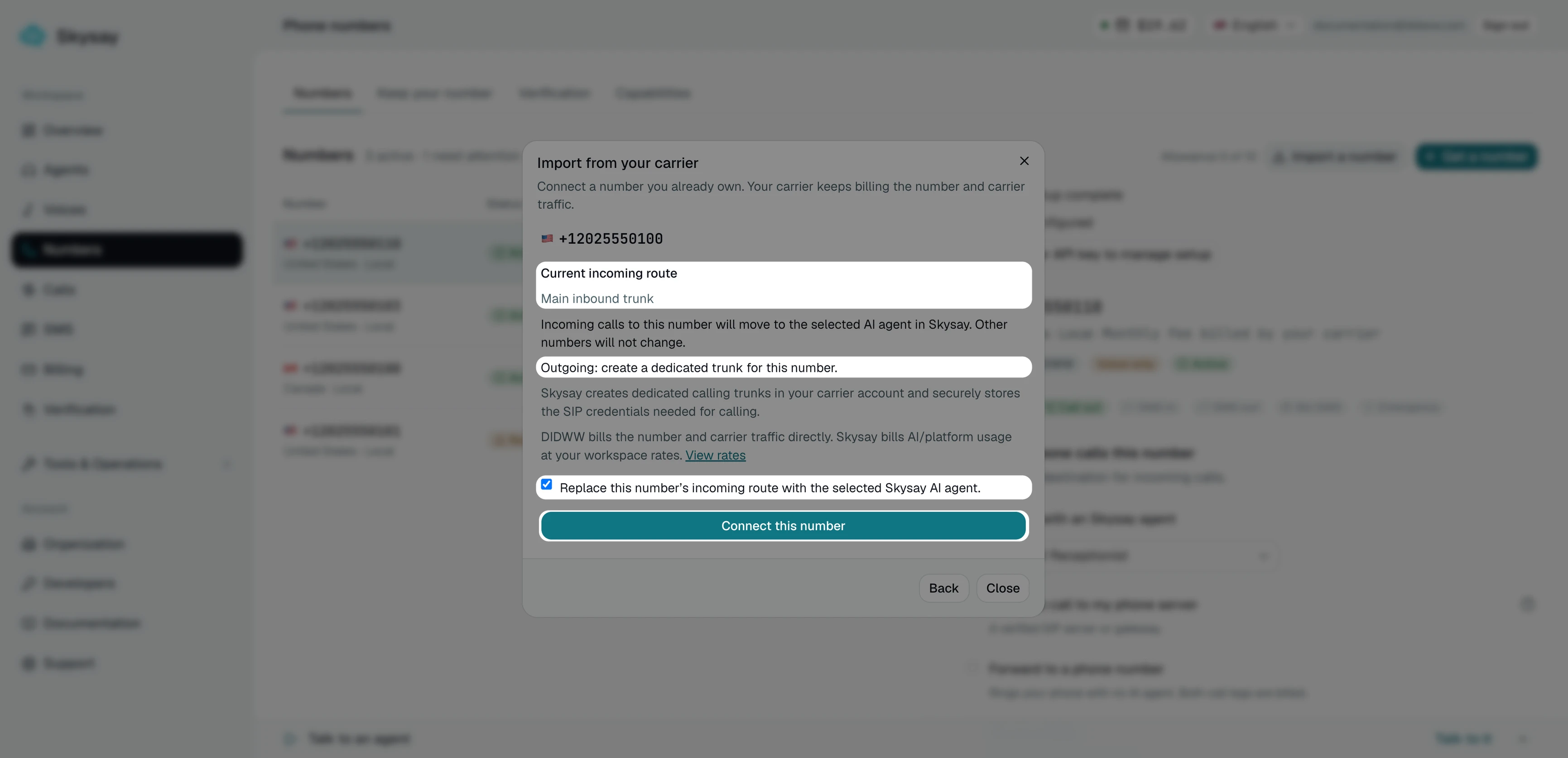
Fig. 10. Reviewing and connecting the number#
Step 5: Check the Result#
When the setup is complete, Skysay shows Number connected, Incoming setup complete, and Outgoing configured. These messages confirm the saved setup. They do not confirm that a call has succeeded. Test the configuration in 4. Test the Configuration.
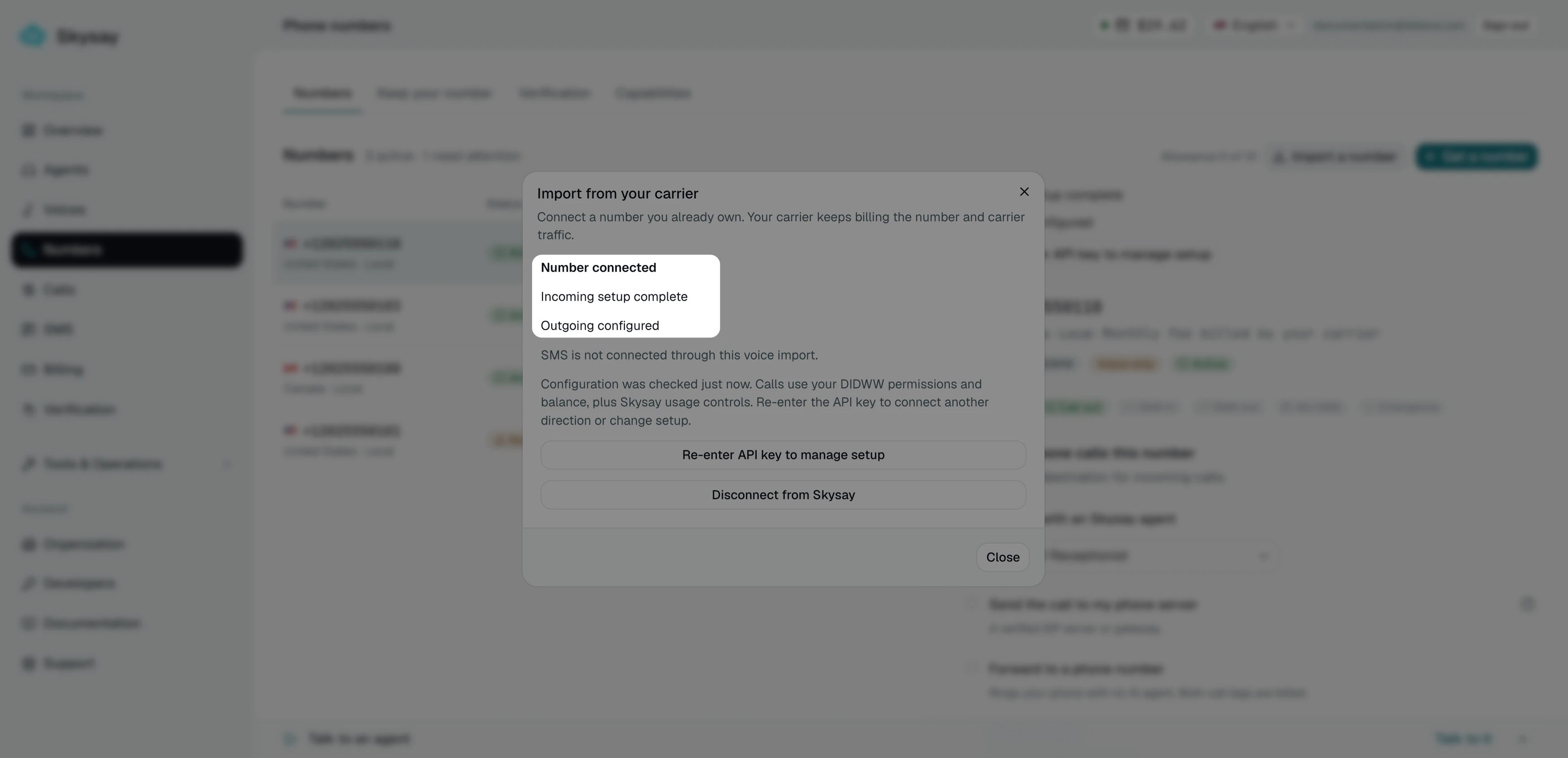
Fig. 11. Number connected for incoming and outgoing calls#
In Skysay, the number is Active, with Call in and Call out enabled, and routes incoming calls to your agent.
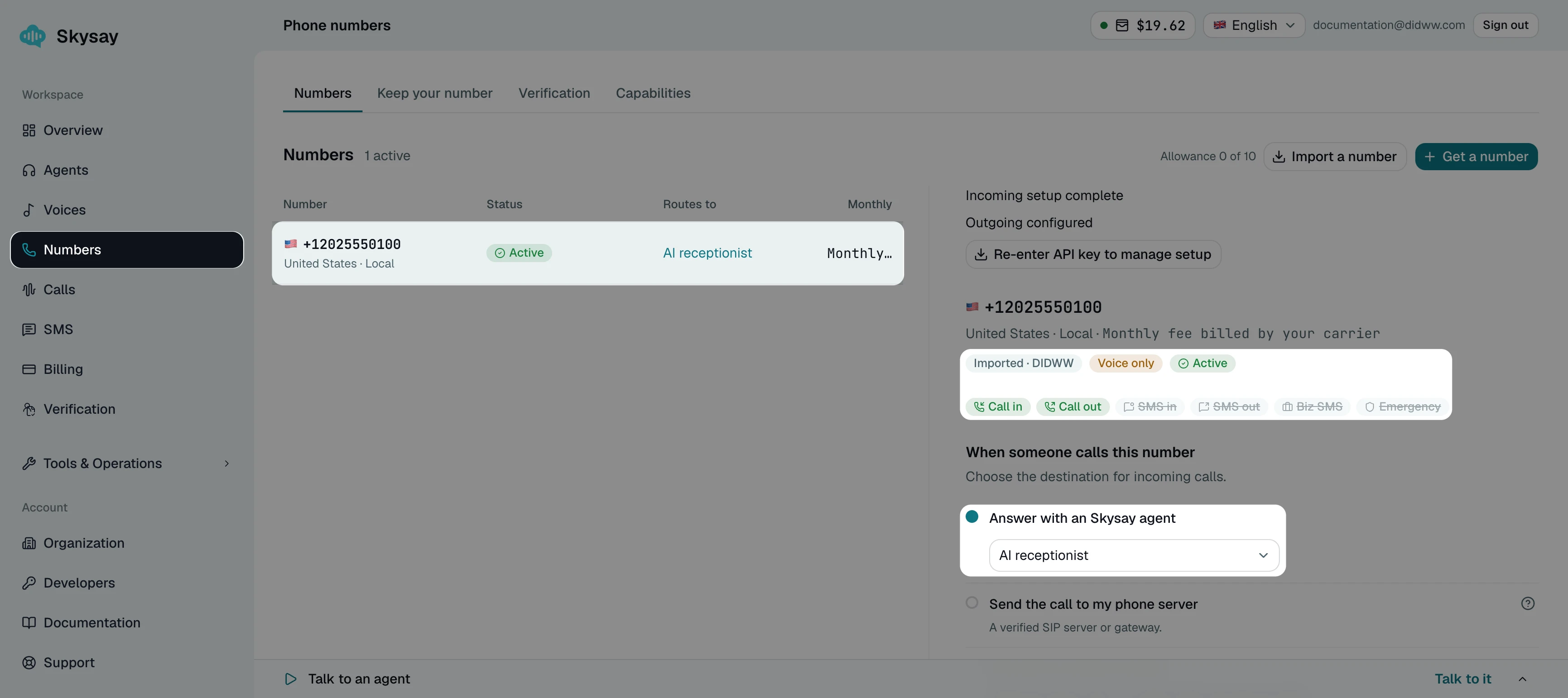
Fig. 12. Connected DIDWW number in Skysay (example number)#
After you connect a number, Skysay creates and configures the following in your DIDWW account:
Resource |
Configuration |
|---|---|
Inbound trunk |
A SIP trunk named |
Outbound trunk |
A trunk named |
DID number |
The inbound trunk is assigned to the number. The SMS trunk of the number does not change. See Assign a voice trunk. |
Note
The import connects voice calls only. It does not connect SMS, even if your DIDWW number supports SMS.
Other DID numbers and unrelated trunks do not change.
4. Test the Configuration#
Verify that inbound calling, outbound calling, and call transfers are working as expected.
Inbound calls#
Call your DIDWW number.
Check that the agent answers with its first message and that both parties can hear each other.
In Skysay, go to Calls and check that the call appears as Inbound with the outcome Completed.
Outbound calls#
Place outbound calls with a Skysay campaign. A campaign calls a list of your own customers, or people who agreed to be called, within the hours you choose.
In Skysay, go to Tools & Operations > Campaigns and click New campaign.
In Contacts, upload a CSV or Excel file, or paste rows with a phone number column in E.164 format (e.g.,
+19085550100). Select the Consent basis and click Continue.In Agent & numbers, enter a Campaign name, select your agent, and select your DIDWW number in Caller ID numbers. Click Continue.
In Schedule & retries, set the calling hours and retries, and click Review.
Click Create and launch, and answer the call on the destination phone.
Check the caller ID and that both parties can hear each other.
Note
Calls go out only inside the calling hours of the campaign. By default, the hours apply in each contact’s local time. To place outbound calls with the Skysay API instead, see Make your first outbound call.
Call transfers#
Call your DIDWW number and wait for the agent to answer.
Ask the agent to transfer you to a person.
Answer the call at the transfer destination.
Check that both parties can hear each other after the agent connects the call.
In Skysay, go to Calls, select the call, and check the
transfer_to_humantool call in the transcript.
Note
Skysay shows the transcript, tool calls, recording, and outcome of each call in Calls.
You can review call activity and verify call status or error codes in the DIDWW Inbound and Outbound Call Logs. Outbound calls and transfers appear in the Outbound Call Logs as calls through the
Skysay outgoingtrunk, with your DIDWW number as the caller ID. See Inbound Call Logs and Outbound Call Logs for more details.
Troubleshooting#
Skysay shows Carrier access was denied when you connect outgoing calls
This is the Skysay error shown when DIDWW rejects the outbound trunk that Skysay tries to create. It means that outbound trunk management through the API is not enabled on your DIDWW account. Incoming calls can still be connected without outgoing calls.
To enable outbound trunk management through the API, contact the DIDWW Sales team at sales@didww.com. Then, in Skysay, open the number, click Re-enter API key to manage setup, enter the API key, and connect outgoing calls.
The agent says that nobody is available, and the transfer destination does not ring
Skysay places transfers through the DIDWW outbound trunk. Check that:
The number shows Outgoing configured in Skysay. If it does not, connect outgoing calls. See 3. Connect Your DIDWW Number in Skysay.
The Transfer destination number is in E.164 format, starting with
+and the country code.Calls to the destination are allowed for your DIDWW account and in your Skysay workspace.
A transfer that DIDWW does not receive does not appear in the DIDWW Outbound Call Logs.
An outbound call or transfer is rejected by DIDWW
Check the call in the DIDWW Outbound Call Logs, and then check the following on your DIDWW account and the Skysay outgoing trunk:
Your DIDWW account balance is sufficient.
Calls to the destination are allowed for your account.
The caller ID is the connected DIDWW number. The trunk allows only this number and rejects calls with any other caller ID.
The trunk has not reached its Capacity limit of
1concurrent call, for example because of another outbound call or transfer in progress.The trunk has not reached its 24 hour limit (USD).
The call is rejected with Dedicated channels capacity exceeded
The DID number has no capacity for incoming calls. In the DIDWW Inbound Call Logs, the call has the status CAPACITY EXCEEDED.
Add capacity to the number, for example by assigning it to a capacity group. See Capacity.
The call is rejected with Busy Here
Skysay can reject incoming calls when your Skysay wallet has no funds. In Skysay, go to Billing and check your wallet balance. Add funds if needed.
The carrier has not confirmed the previous step when you connect a number
A previous setup of the number was not completed. Do not start a new import of the same number. Contact Skysay support with the number.
Incoming calls stop reaching Skysay after you disconnect the number
Disconnect from Skysay stops Skysay from accepting calls for the number. It does not delete the trunks in DIDWW and does not restore the previous routing of the number. To route calls elsewhere, assign another inbound trunk to the number in DIDWW. See Assign a voice trunk.
Skysay does not receive SMS sent to the DIDWW number
The DIDWW import connects voice calls only. SMS sent to the number is still delivered to the SMS trunk configured in DIDWW.
For Skysay diagnostics, see Why calls fail.