Yeastar P-Series PBX

Use the Yeastar P-Series PBX System with DIDWW SIP Trunking to deliver inbound and outbound voice services over the public telephone network. DIDWW SIP trunks integrate with Yeastar to bring calls from your DIDs into the PBX, apply Yeastar call control features, and route outbound calls through DIDWW termination.

  • Bring inbound calls from your DIDWW DIDs into Yeastar P-Series PBX.

  • Route calls to extensions, ring groups, queues, or IVRs.

  • Apply Yeastar features such as time conditions, voicemail, and call recording.

  • Use DIDWW outbound SIP trunks for local and international calling.

  • Present DIDWW DIDs as caller ID based on Yeastar outbound rules.

  • Combine DIDWW connectivity with Yeastar dialing plans and user permissions.

1. Create Inbound SIP Trunk

Deliver inbound calls from DIDWW DIDs to your Yeastar P-Series PBX using SIP trunking.

1. Create Inbound SIP Trunk
2. Create Outbound SIP Trunk

Allow your Yeastar P-Series PBX to make outbound calls through DIDWW Outbound Trunks.

2. Create Outbound SIP Trunk
3. Configure Yeastar P-Series PBX

Add the inbound and outbound SIP trunks on Yeastar P-Series PBX.

3. Configure the Yeastar P-Series PBX


1. Create Inbound SIP Trunk

To begin connecting your DIDWW account with the Yeastar P-Series PBX, first create an Inbound SIP Trunk. This trunk will establish the path for incoming calls from your DIDWW numbers to reach Yeastar.


Before You Begin


Step 1: Create New SIP Trunk

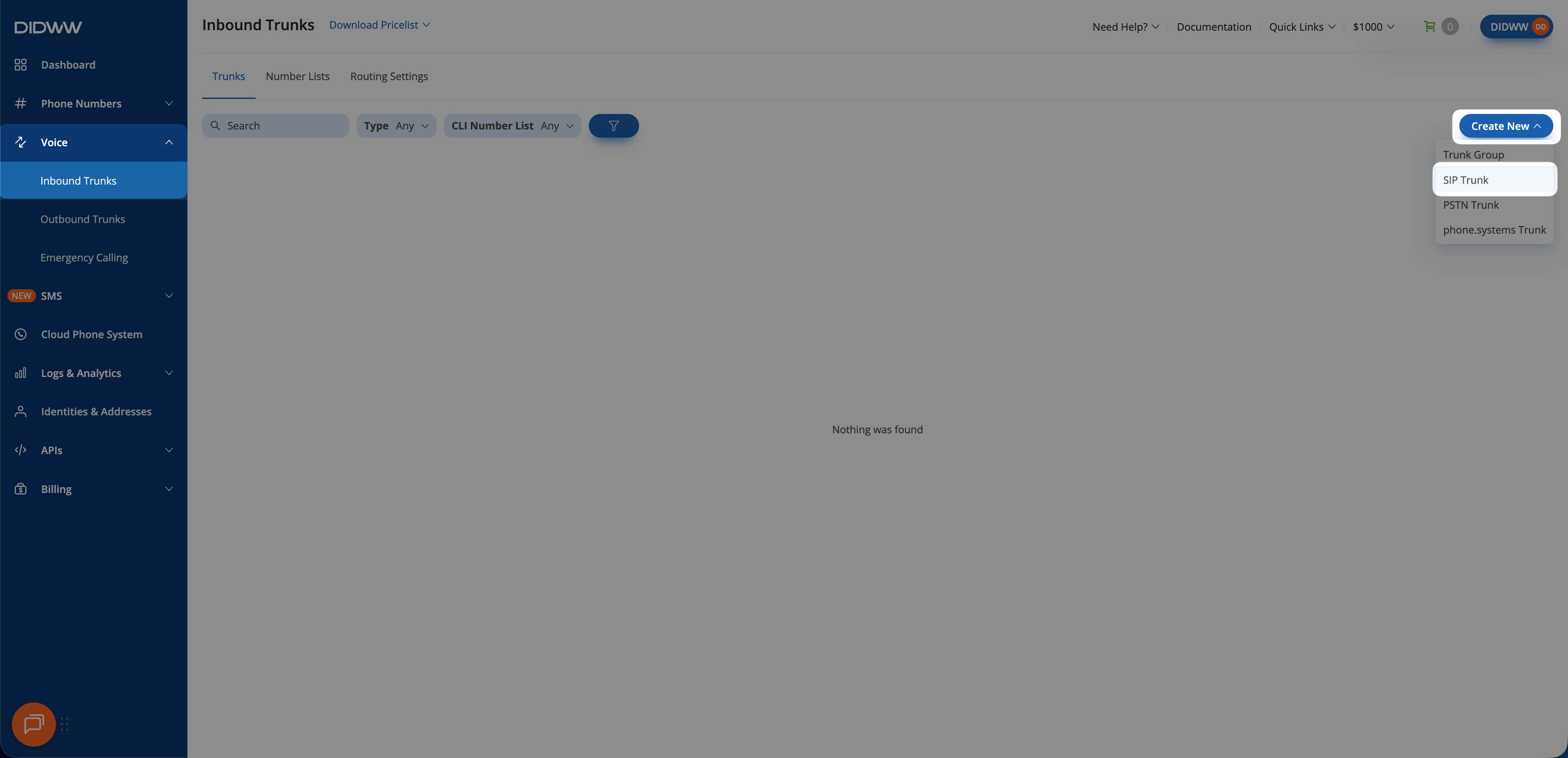
  1. In the DIDWW User Panel , go to Voice > Inbound Trunks.

  2. Click Create New > SIP Trunk.

Creating a new inbound SIP trunk

Fig. 1. Creating a new inbound SIP trunk

Step 2: Configure SIP Trunk Settings

Depending on whether you plan to use the self-hosted version of the PBX or the cloud-based version of the PBX, the configuration will differ slightly.

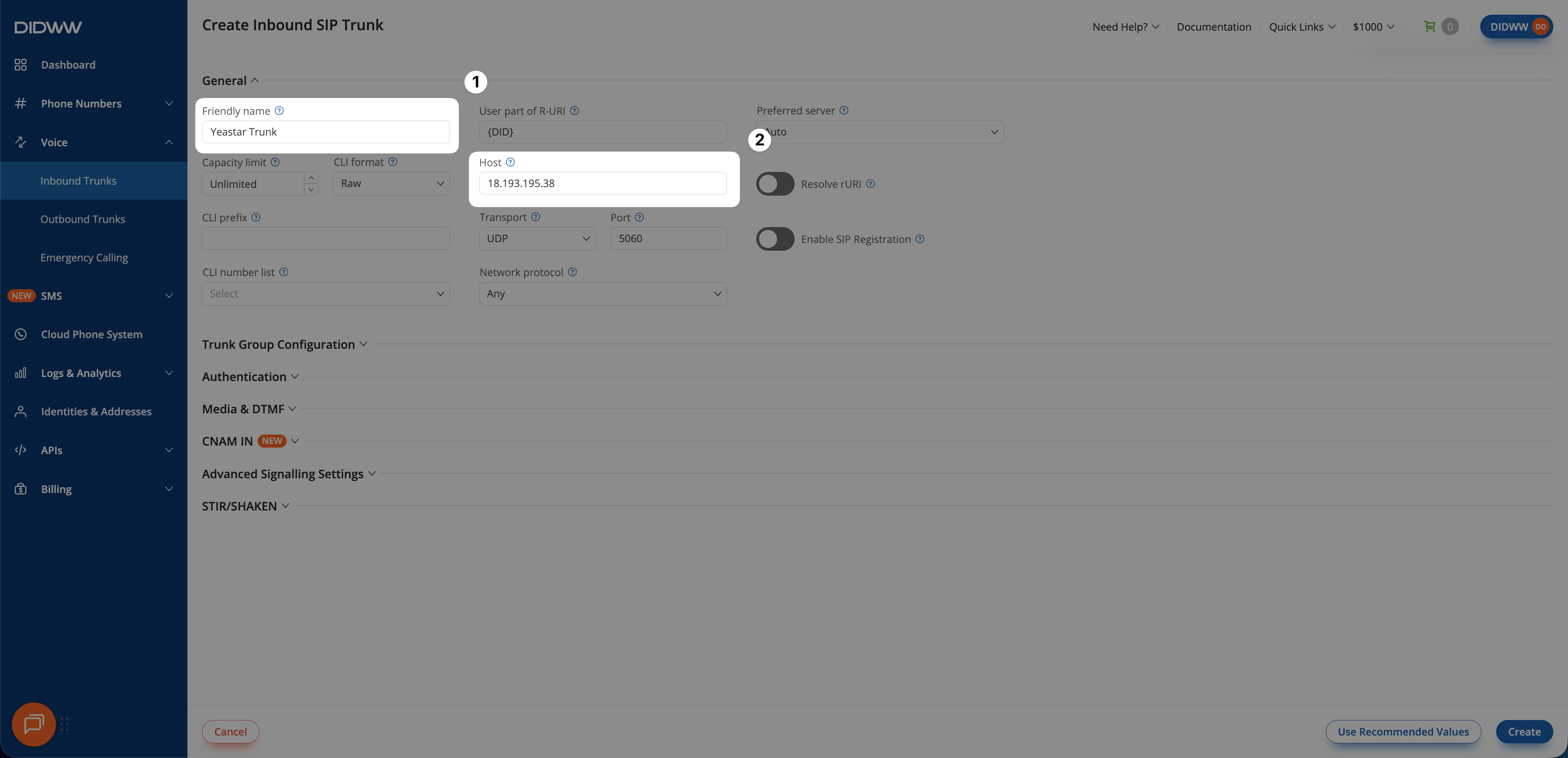
In the Create Inbound SIP Trunk form, enter the main requirements to route the calls to your Yeastar P-Series PBX.

  1. Enter a descriptive Friendly Name for the trunk (e.g., Yeastar Trunk).

  2. In Host, enter the public IP address or FQDN of your Yeastar P-Series PBX.

SIP trunk configured to send calls to Yeastar

Fig. 2. SIP trunk configured to send calls to self-hosted Yeastar P-Series PBX

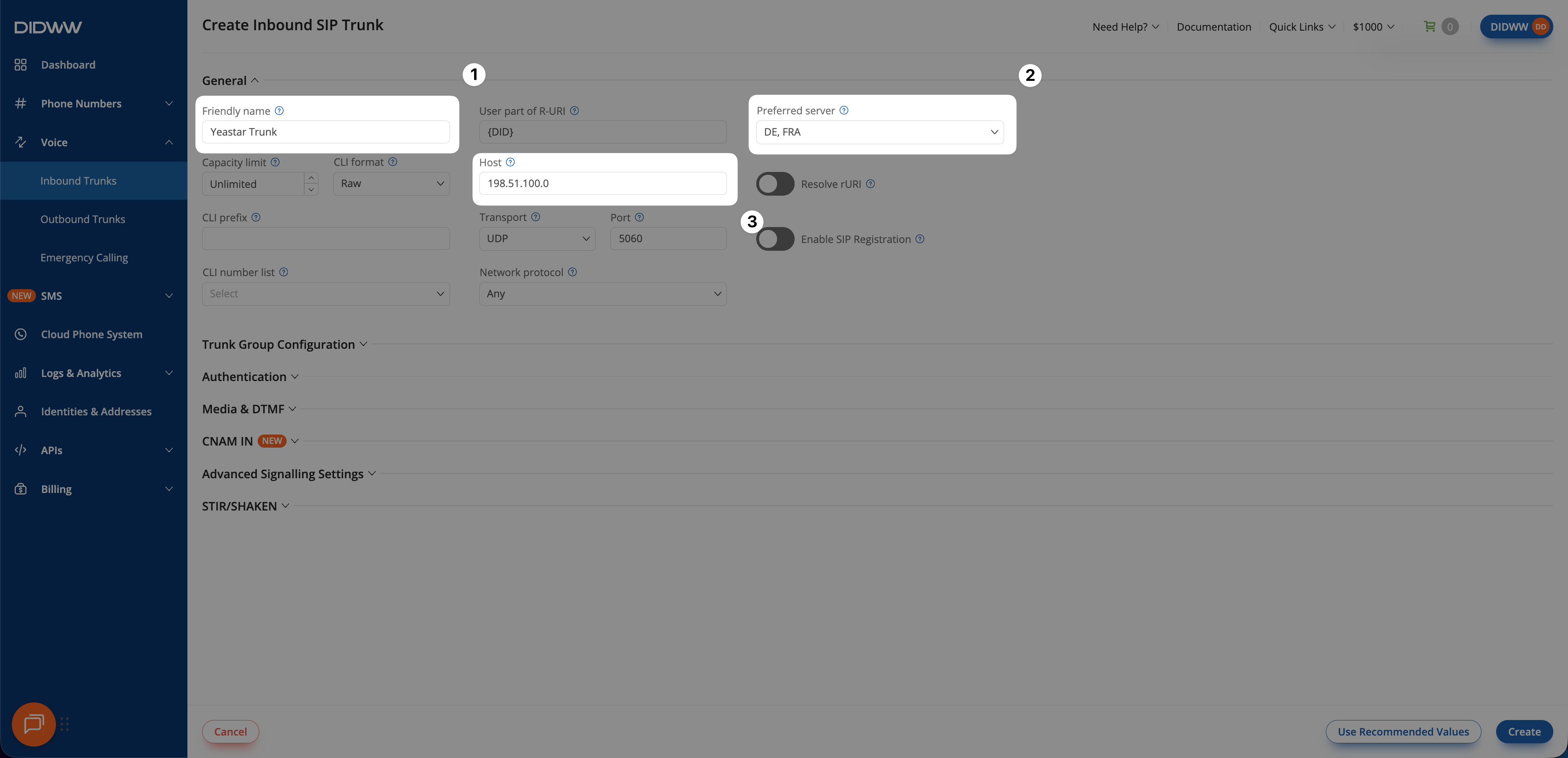
In the Create Inbound SIP Trunk form, enter the main requirements to route the calls to your Yeastar P-Series PBX.

  1. Enter a descriptive Friendly Name for the trunk (e.g., Yeastar Trunk).

  2. Select the Preferred server (e.g., DE, FRA).

  3. In Host, enter a placeholder IP address (e.g., 198.51.100.0).

Note

  • The Preferred server defaults to DE, FRA on the cloud-based Yeastar P-Series PBX. If you select a different Preferred server, additional steps will be required on the Yeastar PBX side.

  • The real host IP address will be revealed once you add the trunk on the Yeastar PBX.

SIP trunk configured to send calls to Yeastar

Fig. 2. SIP trunk configured to send calls to cloud-based Yeastar P-Series PBX

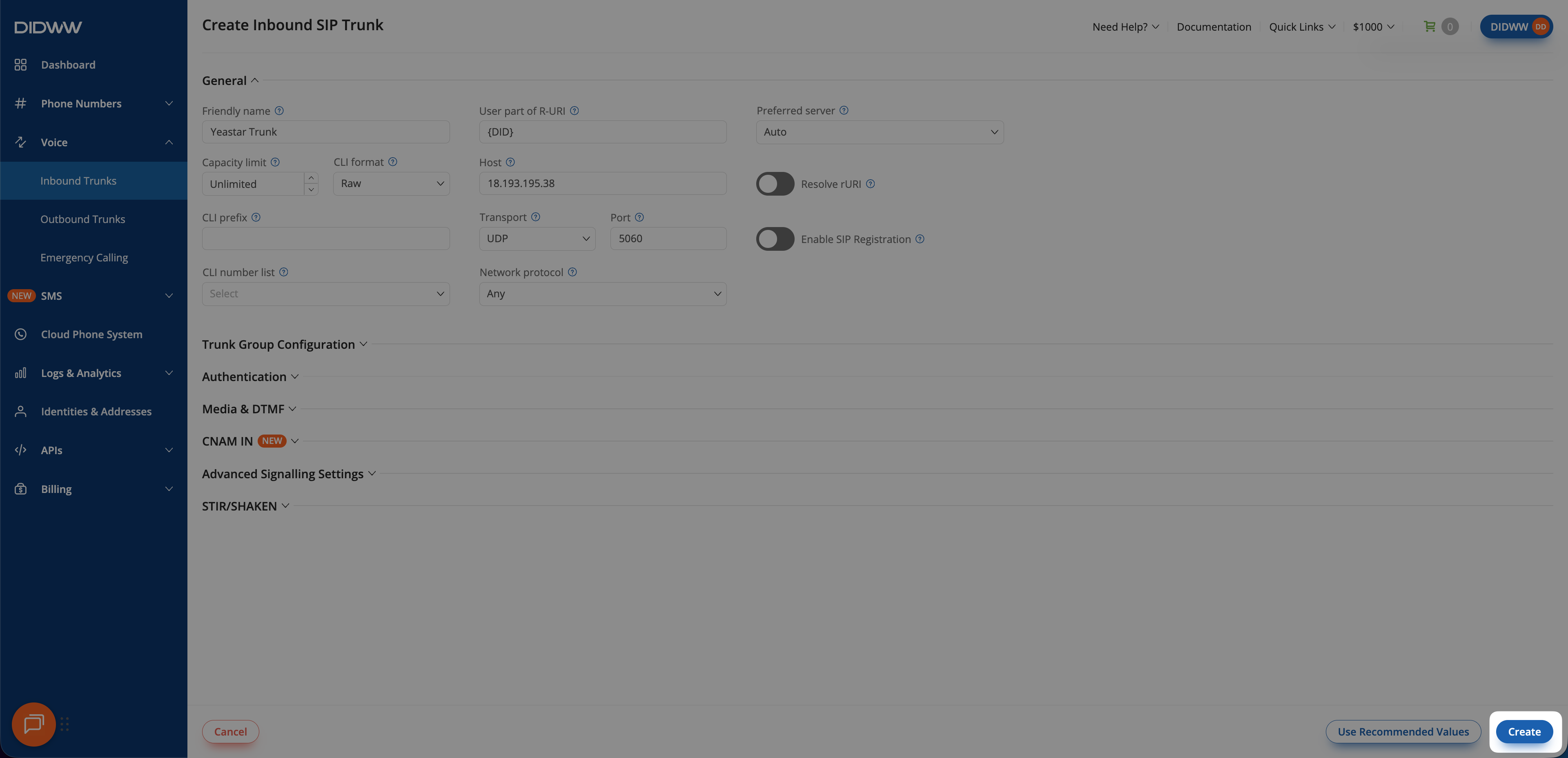
Step 3: Click Create and Save Inbound SIP Trunk Configuration

When the required fields in the Create Inbound SIP Trunk are filled, click Create to save your inbound SIP trunk.

Note

If your deployment requires additional features, see Advanced Inbound SIP Trunk documentation.

Inbound SIP trunk created

Fig. 3. Create the Inbound SIP Trunk

Step 4: Assign Inbound SIP Trunk to Your DID Numbers

After creating the Inbound SIP Trunk for Yeastar, assign it to the DID number(s) that will deliver incoming calls to your Yeastar P-Series PBX.

  1. In the DIDWW User Panel, go to Phone Numbers > My Numbers.

  2. Select the DID number(s) you want to assign to the inbound SIP trunk.

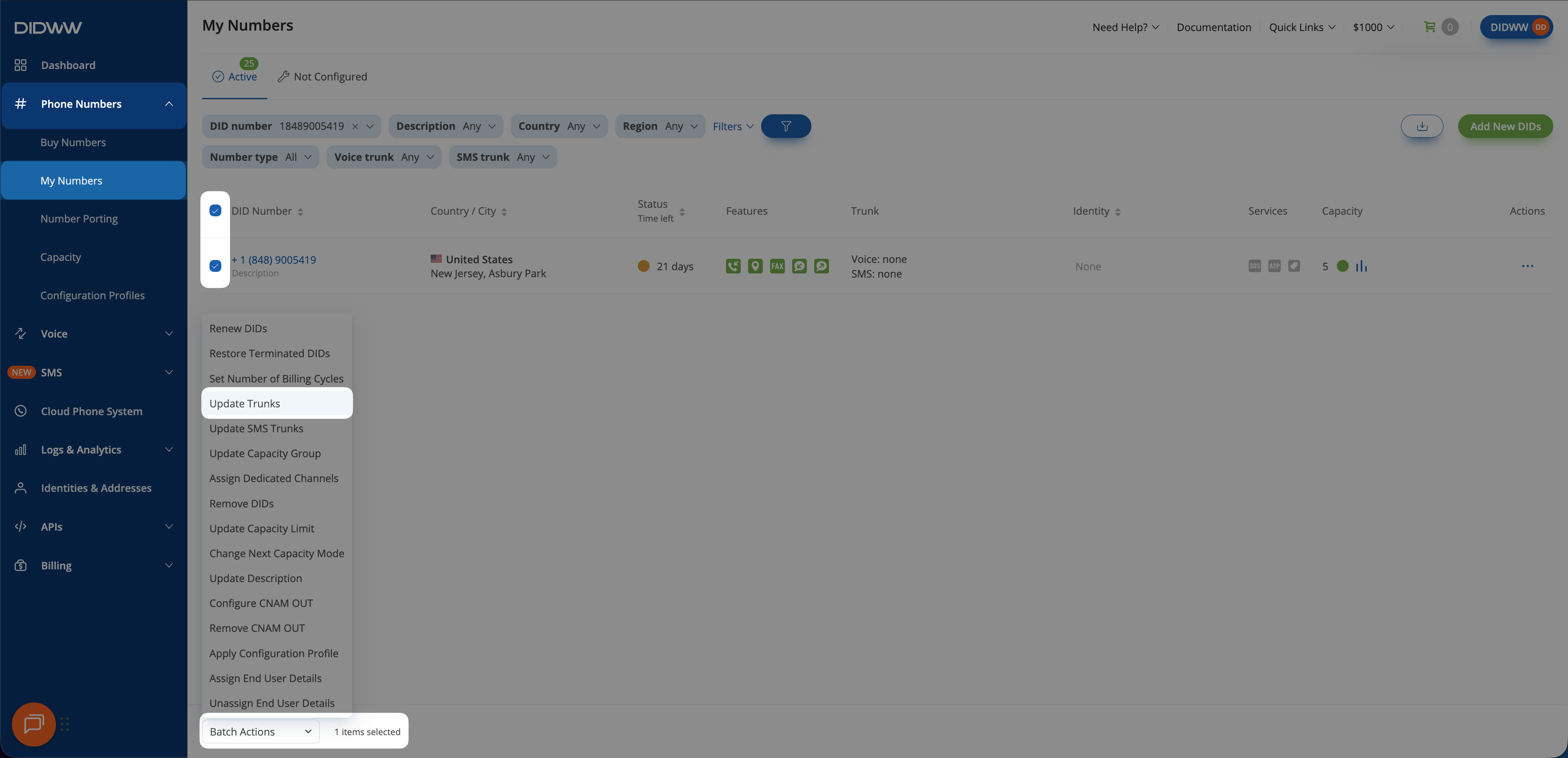
  3. At the bottom of the page, click Batch Actions > Update Trunks.

Assigning a SIP trunk to DID numbers

Fig. 4. Selecting Update Trunks from the Batch Actions menu

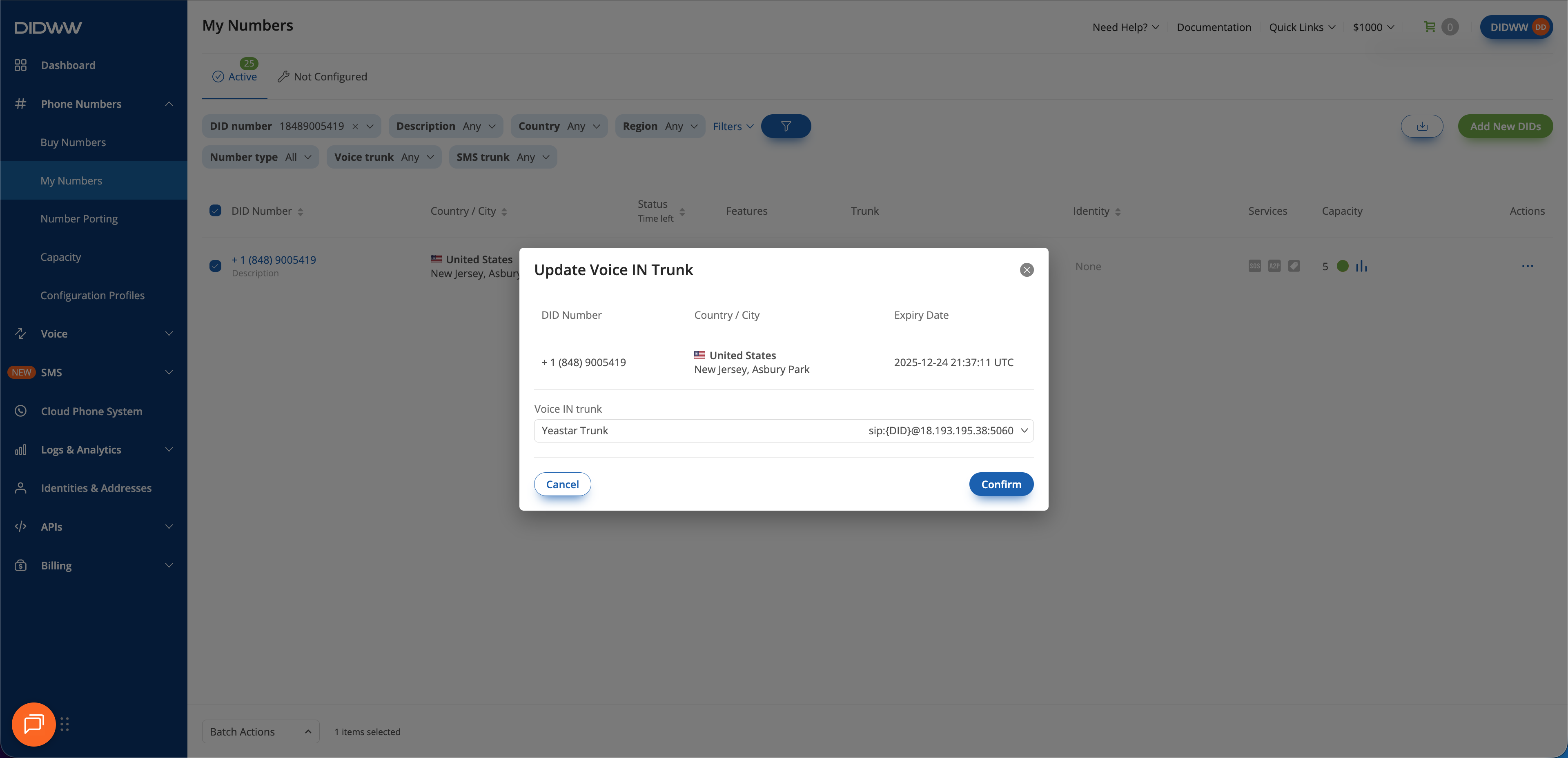
  1. From the dropdown menu, choose the Yeastar Trunk you created earlier.

  2. Click Confirm to apply the changes.

Assigning a SIP trunk to DID numbers

Fig. 5. Assigning the newly created SIP trunk to the selected DID(s)


2. Create Outbound SIP Trunk

To configure outbound calling from your Yeastar P-Series PBX, create an Outbound SIP Trunk in the DIDWW User Panel. This setup enables you to use Yeastar to place outbound calls through DIDWW termination routes.


Before You Begin


Step 1: Create New Outbound Voice Trunk

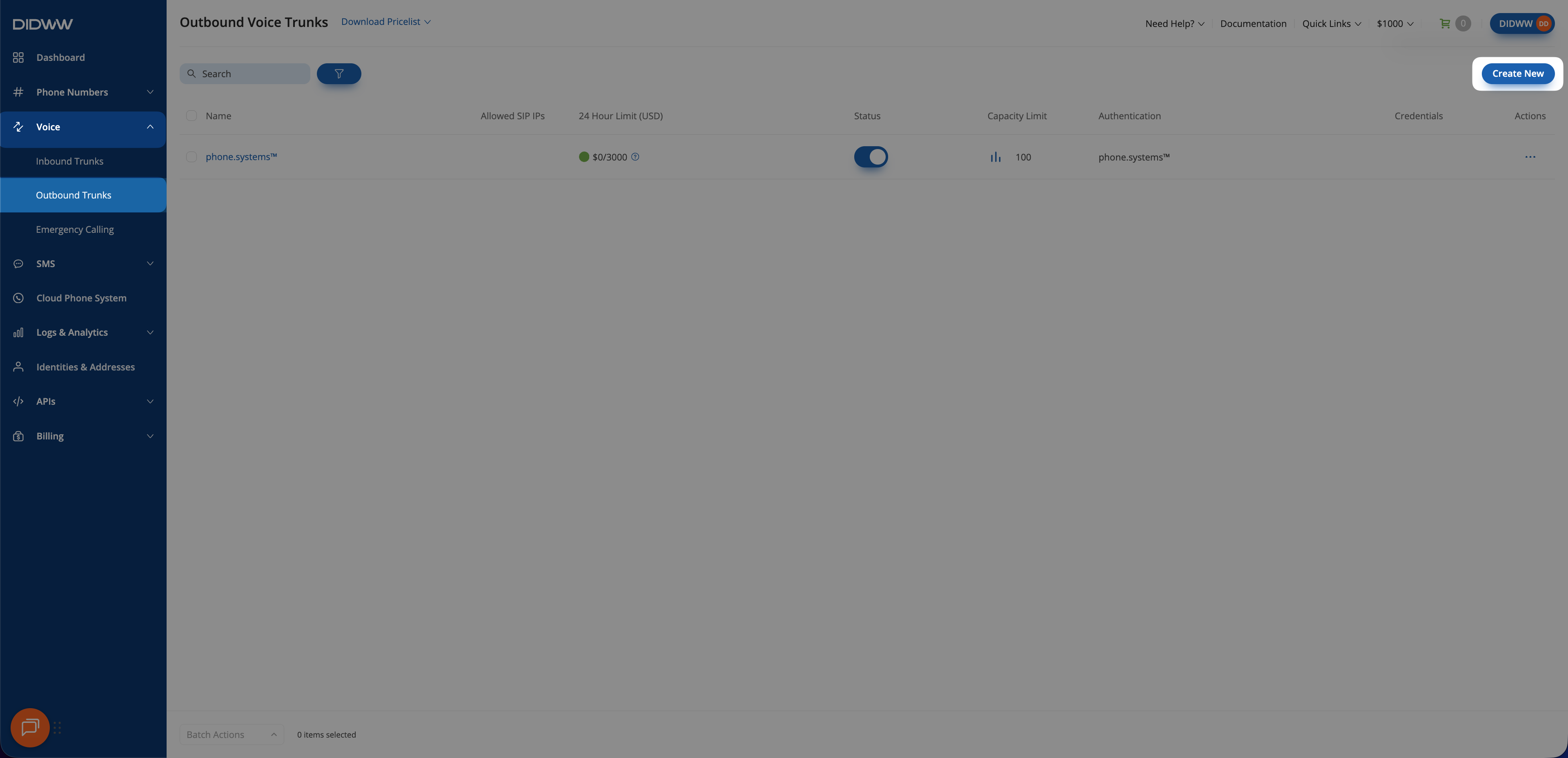
  1. In the DIDWW User Panel , go to Voice > Outbound Trunks.

  2. Click Create New.

Creating a new outbound SIP trunk

Fig. 6. Creating a new outbound SIP trunk

Step 2: Configure SIP Trunk Settings

Depending on whether you plan to use the self-hosted version of the PBX or the cloud-based version of the PBX, the configuration will differ slightly.

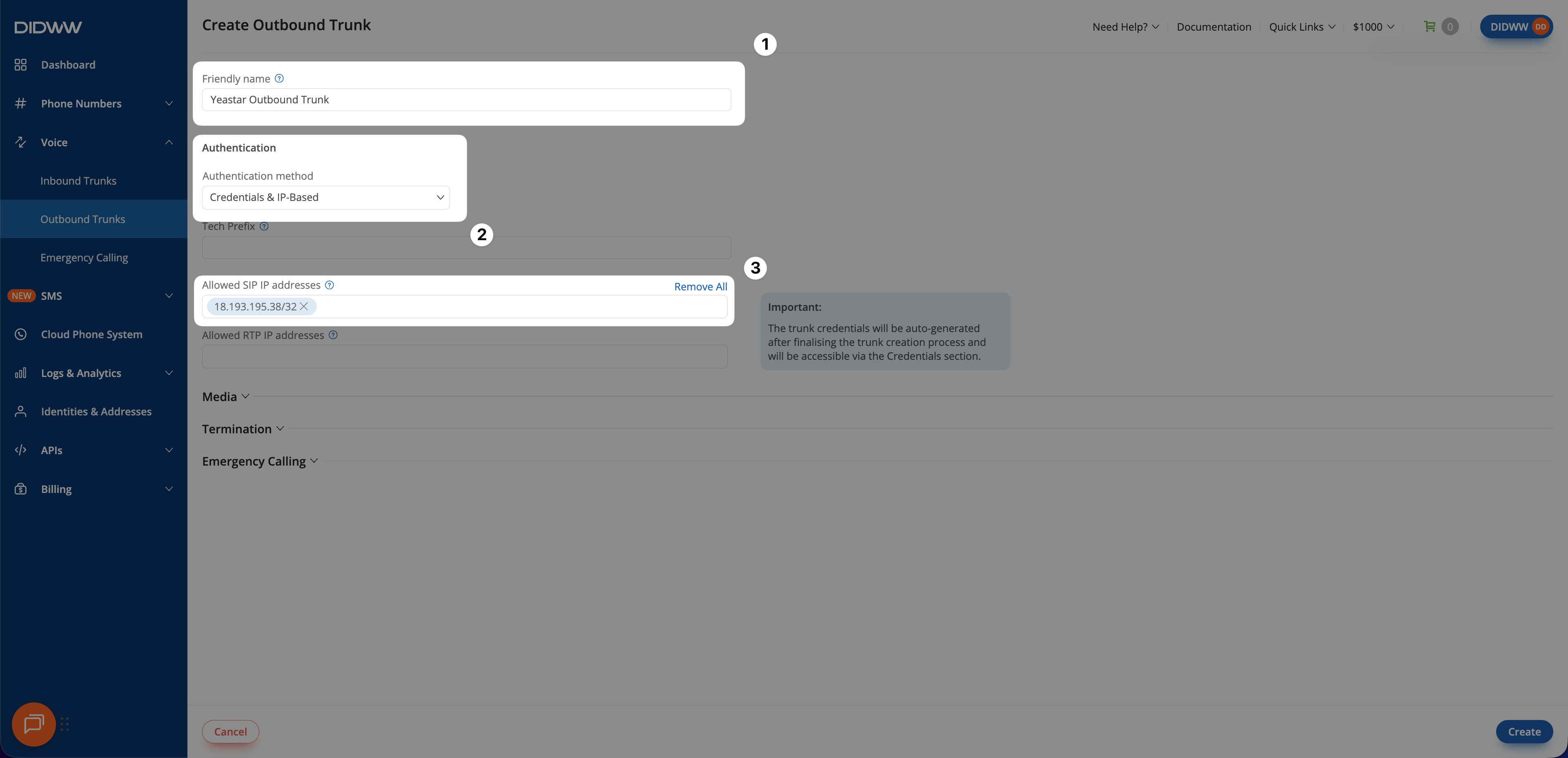
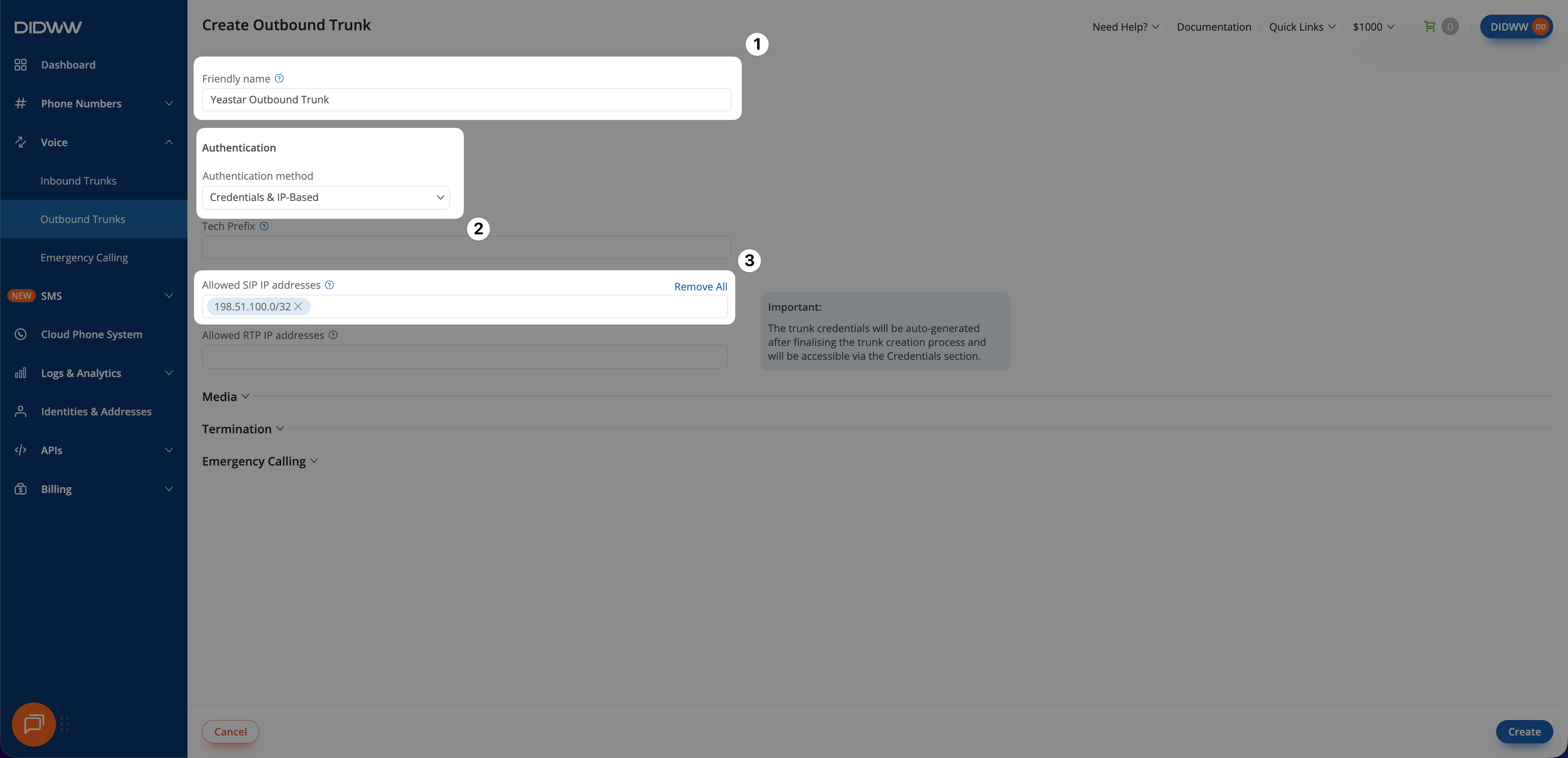
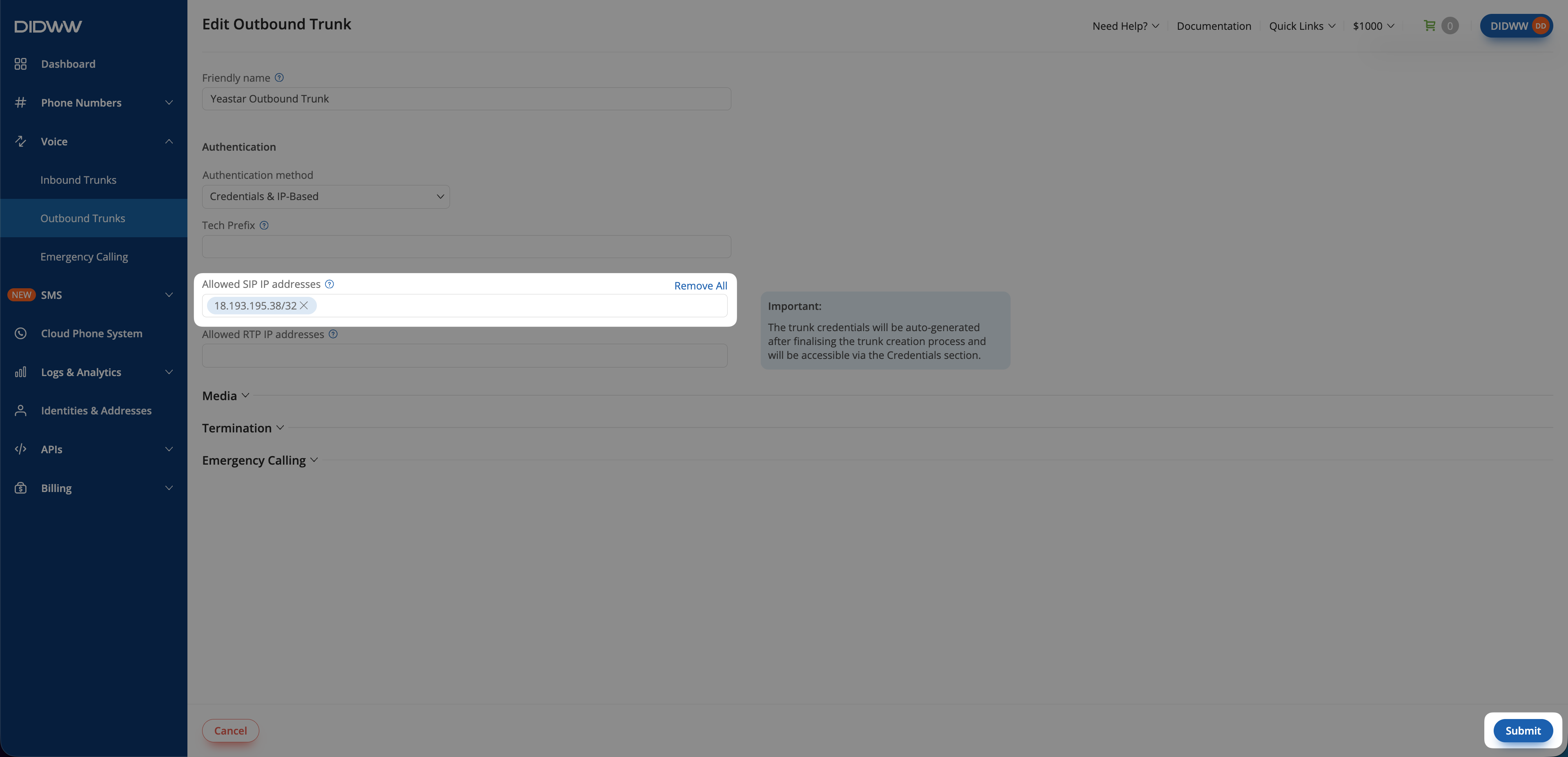
  1. Update the Friendly Name (e.g., Yeastar Outbound Trunk).

  2. Keep the default Credentials & IP-based authentication method selected. The SIP digest credentials (username and password) will be accessible after the trunk is created.

  3. In Allowed SIP IP addresses, enter the public IP address or subnet from which your Yeastar P-Series PBX will send outbound SIP traffic.

Note

Make sure you add the correct IP address or subnet so that outbound calls are accepted by DIDWW.

Outbound SIP Trunk configuration for self-hosted Yeastar P-Series PBX

Fig. 7. Outbound SIP Trunk configuration for self-hosted Yeastar P-Series PBX

  1. Update the Friendly Name (e.g., Yeastar Outbound Trunk).

  2. Keep the default Credentials & IP-based authentication method selected. The SIP digest credentials (username and password) will be accessible after the trunk is created.

  3. In Allowed SIP IP addresses, enter a placeholder IP address (e.g., 198.51.100.0).

Note

  • The real host IP address will be revealed once you add the trunk on the Yeastar PBX.

  • Optionally you can allow all traffic by adding 0.0.0.0/0, which removes all IP restrictions. Although SIP Digest Authentication will still verify requests using valid credentials, this setup is not recommended.

Outbound SIP Trunk configuration for cloud-based Yeastar P-Series PBX

Fig. 8. Outbound SIP Trunk configuration for cloud-based Yeastar P-Series PBX

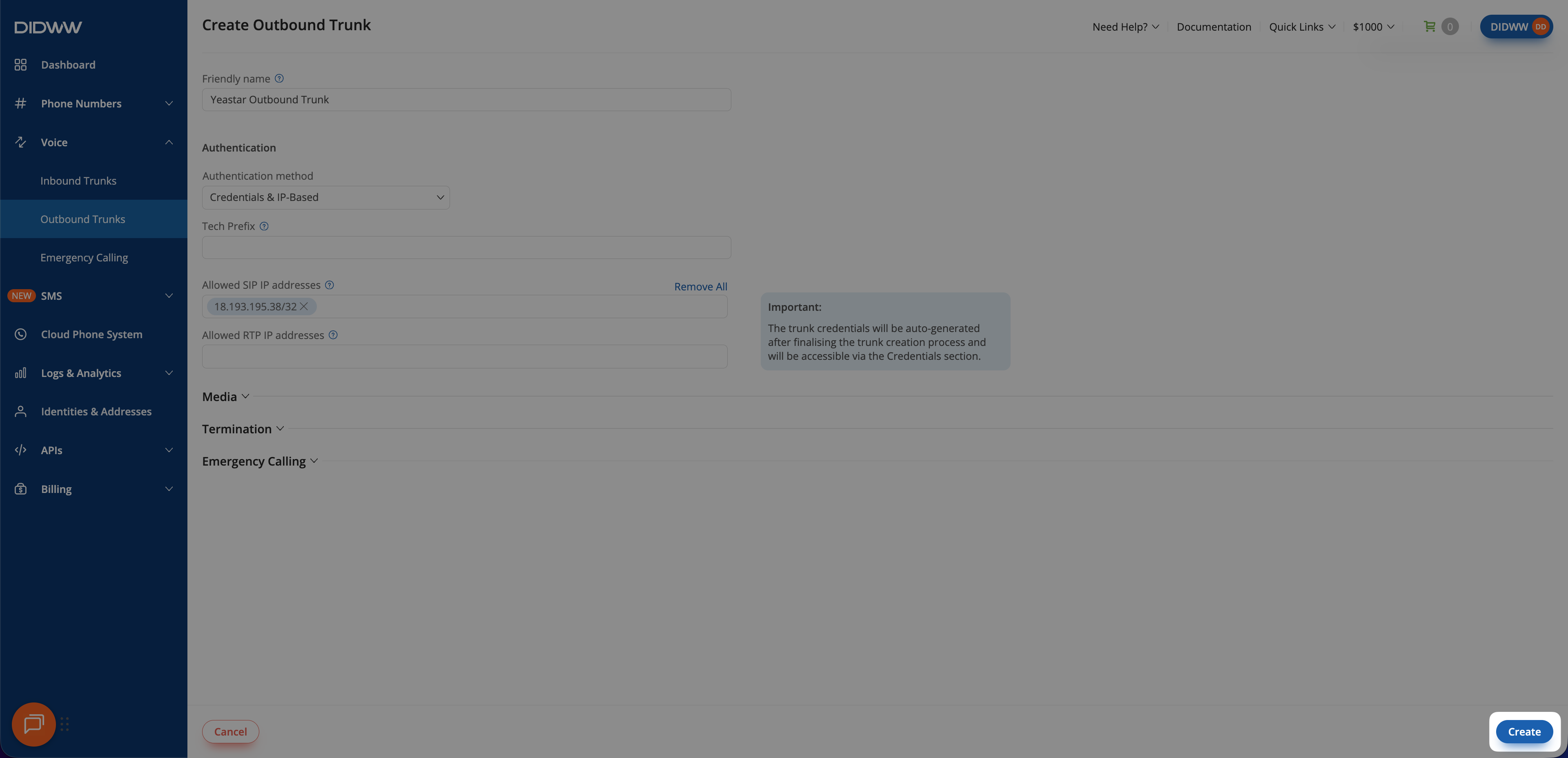
Step 3: Click Create and Save Outbound SIP Trunk Configuration

When all required fields in the Create Outbound SIP Trunk are filled, click Create to save your outbound SIP trunk.

Note

For advanced outbound SIP trunk configuration, see Outbound SIP Trunk Guide.

Outbound SIP trunk created

Fig. 9. Outbound SIP trunk created and ready for use

Step 4: View Outbound Trunk Credentials

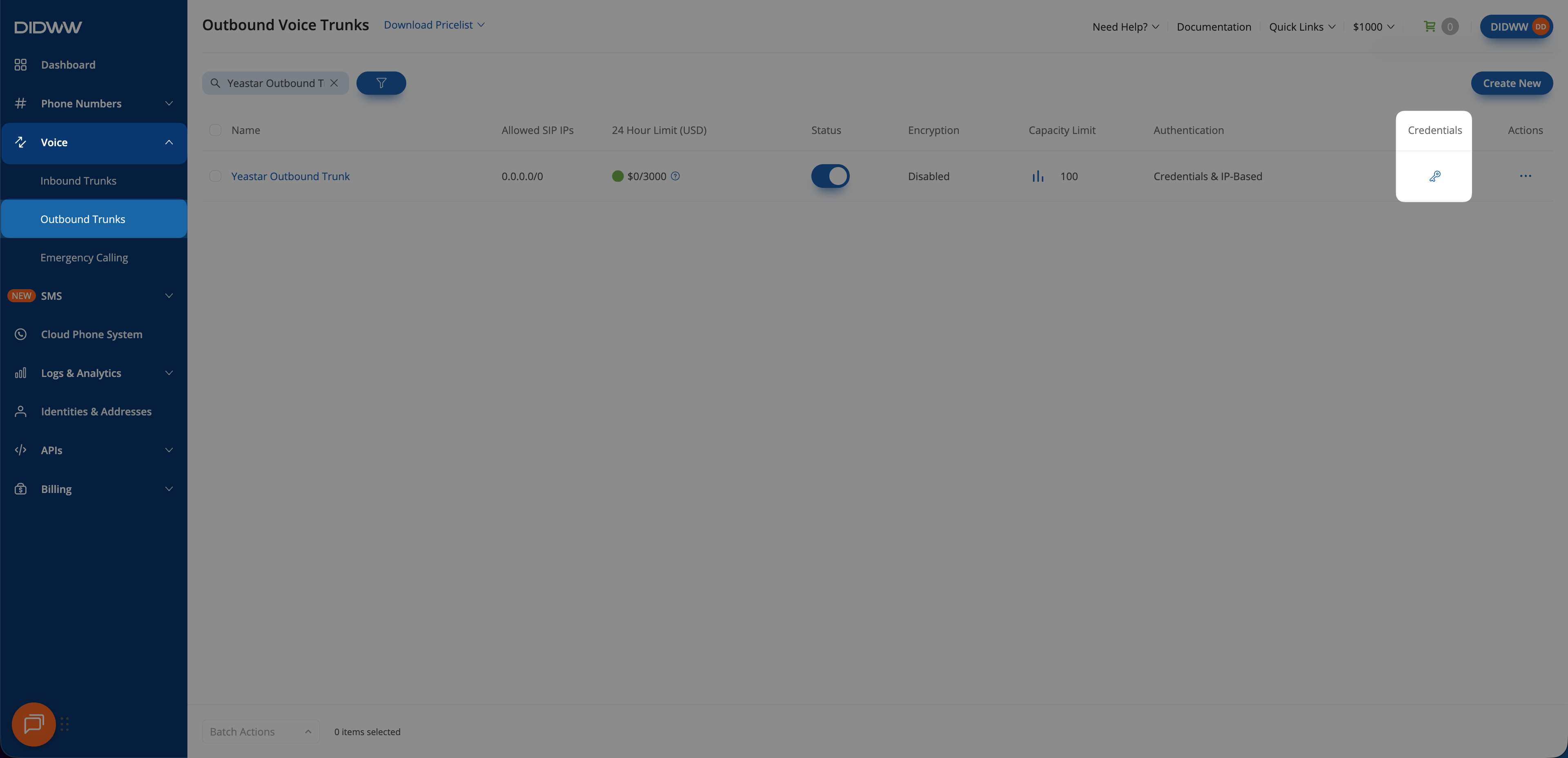
When the outbound trunk is created you can view its credentials by selecting the key icon in the Credentials column on the Outbound Trunks page.

  1. Go to Voice > Outbound Trunks.

  2. Locate your outbound trunk and click the key icon in the Credentials column.

Accessing outbound trunk credentials

Fig. 10. Opening the outbound trunk credentials view

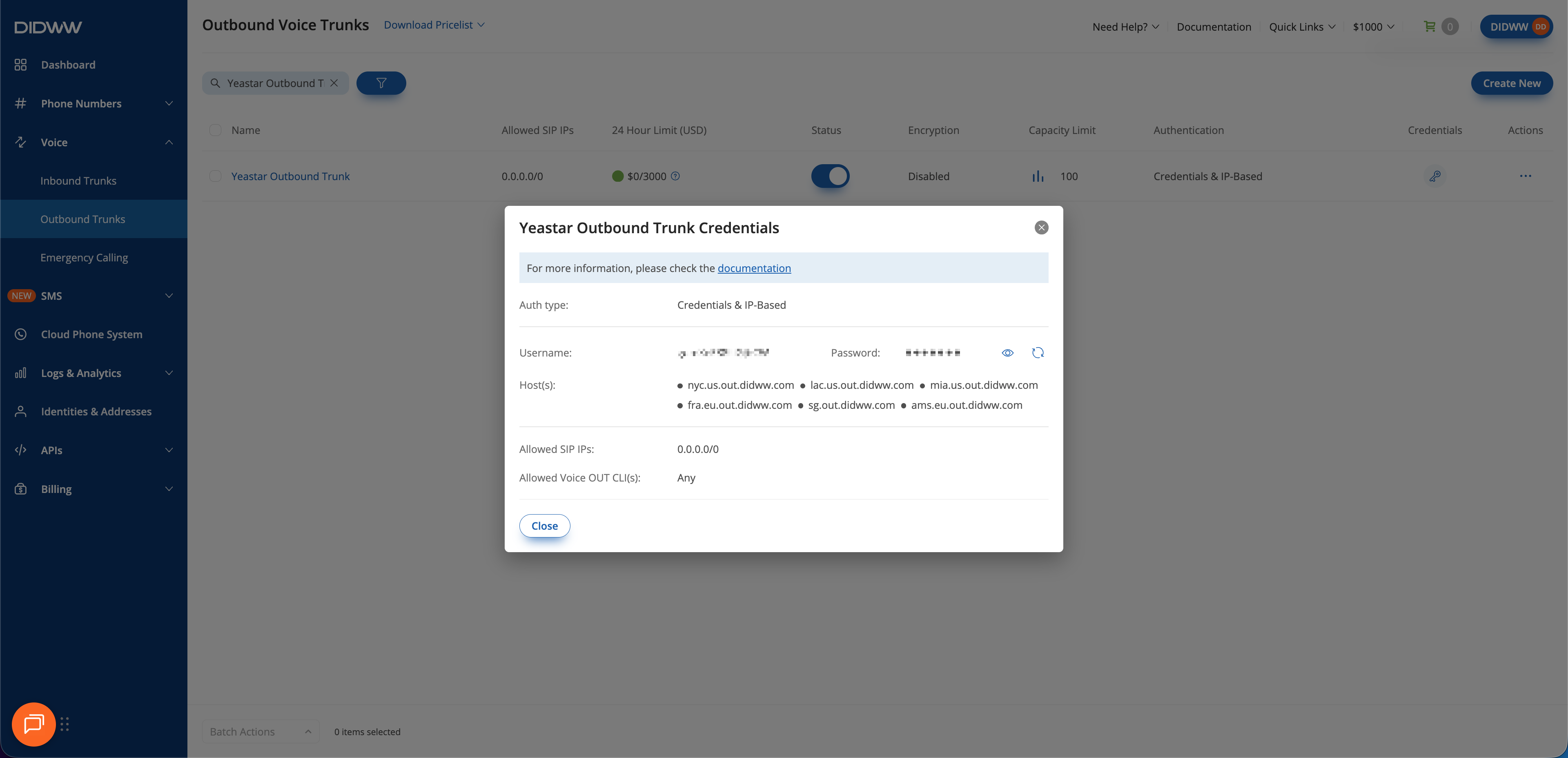
  1. The trunk credentials will appear, showing the Username and Password (click the eye icon to reveal the password).

  2. Copy and save these credentials for further steps configuring the outbound SIP trunk on your Yeastar P-Series PBX.

Warning

If the credentials become exposed to unauthorized parties, rotate them immediately in the DIDWW User Panel.

Accessing outbound trunk credentials

Fig. 11. Opening the outbound trunk credentials view


3. Configure the Yeastar P-Series PBX

To complete your integration, configure the DIDWW SIP trunking settings inside the Yeastar P-Series PBX. This setup links your DIDWW Inbound and Outbound SIP Trunks to Yeastar, allowing the PBX to manage call routing, features, and call handling for both inbound and outbound traffic.

Note

For more information, see the official Yeastar P-Series PBX SIP Trunk Configuration Guide .


Before You Begin

  • Administrator access to the Yeastar P-Series PBX interface is required.

  • A configured DIDWW Inbound SIP Trunk and DIDWW Outbound SIP Trunk is required before proceeding.

  • If using the Self-Hosted edition behind a firewall or NAT:

    • Port forwarding on your router should be in place for SIP and RTP traffic (UDP 5060 for SIP, UDP 10000–12000 for RTP audio).

    • The Public IP address should be correctly defined in the Yeastar Network settings.


Step 1: Configure the DIDWW Inbound SIP Trunk

This trunk is used for Yeastar P-Series PBX to receive calls forwarded from the DIDWW DID number through DIDWW Inbound SIP Trunk.


Add the Inbound Trunk in Yeastar PBX

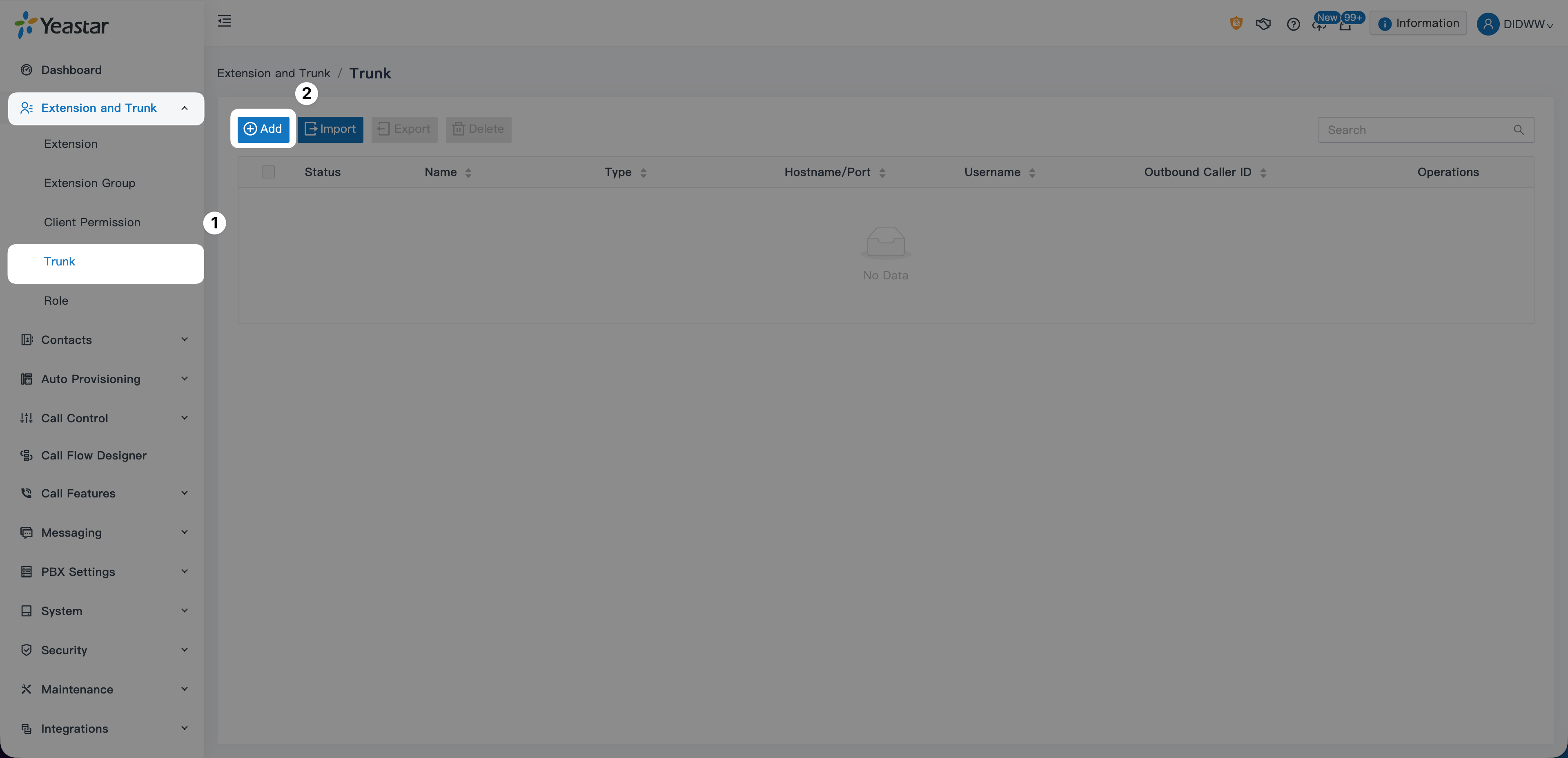
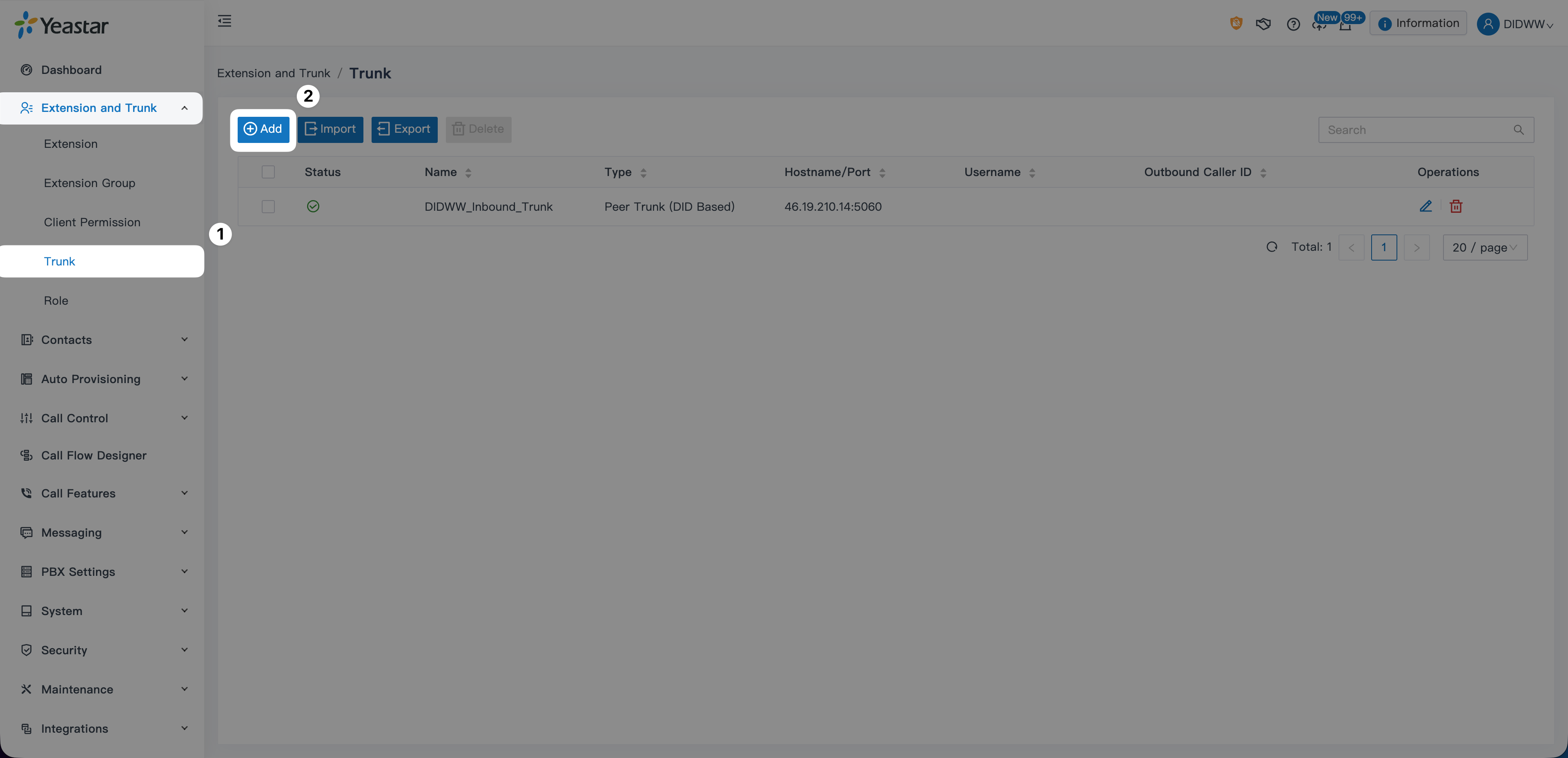
  1. In the Yeastar PBX Admin interface, go to Extension & Trunk > Trunk.

  2. Click Add.

Add Trunk Button on Yeastar P-Series PBX

Fig. 12. Add Trunk Button on Yeastar P-Series PBX


Configure Basic Settings

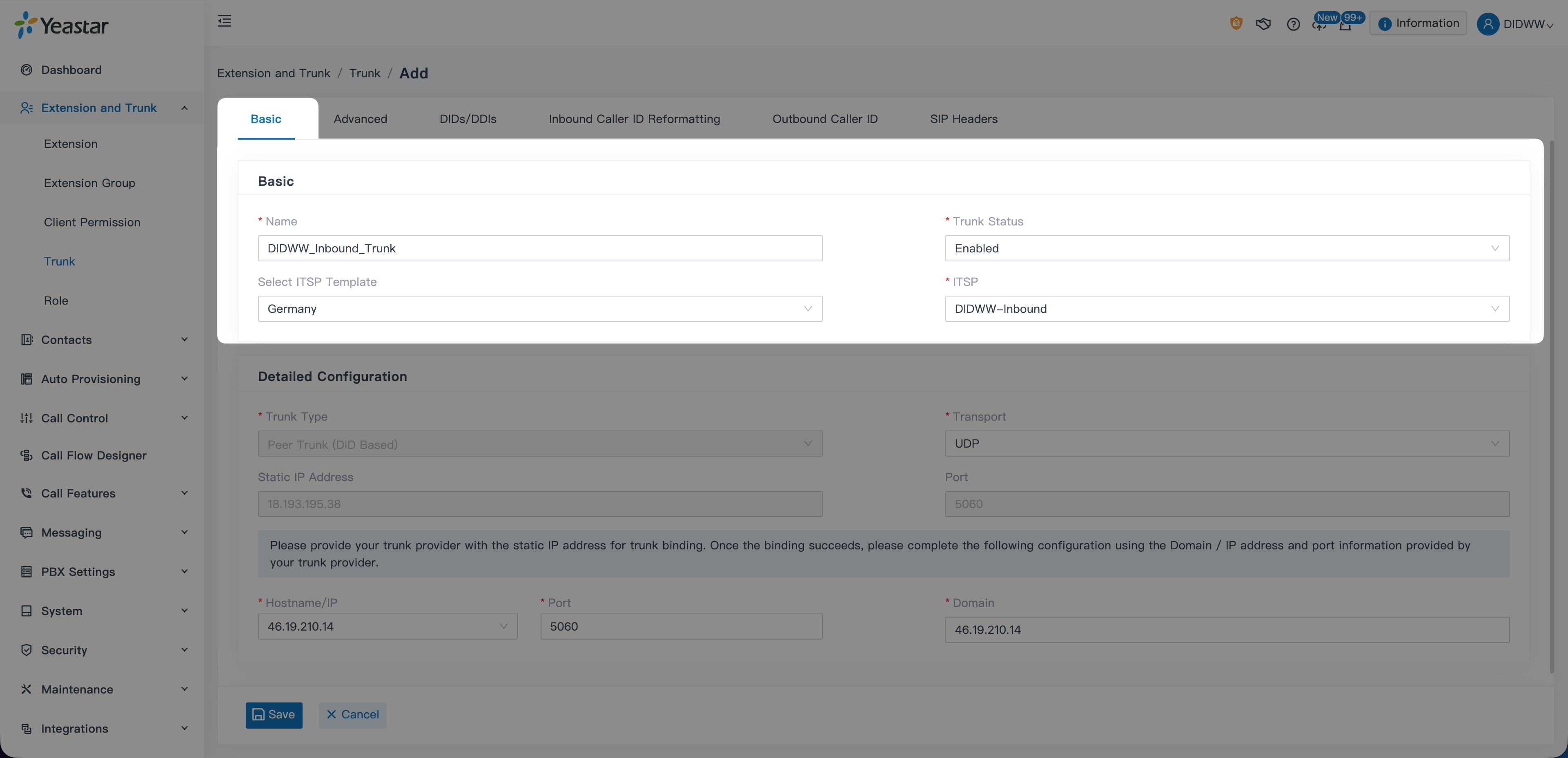
  1. Enter a Name for the trunk (e.g., DIDWW_Inbound_Trunk).

  2. In ITSP Template, select the template corresponding to your region. DIDWW templates are available for:

    • France

    • Germany

    • Spain

    • Singapore

    • Thailand

  3. In ITSP, select DIDWW-Inbound.

  4. Ensure Trunk Status is set to Enabled.

Note

Selecting a DIDWW ITSP template automatically fills most required SIP parameters in the Detailed Configuration section.

Yeastar P-Series PBX Inbound SIP Trunk Basic Settings

Fig. 13. Basic settings for the DIDWW Inbound SIP Trunk


Detailed Configuration

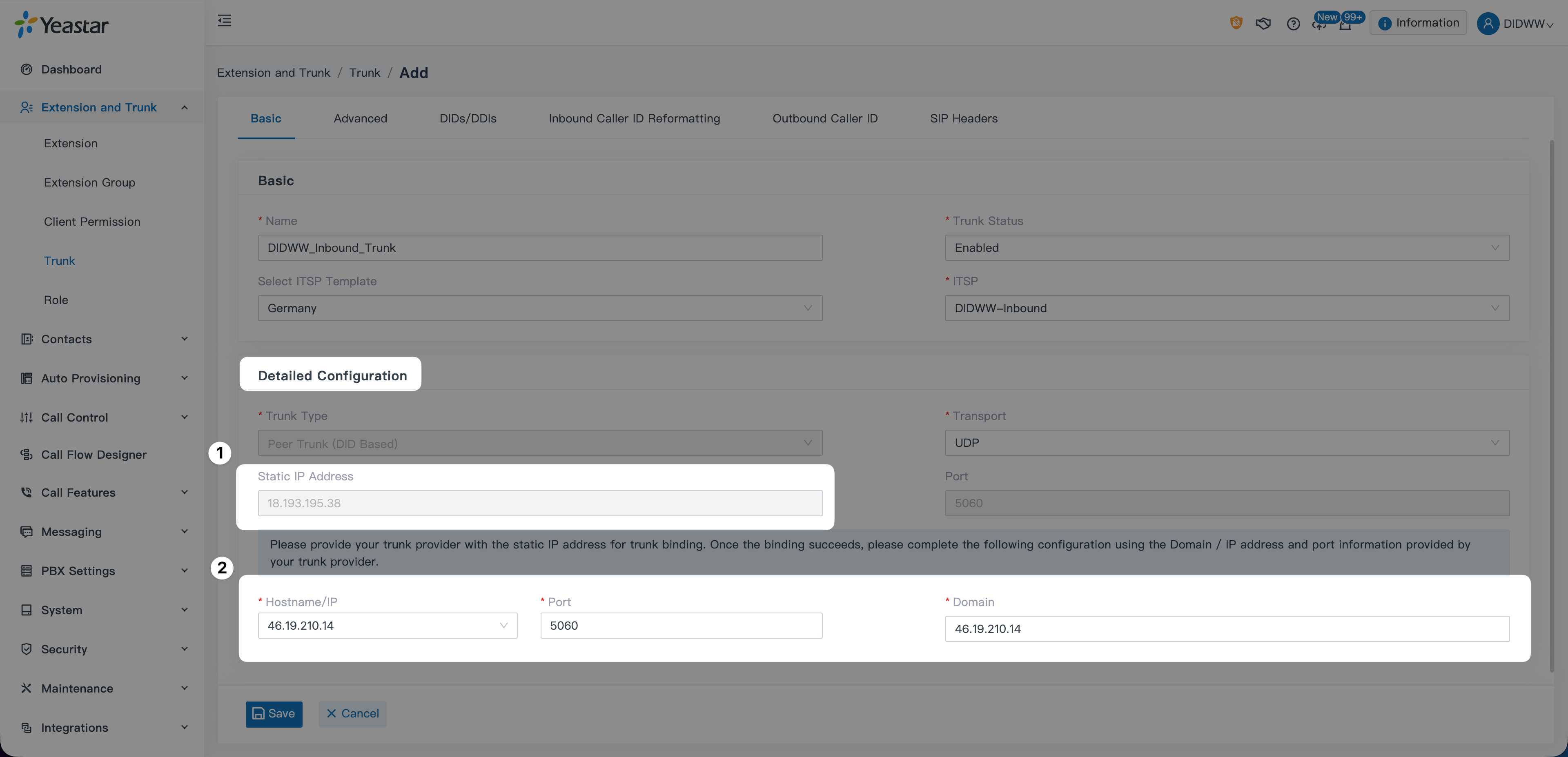
This section is part of the basic trunk setup. The detailed configuration depends on whether you are using the self-hosted or cloud-based version of the Yeastar P-Series PBX.

The default values provided by the DIDWW template are sufficient. No additional configuration changes are required.

Note

The DIDWW template automatically configures the primary IP (e.g., 46.19.210.14) and whitelists the necessary backup IPs in the background. This configuration works for all regions and ensures that calls from any DIDWW Point of Presence are accepted.

  1. Copy the Static IP Address displayed in the trunk form. You will later replace placeholder Hostname/IP values in your DIDWW trunks using this IP.

  2. If you selected a different Preferred Server in the DIDWW User Panel, update the Hostname/IP and Domain fields to match the correct signaling PoP. Refer to the DIDWW inbound SIP endpoints for the correct regional IP.

Cloud-Based Yeastar P-Series PBX Inbound SIP Trunk Detailed Configuration

Fig. 13.1. Cloud-Based Yeastar P-Series PBX Inbound SIP Trunk Detailed Configuration


Enter Yeastar Static IPs in DIDWW SIP Trunks

During the initial Create Inbound and Outbound SIP Trunk steps, a temporary placeholder IP address was entered to allow the trunk to be created. After receiving the Static IP Address for your Yeastar Cloud PBX in the configuration details, you need to update the DIDWW SIP Outbound Trunk so that call traffic is routed to the correct Yeastar endpoint.


Update Inbound SIP Trunk
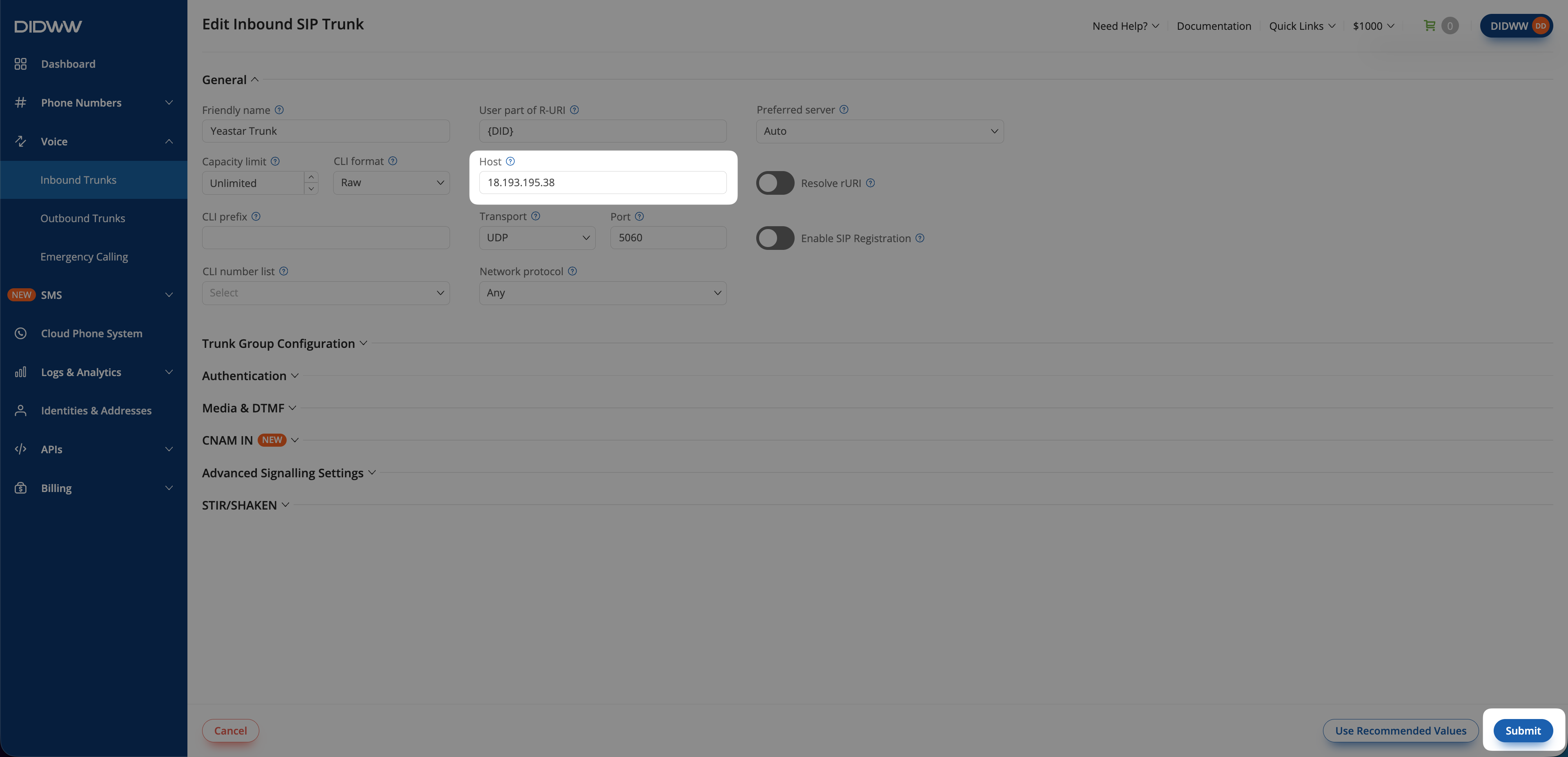
  1. Open the Inbound Trunks page in the DIDWW User Panel.

  2. Click Actions > Edit on your DIDWW inbound trunk.

  3. Replace the placeholder Hostname/IP with the Static IP Address obtained from Yeastar Cloud PBX.

  4. Click Submit.

    Replace the Placeholder IP Address for DIDWW Inbound SIP Trunk

    Fig. 14. Updating the Hostname/IP for the DIDWW Inbound SIP Trunk


Update Outbound SIP Trunk
  1. Open the Outbound Trunks page in the DIDWW User Panel.

  2. Click Actions > Edit on your DIDWW outbound trunk.

  3. Replace the placeholder Hostname/IP with the Static IP Address obtained from Yeastar Cloud PBX.

  4. Click Submit.

    Replace the Placeholder IP Address for DIDWW Outbound SIP Trunk

    Fig. 15. Updating the Hostname/IP for the DIDWW Outbound SIP Trunk


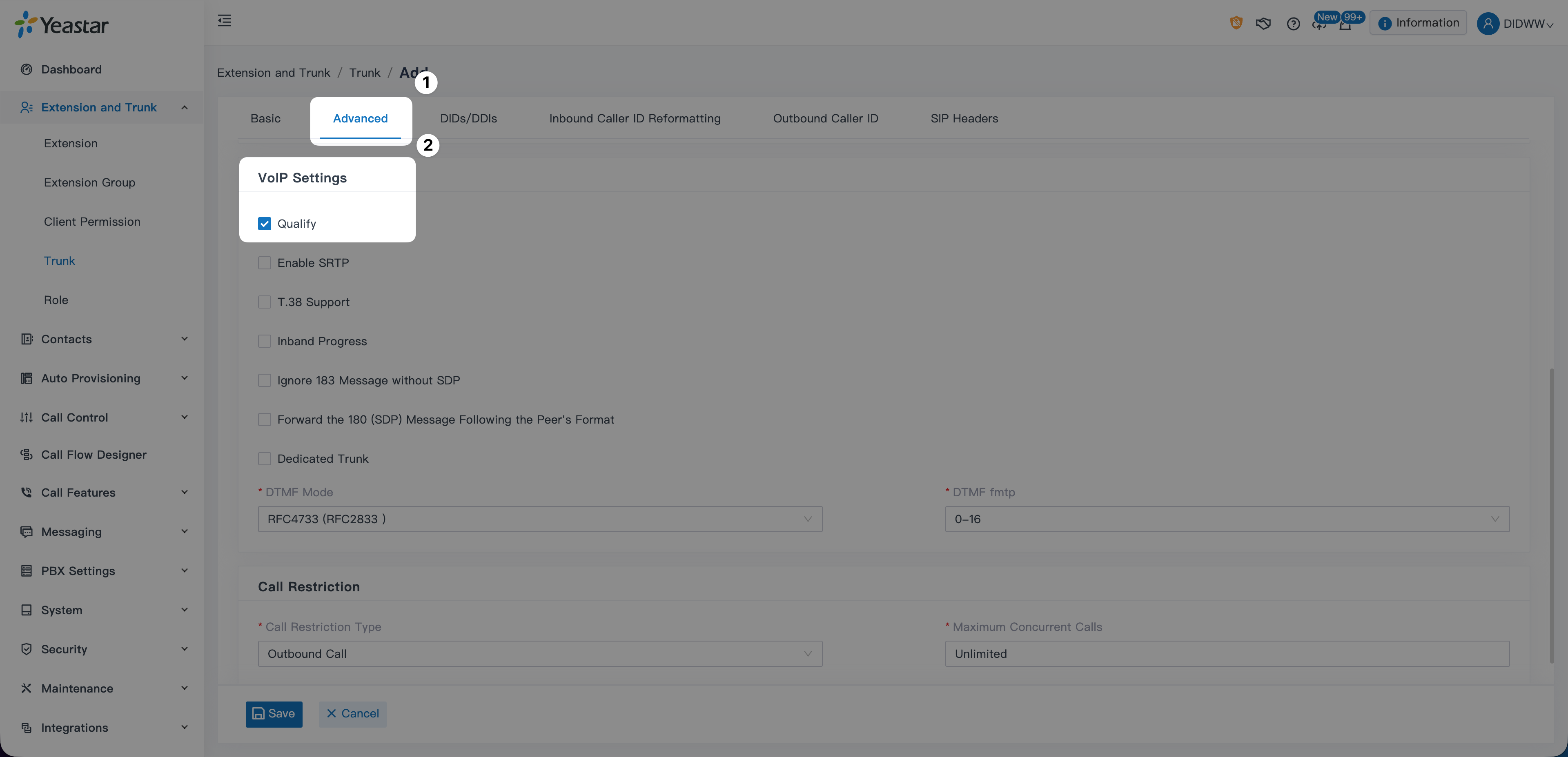
Configure Advanced Settings

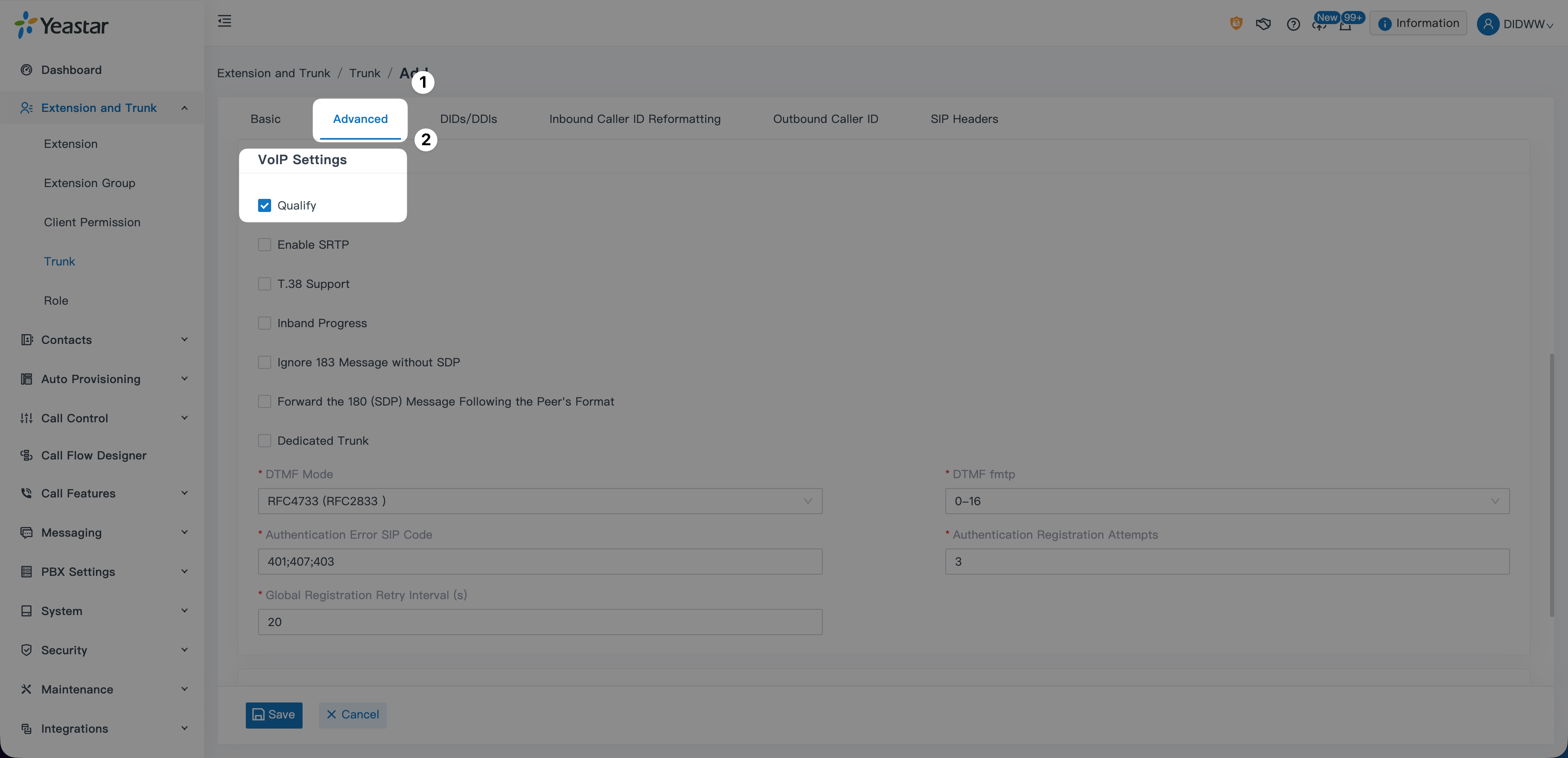
  1. Open the Advanced tab.

  2. Under VoIP Settings, enable Qualify. This allows the PBX to monitor trunk reachability using SIP OPTIONS packets.

Yeastar P-Series PBX Inbound SIP Trunk Advanced Settings

Fig. 16. Advanced settings for the DIDWW Inbound SIP Trunk


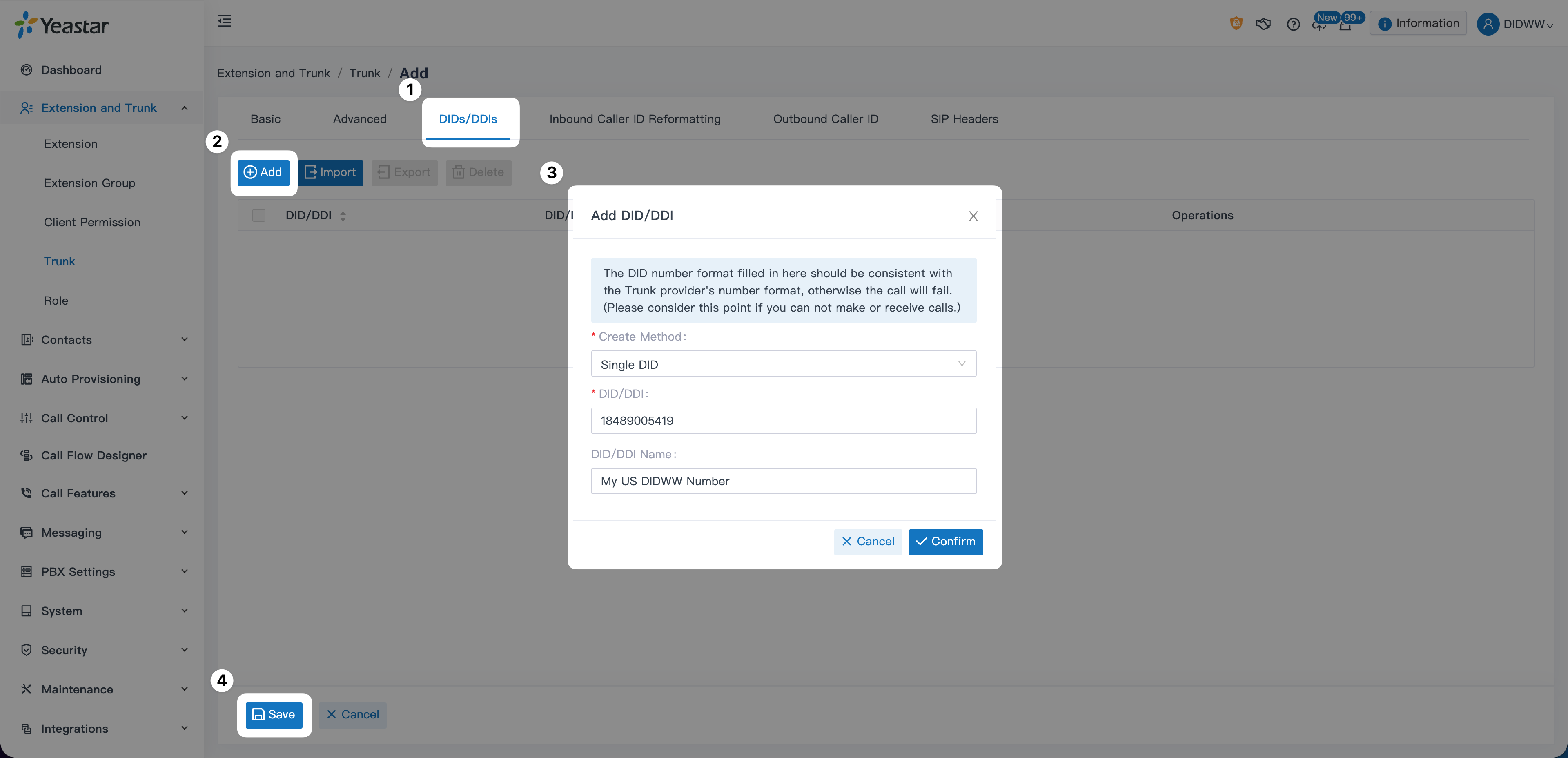
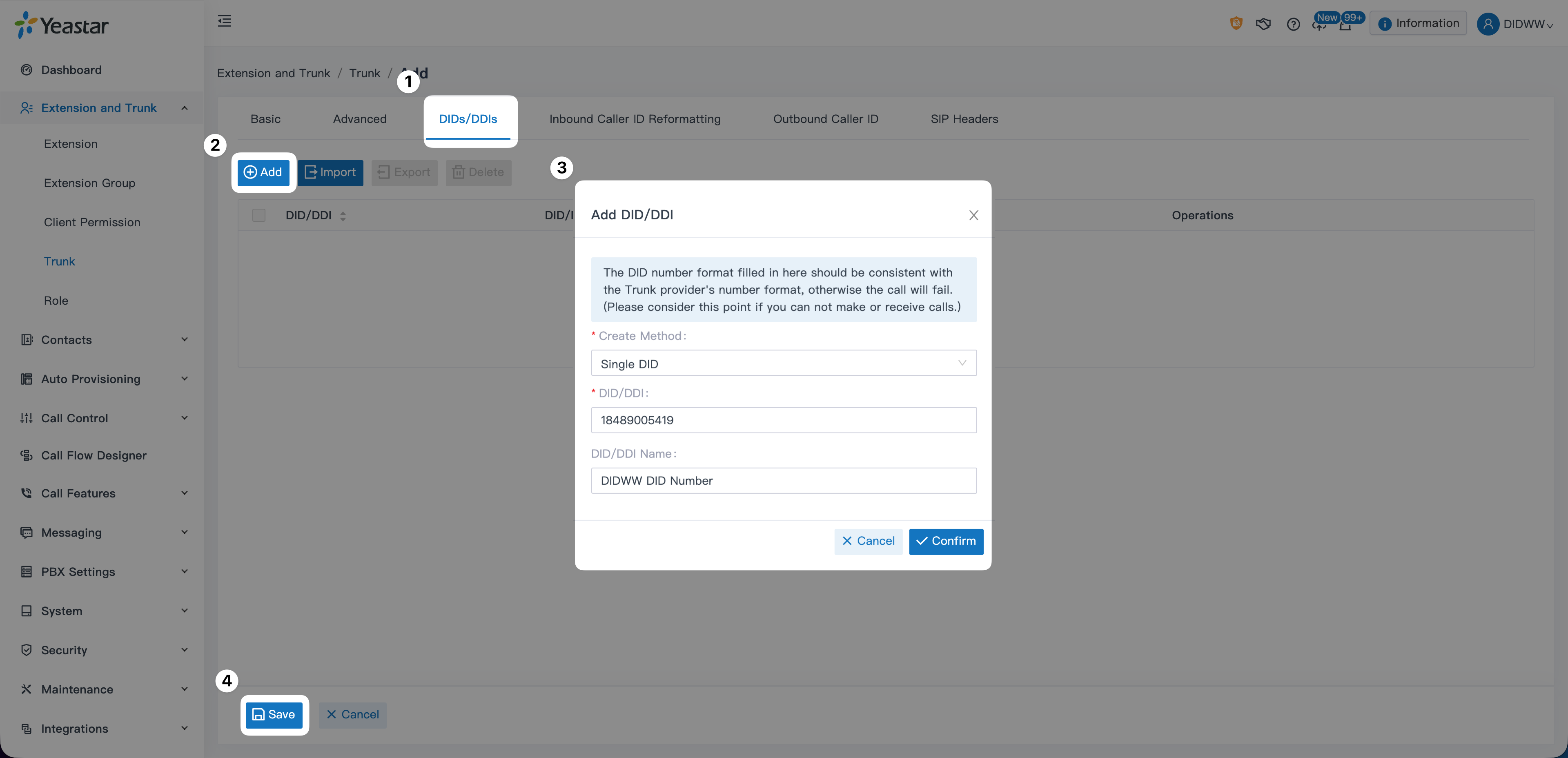
Add DIDs to the Yeastar Inbound SIP Trunk

  1. Open the DIDs/DDIs tab.

  2. Click Add.

  3. In the pop-up window, configure:

    • Create Method: Single DID

    • DID/DDI: Enter your DID in E.164 format without the +, e.g., 18489005419

    • DID/DDI Name: Provide a friendly label (e.g., My US DIDWW Number).

  4. Click Confirm, then click Save to finalize the trunk.

Add a DID and Save the Yeastar P-Series PBX Inbound SIP Trunk

Fig. 17. Adding a DID to the Yeastar Inbound SIP Trunk


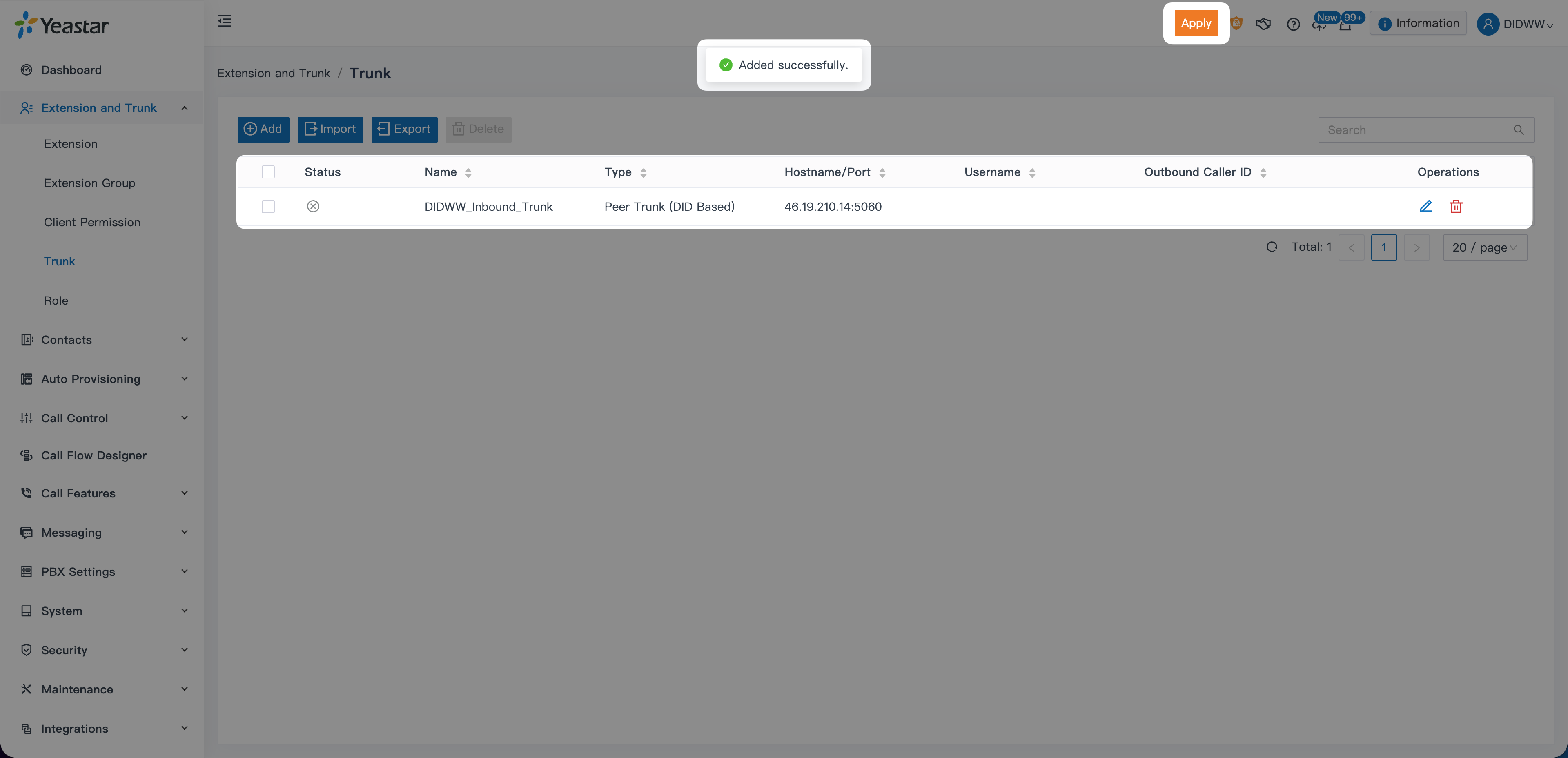
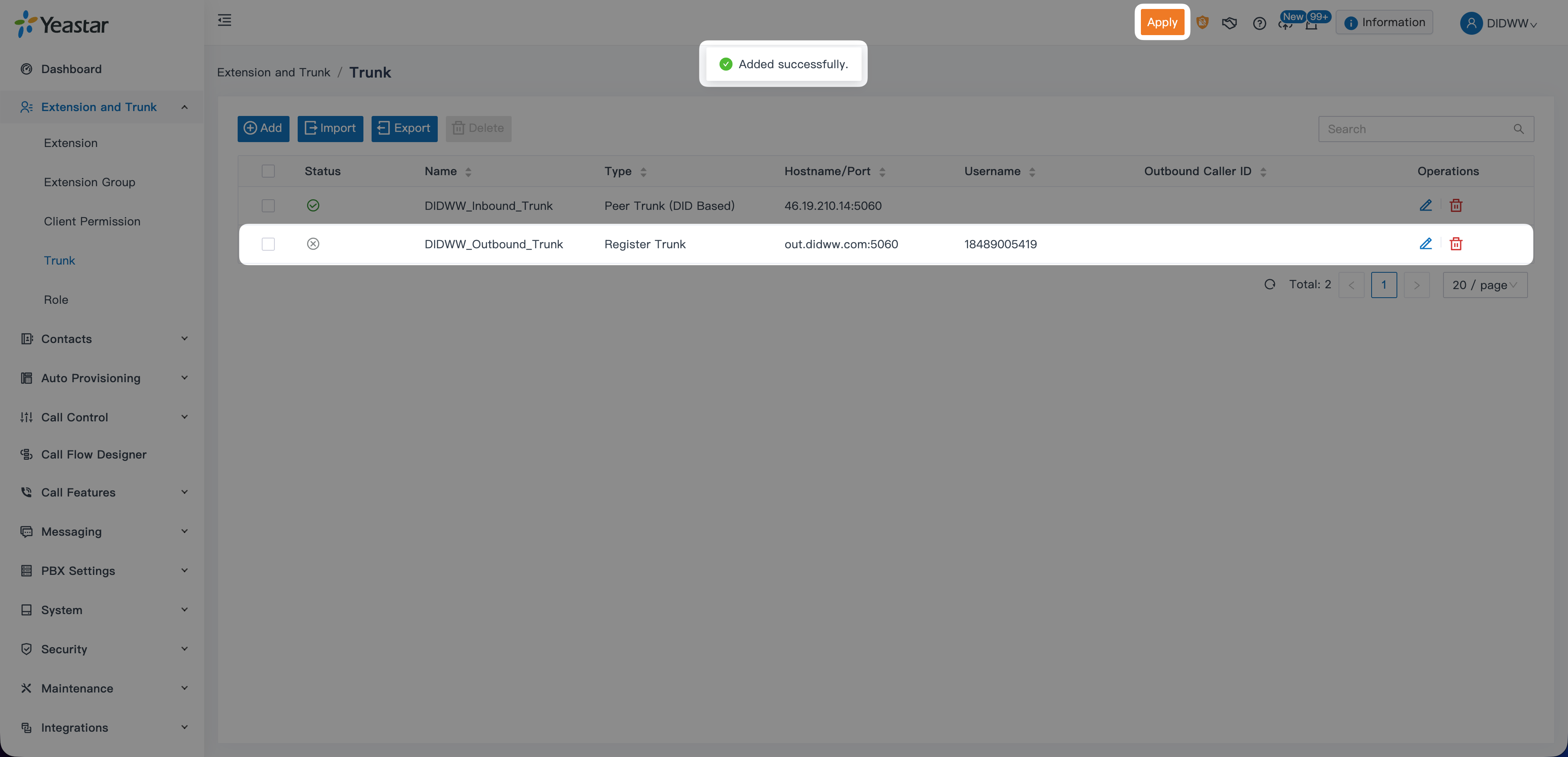
Apply the Changes to the Yeastar Inbound SIP Trunk

Once you return to the Trunk list, click Apply to activate the configuration.

Apply changes on the Yeastar PBX

Fig. 18. Applying changes to the trunk configuration

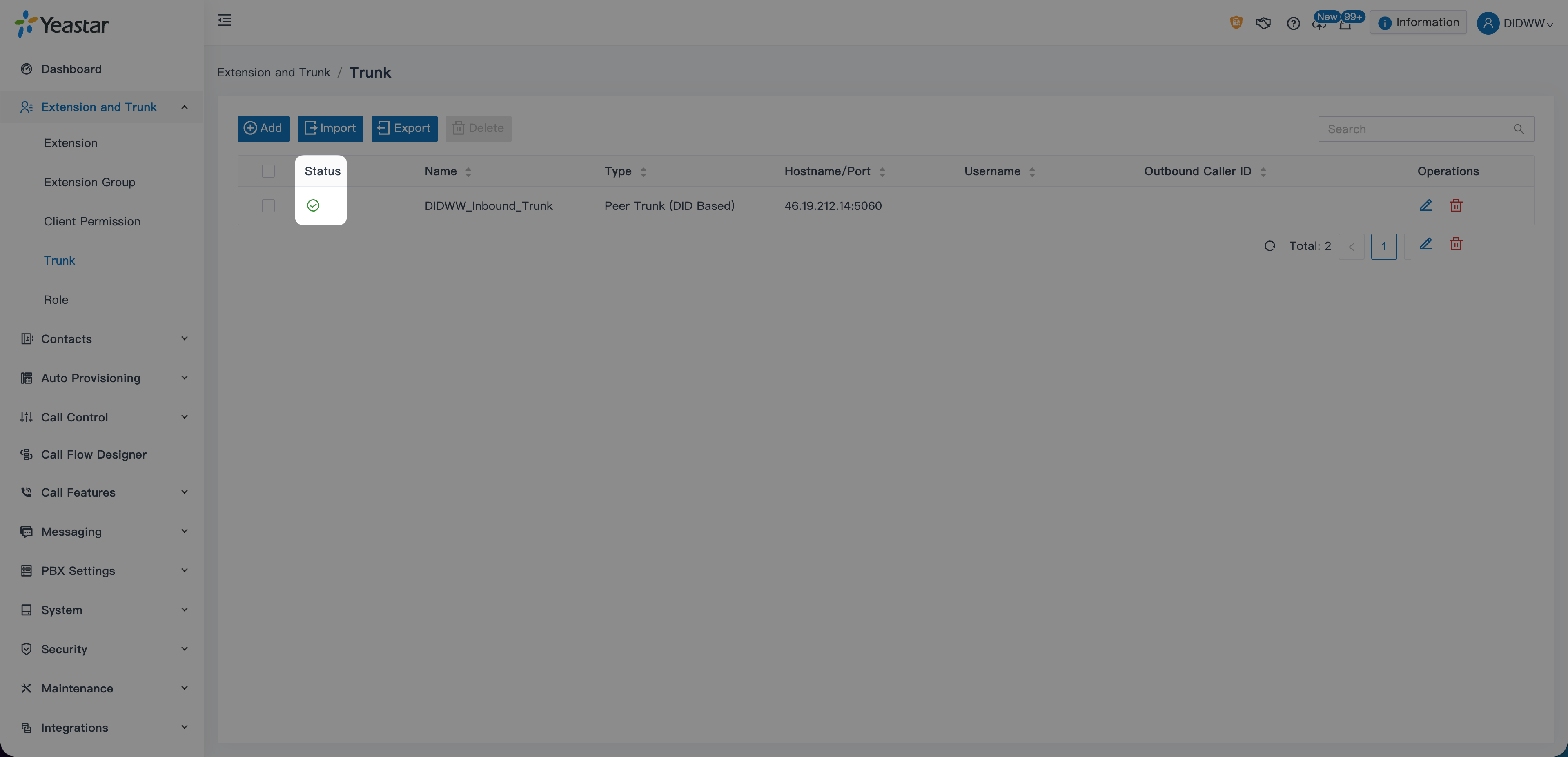
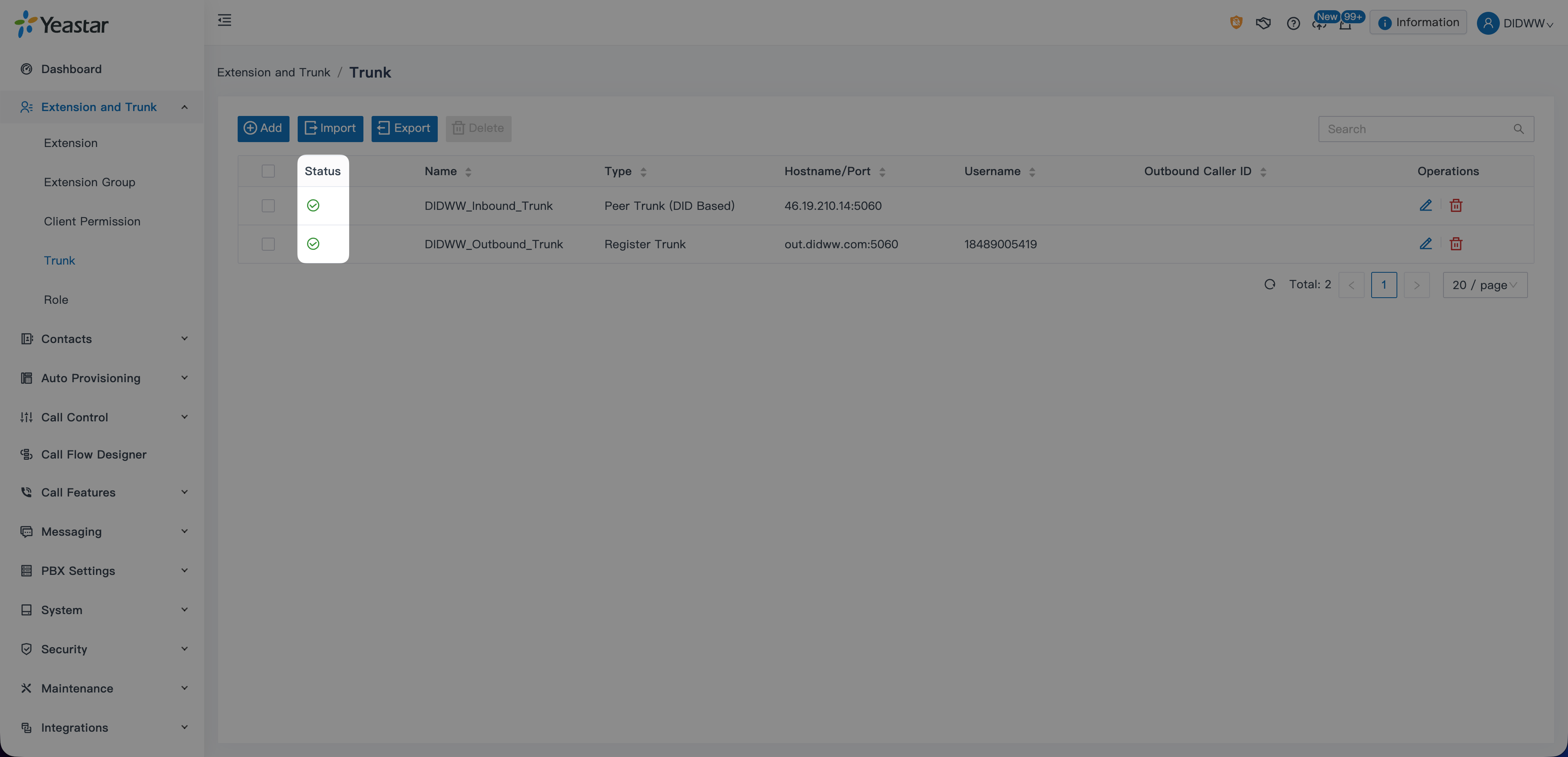
The trunk status will update to Reachable once the connection is established.

Yeastar inbound trunk reachable

Fig. 19. DIDWW Inbound SIP Trunk successfully configured on Yeastar


Step 2: Configure the DIDWW Outbound Trunk

This trunk is used when the Yeastar P-Series PBX places outbound calls to external phone numbers through DIDWW.


Add the Outbound Trunk in Yeastar PBX

  1. In the Yeastar PBX Admin interface, go to Extension & Trunk > Trunk.

  2. Click Add.

Add a new outbound SIP trunk on Yeastar P-Series PBX

Fig. 20. Add a new outbound SIP trunk


Configure Basic Settings

Begin by configuring the general trunk parameters:

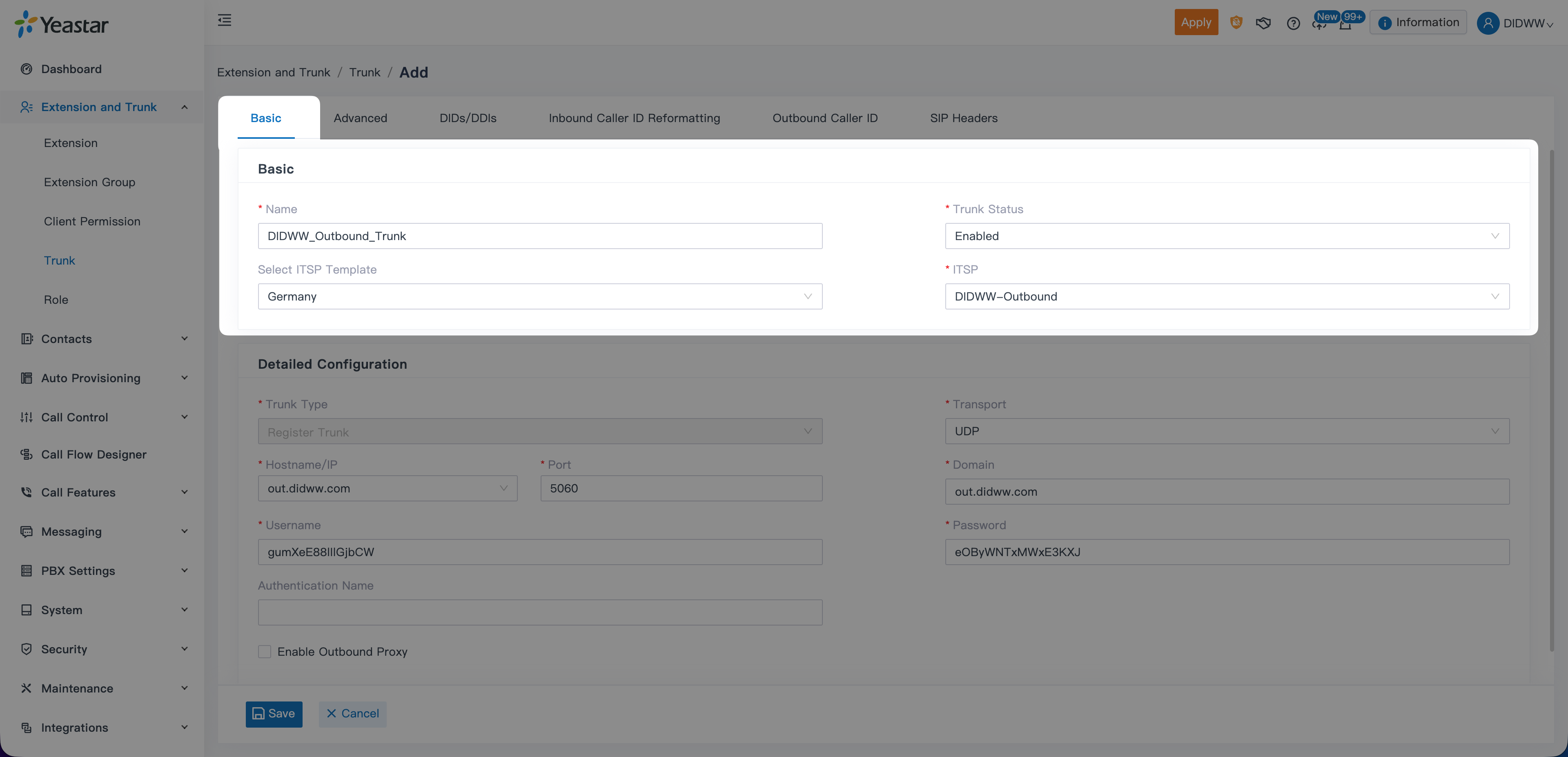
  1. Enter a Name for the trunk (e.g., DIDWW_Outbound_Trunk).

  2. In ITSP Template, select the template corresponding to your region. DIDWW templates are available for:

    • France

    • Germany

    • Spain

    • Singapore

    • Thailand

  3. In ITSP, select DIDWW-Outbound.

  4. Ensure Trunk Status is set to Enabled.

Yeastar Outbound SIP Trunk basic settings

Fig. 21. Basic settings for the DIDWW Outbound SIP Trunk


Enter Authentication Details

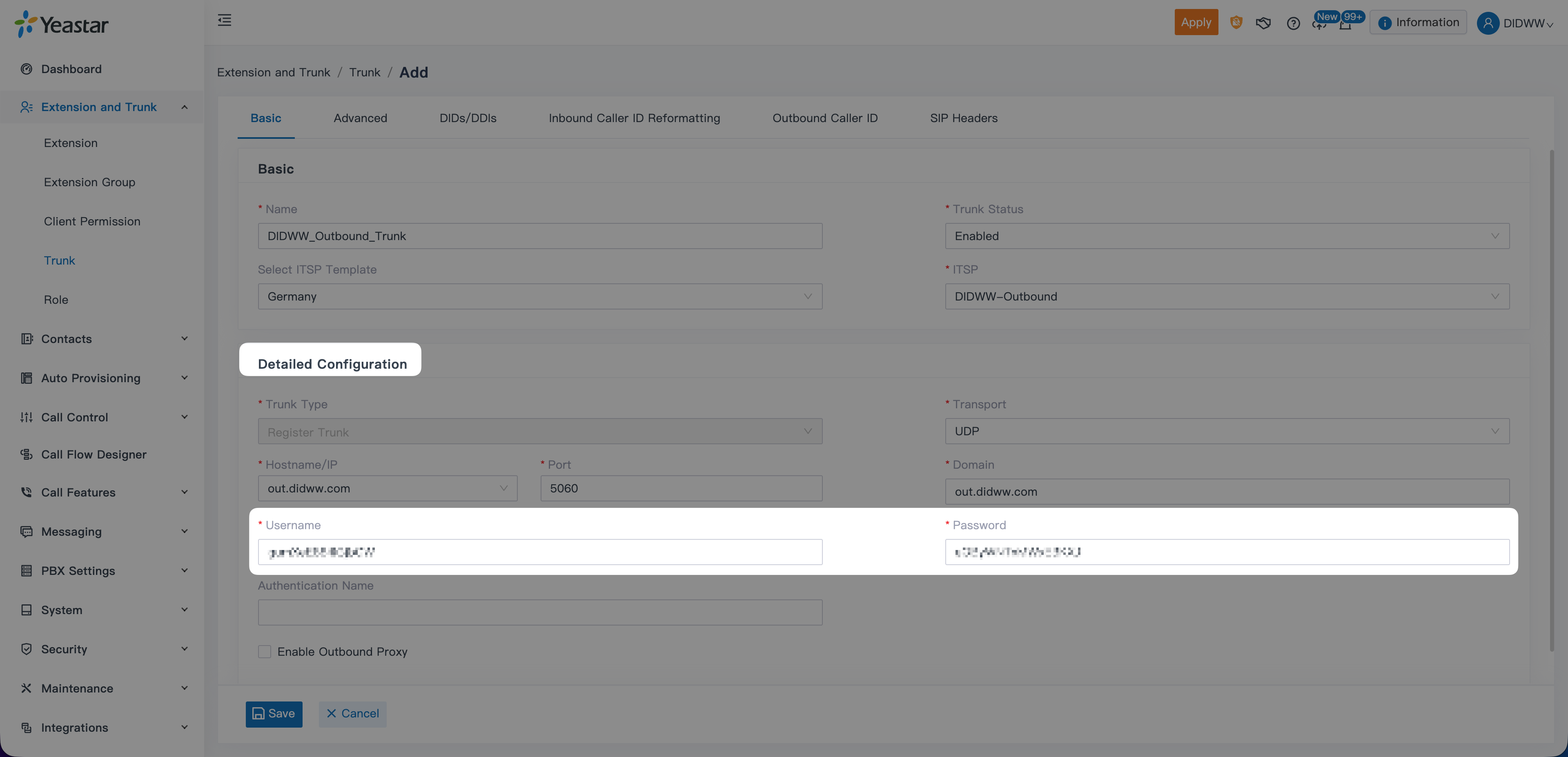
Enter your DIDWW Outbound Trunk username and password in the corresponding Username and Password fields.

Yeastar Outbound SIP Trunk Detailed Configuration

Fig. 22. Yeastar P-Series PBX Outbound SIP Trunk Detailed Configuration


Configure Advanced Settings

  1. Open the Advanced tab.

  2. Under VoIP Settings, enable Qualify. This allows the PBX to monitor trunk reachability using SIP OPTIONS packets.

Yeastar Outbound SIP Trunk Advanced Settings

Fig. 23. Enable Qualify in Advanced Settings


Add DIDs to the Outbound Trunk

Although outbound trunks do not require DID mapping, the Yeastar interface still expects a DID entry for consistency.

  1. Open the DIDs/DDIs tab.

  2. Click Add.

  3. In the pop-up window:

    • Create Method: Single DID

    • DID/DDI: Enter your outbound Caller ID (E.164 format, no +).

    • DID/DDI Name: Enter a descriptive name (e.g., DIDWW Outbound Caller ID).

  4. Click Confirm, then Save.

Yeastar Outbound SIP Trunk Add DID

Fig. 24. Adding a DID to the Outbound SIP Trunk

Apply Outbound Trunk Settings

Once you return to the Trunk menu, you will see your new outbound trunk in the list. Click Apply to finalize the configuration.

Apply Outbound Trunk Changes

Fig. 25. Applying Yeastar Outbound Trunk Configuration

The outbound trunk will show status Registered when authentication succeeds.

Apply Outbound Trunk Changes

Fig. 26. DIDWW Outbound SIP Trunk successfully registered on Yeastar


Step 3: Add Extension

Before configuring Inbound or Outbound Routes, create at least one Extension that will receive and place calls through the DIDWW SIP trunks.

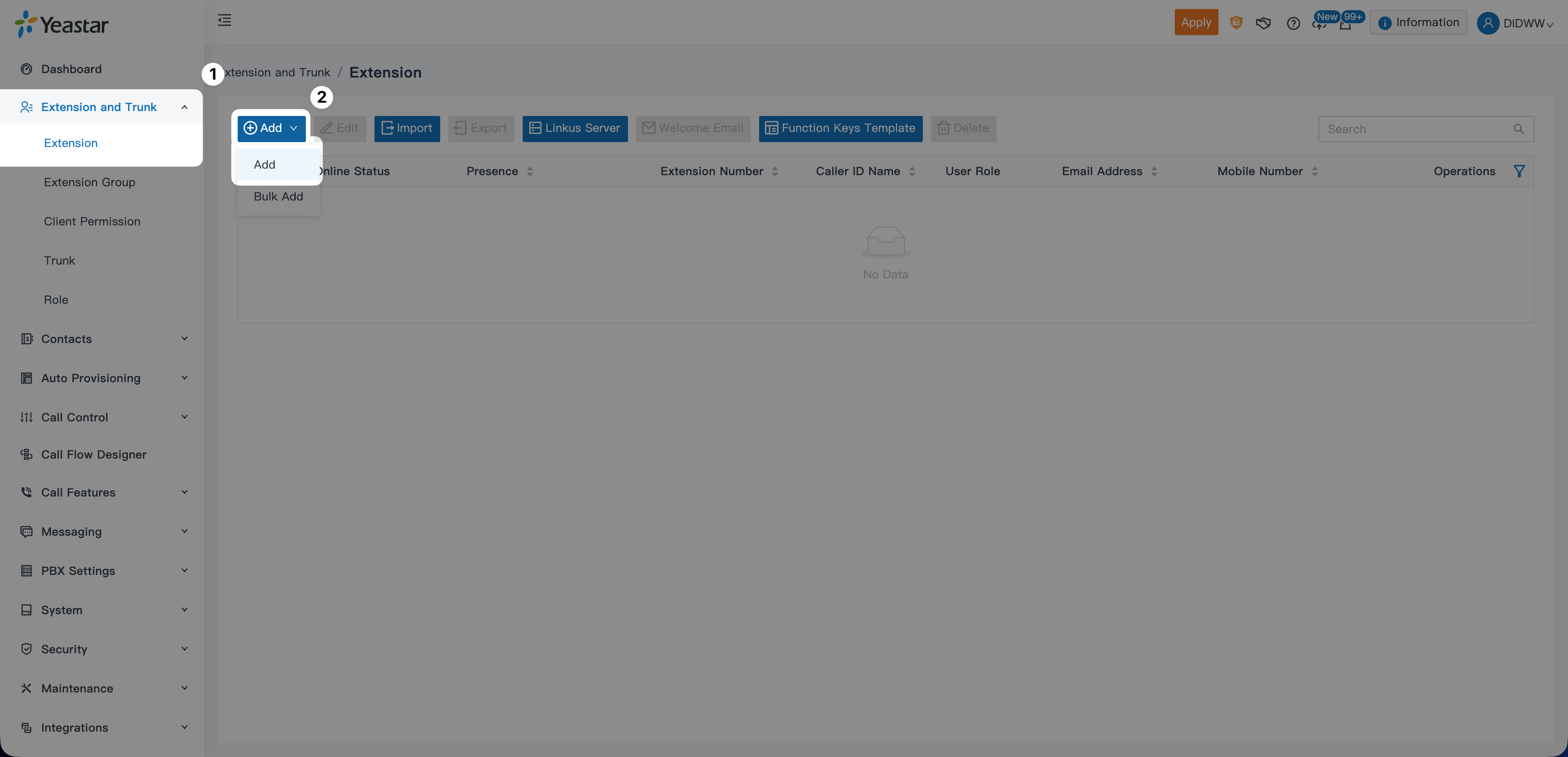
  1. In the Yeastar admin interface, go to Extension & Trunk > Extension.

  2. Click Add > Add to create a new extension.

Add extensions button in Yeastar P-Series PBX

Fig. 27. Add extensions button in Yeastar P-Series PBX

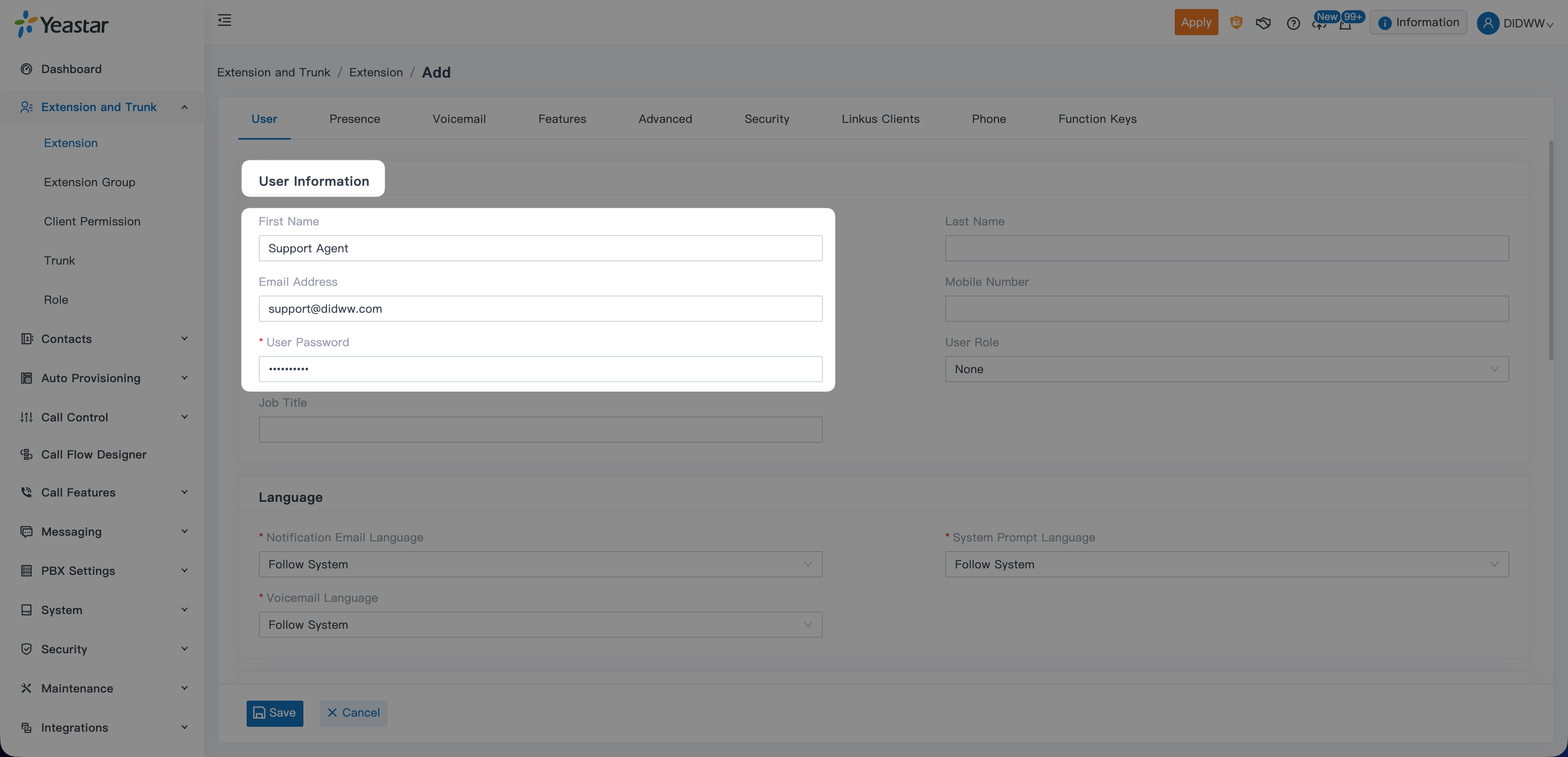
  1. Enter the User information:

    • First Name (e.g., Support Agent).

    • Email Address

    • Update the placeholder User Password.

Note

The Email Address and User Password are used to sign in to the Yeastar Linkus Desktop Client for handling calls.

Extensions User Information in Yeastar P-Series PBX

Fig. 28. Extensions User Information in Yeastar P-Series PBX

  1. Configure Extension Information:

    • Select the Extension Number (e.g., 1000).

    • Set the Caller ID to match the extension number (e.g., 1000).

  2. Click Save to create the extension.

Note

A default Extension Group is automatically created and includes all extensions. To modify the default group or create a new one, refer to the Yeastar Extension Group documentation .

Extension Information in Yeastar P-Series PBX

Fig. 29. Extension Information in Yeastar P-Series PBX

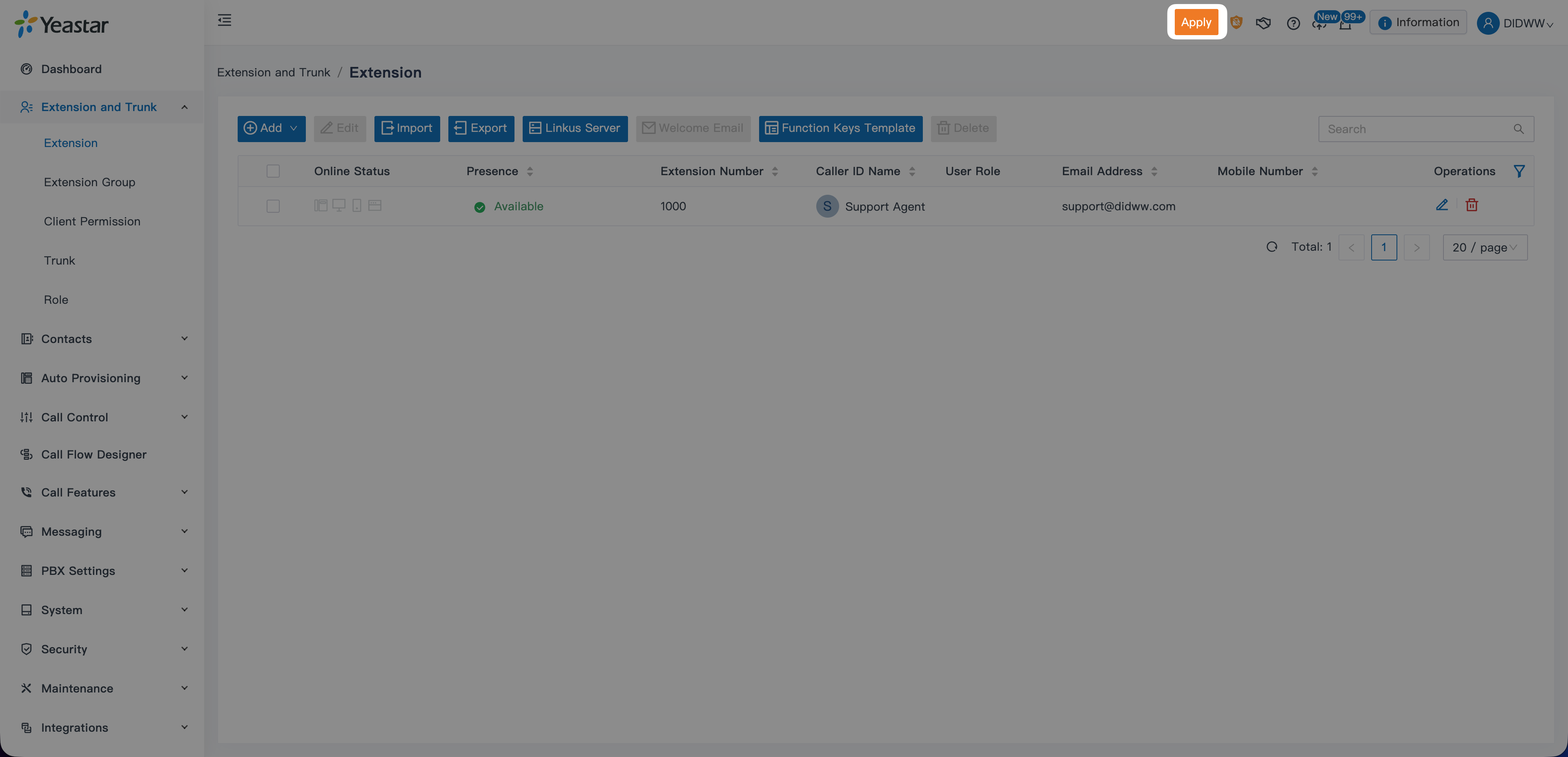
  1. Click Apply to finalize the configuration.

Configured Extensions in Yeastar P-Series PBX

Fig. 30. Configured Extensions in Yeastar P-Series PBX


Step 4: Configure an Inbound Route

Create an inbound route to deliver calls from your DIDWW DID to the correct destination inside your Yeastar P-Series PBX.

Add the Inbound Route

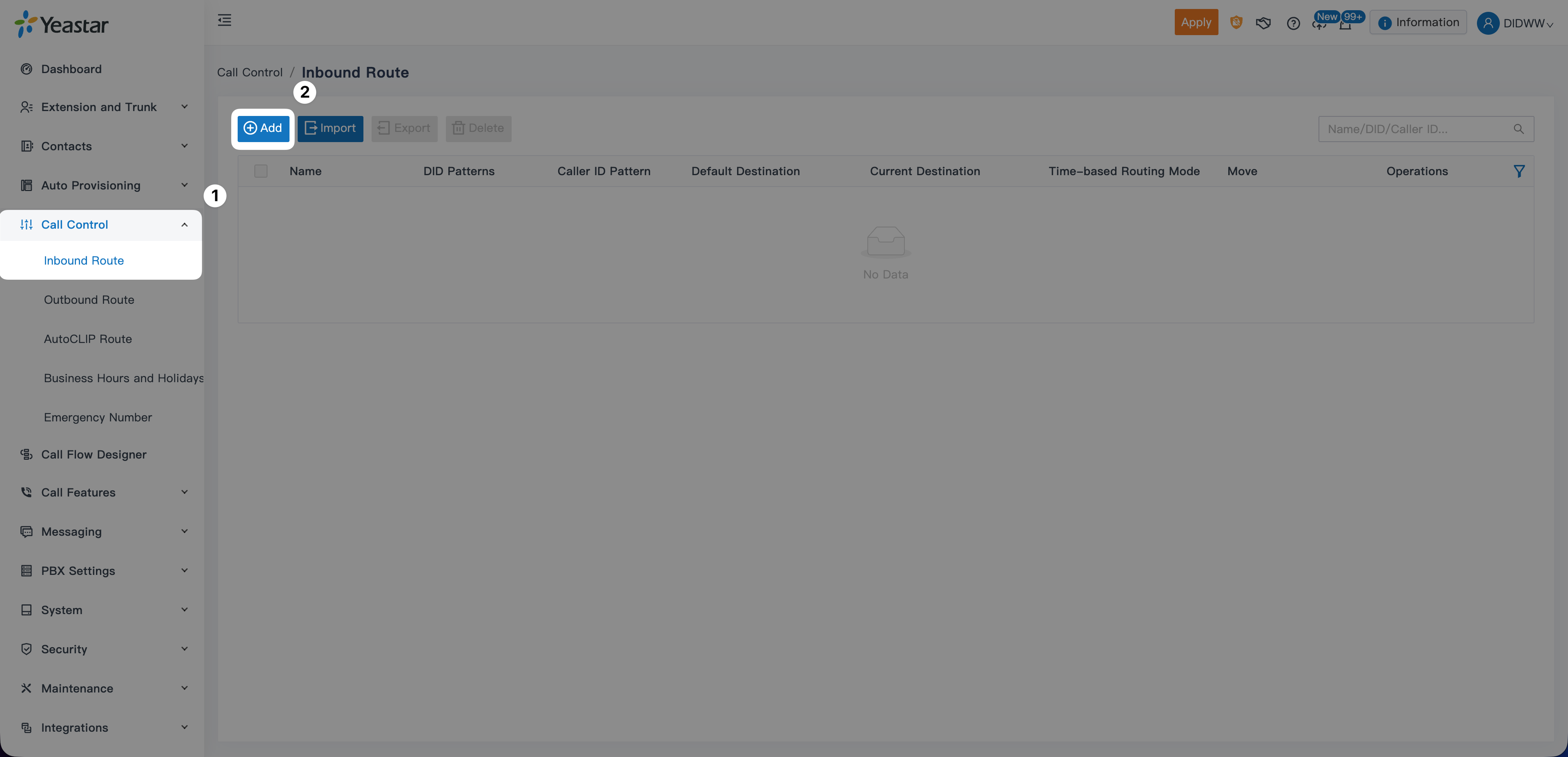
  1. In the Yeastar admin interface, go to Call Control > Inbound Route.

  2. Click Add to create a new inbound route.

Add inbound route in Yeastar P-Series PBX

Fig. 31. Add a new inbound route

Configure Inbound Route Settings

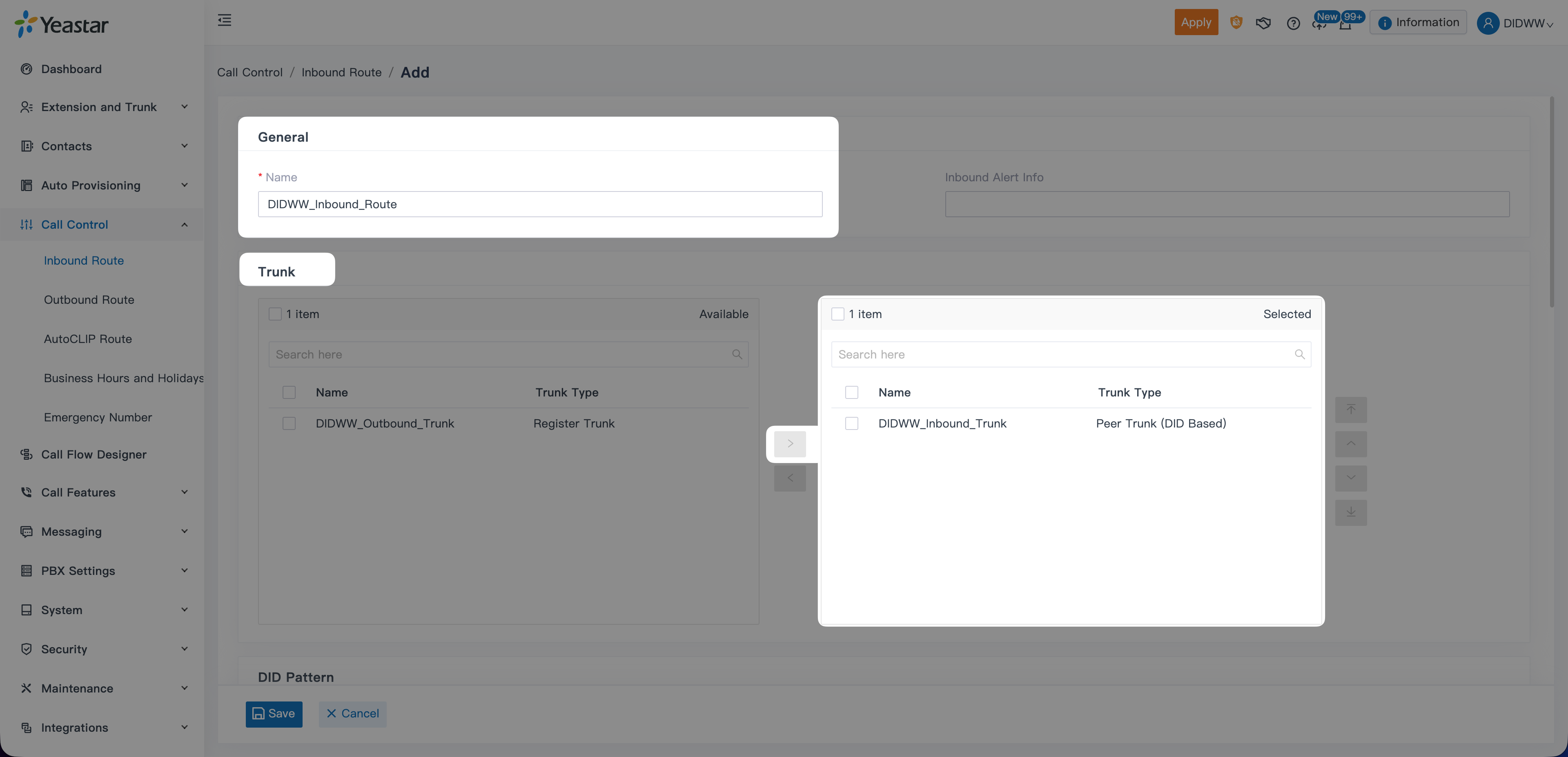
  1. In the General section, enter a Name for the route (e.g., DIDWW_Inbound_Route).

  2. In the Trunk panel, select your DIDWW Inbound Trunk from the list and move it to the Selected column.

Select inbound trunk for Yeastar inbound route

Fig. 32. General settings and Selecting the inbound trunk

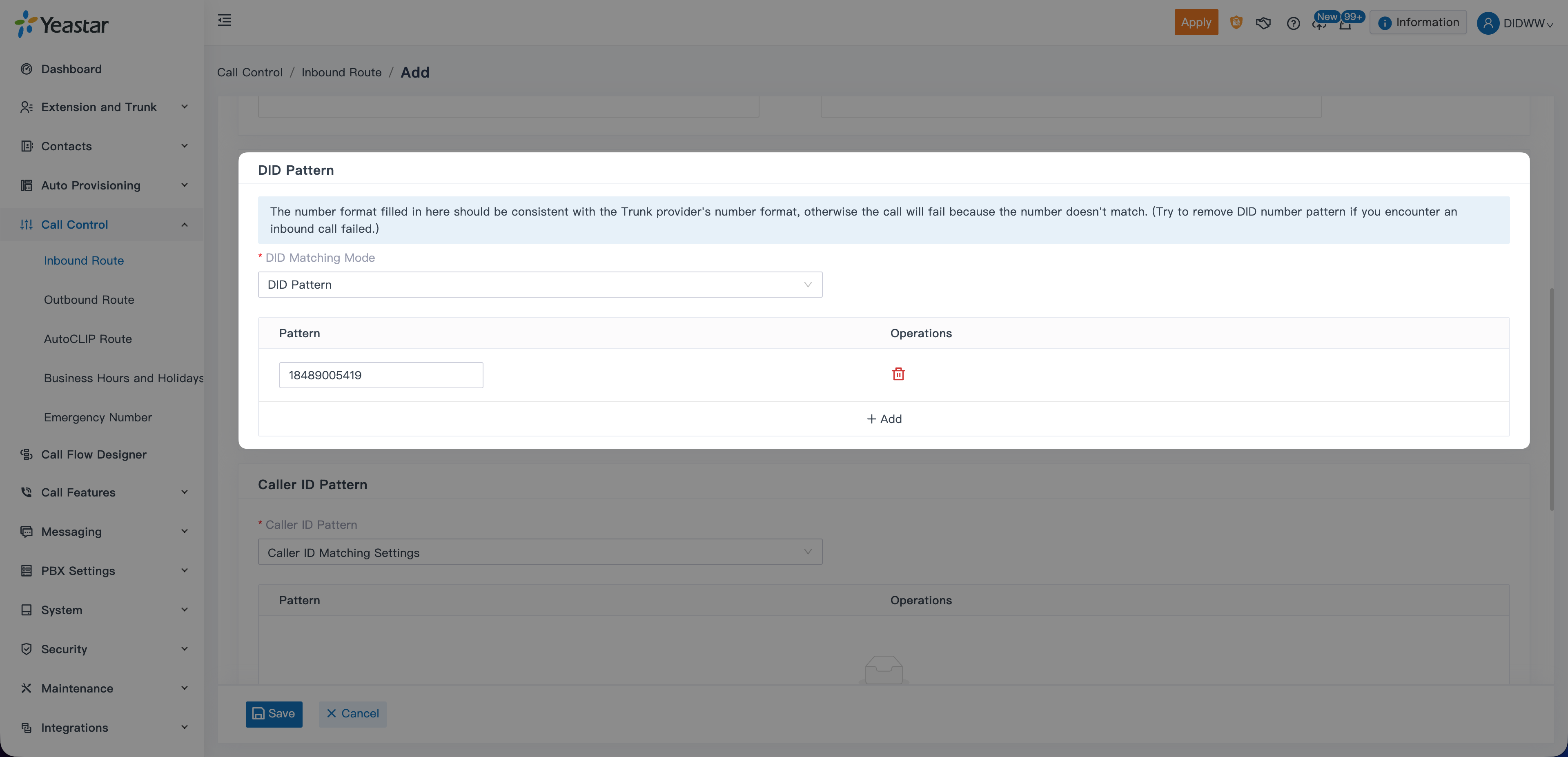
  1. Scroll to DID Pattern and enter your DID number in E.164 format without the + (e.g., 18489005419).

DID Pattern configuration in Yeastar inbound route

Fig. 33. Adding the DID pattern

  1. In Default Destination, choose where incoming calls should be routed (e.g., IVR, Extension, Ring Group, etc.).

  2. After completing the DID Pattern and Default Destination settings, click Save at the bottom of the form.

Selecting the default destination and saving the inbound route

Fig. 34. Selecting the default destination and saving the inbound route

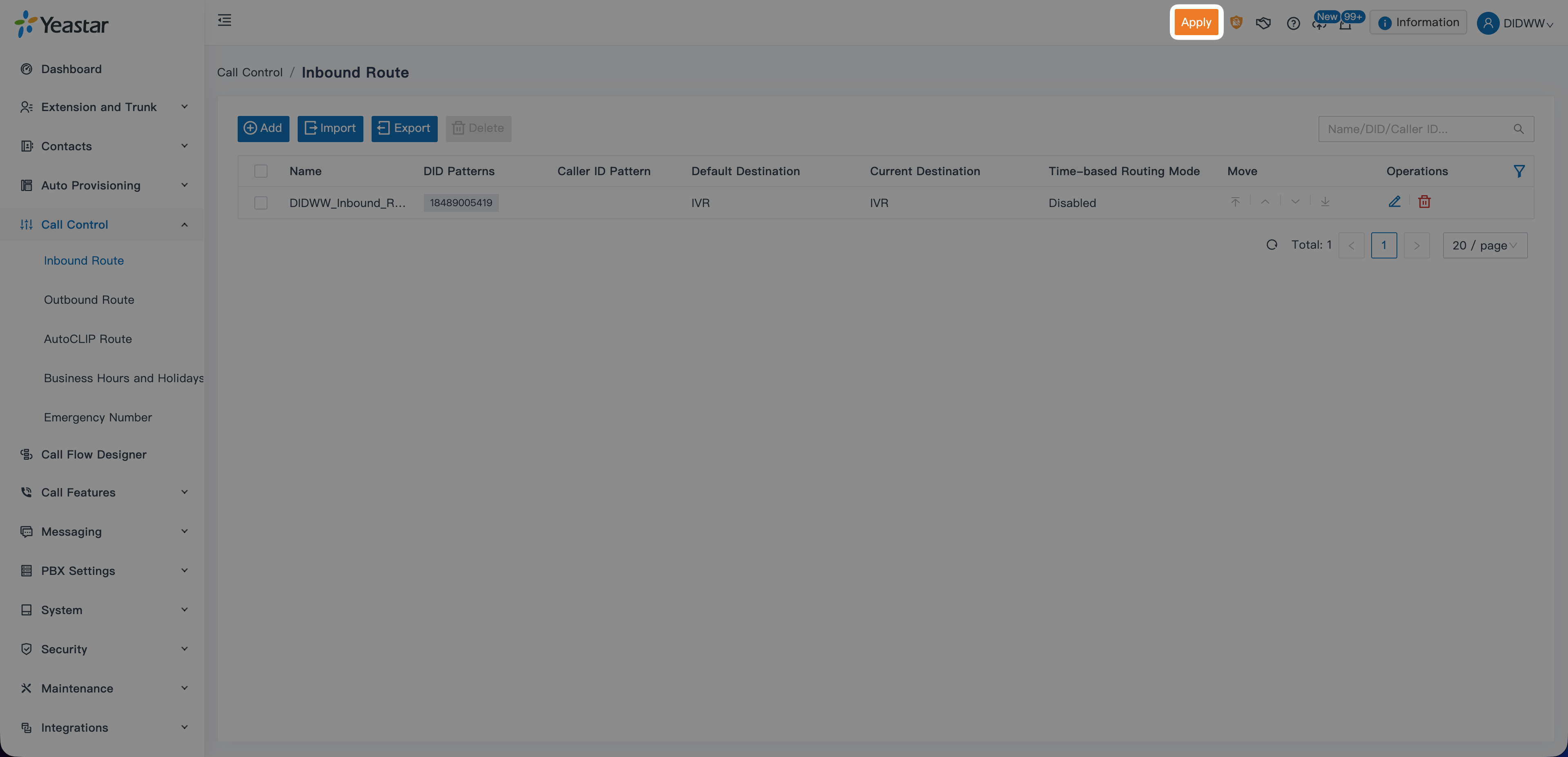
  1. When returned to the Inbound Route list, click Apply to activate the configuration.

Applying inbound route changes in Yeastar P-Series PBX

Fig. 35. Applying the inbound route changes


Step 5: Configure an Outbound Route

Create an outbound route to allow Yeastar extensions to make external calls through your DIDWW Outbound SIP Trunk.

Add the Outbound Route

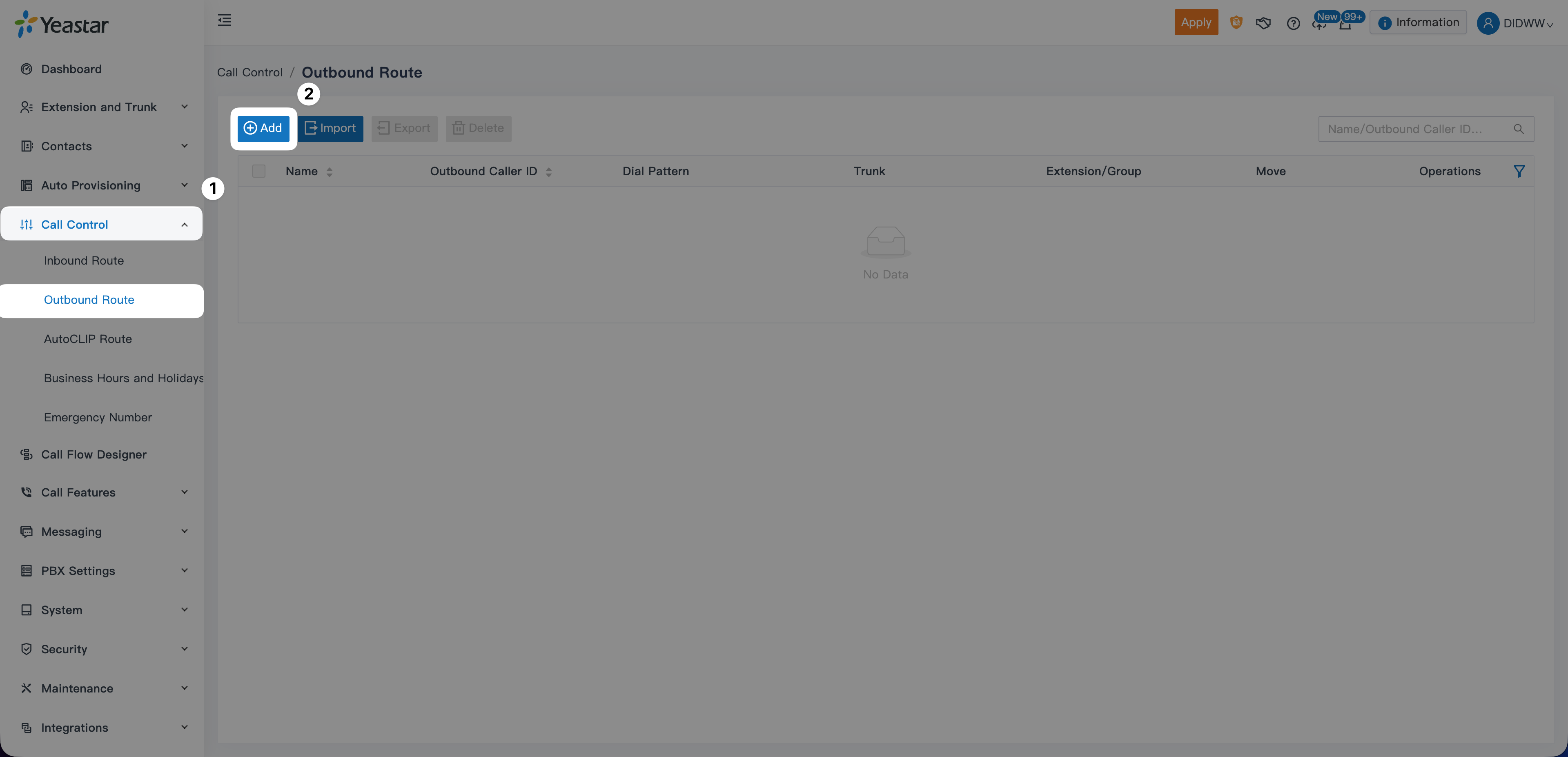
  1. In the Yeastar admin interface, go to Call Control > Outbound Route.

  2. Click Add.

Add outbound route in Yeastar P-Series PBX

Fig. 36. Add outbound route in Yeastar P-Series PBX

Configure Outbound Route Settings

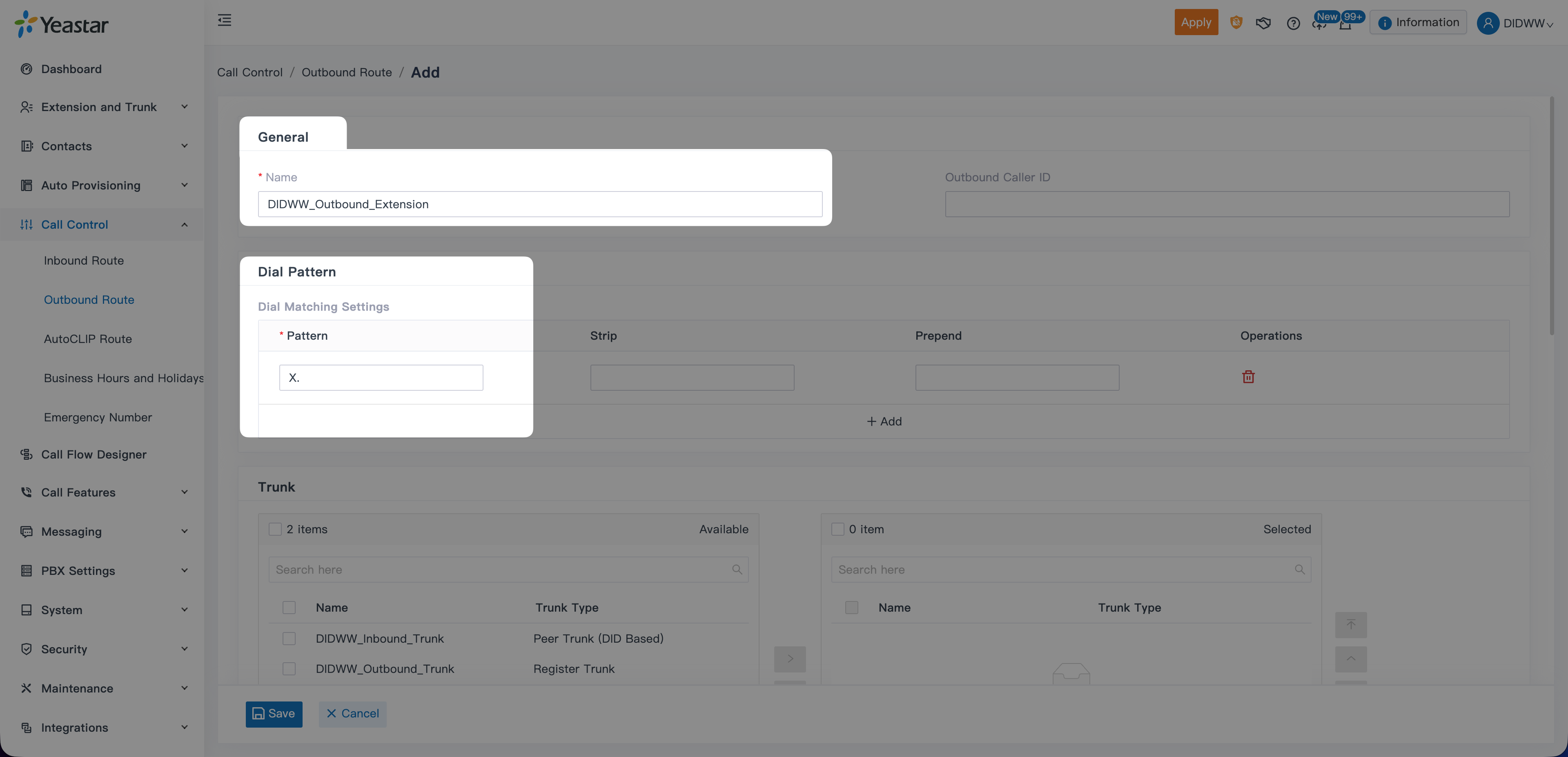
  1. Under General, enter a Name for the route (e.g., DIDWW_Outbound_Extension).

  2. Under Dial Pattern, configure:

    • Pattern: X. (allows dialing any external number)

Outbound route general settings and Dial Pattern configuration

Fig. 37. Outbound route general settings and Dial Pattern configuration

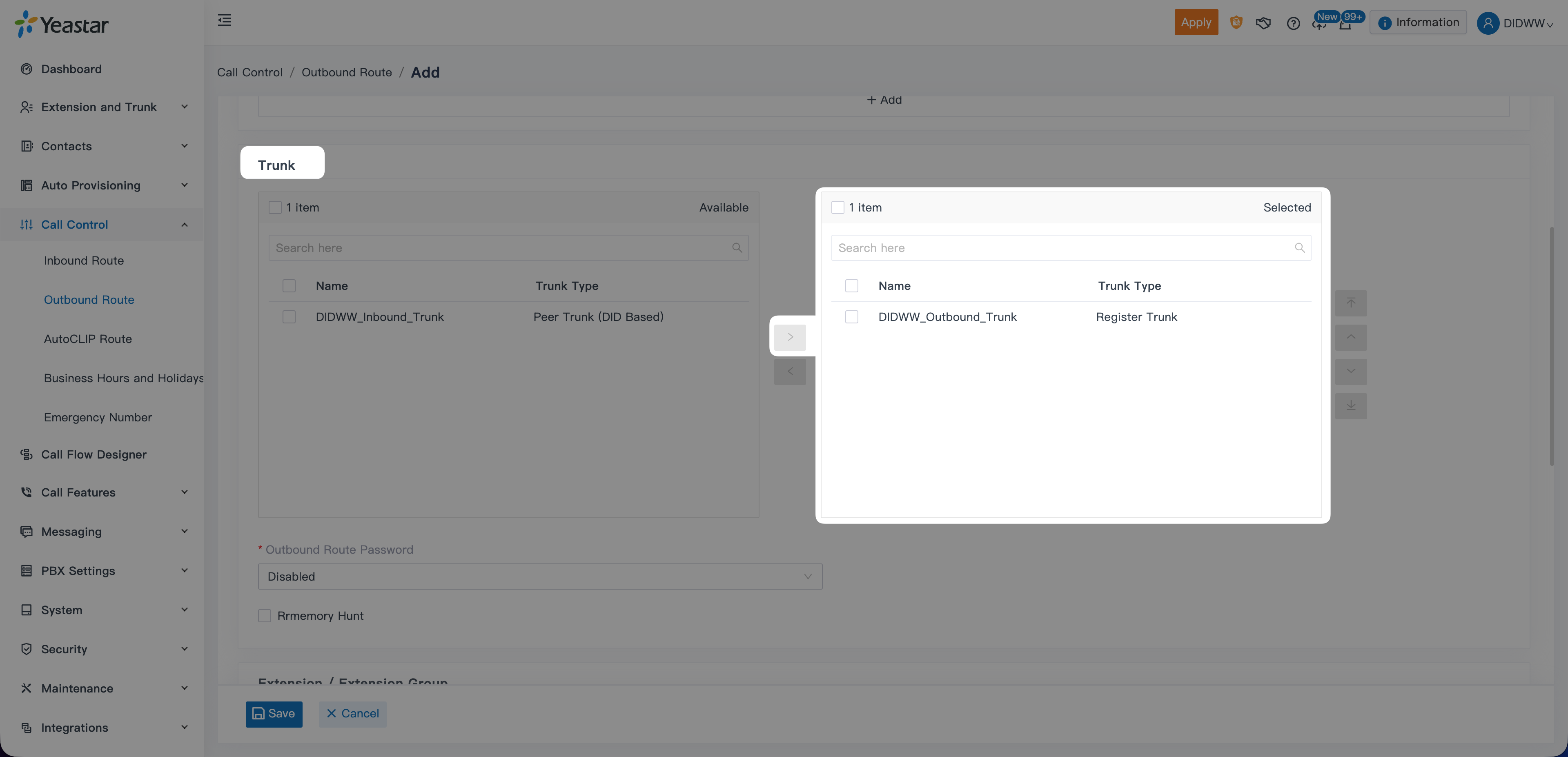
  1. Under Trunk, select your DIDWW Outbound Trunk and move it to the Selected column.

Dial Pattern configuration for outbound route

Fig. 38. Selecting the DIDWW Outbound Trunk

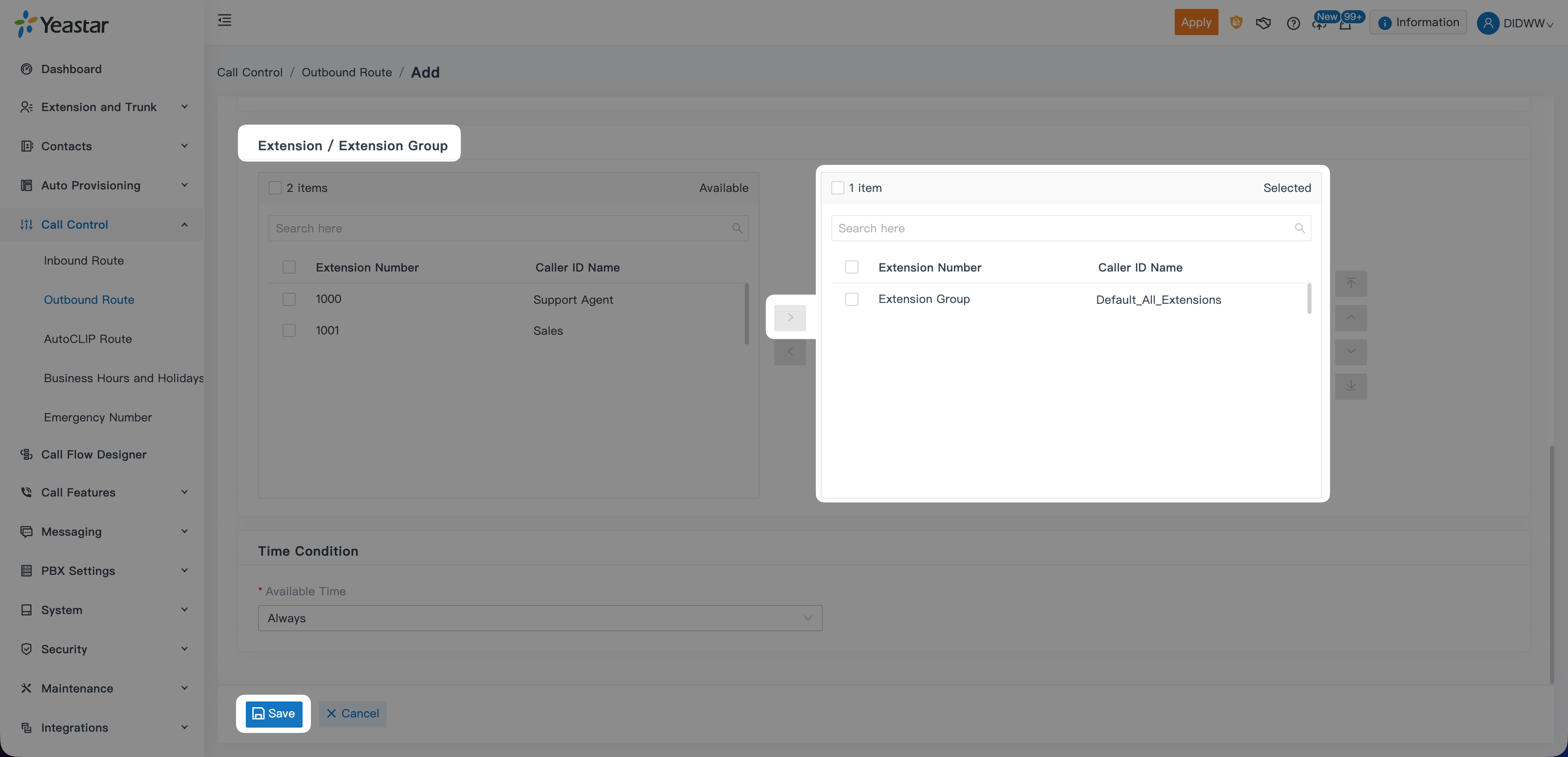
  1. Under Extension / Extension Group, select the extensions that should be allowed to make outbound calls (e.g., the default Extension Group).

  2. Click Save to create the outbound route.

Assigning extensions to the outbound route and Saving outbound route

Fig. 39. Assigning extensions to the outbound route and Saving outbound route

  1. When returned to the Outbound Route list, click Apply to activate the configuration.

Apply outbound route changes

Fig. 40. Apply outbound route changes


Step 6: Test Inbound and Outbound Calls

Before testing calls, ensure that at least one extension is registered. You may use the Yeastar Linkus Desktop or Mobile Client to register an extension easily.

Register an Extension

  1. Download the Linkus client for your operating system.
  2. Sign in using the Email Address and User Password configured for the extension.

  3. Once logged in, the extension status will change to Registered in the Yeastar PBX interface.

Note

You may also register extensions using any SIP-compatible softphone or IP phone. For more details, refer to the official Yeastar SIP Extension Settings documentation .

Test Inbound Calls

Verify that incoming calls from DIDWW numbers correctly reach your Yeastar PBX.

  • From an external phone, call your DIDWW number.

  • Confirm the call is delivered to Yeastar and routed according to your Inbound Route destination.

  • Answer the call and verify two-way audio.

  • If the call does not arrive, check the trunk status and DID Pattern configuration.

Test Outbound Calls

Verify that outbound calls from Yeastar extensions are sent through the DIDWW Outbound Trunk.

  • From the registered Yeastar extension, dial any external number that matches your Dial Pattern.

  • Confirm that the call is routed through your DIDWW Outbound Trunk.

  • Verify two-way audio.

  • If the call fails, review trunk registration status and outbound routing permissions.

Note