

LiveKit#
Use LiveKit voice AI agents with DIDWW SIP Trunking to handle inbound and outbound calling over standard phone lines. Connect your DIDWW SIP trunks with LiveKit Cloud to route incoming calls to your agent, place outbound calls through DIDWW trunks, and transfer active calls to a live person.
Route incoming calls from DIDWW numbers to a LiveKit voice AI agent.
Connect each caller to an agent in a separate room.
Authenticate incoming calls with SIP credentials.
Place outbound calls through DIDWW Outbound Trunks.
Transfer active calls to external phone numbers through DIDWW.
Encrypt SIP signaling with TLS and call media with SRTP.
1. Route Incoming Calls to LiveKit#
Configure an Inbound SIP Trunk in the DIDWW User Panel to send incoming calls from your DIDWW numbers to LiveKit. This trunk defines the SIP path that delivers calls to your LiveKit project and can be configured to support SIP REFER call transfers.
Before You Begin#
An active DIDWW account is required. Sign in to DIDWW or Create DIDWW account.
At least one active DID number with capacity to receive incoming calls is required. Buy Numbers.
A project on LiveKit Cloud is required.
Your LiveKit SIP endpoint is required. In LiveKit Cloud, open Project settings, copy the SIP URI, and remove the
sip:prefix. For example,sip:vjnxecm0tjk.sip.livekit.cloudbecomesvjnxecm0tjk.sip.livekit.cloud. See LiveKit SIP trunk setup.
Step 1: Create New SIP Trunk#
In the DIDWW User Panel, go to Voice > Inbound Trunks.
Click Create New > SIP Trunk.
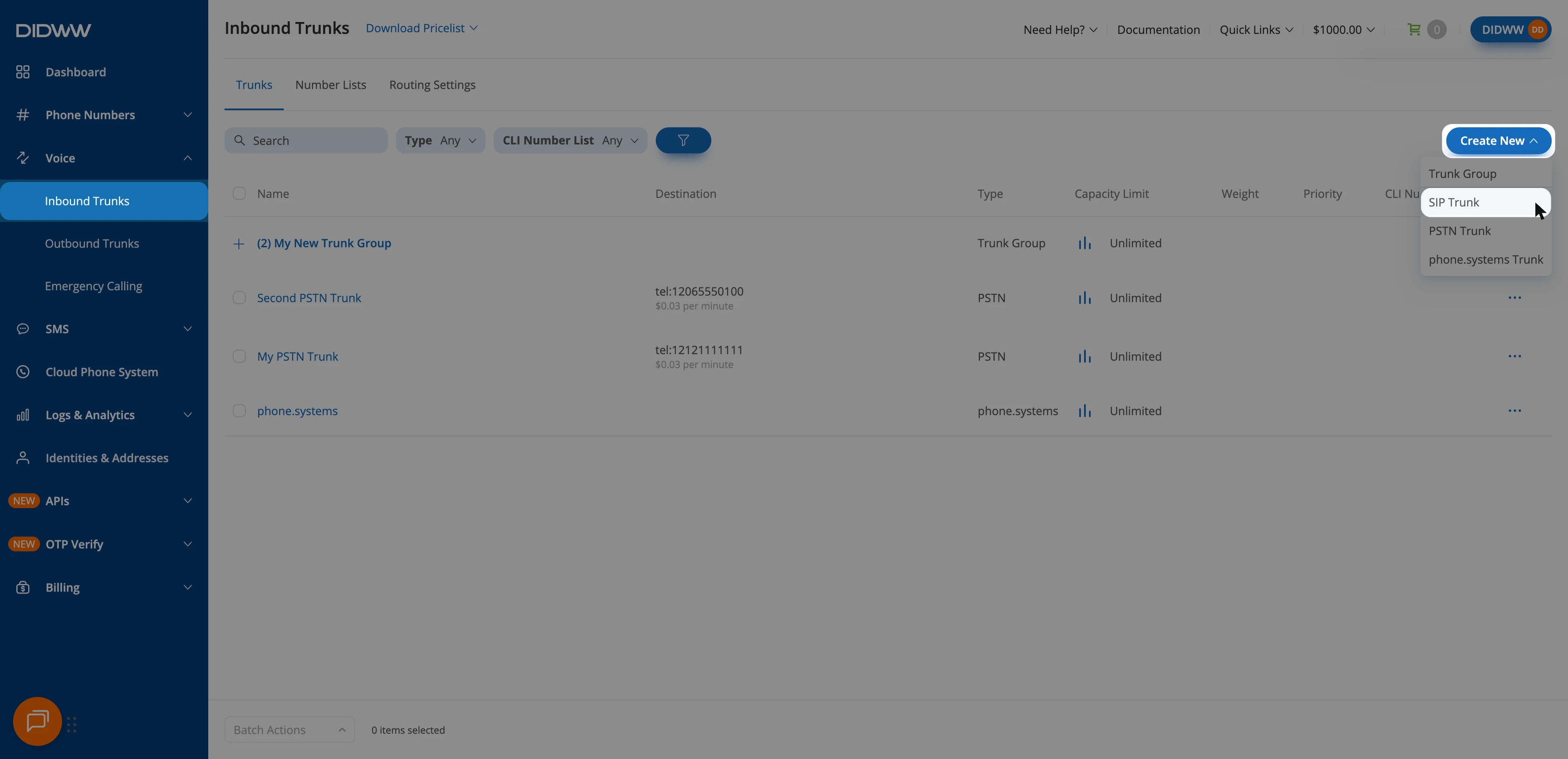
Fig. 1. Creating a new inbound SIP trunk#
Step 2: Configure General SIP Trunk Settings#
In the General tab, configure the endpoint settings used to deliver calls from DIDWW to LiveKit.
Enter a descriptive Name for the trunk (e.g.,
LiveKit).Select Static Endpoint.
In Host, enter your LiveKit SIP endpoint (e.g.,
vjnxecm0tjk.sip.livekit.cloud).In Port, enter
5061for TLS. For unencrypted signaling, enter5060.In Transport, select TLS. For unencrypted signaling, select TCP or UDP.
In Network Protocol, select Prefer IPv4 over IPv6 or IPv4 only to match the IPv4 addresses allowed on your DIDWW outbound trunk.
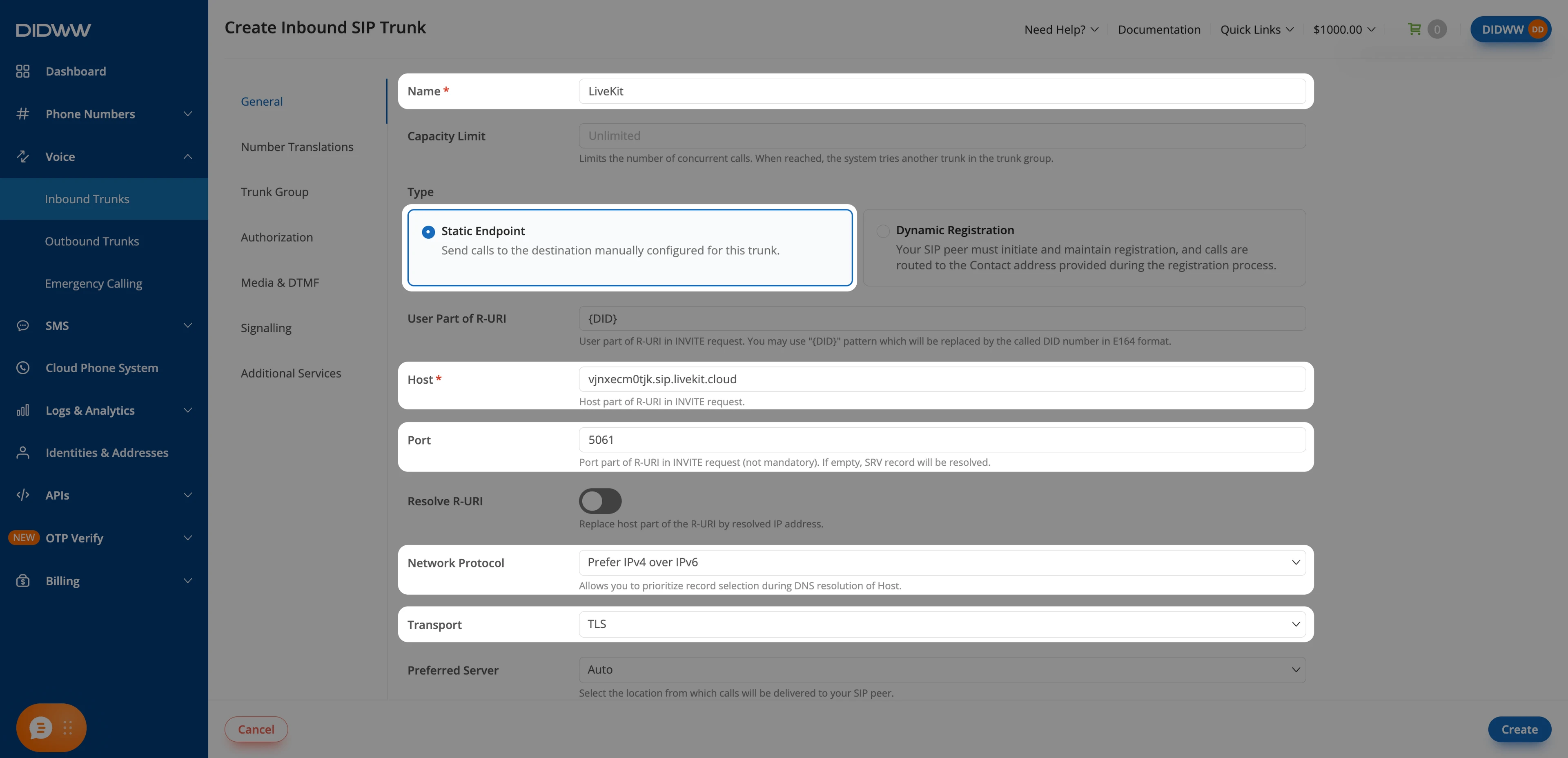
Fig. 2. SIP trunk configured for LiveKit#
Note
To keep inbound SIP traffic in a specific region, enter a LiveKit region-based SIP endpoint in Host.
Step 3: Configure Media & DTMF#
Open the Media & DTMF tab.
In Codecs, keep only PCMA and PCMU, and remove the other codecs.
In SRTP Mode, select SRTP SDES. For unencrypted media, keep Disabled.
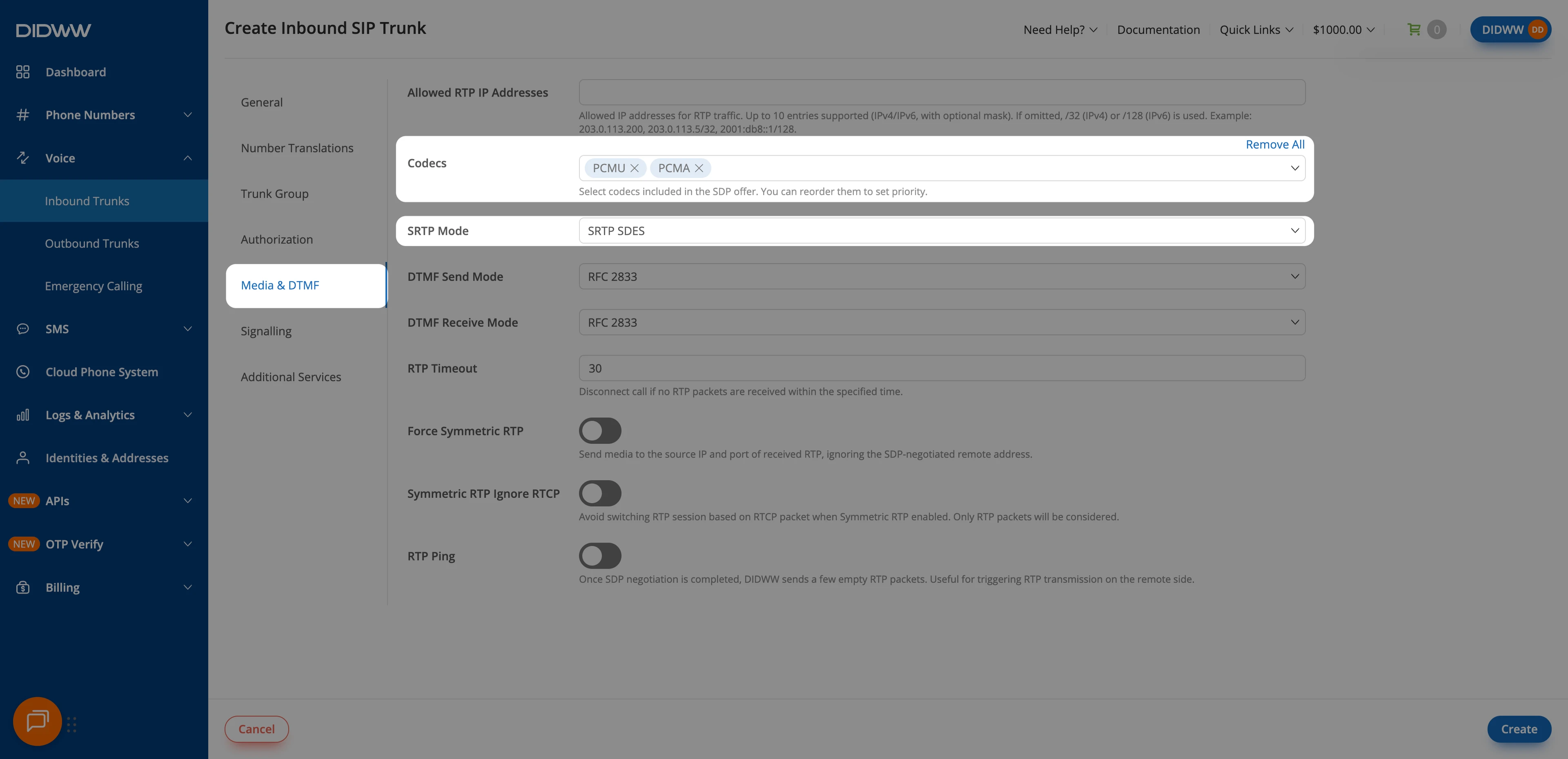
Fig. 3. Media and DTMF settings for the inbound SIP trunk#
Step 4: Enable Call Transfer Signaling#
To support call transfers, configure the inbound trunk to allow in-dialog SIP REFER requests.
Open the Signalling tab.
Set Max Transfers to
1or higher.
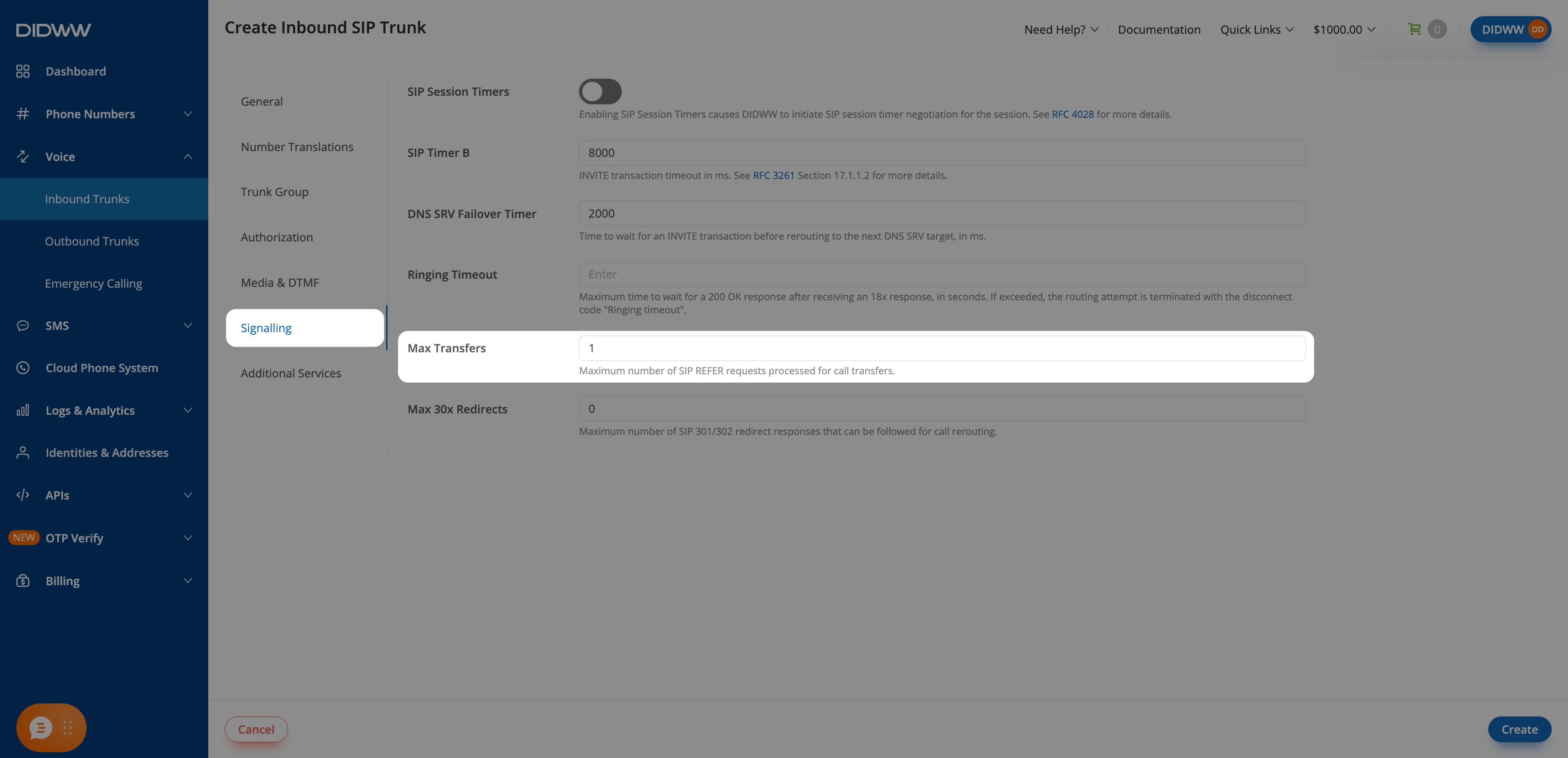
Fig. 4. Enabling call transfer signaling#
Note
Max Transfers is 0 by default, and DIDWW rejects every transfer until you change it.
Step 5: Save the Inbound SIP Trunk#
When all required fields in the Create Inbound SIP Trunk are filled, click Create to save your inbound SIP trunk.
Note
For advanced SIP trunk configuration, see Advanced Inbound SIP Trunk documentation.
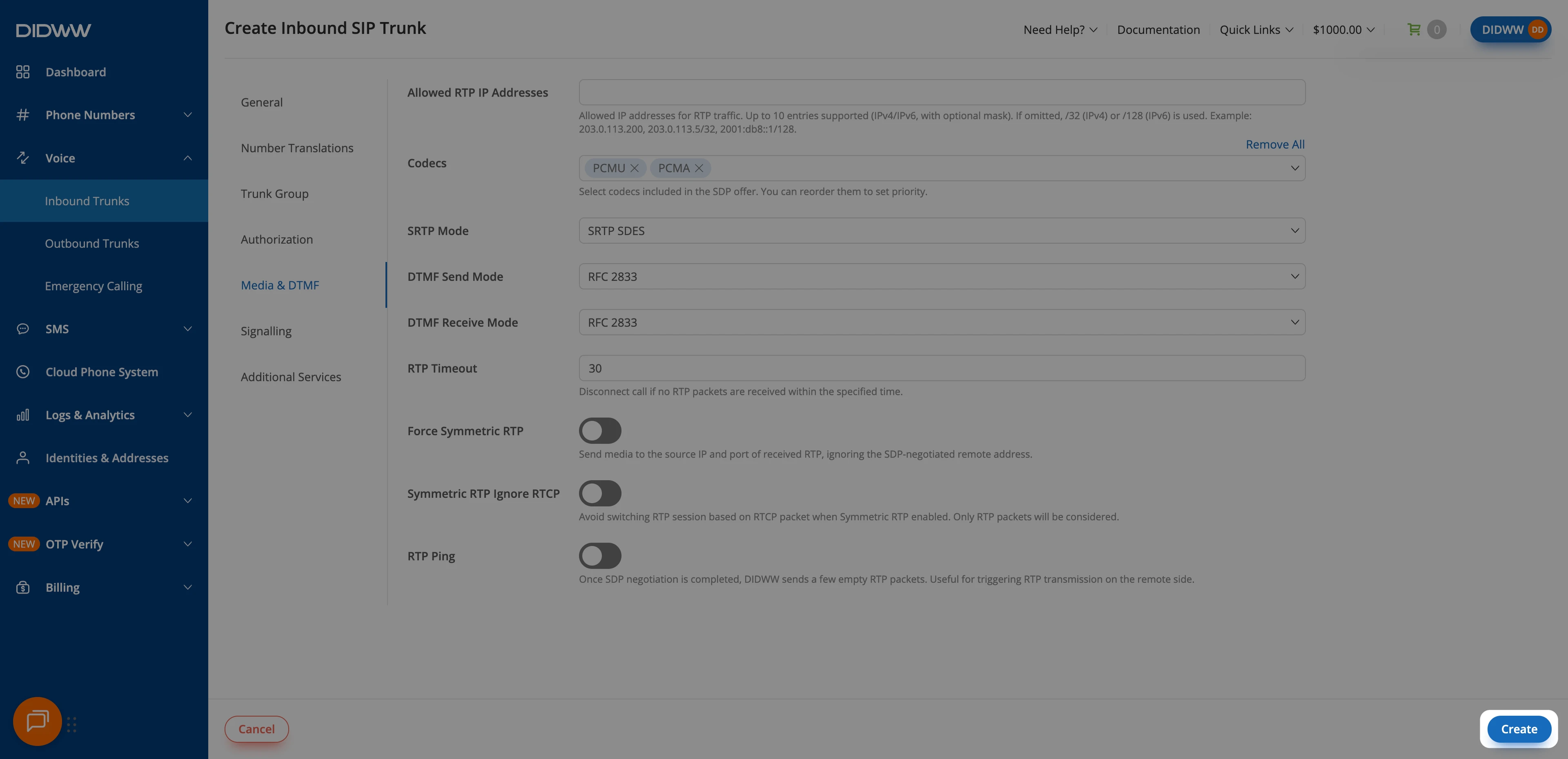
Fig. 5. Create the Inbound SIP Trunk#
Step 6: Assign Inbound SIP Trunk to Your DID Numbers#
After creating the Inbound SIP Trunk for LiveKit, assign it to the DID number(s) that will deliver incoming calls to your LiveKit agent.
In the DIDWW User Panel, go to Phone Numbers > My Numbers.
Select the DID number(s) you want to assign to the inbound SIP trunk.
At the bottom of the page, click Batch Actions > Update Trunks.
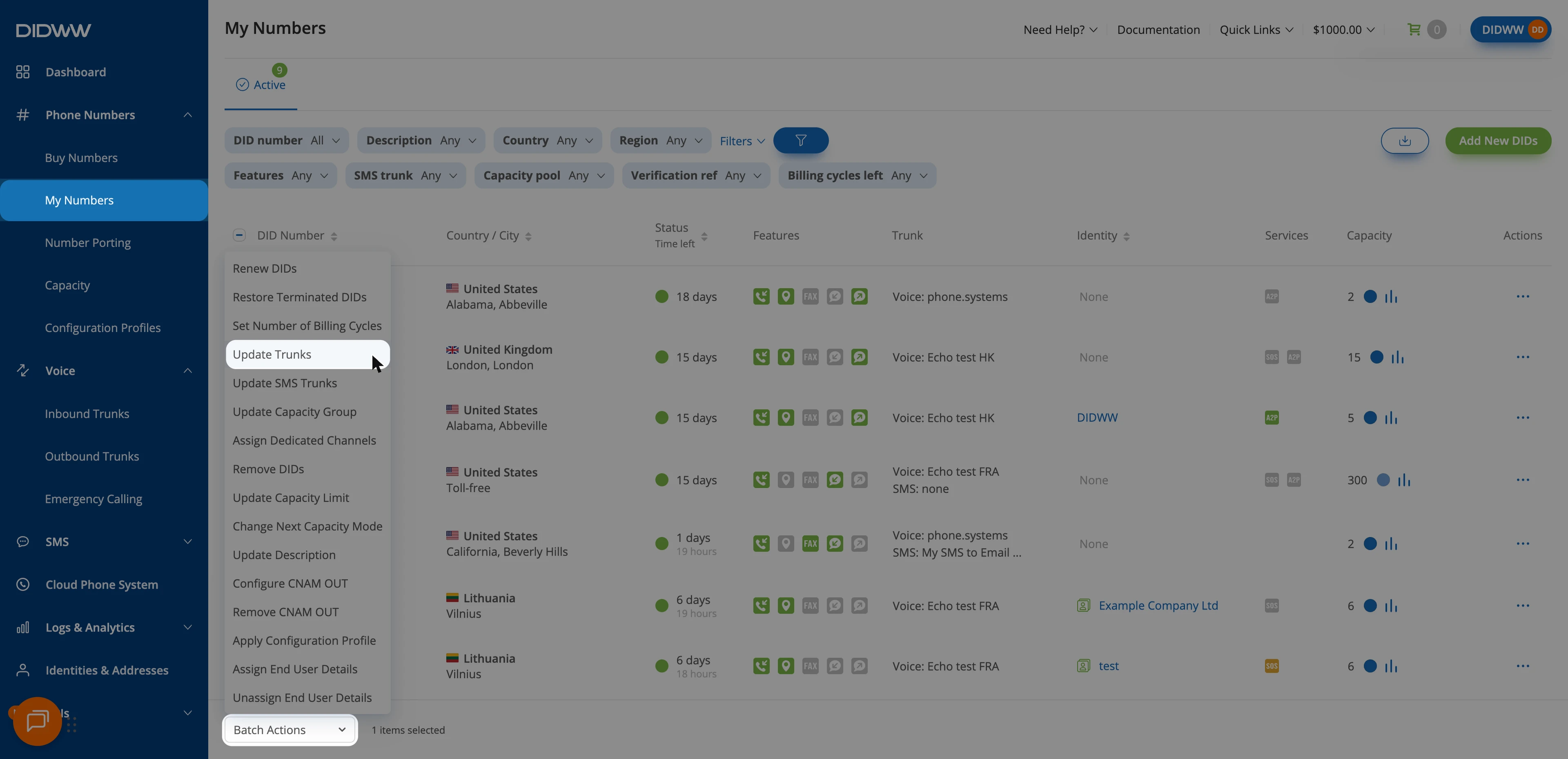
Fig. 6. Selecting Update Trunks from the Batch Actions menu#
From the dropdown menu, choose the LiveKit SIP trunk you created earlier.
Click Confirm to apply the changes.
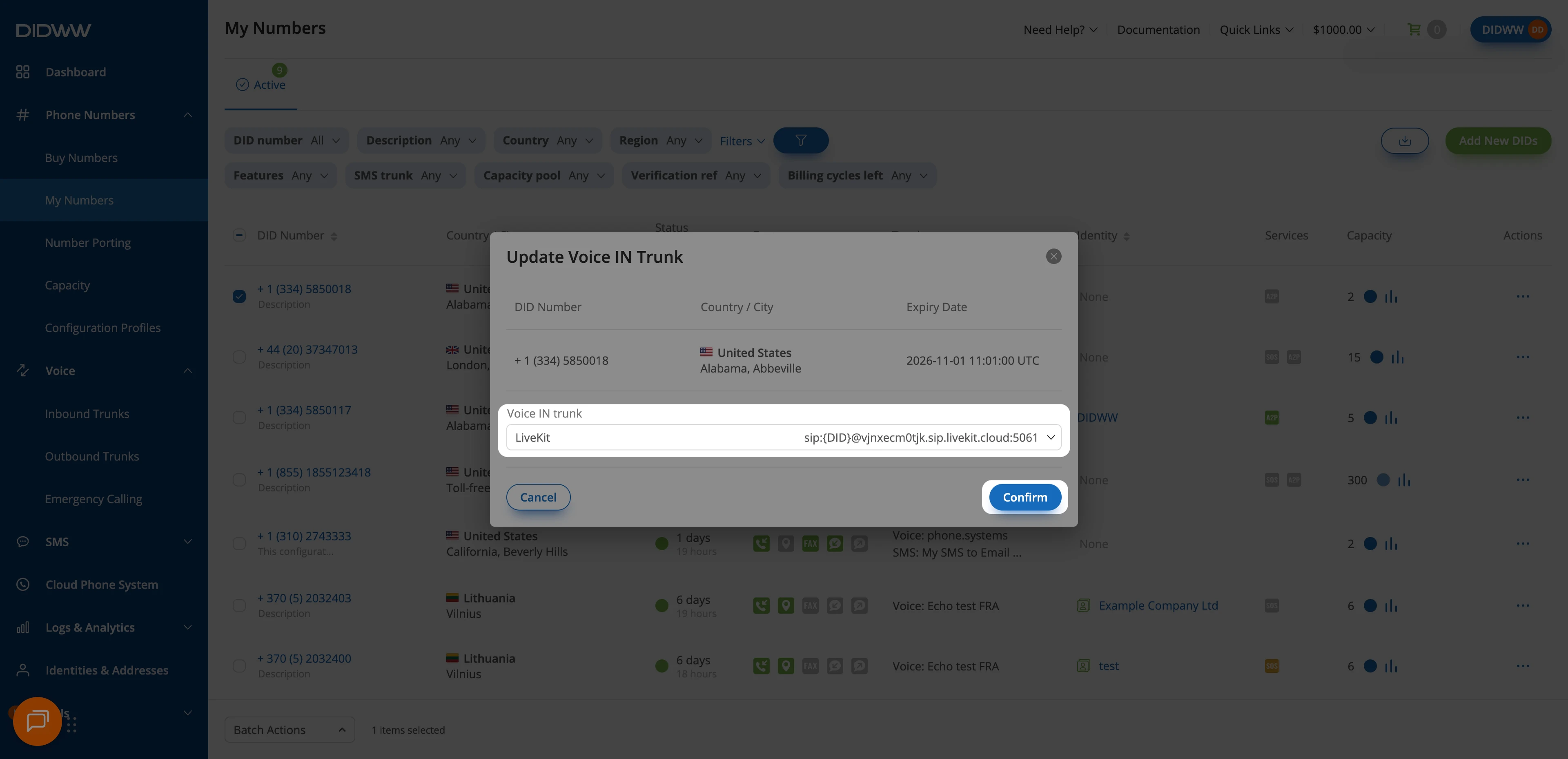
Fig. 7. Assigning the LiveKit SIP trunk to the selected DID(s)#
2. Enable Outbound Calling from LiveKit through DIDWW#
Configure an Outbound SIP Trunk in the DIDWW User Panel to allow LiveKit to place outbound calls through DIDWW. This trunk provides the SIP credentials required for outbound calls and call transfers to external phone numbers.
Before You Begin#
Access to DIDWW Outbound Trunks is required for making outbound calls. See Get Access to DIDWW Outbound Termination.
Step 1: Create New Outbound Voice Trunk#
In the DIDWW User Panel, go to Voice > Outbound Trunks.
Click Create New.
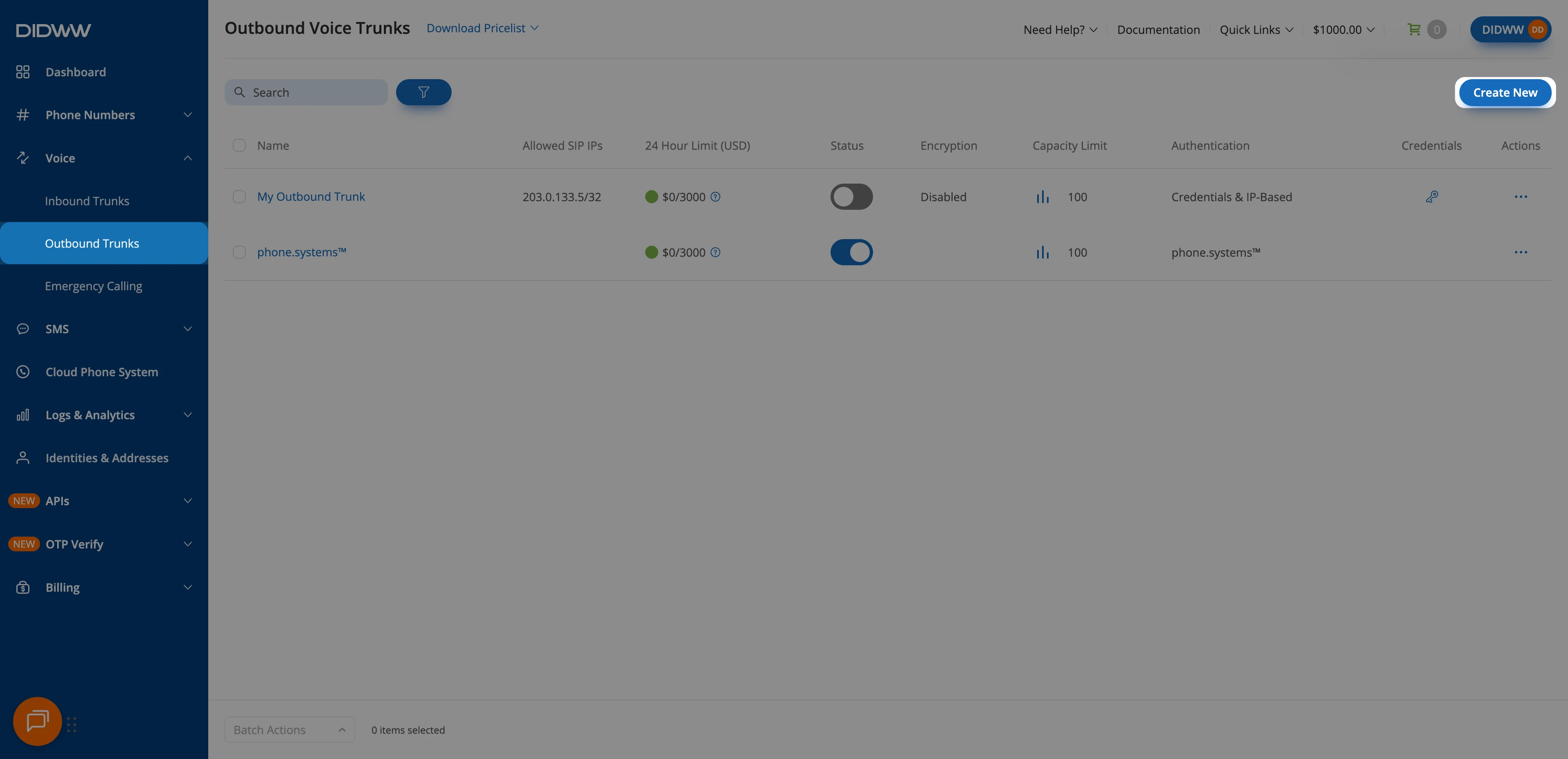
Fig. 8. Creating a new outbound SIP trunk#
Step 2: Configure Authentication#
Update the Friendly name (e.g.,
LiveKit).Keep the default Credentials & IP-based authentication method selected. The SIP digest credentials (username and password) will be provided after the trunk is created.
In Allowed SIP IP addresses, add the LiveKit Cloud static IP ranges:
143.223.88.0/21161.115.160.0/19153.57.128.0/18
Then add the DIDWW inbound SIP addresses used for call transfers:
New York:
46.19.209.14Frankfurt:
46.19.210.14Los Angeles:
46.19.212.14Miami:
46.19.213.14Singapore:
46.19.214.14Hong Kong:
46.19.215.14Amsterdam:
185.238.173.14
Transferred calls are placed through your outbound trunk using these signaling addresses. See Static Endpoint signaling addresses.
Note
LiveKit publishes its static IP ranges for its Canada, EU, India, Japan, and US regions.
Calls that LiveKit places from other regions come from addresses outside these ranges, and DIDWW rejects them.
To control the region LiveKit places outbound calls from, set destination_country on the LiveKit outbound trunk. See LiveKit region pinning.
Check the current ranges in LiveKit regions and static IPs before you create the trunk.
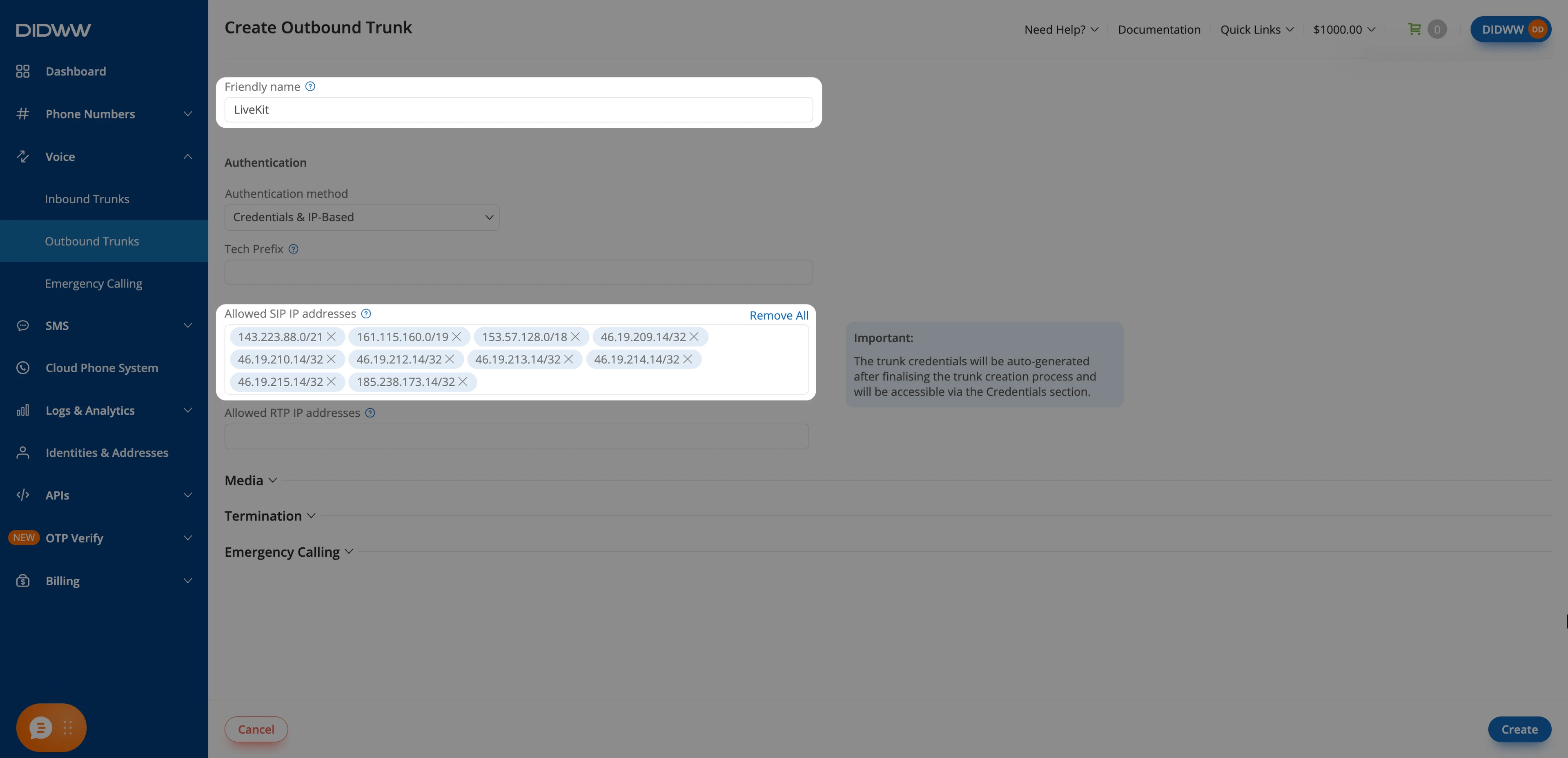
Fig. 9. Entering the LiveKit static IP ranges and DIDWW inbound SIP addresses for outbound authentication#
Step 3: Configure Media Encryption#
Expand Media.
In Media encryption mode, select SRTP SDES. For unencrypted media, keep Disabled.
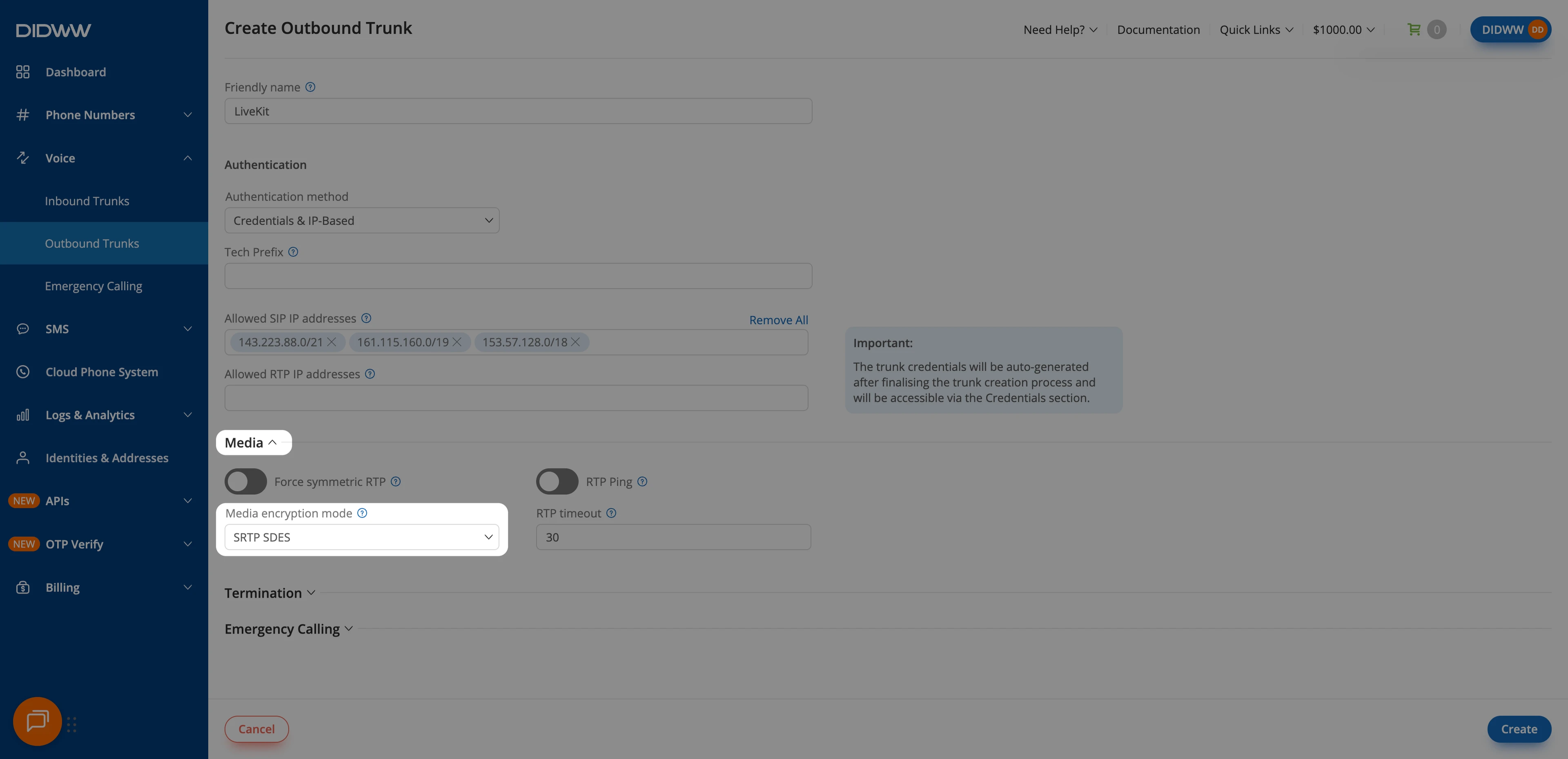
Fig. 10. Media encryption mode set to SRTP SDES#
Step 4: Save the Outbound SIP Trunk#
When all required fields in the Create Outbound SIP Trunk are filled, click Create to save your outbound SIP trunk.
Note
For advanced outbound SIP trunk configuration, see Outbound SIP Trunk Guide.
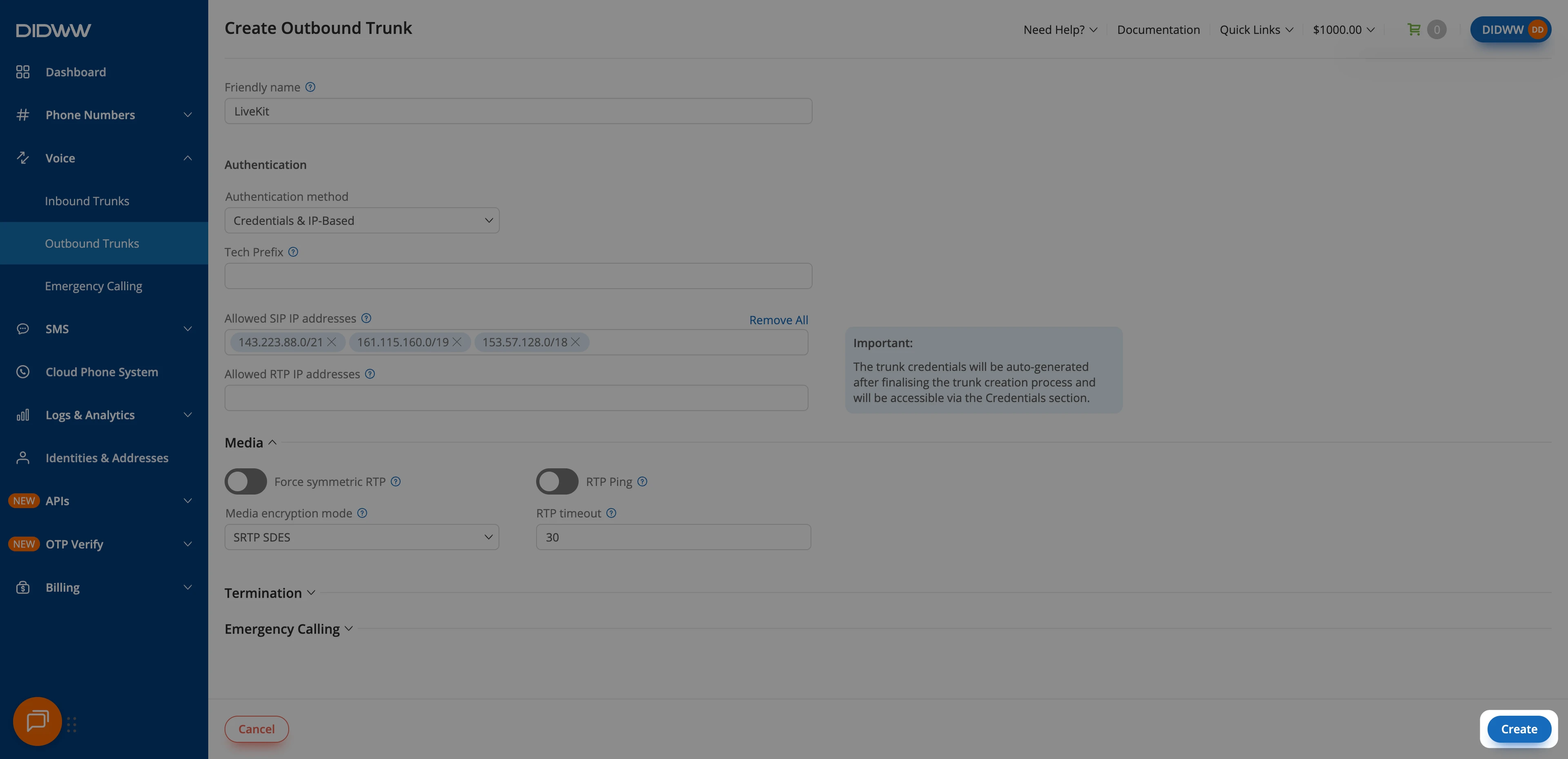
Fig. 11. Create the Outbound SIP Trunk#
Step 5: Copy Outbound Trunk Credentials#
When the outbound trunk is created, you can view and copy its credentials by selecting the key icon in the credentials column on the Outbound Trunks page.
Go to Voice > Outbound Trunks.
Locate your outbound trunk and click the key icon in the Credentials column.
The trunk credentials will appear, showing the Username and Password (click the eye icon to reveal the password).
Copy and securely store these credentials. You will need them in Step 6: Add Outbound Credentials to the Inbound Trunk, and when you create the LiveKit inbound and outbound trunks in 3. Connect DIDWW SIP Trunks in LiveKit.
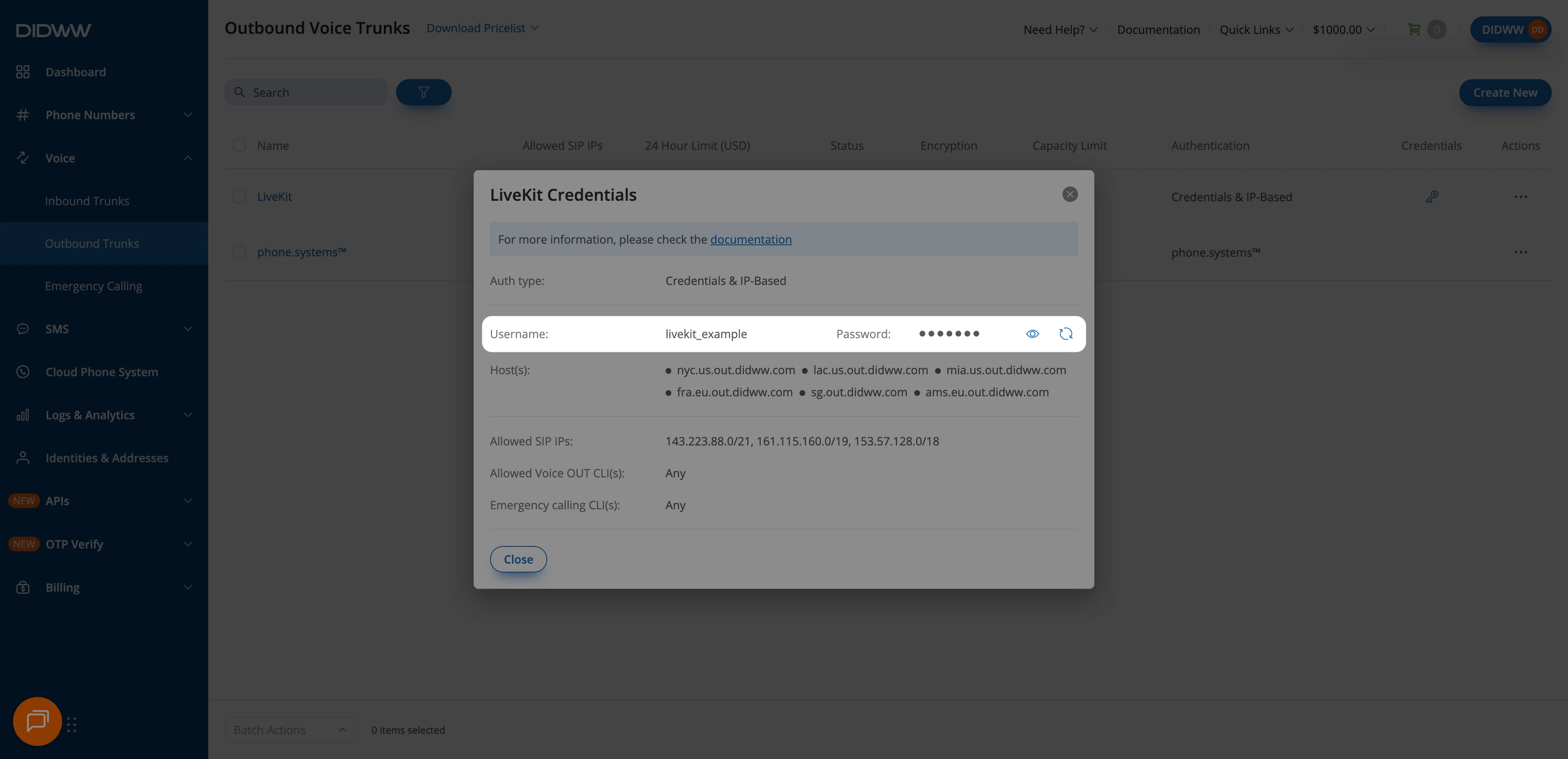
Fig. 12. Opening the outbound trunk credentials view#
Step 6: Add Outbound Credentials to the Inbound Trunk#
To support call transfers, configure the DIDWW inbound trunk to authenticate with the credentials generated for the outbound trunk. DIDWW uses these credentials to authenticate to LiveKit and to place transferred calls through your outbound trunk.
Go to Voice > Inbound Trunks and locate the LiveKit inbound trunk.
Click Actions, then select Edit.
Open the Authorization tab.
Turn on Enable Authorization.
In Auth User, paste the outbound trunk Username.
In Auth Password, paste the outbound trunk Password.
Click Submit.
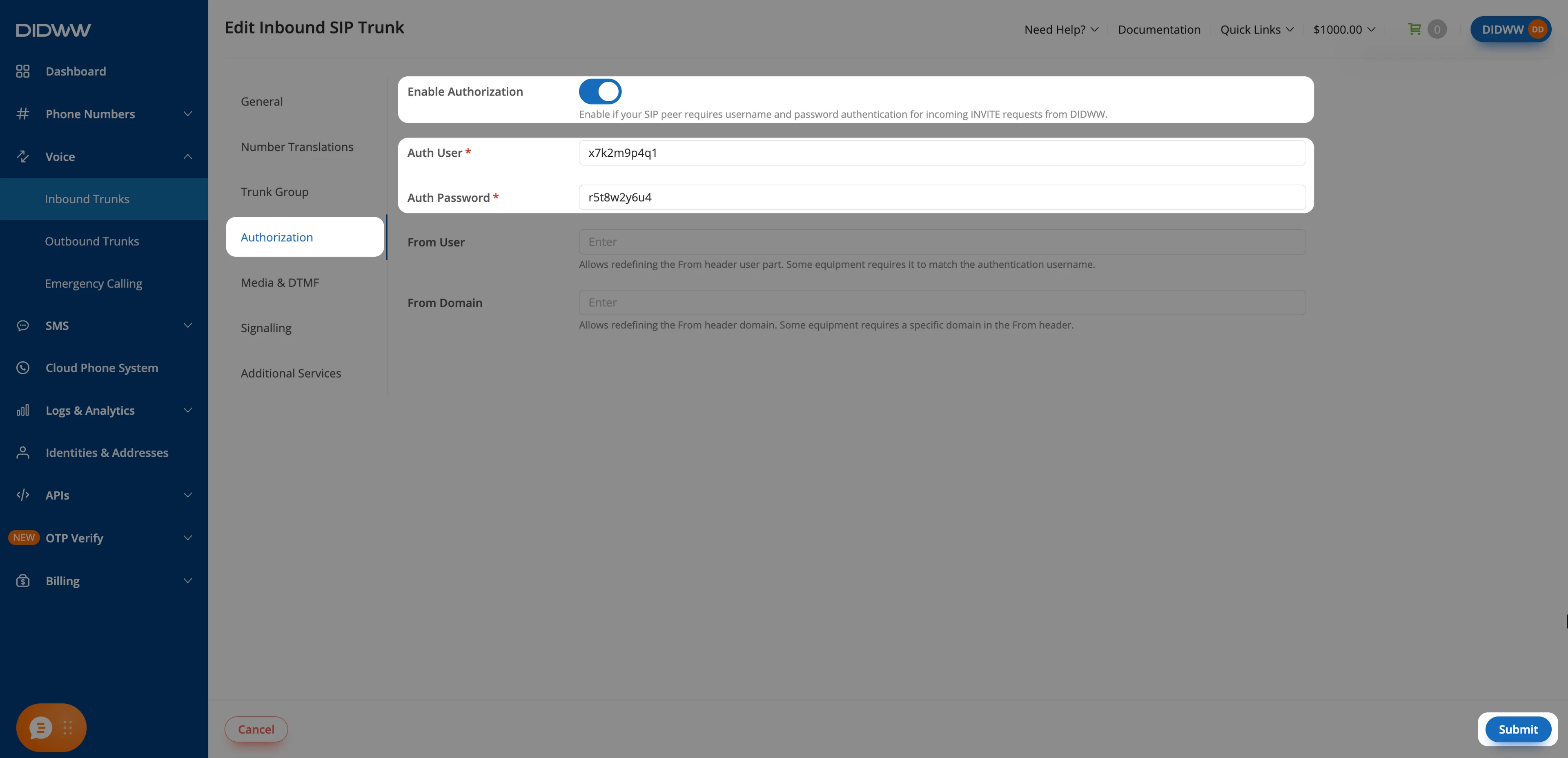
Fig. 13. Adding outbound trunk credentials to the inbound trunk#
3. Connect DIDWW SIP Trunks in LiveKit#
Connect the DIDWW SIP trunks in LiveKit Cloud so your agent can receive incoming calls and place outbound calls through DIDWW. This setup creates the LiveKit inbound trunk, a dispatch rule that sends each caller to your agent, and the LiveKit outbound trunk, and shows how to transfer calls to a live person.
Before You Begin#
A project on LiveKit Cloud is required. Use the same project as in 1. Route Incoming Calls to LiveKit.
A running or deployed LiveKit voice AI agent in the same project is required. See the LiveKit Voice AI quickstart to create one.
The agent name your agent registers with is required. Set it with
agent_name(Python) oragentName(Node.js) in your agent code. The dispatch rule only sends calls to an agent with this name. The examples usedidww-agent. See LiveKit Agent dispatch.
Step 1: Create an Inbound Trunk in LiveKit#
The LiveKit inbound trunk accepts calls to your DIDWW number.
Sign in to LiveKit Cloud and select your project.
Go to Telephony > SIP trunks and click Create new trunk.
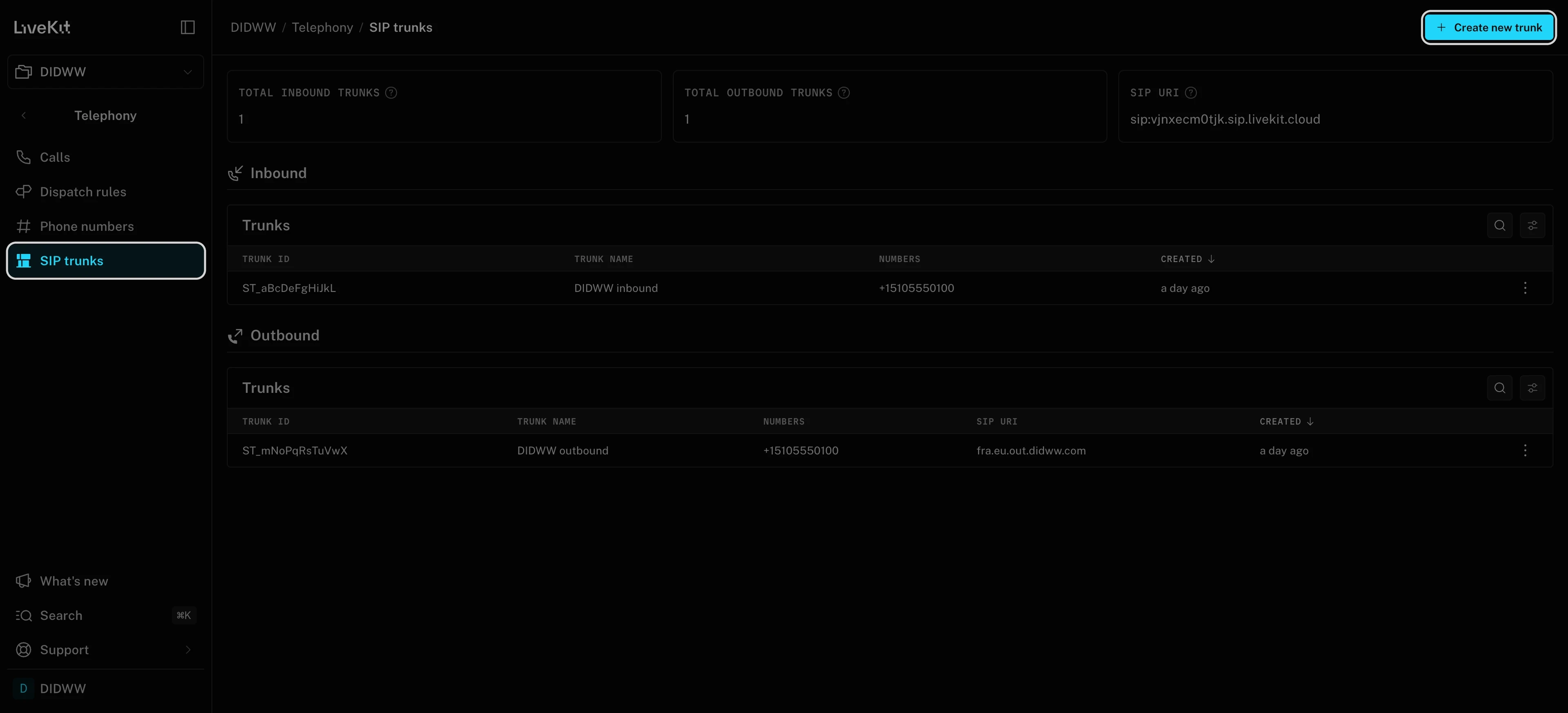
Fig. 14. Creating a new SIP trunk in LiveKit Cloud#
In Trunk direction, select Inbound.
Open the JSON editor tab and enter the following configuration. Replace
+15105550100with your DIDWW number in E.164 format. InauthUsernameandauthPassword, enter the outbound trunk Username and Password from Step 5: View Outbound Trunk Credentials. The DIDWW inbound trunk uses the same credentials.{ "name": "DIDWW inbound", "numbers": ["+15105550100"], "authUsername": "<didww-outbound-username>", "authPassword": "<didww-outbound-password>", "media": { "encryption": "SIP_MEDIA_ENCRYPT_REQUIRE", "onlyListedCodecs": true, "codecs": [ { "name": "PCMA", "rate": 8000 }, { "name": "PCMU", "rate": 8000 } ] } }
For unencrypted media, remove
encryptionfrommedia. This setting must match SRTP Mode on the DIDWW inbound trunk, or the call fails.Click Create and copy the inbound trunk ID.
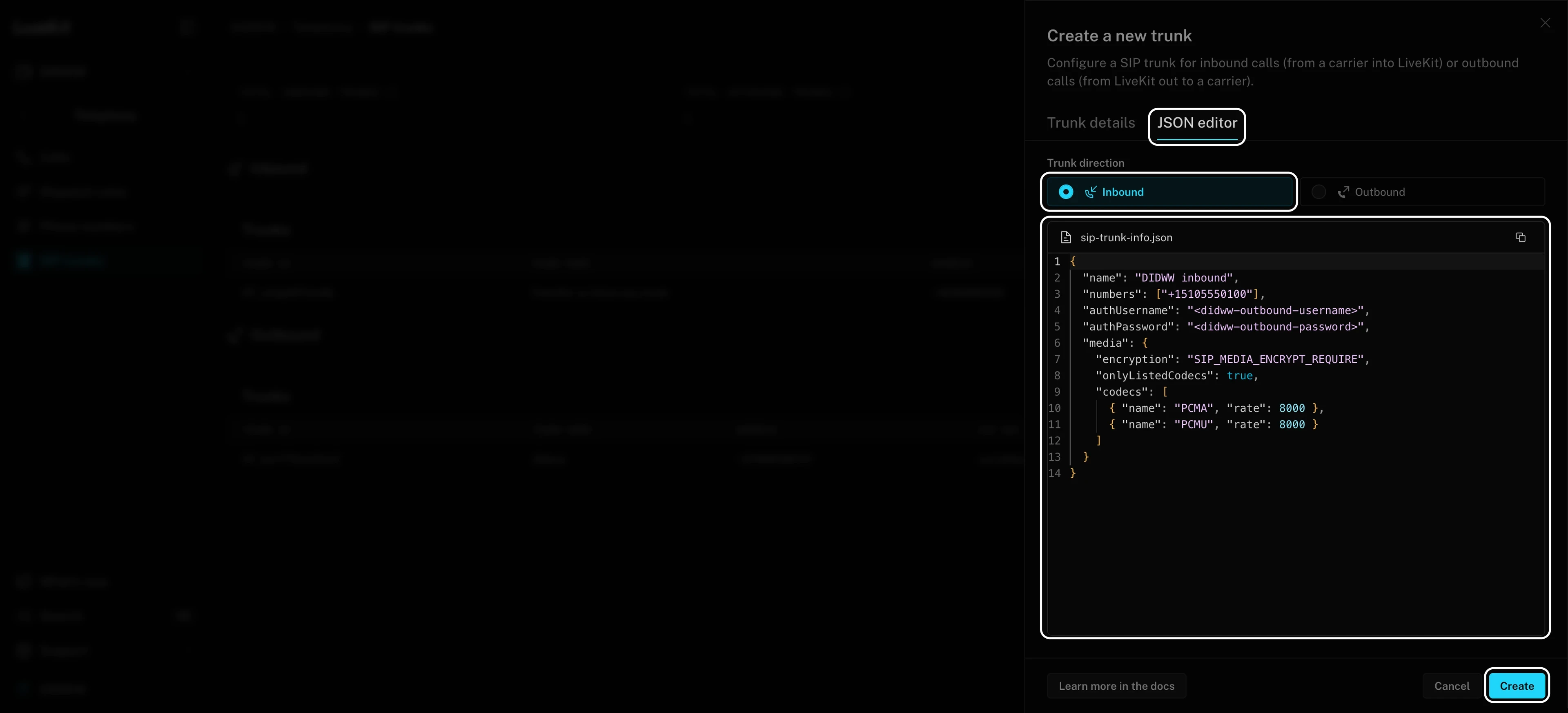
Fig. 15. LiveKit inbound trunk configuration in the JSON editor#
Note
The authentication fields are available in the JSON editor tab only.
Step 2: Create a Dispatch Rule and Assign Your Agent#
In LiveKit, every call takes place in a room, where the caller and your agent are connected. A dispatch rule decides which room receives an incoming call and which agent joins it. An individual dispatch rule creates a separate room for each caller.
In LiveKit Cloud, go to Telephony > Dispatch rules.
Click Create new dispatch rule.
Open the JSON editor tab and enter the following configuration. Replace
<livekit-inbound-trunk-id>with the ID from Step 1 anddidww-agentwith your agent name.{ "name": "DIDWW inbound calls", "trunkIds": ["<livekit-inbound-trunk-id>"], "rule": { "dispatchRuleIndividual": { "roomPrefix": "didww-call-" } }, "roomConfig": { "agents": [ { "agentName": "didww-agent" } ] } }
Click Create.
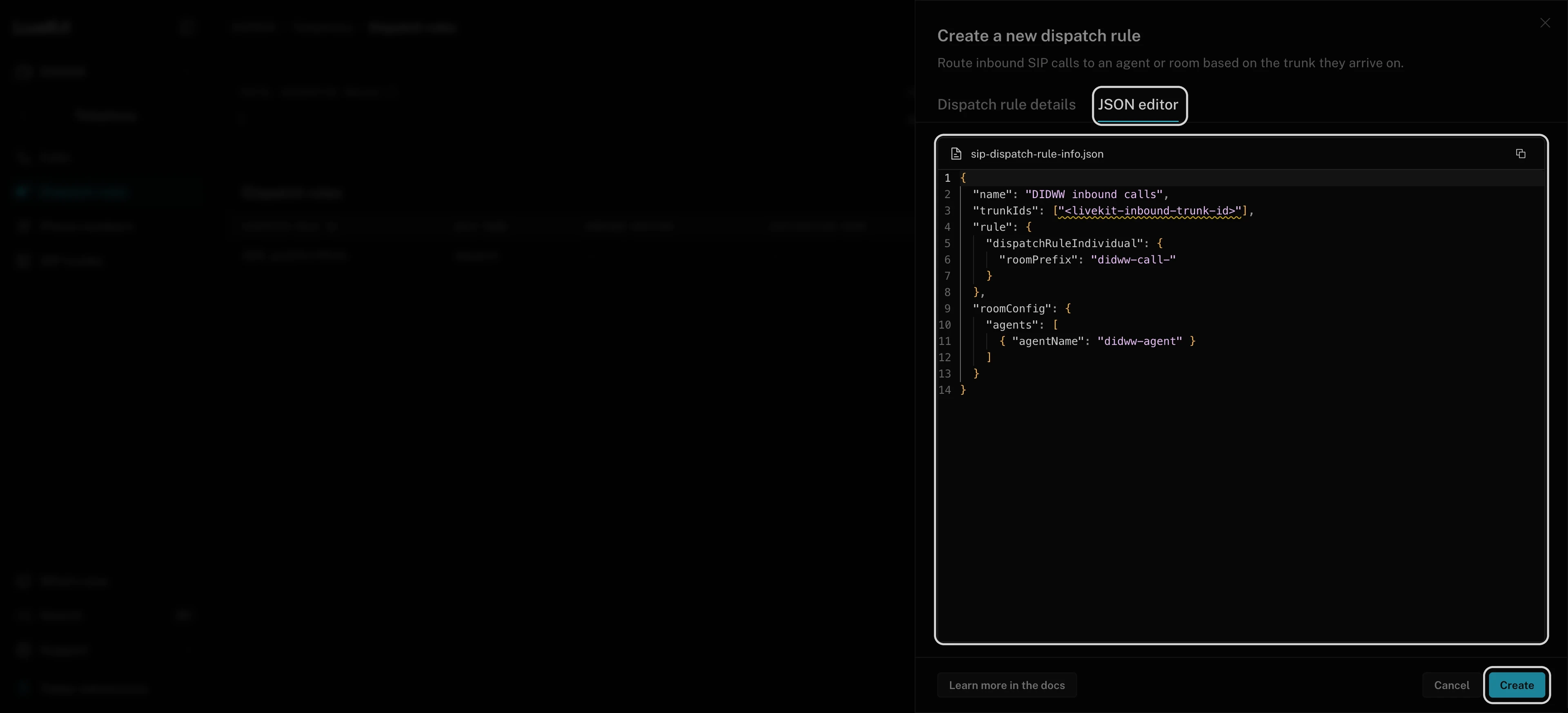
Fig. 16. Individual dispatch rule for DIDWW inbound calls#
This rule matches calls from your DIDWW inbound trunk and dispatches the named agent to each new call room. For other routing options, see LiveKit dispatch rules.
Step 3: Create an Outbound Trunk in LiveKit#
In LiveKit Cloud, go to Telephony > SIP trunks and click Create new trunk.
In Trunk direction, select Outbound.
Open the JSON editor tab and enter the following configuration. Replace
+15105550100with one of your DIDWW numbers to use as caller ID, and enter the credentials from Step 5: View Outbound Trunk Credentials.{ "name": "DIDWW outbound", "address": "fra.eu.out.didww.com", "transport": "SIP_TRANSPORT_TLS", "numbers": ["+15105550100"], "authUsername": "<didww-outbound-username>", "authPassword": "<didww-outbound-password>", "media": { "encryption": "SIP_MEDIA_ENCRYPT_REQUIRE", "onlyListedCodecs": true, "codecs": [ { "name": "PCMA", "rate": 8000 }, { "name": "PCMU", "rate": 8000 } ] } }
For unencrypted signaling and media, set
transporttoSIP_TRANSPORT_TCPand removeencryptionfrommedia. The media setting must match Media encryption mode on the DIDWW outbound trunk, or the call fails.Click Create and copy the outbound trunk ID.
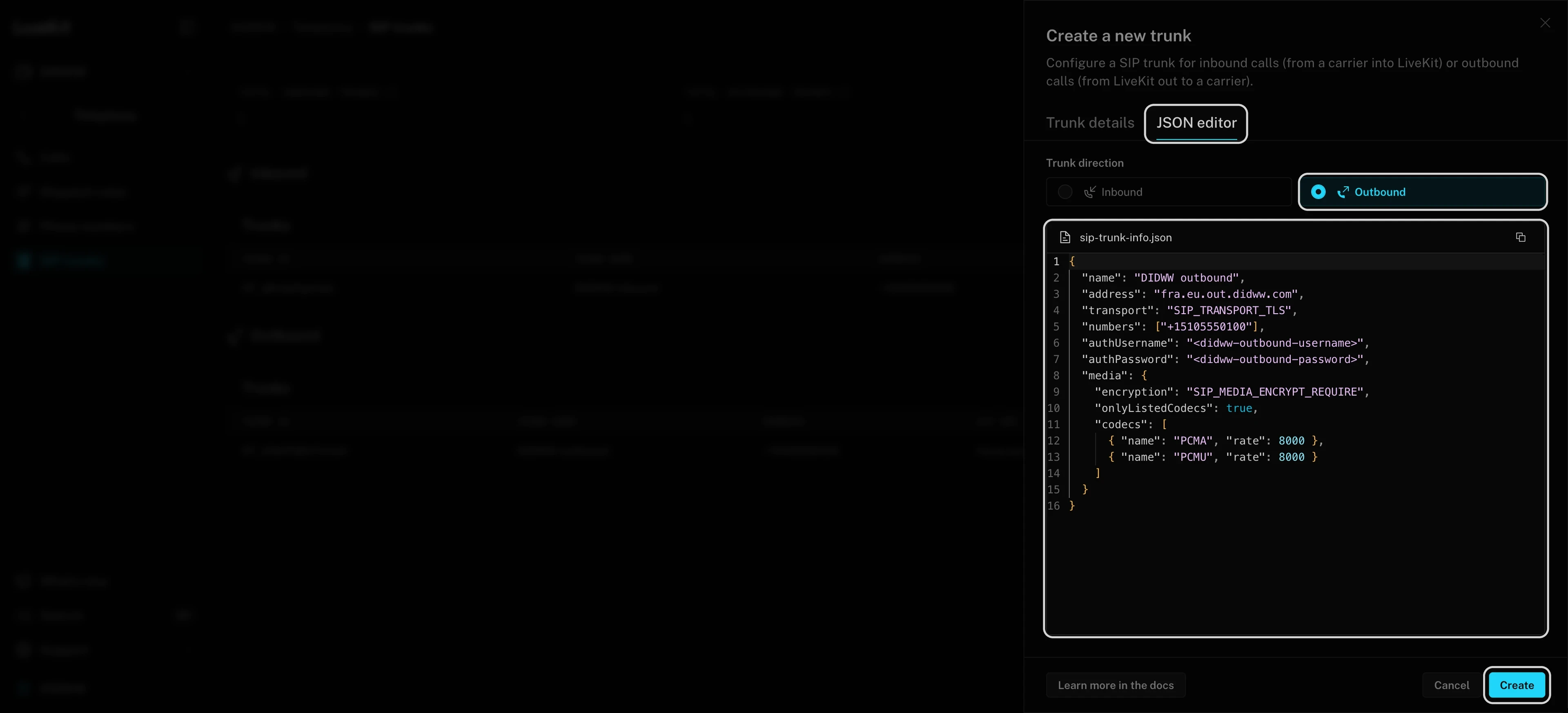
Fig. 17. LiveKit outbound trunk configuration in the JSON editor#
In address, you can enter any DIDWW outbound signaling endpoint. Choose the one closest to your LiveKit region.
Enter it as a hostname only, without a sip: prefix, port, or ;transport= parameter.
Step 4: Add Call Transfers to Your Agent#
Call transfers are not configured in LiveKit Cloud.
Your agent or application starts a transfer in code during an active call by calling the LiveKit TransferSIPParticipant server API.
For example, add a function tool to your agent that it runs when the caller asks to speak with a live person.
DIDWW supports cold call transfers using the SIP REFER method for inbound calls. When your agent transfers a caller, LiveKit sends a SIP REFER request to DIDWW, and DIDWW places a new call to the transfer destination through your DIDWW outbound trunk. The caller then leaves the LiveKit room, and the agent is no longer part of the call.
Call transfer at a glance
        %%{init: {
  "theme": "base",
  "themeVariables": {
    "fontSize": "14px",
    "primaryColor": "#e0f2fe",
    "primaryBorderColor": "#38bdf8",
    "primaryTextColor": "#1f2d3d",
    "secondaryColor": "#ccfbf1",
    "secondaryBorderColor": "#2dd4bf",
    "secondaryTextColor": "#1f2d3d",
    "lineColor": "#0066cc",
    "textColor": "#1f2d3d",
    "nodeTextColor": "#1f2d3d",
    "edgeLabelBackground": "#ffffff"
  }
}}%%

flowchart LR
    caller["Caller"] -->|"1. Dials your DID number"| didww["DIDWW"]
    didww -->|"2. Inbound SIP trunk"| livekit["LiveKit room<br/>AI agent"]
    livekit -.->|"3. SIP REFER<br/>Transfer request"| didww
    didww -->|"4. New outbound call"| recipient["Person / team<br/>Transfer recipient"]

    classDef endpoint fill:#e0f2fe,stroke:#0066cc,color:#1f2d3d,stroke-width:1.5px
    classDef process fill:#ccfbf1,stroke:#2dd4bf,color:#1f2d3d,stroke-width:1.5px
    class caller,recipient endpoint
    class didww,livekit process
    linkStyle default stroke:#0066cc,stroke-width:1.5px
The dashed arrow is the SIP REFER request from LiveKit to DIDWW. Your agent starts this
request by calling TransferSIPParticipant. DIDWW places the new outbound call.
After a successful transfer: Caller → DIDWW → person or team. The original inbound call continues, while the LiveKit room and AI agent are no longer part of the call.
View the transfer sequence: API request and SIP REFER
This simplified sequence shows a successful transfer. Routine SIP responses and media negotiation are omitted.
        %%{init: {
  "theme": "base",
  "themeVariables": {
    "fontSize": "14px",
    "actorBkg": "#e0f2fe",
    "actorBorder": "#38bdf8",
    "actorTextColor": "#1f2d3d",
    "actorLineColor": "#38bdf8",
    "signalColor": "#0066cc",
    "signalTextColor": "#1f2d3d",
    "noteBkgColor": "#fef3c7",
    "noteBorderColor": "#facc15",
    "noteTextColor": "#1f2d3d",
    "labelBoxBkgColor": "#ccfbf1",
    "labelBoxBorderColor": "#2dd4bf",
    "labelTextColor": "#1f2d3d",
    "loopTextColor": "#1f2d3d",
    "sequenceNumberColor": "#ffffff"
  }
}}%%

sequenceDiagram
    participant C as Caller
    participant D as DIDWW
    participant L as LiveKit SIP service
    participant A as Your AI agent
    participant R as Person / team

    rect rgb(224, 242, 254)
        Note over C,A: 1. Original inbound call
        C->>D: Dial your DIDWW number
        D->>L: Deliver call through inbound trunk
        L->>A: Connect caller in the LiveKit room
    end
    rect rgb(204, 251, 241)
        Note over D,A: 2. Request a cold transfer
        A->>L: TransferSIPParticipant API<br/>roomName, participant identity, transferTo
        L->>D: SIP REFER<br/>Refer-To: sip:+number@outbound-gateway
    end
    rect rgb(224, 242, 254)
        Note over D,R: 3. Place the new outbound call
        D->>R: Call recipient through outbound trunk
        R-->>D: Recipient answers
    end
    rect rgb(204, 251, 241)
        Note over L,A: 4. Transfer complete<br/>Caller leaves the LiveKit room<br/>Agent is no longer in the call
        Note over C,R: Caller and recipient talk through DIDWW<br/>Original inbound call + new outbound call
    end
Note
Each transfer places a new outbound call through your DIDWW outbound trunk. This call is charged per minute at the outbound rate for the transfer destination, in addition to the original inbound call.
Configure the transfer in your agent
A transfer needs two values from the active call:
Room name: the room of the call. With the dispatch rule from Step 2, each incoming call gets its own room with the
didww-call-prefix.Participant identity: the identity of the caller, who joins the room as a SIP participant.
Your agent can read both values from the call it is handling.
Set the transfer destination to a SIP URI at your DIDWW outbound gateway, in the format
sip:+[phone number]@[DIDWW outbound gateway]:[phone number]: the number of the live person or team that takes transferred calls, in E.164 format. Do not use the DIDWW number assigned to your LiveKit inbound trunk, or the transferred call returns to your agent.[DIDWW outbound gateway]: one of the DIDWW outbound signaling endpoints, for example the one inaddresson your LiveKit outbound trunk.
Note
Call transfers require a
sip:destination URI. Thetel:URI format is not supported.The following Node.js example transfers the caller.
roomNameis the room of the active call andparticipantis the caller’s SIP participant. Replace+15105550199with the number to transfer to. For agent examples in Python and Node.js, see LiveKit call forwarding.import { LiveKitAPI } from 'livekit-server-sdk'; async function transferParticipant(roomName, participant) { const api = new LiveKitAPI(); const transferTo = 'sip:+15105550199@fra.eu.out.didww.com'; await api.sip.transferSipParticipant(roomName, participant.identity, transferTo, { playDialtone: false, }); }
Test the transfer with the CLI
To test a transfer without changing your agent, run the following LiveKit CLI command during an active call. Replace
<room-name>with the room name shown in the Session column on the Telephony > Calls page in LiveKit Cloud,<sip-participant-identity>with the caller’s Participant identity shown when you open that session (for example,sip_15105550123), and+15105550199with the number to transfer to.lk sip participant transfer --room <room-name> \ --identity <sip-participant-identity> \ --to "sip:+15105550199@fra.eu.out.didww.com"
The transfer destination sees the original caller’s phone number as the caller ID.
Step 5: Test the Configuration#
Verify that inbound calling, outbound calling, and call transfers are working as expected.
Inbound calls
Make sure your voice AI agent is running or deployed with the agent name used in the dispatch rule.
Call the DIDWW number assigned to the inbound trunk.
Check that the agent answers and that both parties can hear each other.
Make a second test call and check that LiveKit creates a different room for it.
Outbound calls
Place a test call with the LiveKit CLI.
Install and authenticate the LiveKit CLI, then select the project that contains your outbound trunk and agent.
Create a file named
sip-participant.jsonwith the following content. Replace the trunk ID and the number to dial. Enter the number in E.164 format (e.g.,+19085550100).{ "sip_trunk_id": "<livekit-outbound-trunk-id>", "sip_call_to": "<number-to-dial>", "room_name": "didww-outbound-test-001", "participant_identity": "sip-test", "participant_name": "Test Caller" }
Start the test call:
lk sip participant create sip-participant.json
Answer the call on the destination phone.
To talk to your agent, dispatch it to the same room. Replace
didww-agentwith your agent name.lk dispatch create --agent-name didww-agent --room didww-outbound-test-001
Check the caller ID on the destination phone and that both parties can hear each other.
Use a new room name for each test call, in both sip-participant.json and the lk dispatch create command.
Call transfers
Call the DIDWW number assigned to the inbound trunk and wait for the agent to answer.
Trigger the transfer, for example by asking the agent to transfer you to a live person, or by running the
lk sip participant transfercommand from Step 4. Asking the agent works only if your agent code includes a transfer.Answer the call at the transfer destination.
Check that both parties can hear each other and that the destination shows the original caller’s number as the caller ID.
Note
Creating a SIP participant places the phone call. The agent joins only when you dispatch it to the room. Dispatch rules apply to inbound calls only.
For application-level outbound calling, see LiveKit outbound calls.
You can review call activity and verify call status or error codes in the DIDWW Inbound and Outbound Call Logs. See Inbound Call Logs and Outbound Call Logs for more details.
Troubleshooting#
404 Not Found on an inbound call
LiveKit may not be matching the call to an inbound trunk or dispatch rule. Check that:
User Part of R-URI on the DIDWW inbound trunk is
{DID}.Your DIDWW number is listed on the LiveKit inbound trunk.
The dispatch rule uses the correct LiveKit inbound trunk ID.
407 Proxy Authentication Required followed by 401 Unauthorized on an inbound call
Check that Auth User and Auth Password on the DIDWW inbound trunk match the credentials on the LiveKit inbound trunk.
A single 407 Proxy Authentication Required response is the normal authentication challenge. If it is followed by 401 Unauthorized and the call fails, check the credentials on both trunks.
400 Bad Request on an inbound call
The media settings may not match. On the DIDWW inbound trunk, check that:
SRTP Mode is SRTP SDES.
Codecs are limited to PCMA and PCMU.
The call connects, but the agent does not answer
Check that:
The agent is running in the same LiveKit project as the SIP trunk.
The registered agent name matches
agentNamein the dispatch rule.
For outbound calls, dispatch the agent to the same room as the SIP participant.
500 No suitable media on an outbound call
SRTP may not be enabled on the DIDWW outbound trunk. Set Media encryption mode to SRTP SDES to match the encrypted media configuration on the LiveKit outbound trunk.
401 Unauthorized, 403 Forbidden, or 407 Proxy Authentication Required on an outbound call
If the call is rejected, check the authentication settings on both trunks:
The username and password on the LiveKit outbound trunk must match the DIDWW outbound trunk credentials.
Allowed SIP IP addresses on the DIDWW outbound trunk must include the LiveKit Cloud source IP ranges for the region placing the call.
484 Address Incomplete on an outbound call
Dial the full international number in E.164 format, for example +19085550100.
Remove local or international dialing prefixes such as 0, 00, or 011.
The outbound call is rejected after authentication
Check the following on your DIDWW account and outbound trunk:
The caller ID is permitted by CLI Settings.
Calls to the destination are allowed.
The trunk has not reached its 24 hour limit (USD) or Capacity limit.
Your account balance is sufficient.
403 Forbidden on a call transfer, followed by a dropped call
The transferred call could not be placed through your outbound trunk. Check that:
Allowed SIP IP addresses on the DIDWW outbound trunk includes all DIDWW inbound SIP addresses used for transfers.
The DIDWW inbound trunk uses the same credentials as the DIDWW outbound trunk.
A rejected transfer does not appear in the DIDWW Outbound Call Logs.
The call transfer is rejected
On the DIDWW inbound trunk, check that:
Max Transfers is
1or higher.Network Protocol matches the IP version of the addresses allowed on the DIDWW outbound trunk.
603 Unconfigured xfer for tel URIs on a call transfer
The transfer destination uses a tel: URI, which is not supported. Use a SIP URI in
this format instead: sip:+[phone number]@[DIDWW outbound gateway].
For LiveKit diagnostics, see the LiveKit SIP troubleshooting guide.