

Vogent#
Use Vogent voice AI agents with DIDWW SIP Trunking to handle inbound and outbound calling over standard phone lines. Connect your DIDWW SIP trunks with Vogent to route incoming calls to your agent, place outbound calls through DIDWW trunks, and transfer active calls to a live person.
Route incoming calls from DIDWW numbers to a Vogent voice AI agent.
Import DIDWW numbers into Vogent over SIP.
Greet callers with an opening line as soon as the call connects.
Place outbound calls through DIDWW Outbound Trunks.
Transfer active calls to a live person with Vogent warm transfers.
Brief the live person before the caller is connected.
1. Route Incoming Calls to Vogent#
Configure an Inbound SIP Trunk in the DIDWW User Panel to send incoming calls from your DIDWW numbers to Vogent. This trunk defines the SIP path that delivers calls to the Vogent SIP endpoint, where Vogent matches each call to the number you import in 3. Connect DIDWW SIP Trunks in Vogent.
Before You Begin#
An active DIDWW account is required. Sign in to DIDWW or Create DIDWW account.
At least one active DID number with capacity to receive incoming calls is required. Buy Numbers.
A Vogent account with at least one agent is required. To create one, go to Agents > New Agent and follow the Vogent agent creation guide.
Step 1: Create New SIP Trunk#
In the DIDWW User Panel, go to Voice > Inbound Trunks.
Click Create New > SIP Trunk.
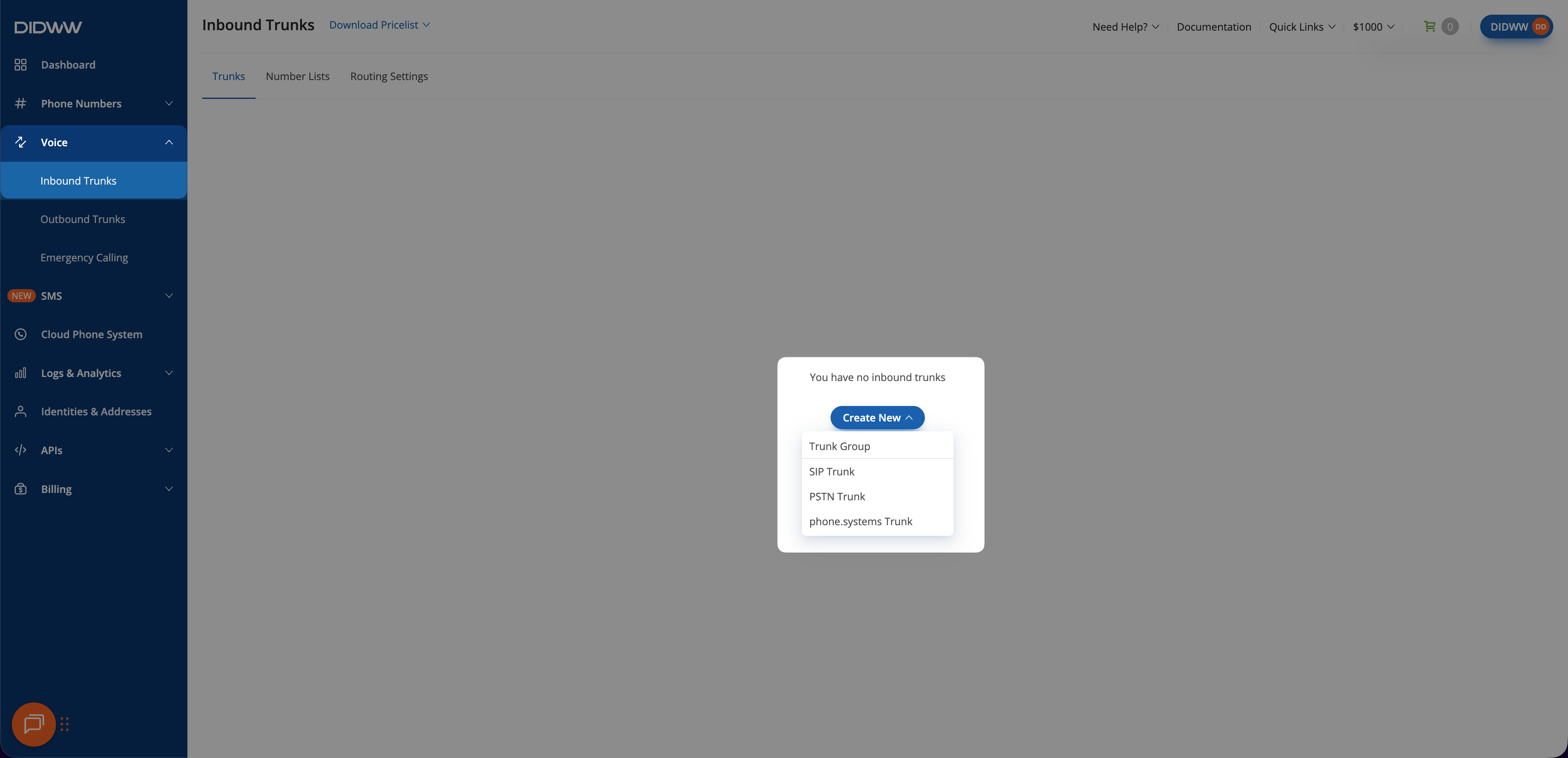
Fig. 1. Inbound Trunks: Create New > SIP Trunk#
Step 2: Configure General SIP Trunk Settings#
In the General tab, configure the Vogent endpoint and keep the default settings where indicated.
Enter a descriptive Name for the trunk (e.g.,
Vogent).Keep Static Endpoint selected.
In User Part of R-URI, keep the default
{DID}. Vogent accepts the called number both without the+sign (e.g.,15105550100) and with it (e.g.,+15105550100), so+{DID}also works.In Host, enter
sip.vogent.ai.In Port, enter
5060.In Transport, keep UDP selected.
Keep the remaining General settings at their defaults.
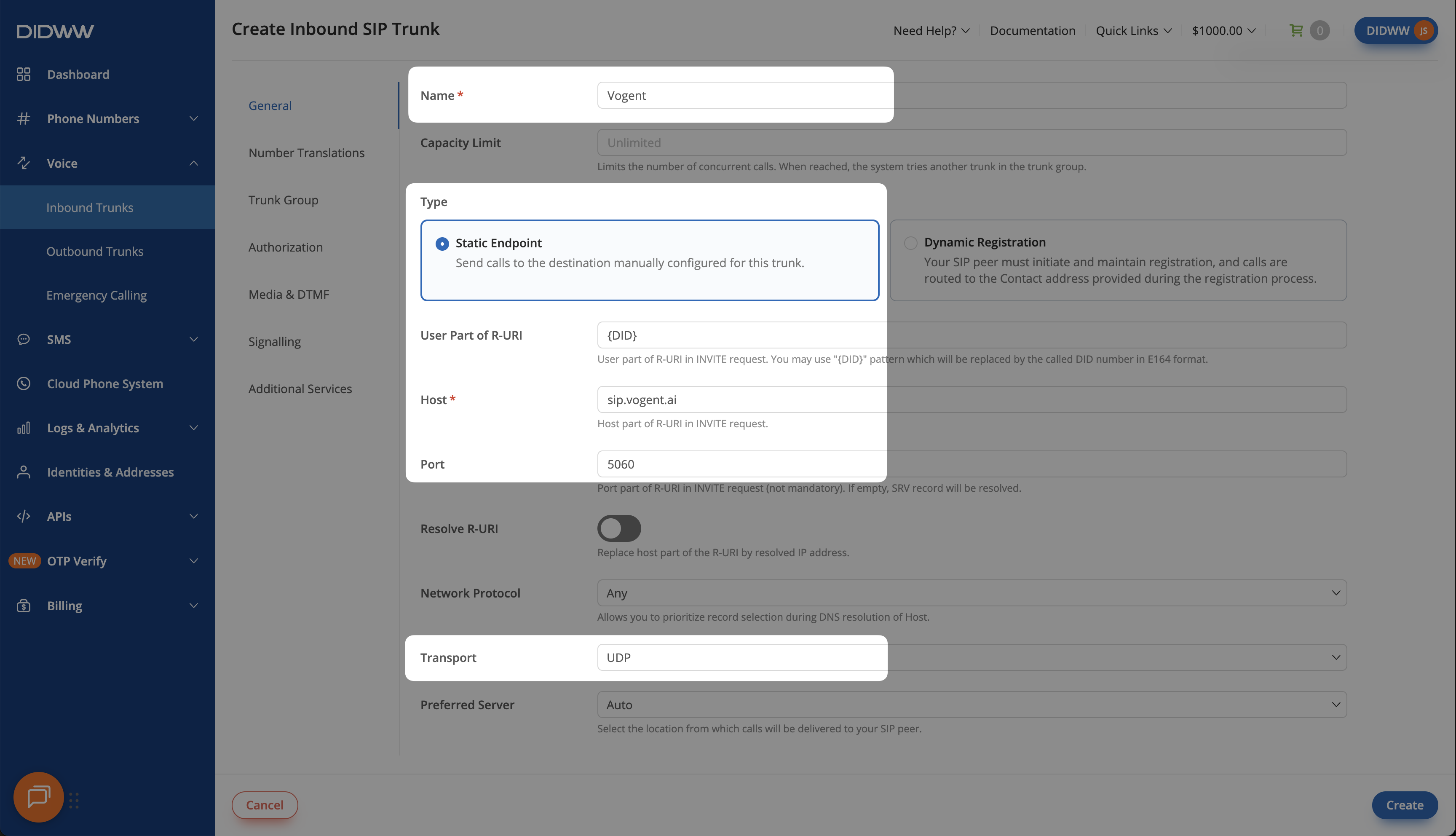
Fig. 2. Inbound SIP trunk General tab configured for Vogent#
Step 3: Save the Inbound SIP Trunk#
When all required fields in the Create Inbound SIP Trunk are filled, click Create to save your inbound SIP trunk.
Note
For advanced SIP trunk configuration, see Advanced Inbound SIP Trunk documentation.
Step 4: Assign Inbound SIP Trunk to Your DID Numbers#
After creating the Inbound SIP Trunk for Vogent, assign it to the DID number(s) that will deliver incoming calls to your Vogent agent.
In the DIDWW User Panel, go to Phone Numbers > My Numbers.
Select the DID number(s) you want to assign to the inbound SIP trunk.
At the bottom of the page, click Batch Actions > Update Trunks.
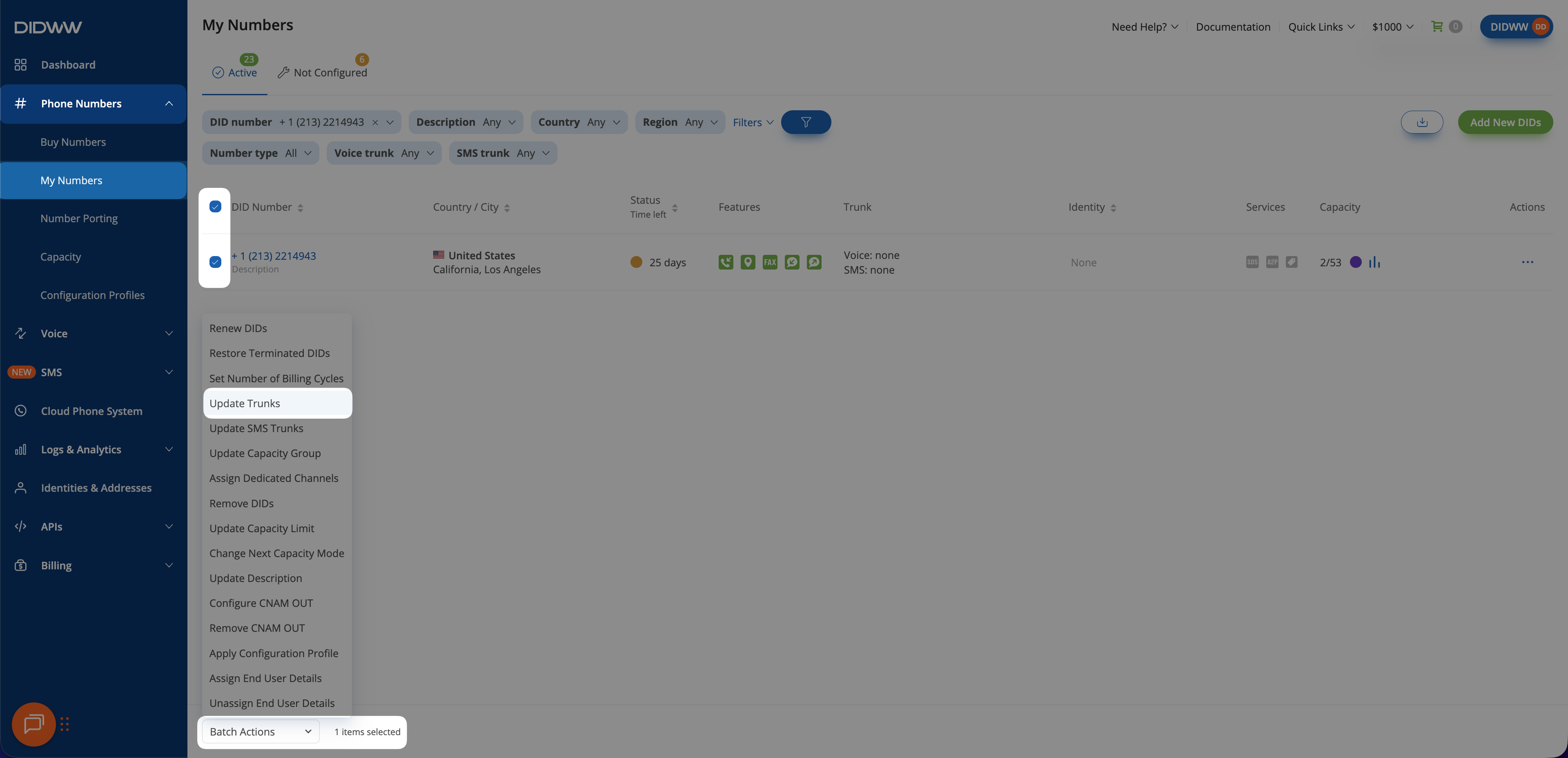
Fig. 3. Selecting Update Trunks from the Batch Actions menu#
From the dropdown menu, choose the Vogent SIP trunk you created earlier.
Click Confirm to apply the changes.
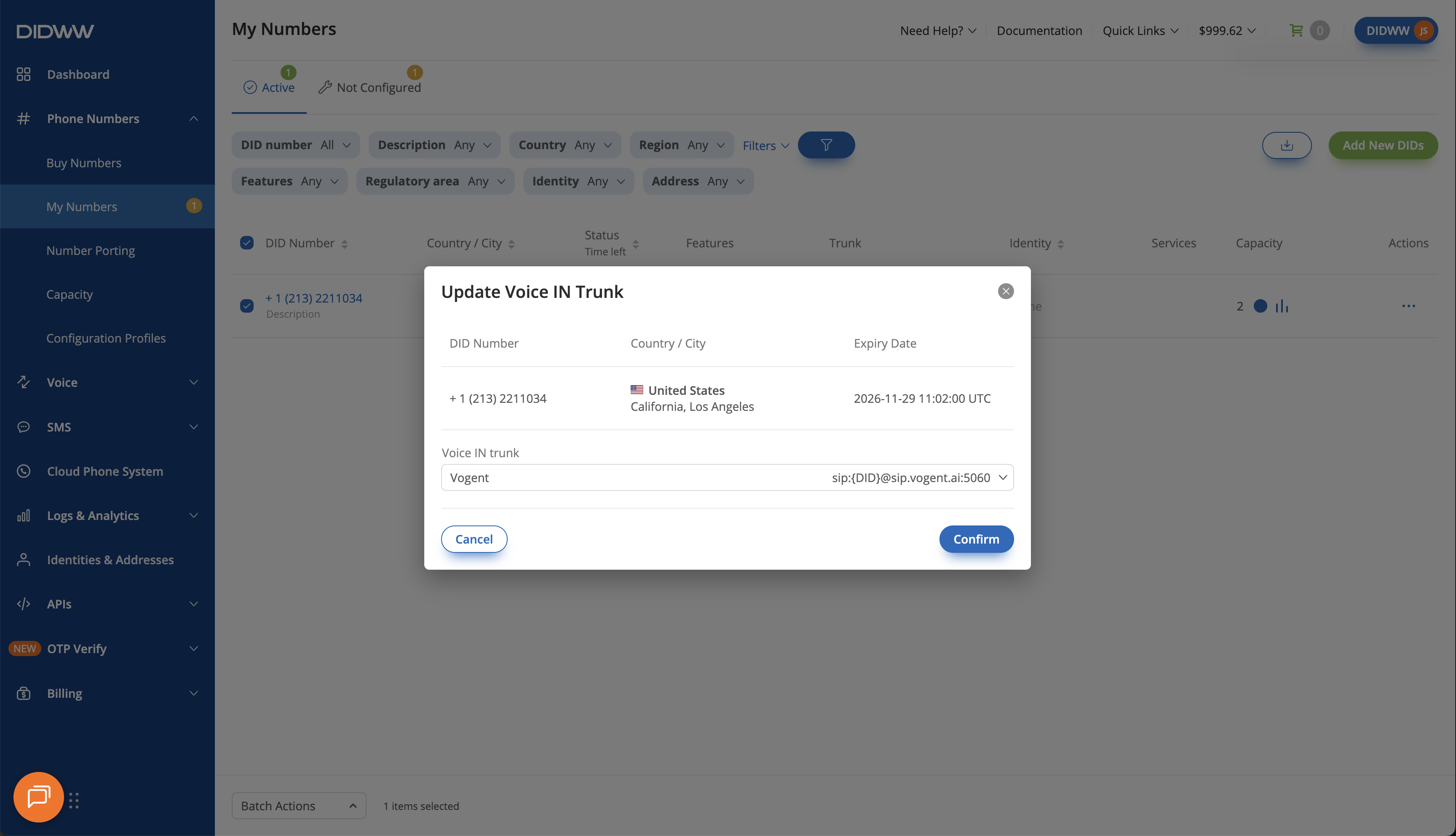
Fig. 4. Assigning the Vogent SIP trunk to the selected DID(s)#
2. Enable Outbound Calling from Vogent through DIDWW#
Configure an Outbound SIP Trunk in the DIDWW User Panel to allow Vogent to place outbound calls through DIDWW. This trunk provides the SIP credentials that Vogent requires to import your DIDWW number, and carries outbound calls and warm call transfers.
Important
The outbound trunk is required even if your agent only answers incoming calls. Vogent imports a number over SIP only with the termination address and credentials of an outbound trunk.
Before You Begin#
Access to DIDWW Outbound Trunks is required for making outbound calls. See Get Access to DIDWW Outbound Termination.
Step 1: Create New Outbound Voice Trunk#
In the DIDWW User Panel, go to Voice > Outbound Trunks.
Click Create New.
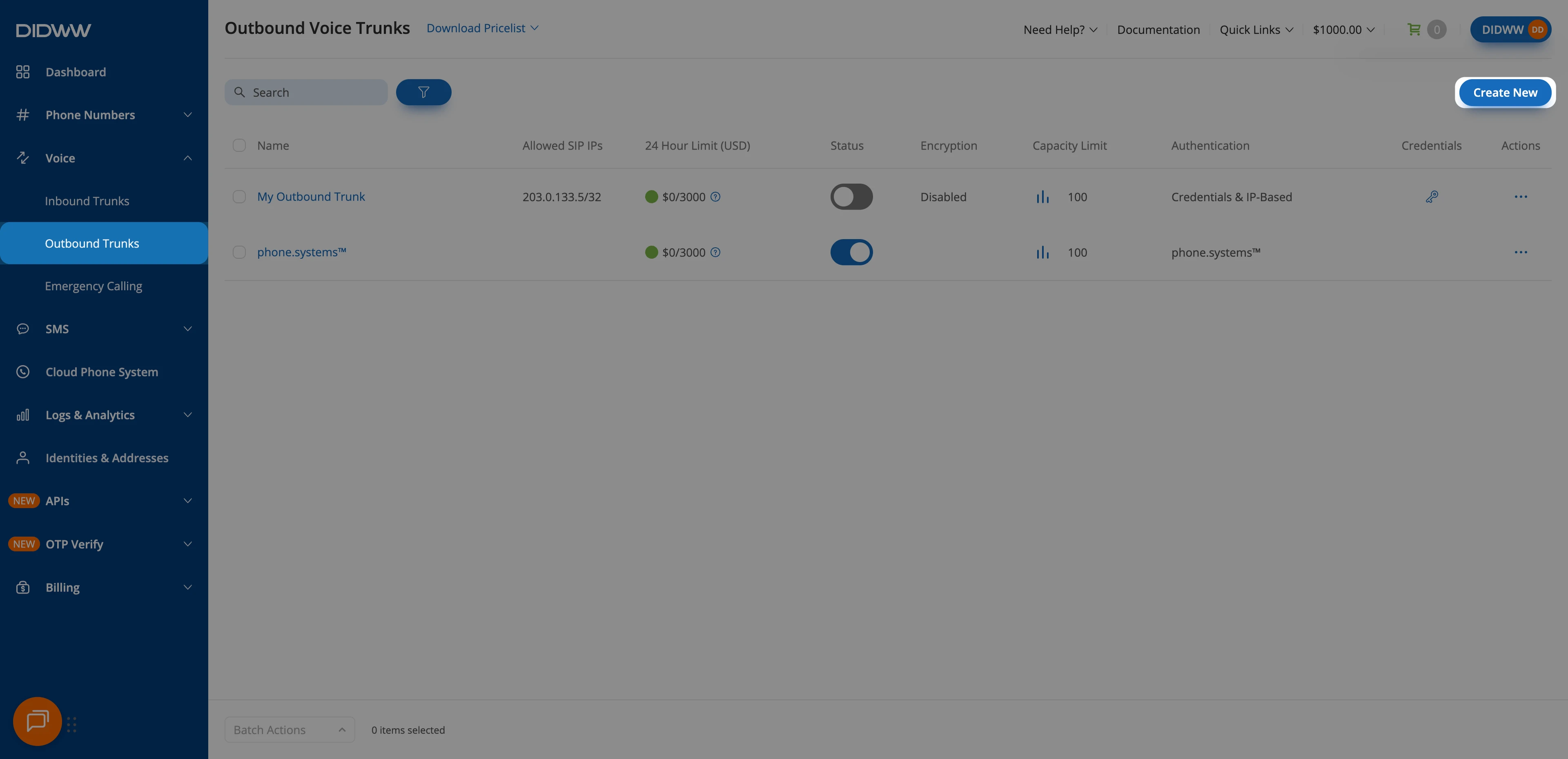
Fig. 5. Outbound Trunks: Create New#
Step 2: Configure and Create the Outbound SIP Trunk#
Update the Friendly name (e.g.,
Vogent).Keep the default Credentials & IP-based authentication method selected. The SIP digest credentials (username and password) will be provided after the trunk is created.
In Allowed SIP IP addresses, enter the outbound SIP source IP ranges provided by Vogent for your enterprise account.
46.19.209.14 46.19.210.14 46.19.212.14 46.19.213.14 46.19.214.14 46.19.215.14 185.238.173.14 184.195.128.0/21
Important
Vogent does not provide static outbound SIP IP ranges outside its enterprise plan. If you do not have static ranges, contact DIDWW support to confirm a supported authentication setup before creating the outbound trunk. See Vogent SIP trunking overview and Authentication and security.
Click Create to save the outbound SIP trunk.
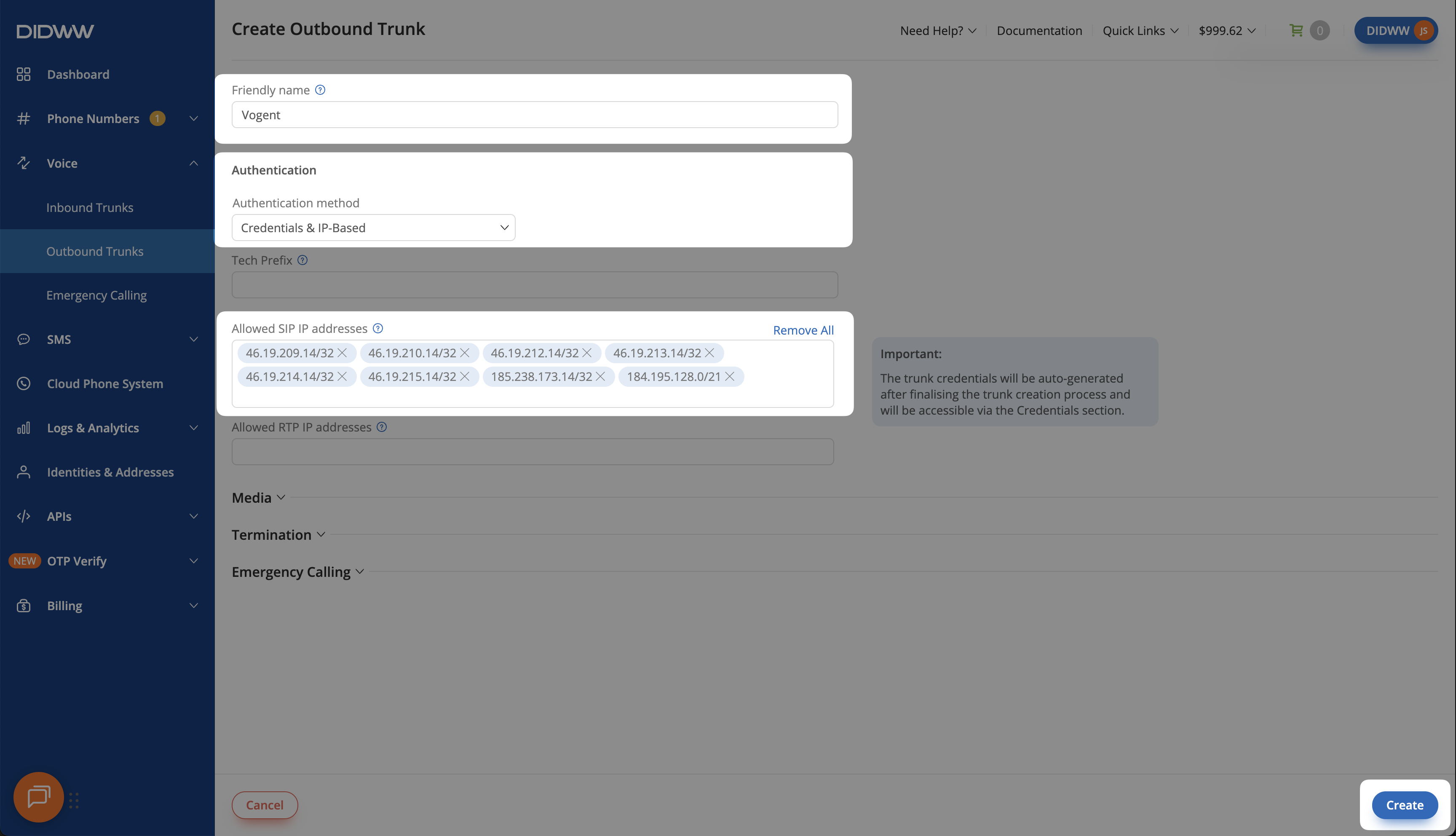
Fig. 6. Configuring and creating the Vogent outbound SIP trunk#
Warning
For temporary testing, you can allow traffic from any IP address by adding 0.0.0.0/0.
This removes IP restrictions, although SIP Digest Authentication still requires valid credentials.
Use this configuration at your own risk. DIDWW does not recommend removing IP restrictions.
Restrict access to known Vogent IP addresses whenever possible.
Note
For advanced outbound SIP trunk configuration, see Outbound SIP Trunk Guide.
Step 3: View and Copy Outbound Trunk Credentials#
When the outbound trunk is created, you can view and copy its credentials by selecting the key icon in the credentials column on the Outbound Trunks page.
Go to Voice > Outbound Trunks.
Locate your outbound trunk and click the key icon in the Credentials column.
The trunk credentials will appear, showing the Username and Password (click the eye icon to reveal the password).
View and copy these credentials for Step 4: Add Outbound Credentials to the Inbound Trunk and 3. Connect DIDWW SIP Trunks in Vogent.
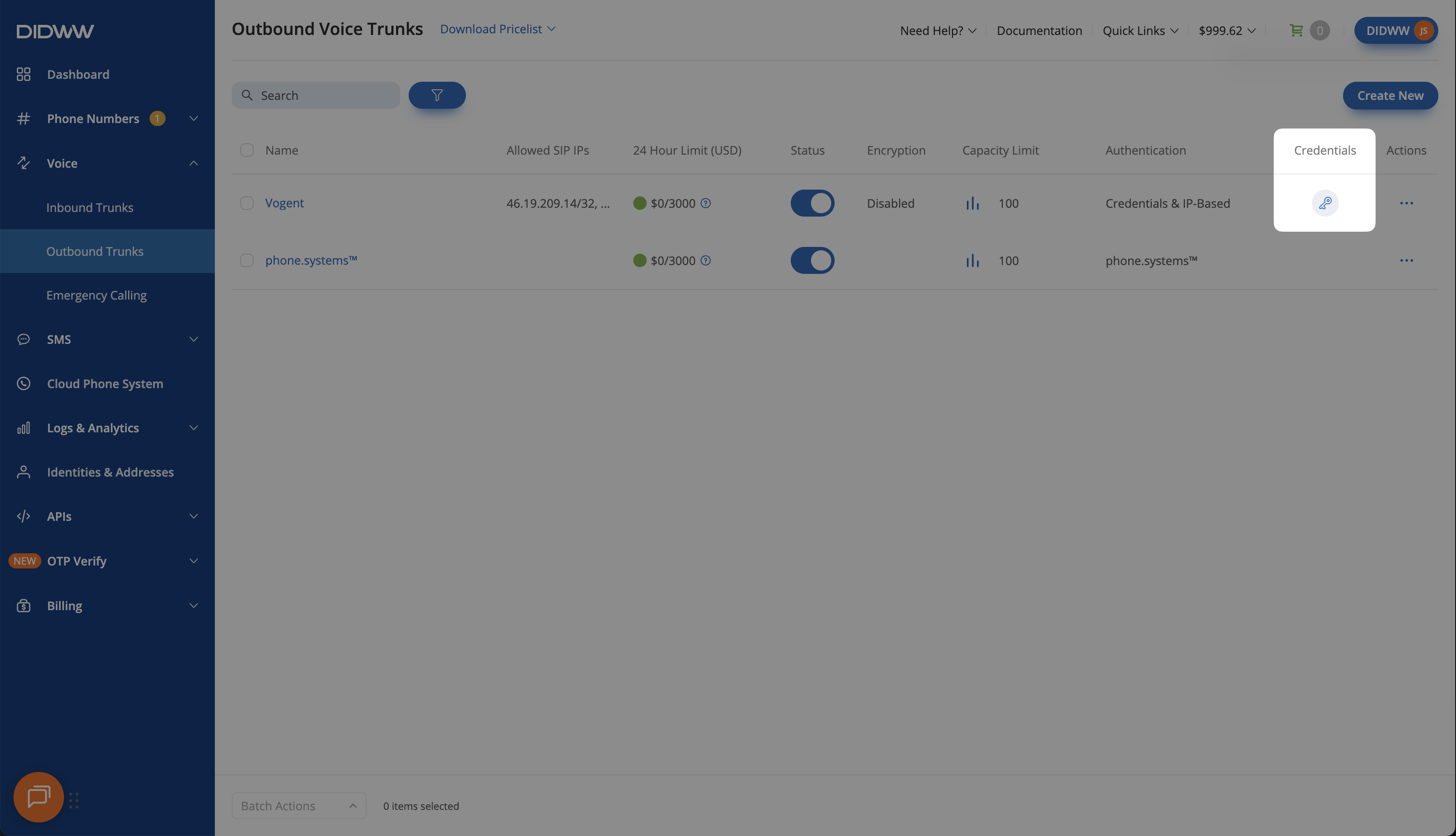
Fig. 7. Opening the outbound trunk credentials view#
Step 4: Add Outbound Credentials to the Inbound Trunk#
Configure the Vogent inbound trunk with the outbound trunk credentials copied in Step 3.
Go to Voice > Inbound Trunks and locate the Vogent inbound trunk.
Click Actions, then select Edit.
Open the Authorization tab.
Turn on Enable Authorization.
In Auth User, paste the outbound trunk Username.
In Auth Password, paste the outbound trunk Password.
Click Submit.
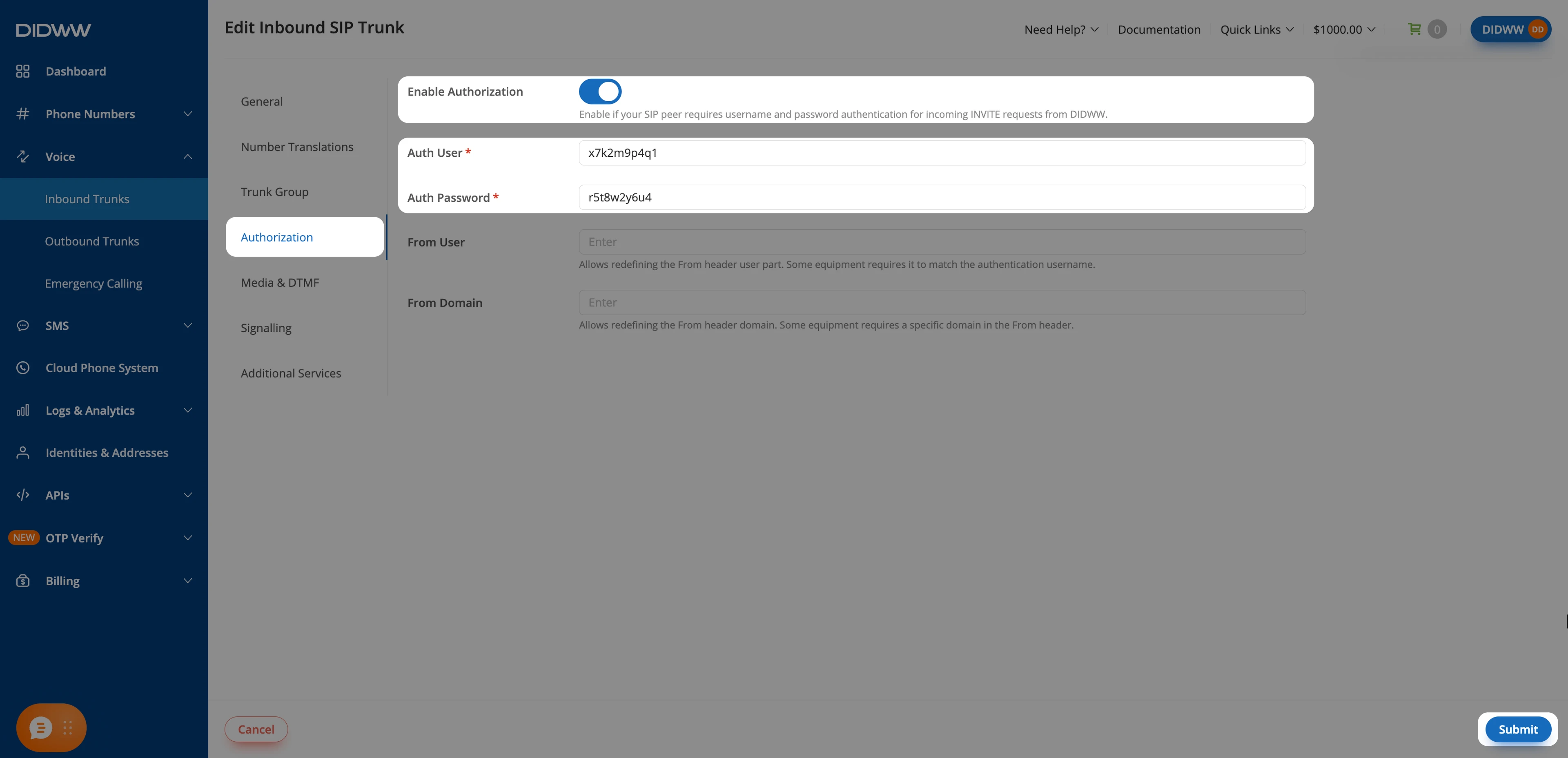
Fig. 8. Adding outbound credentials to the Vogent inbound trunk#
3. Connect DIDWW SIP Trunks in Vogent#
Connect your DIDWW number in Vogent so your agent can answer incoming calls, place outbound calls through DIDWW, and transfer calls to a live person. This setup imports the number over SIP, links it to your agent, makes the agent greet callers, and adds a warm transfer to a live person.
Before You Begin#
A Vogent account with an agent is required. To create one, go to Agents > New Agent and follow the Vogent agent creation guide.
The outbound trunk Username and Password from Step 3: View and Copy Outbound Trunk Credentials are required.
To use the API examples, a Vogent API key is required. In Vogent, go to API > Keys, click New Key, and copy the secret key. See Vogent API settings.
Step 1: Import Your DIDWW Number into Vogent#
Sign in to Vogent.
Expand Settings in the left sidebar and select Call Settings.
In the Numbers tab, click Add Phone Number.
In the Add Phone Number pop-up, select the Import via SIP tab.
In Phone Number, choose the country code and enter the national part of your DIDWW number. For example, select US (+1) and enter
5105550100for+15105550100. Do not enter the country code twice.In Termination URI, enter a DIDWW outbound signaling endpoint, for example
nyc.us.out.didww.com. Enter it as a hostname only, without asip:prefix or port.In Username and Password, enter the outbound trunk credentials from Step 3: View and Copy Outbound Trunk Credentials.
Click Import.
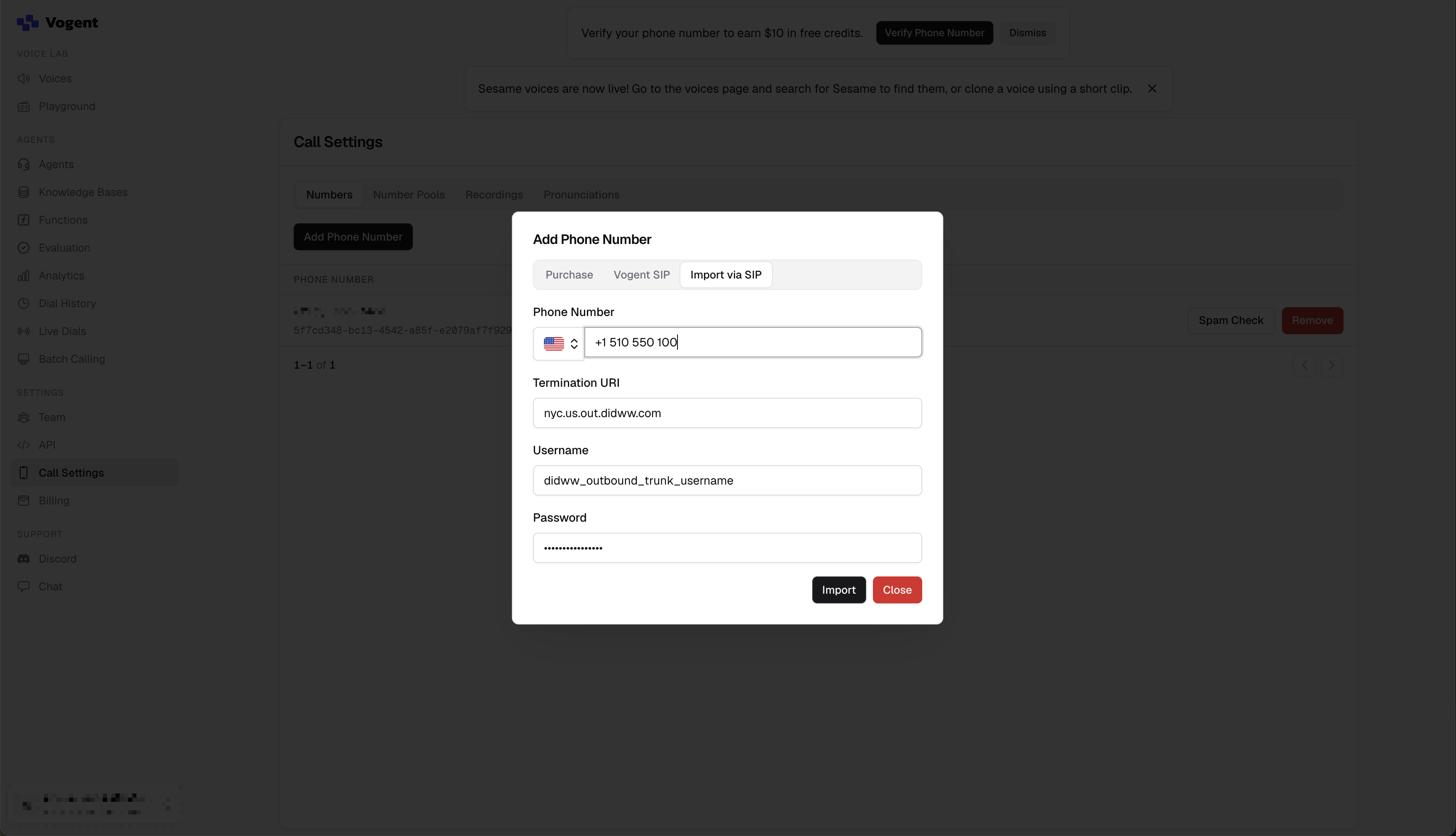
Fig. 9. Importing a DIDWW number in Vogent (example values; password masked)#
In Termination URI, you can enter any DIDWW outbound signaling endpoint. Choose the one closest to where your calls are placed.
Import the number with the Vogent API
To import the number with the Vogent API instead, send the following request. Replace the number and credentials with your values.
curl -X POST https://api.vogent.ai/api/phone_numbers \
  -H "Authorization: Bearer <vogent-api-key>" \
  -H "Content-Type: application/json" \
  -d '{
    "type": "sip_import",
    "sipImport": {
      "phoneNumber": "+15105550100",
      "terminationUri": "nyc.us.out.didww.com",
      "username": "<didww-outbound-username>",
      "password": "<didww-outbound-password>"
    }
  }'
The response contains the imported number’s id. Use it when linking the number or placing an outbound call with the API.
Step 2: Link the Number to Your Agent#
Link the imported number to the agent that answers its incoming calls.
In Vogent, go to Agents and open your agent.
Open the Numbers tab.
Click Link Number and select your DIDWW number.
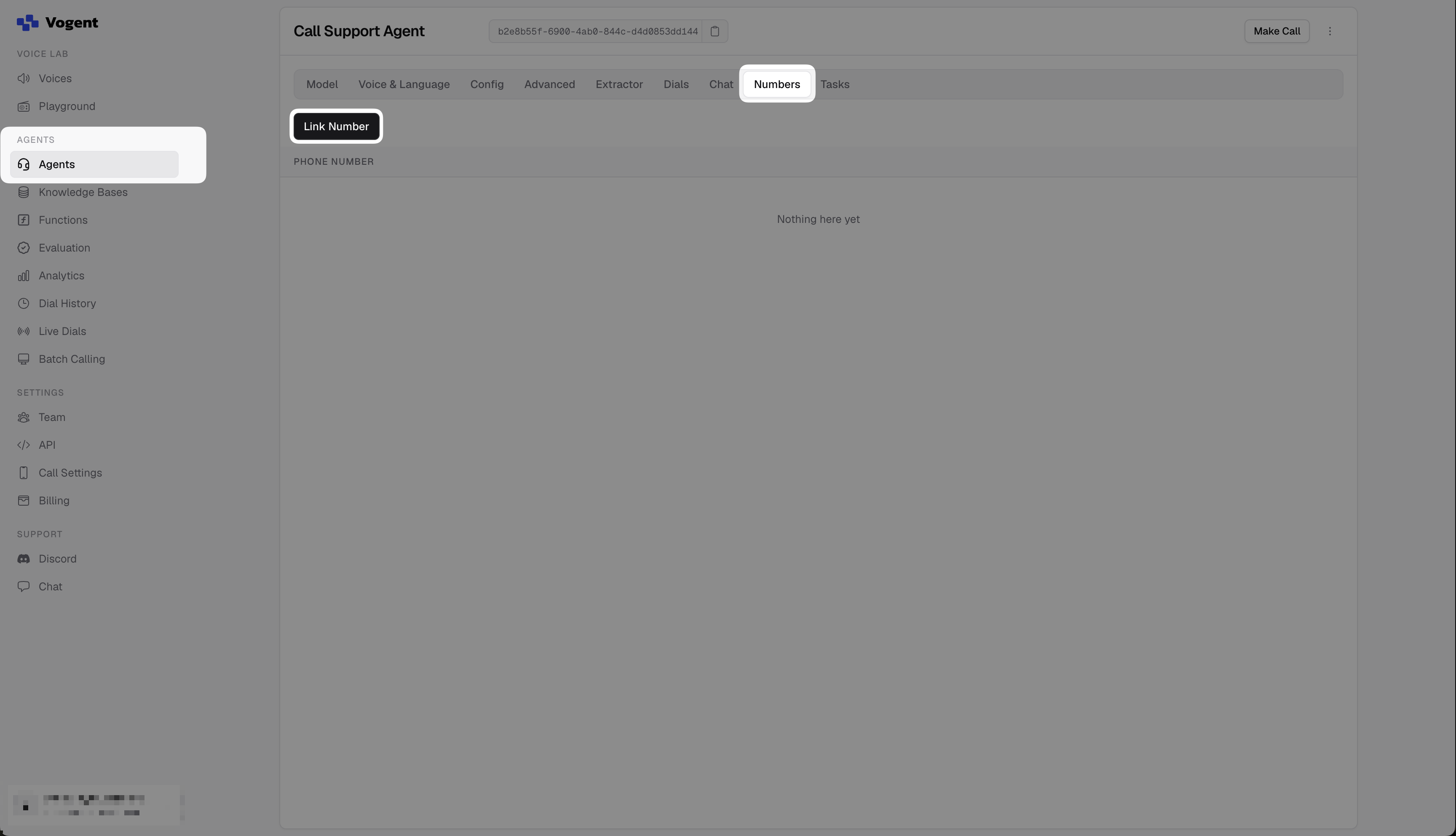
Fig. 10. DIDWW number linked to the agent (number obscured)#
Link the number with the Vogent API
To link the number with the Vogent API, send the following request. Replace <phone-number-id> with the id from Step 1 and <vogent-agent-id> with the ID shown under your agent’s name.
curl -X PUT https://api.vogent.ai/api/phone_numbers/<phone-number-id> \
  -H "Authorization: Bearer <vogent-api-key>" \
  -H "Content-Type: application/json" \
  -d '{ "agentId": "<vogent-agent-id>" }'
Step 3: Set the Agent’s Opening Line (optional)#
Important
Opening Line applies to Standard agents. For Flow agents, set the greeting in the flow itself.
Set an opening line if you want your agent to greet callers as soon as the call connects. If you leave it disabled, the agent waits for the caller to speak first.
In your agent, open the Config tab.
In Opening Line, select Inbound calls Only and enter the greeting (e.g.,
Hello, thank you for calling. How can I help you?).Click Save.
Note
After setup, calls to your DIDWW number reach the linked Vogent agent, which follows its model settings and configured prompt or flow.
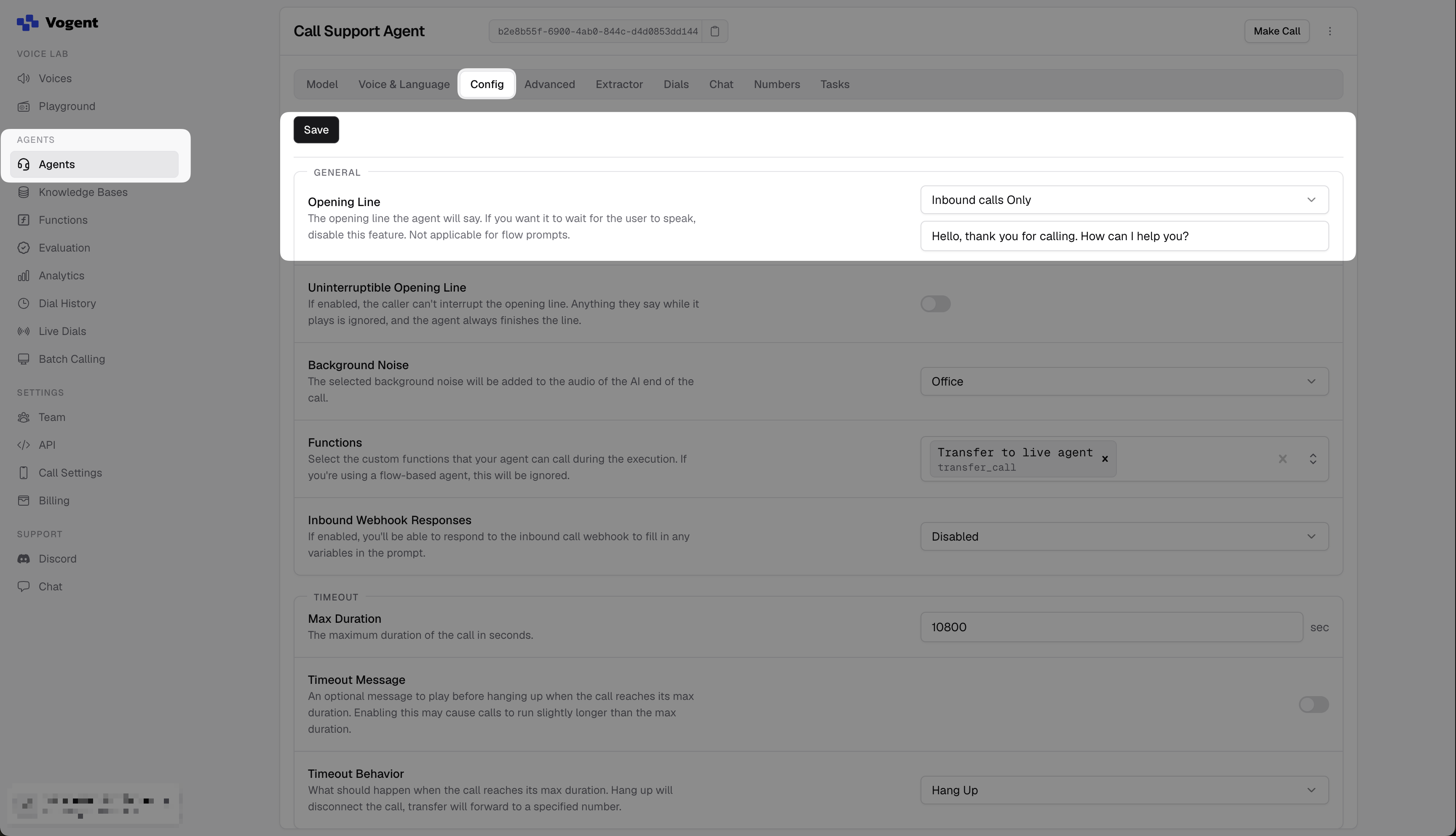
Fig. 11. Opening Line on the agent Config tab#
Step 4: Add Call Transfers to Your Live Agent#
Call transfers in Vogent are configured as a Call Transfer function that your agent runs during an active call, for example when the caller asks to speak with a live person.
Call transfer at a glance
        %%{init: {
  "theme": "base",
  "themeVariables": {
    "fontSize": "14px",
    "primaryColor": "#e0f2fe",
    "primaryBorderColor": "#38bdf8",
    "primaryTextColor": "#1f2d3d",
    "secondaryColor": "#ccfbf1",
    "secondaryBorderColor": "#2dd4bf",
    "secondaryTextColor": "#1f2d3d",
    "lineColor": "#0066cc",
    "textColor": "#1f2d3d",
    "nodeTextColor": "#1f2d3d",
    "edgeLabelBackground": "#ffffff"
  }
}}%%

flowchart LR
    caller["Caller"] -->|"1. Dials your DID number"| didwwIn["DIDWW<br/>Inbound trunk"]
    didwwIn -->|"2. Inbound SIP trunk"| vogent["Vogent<br/>AI agent"]
    vogent -.->|"3. New outbound call<br/>Warm transfer"| didwwOut["DIDWW<br/>Outbound trunk"]
    didwwOut -->|"4. Call to recipient"| recipient["Person / team<br/>Transfer recipient"]

    classDef endpoint fill:#e0f2fe,stroke:#0066cc,color:#1f2d3d,stroke-width:1.5px
    classDef process fill:#ccfbf1,stroke:#2dd4bf,color:#1f2d3d,stroke-width:1.5px
    class caller,recipient endpoint
    class didwwIn,didwwOut,vogent process
    linkStyle default stroke:#0066cc,stroke-width:1.5px
Note
A warm transfer creates an additional outbound call through DIDWW. Both call legs remain connected for the transferred conversation. Review the applicable DIDWW and Vogent charges before using transfers.
1. Create the Call Transfer function
In Vogent, go to Functions and click New Function.
In Display Name, enter a label (e.g.,
Transfer to live agent).In Name, enter the name the agent calls the function by (e.g.,
transfer_call).In Description, describe when the agent should transfer (e.g.,
Transfer the caller to a human colleague when they ask to speak to a real person, a human, a live agent or an operator.).In Function Type, select Call Transfer.
In the Config tab, set Transfer Type to Warm Transfer.
In Warm Transfer Type, select Prompted, and in Prompt, enter what the agent tells the person who answers (e.g.,
You are briefing a human colleague who has just answered the phone. In one short sentence, say that a caller needs help and summarise what they asked for, then say you are connecting them now.).In Allowed Numbers, leave Allow transfer to any number off. Choose the destination country code, enter the national number, and click Add. For example, select US (+1) and enter
5105550199for+15105550199. Do not use a DIDWW number that is linked to your Vogent agent, or the transferred call returns to your agent.Optionally in the Lifecycle Messages tab, in Started Messages, add what the agent says to the caller when the transfer starts (e.g.,
Sure, let me connect you to a colleague, one moment please.).Click Save.
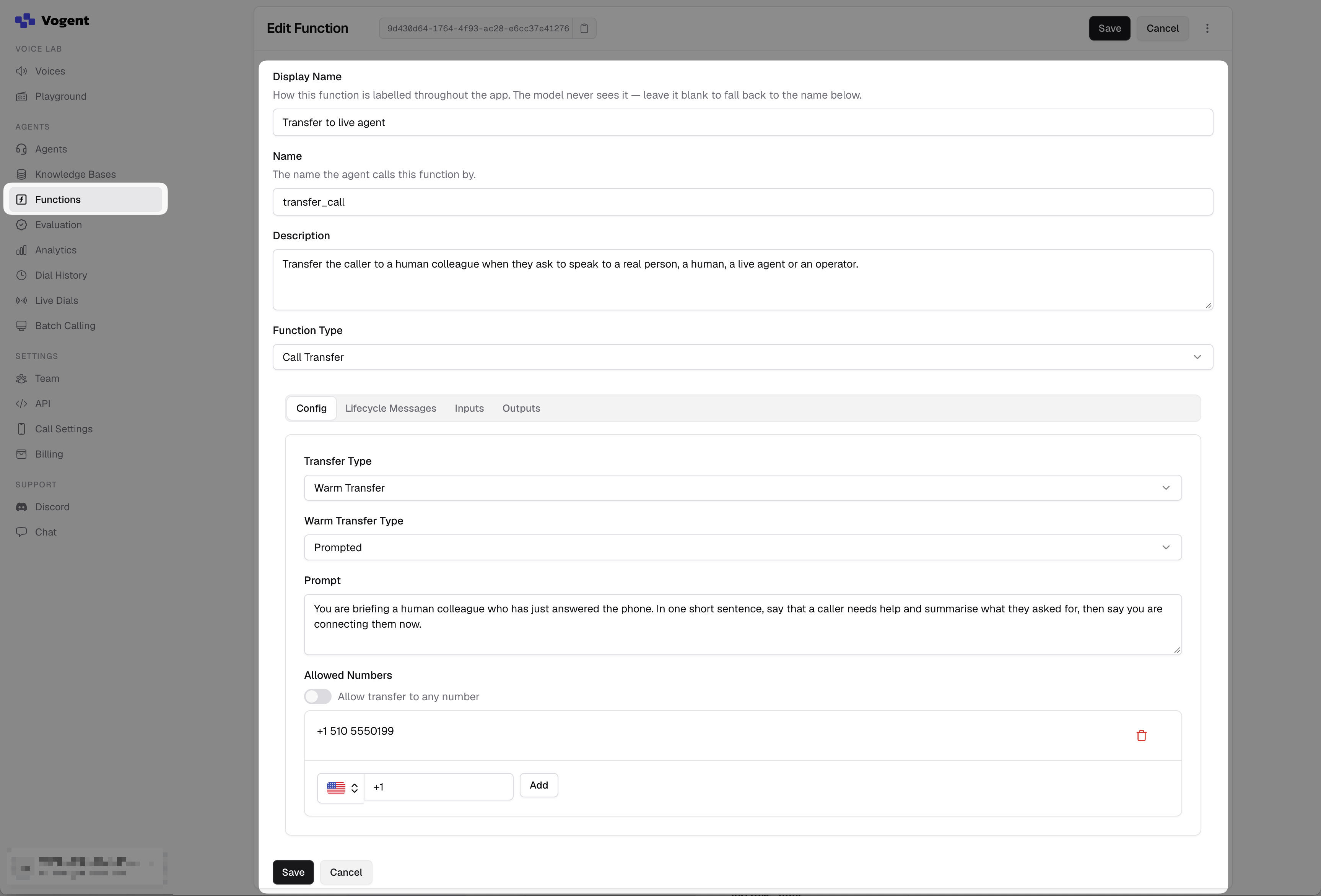
Fig. 12. Call Transfer function with Warm Transfer#
Note
Set Transfer Type explicitly to Warm Transfer in the Vogent dashboard. If you switch a function from Warm Transfer to Cold Transfer and back, the Prompt is cleared. Enter it again before you save.
2. Add the function to your agent
In your agent, open the Config tab.
In Functions, select the Call Transfer function (e.g.,
Transfer to live agent).Click Save.
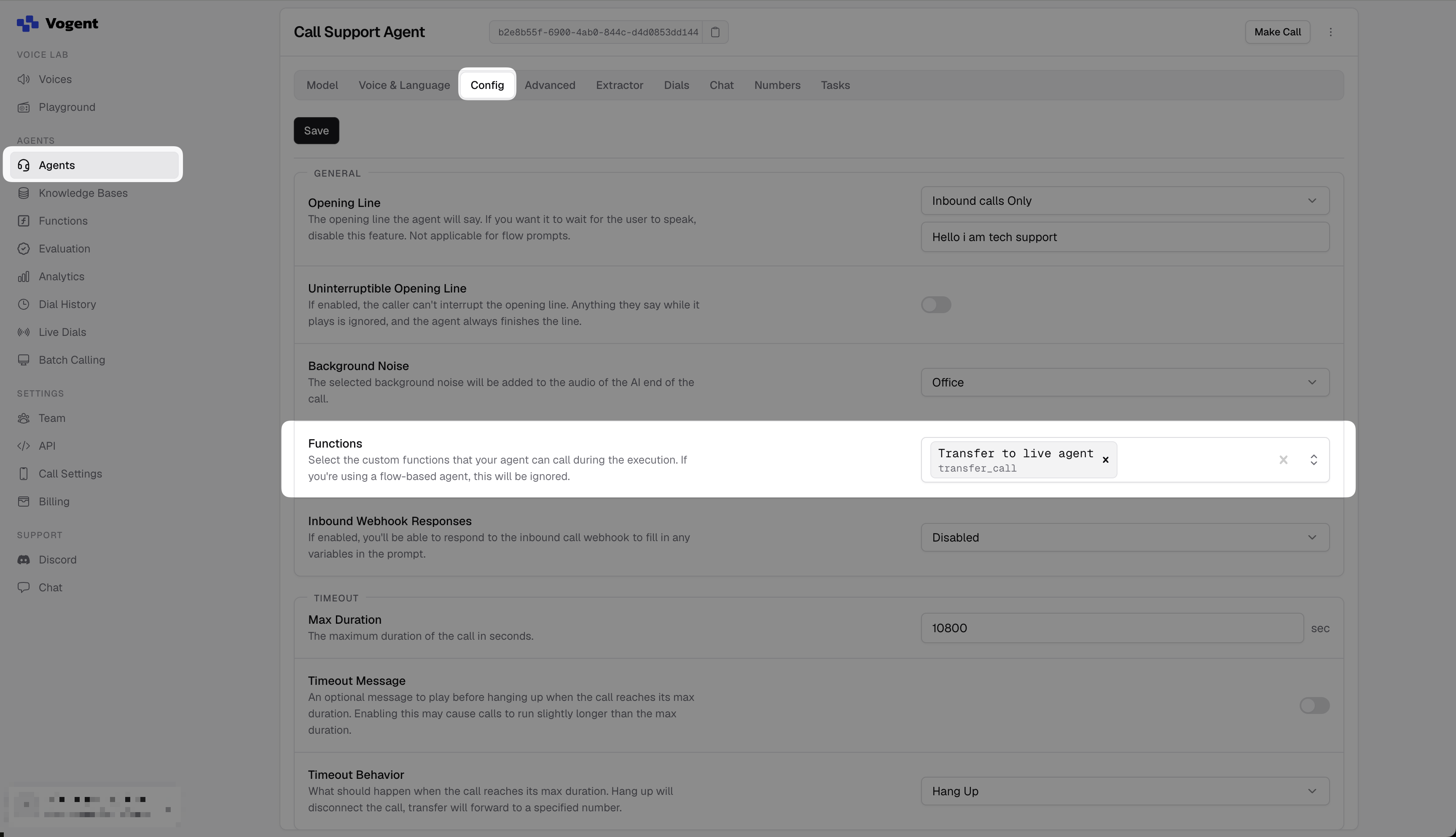
Fig. 13. Adding the Call Transfer function to your agent (Config tab)#
3. Tell the agent when to transfer
Note
These steps apply to Standard agents with an editable prompt. For Flow agents, configure the transfer using a function call node in the flow.
+15105550199 is a fictional number used only as an example for demonstration purposes. Replace it with your actual transfer destination number.
In your agent, open the Model tab.
In Prompt, add an instruction that names the function and the destination. For example:
If the caller asks to speak to a real person, a human, a live agent or an operator,
or you cannot help with what they need, tell them you will connect them to a colleague
and call the transfer_call function with destination +15105550199.
Click Update.
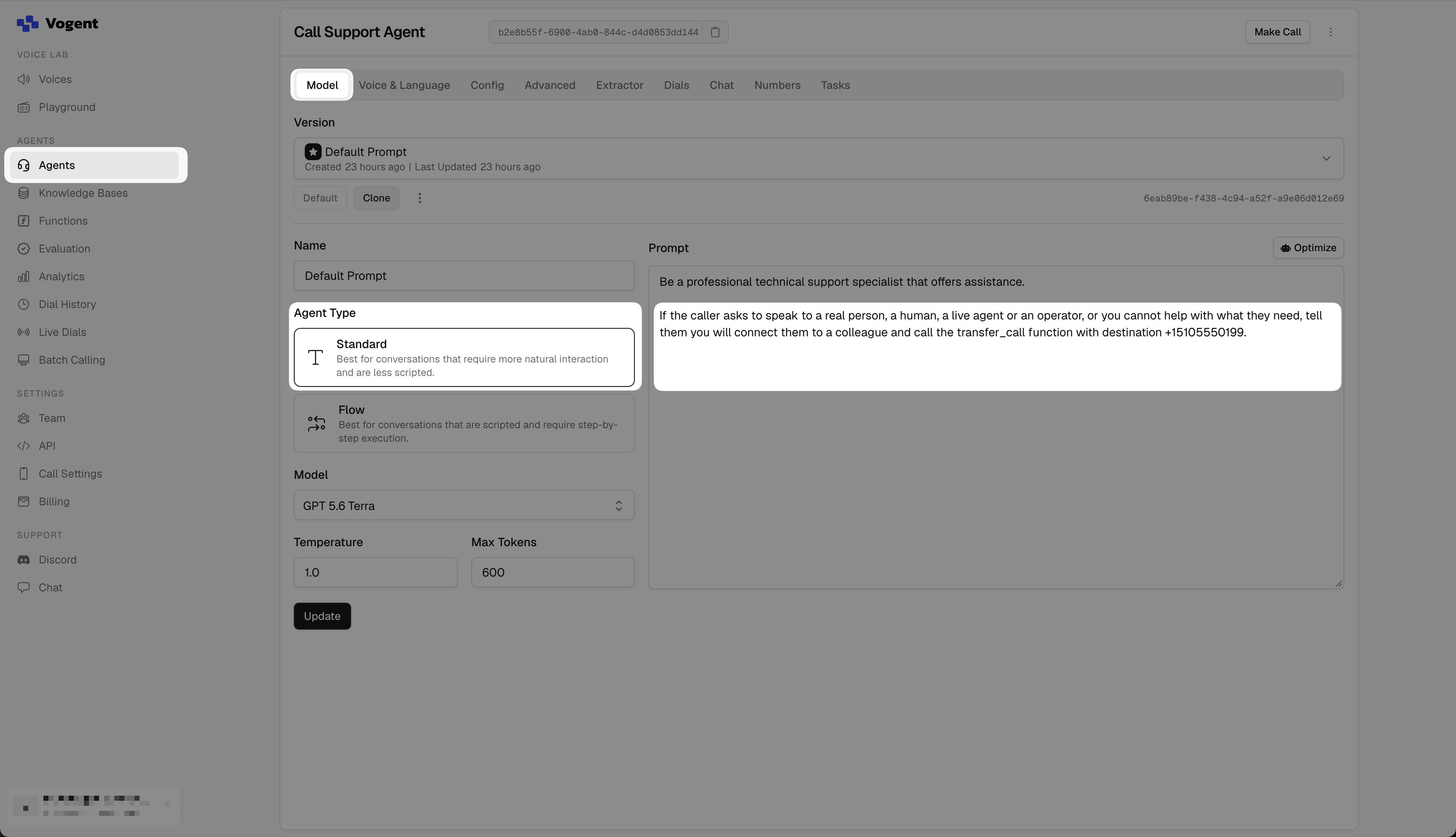
Fig. 14. Transfer instruction in the agent prompt (destination obscured)#
Step 5: Test the Configuration#
Verify that inbound calling, outbound calling, and call transfers are working as expected.
Inbound calls
Call the DIDWW number assigned to the inbound trunk.
Check that the agent answers with its opening line and that both parties can hear each other.
In Vogent, open Dial History and check that the call appears as Incoming.
Outbound calls
Open your agent and click Make Call.
In the call panel, select Phone Call.
In From Number, select your imported DIDWW number.
In To Number, choose the destination country code and enter the national number. For example, select US (+1) and enter
9085550100for+19085550100.Click Dial and answer the call on the destination phone.
Check the caller ID and that both parties can hear each other.
Place an outbound call with the Vogent API
To start the call with the Vogent API instead, replace the agent ID, the imported phone number ID, and the destination in the following request.
curl -X POST https://api.vogent.ai/api/dials \
  -H "Authorization: Bearer <vogent-api-key>" \
  -H "Content-Type: application/json" \
  -d '{
    "callAgentId": "<vogent-agent-id>",
    "fromNumberId": "<phone-number-id>",
    "toNumber": "<number-to-dial>"
  }'
Call transfers
Call the DIDWW number assigned to the inbound trunk and wait for the agent to answer.
Ask the agent to transfer you to a live person.
Answer the call at the transfer destination and listen to the briefing.
Check that both parties can hear each other after the agent connects the call.
In Vogent, open Dial History, select the call, and check its Transferred status and the
transfer_callfunction in the Transcript tab. The status alone does not confirm that the recipient answered.
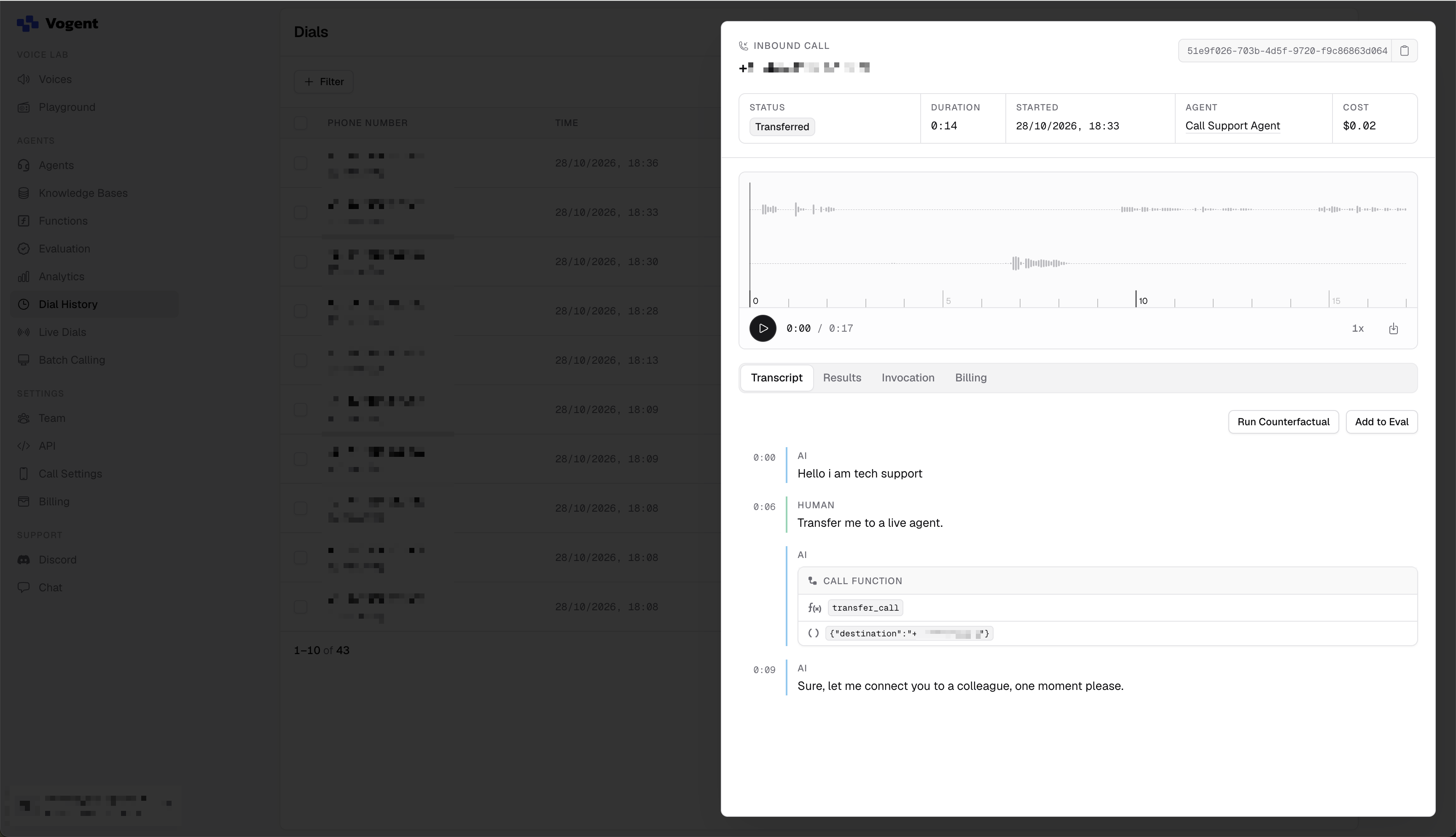
Fig. 15. Transfer status and function call in Dial History (numbers obscured)#
Note
Vogent shows each call’s transcript, function calls, and completion reason in Dial History.
You can review call activity and verify call status or error codes in the DIDWW Inbound and Outbound Call Logs. A warm transfer appears in the Outbound Call Logs as a call through your Vogent outbound trunk. See Inbound Call Logs and Outbound Call Logs for more details.
Troubleshooting#
The call connects, but nobody speaks
The agent is waiting for the caller to speak first. In your agent, open the Config tab and set Opening Line to Inbound calls Only with a greeting. See Step 3.
The call is not answered by the agent
Check that:
The DIDWW number is linked to your agent on the agent’s Numbers tab.
User Part of R-URI on the DIDWW inbound trunk is
{DID}or+{DID}. Both formats work with Vogent.The number in Vogent is imported in E.164 format with the
+sign.The DIDWW inbound trunk is assigned to the DID number.
The number import fails in Vogent
Vogent imports a number only with the credentials of a DIDWW outbound trunk. Check that:
Termination URI is a DIDWW outbound signaling endpoint entered as a hostname only, without a
sip:prefix or port.Username and Password match the DIDWW outbound trunk credentials.
Dial History shows Transferred, but the transfer destination does not ring
Check the following:
Transfer Type on the Call Transfer function is Warm Transfer.
Allowed SIP IP addresses on the DIDWW outbound trunk match the approved Vogent source IP ranges, or DIDWW support has confirmed another supported authentication setup.
The transfer destination is listed in Allowed Numbers on the function.
A transfer that DIDWW does not receive does not appear in the DIDWW Outbound Call Logs.
401 Unauthorized, 403 Forbidden, or 407 Proxy Authentication Required on an outbound call or transfer
If the call is rejected, check the authentication settings on both sides:
Username and Password on the imported number in Vogent must match the DIDWW outbound trunk credentials.
Authorization on the DIDWW inbound trunk must be enabled, with Auth User and Auth Password matching the same outbound trunk credentials. See Step 4.
Allowed SIP IP addresses on the DIDWW outbound trunk must accept the Vogent servers placing the call.
484 Address Incomplete on an outbound call
Dial the full international number in E.164 format, for example +19085550100.
Remove local or international dialing prefixes such as 0, 00, or 011.
The outbound call or transfer is rejected after authentication
Check the following on your DIDWW account and outbound trunk:
The caller ID is permitted by CLI Settings.
Calls to the destination are allowed.
The trunk has not reached its 24 hour limit (USD) or Capacity limit.
Your account balance is sufficient.
Vogent shows the caller’s number with a +1 prefix
If DIDWW sends the caller’s number without the + sign, Vogent may interpret it as a US number. For example, a call from +442079460000 may appear in Vogent with an extra +1 prefix. Calls connect normally; only the caller’s number in Vogent is affected.
The Vogent API returns unauthorized
The request uses the ID of the API key instead of the secret key. In Vogent, go to API > Keys, create a new key, and copy the secret key shown when the key is created.
For Vogent diagnostics, see Vogent Dial History.