

Bland AI#
Use Bland AI voice agents with DIDWW SIP Trunking to handle inbound and outbound calling over standard phone lines. Connect your DIDWW SIP trunks with Bland AI to route incoming calls to Bland AI pathways, place outbound calls through DIDWW, and transfer active calls to live agents with SIP REFER.
Route incoming calls from DIDWW numbers to Bland AI pathways.
Connect callers to AI agents for real-time conversations.
Attach existing DIDWW numbers to a Bland AI SIP trunk.
Place outbound calls through DIDWW Outbound Trunks.
Transfer active calls to external phone numbers through DIDWW.
Encrypt signaling and media with TLS and SRTP.
1. Route Incoming Calls to Bland AI#
Configure an Inbound SIP Trunk in the DIDWW User Panel to send incoming calls from your DIDWW numbers to Bland AI. This trunk delivers calls to the Bland AI SIP endpoint over TLS with SRTP, and it can be configured to support SIP REFER call transfers.
Before You Begin#
An active DIDWW account is required. Sign in to DIDWW or Create DIDWW account.
At least one active DID number with capacity to receive incoming calls is required. Buy Numbers.
A Bland AI account with SIP trunking enabled is required. Bland AI enables SIP trunking per organization. Contact Bland AI support if SIP trunks is not available in your dashboard.
Step 1: Create New SIP Trunk#
In the DIDWW User Panel, go to Voice > Inbound Trunks.
Click Create New > SIP Trunk.
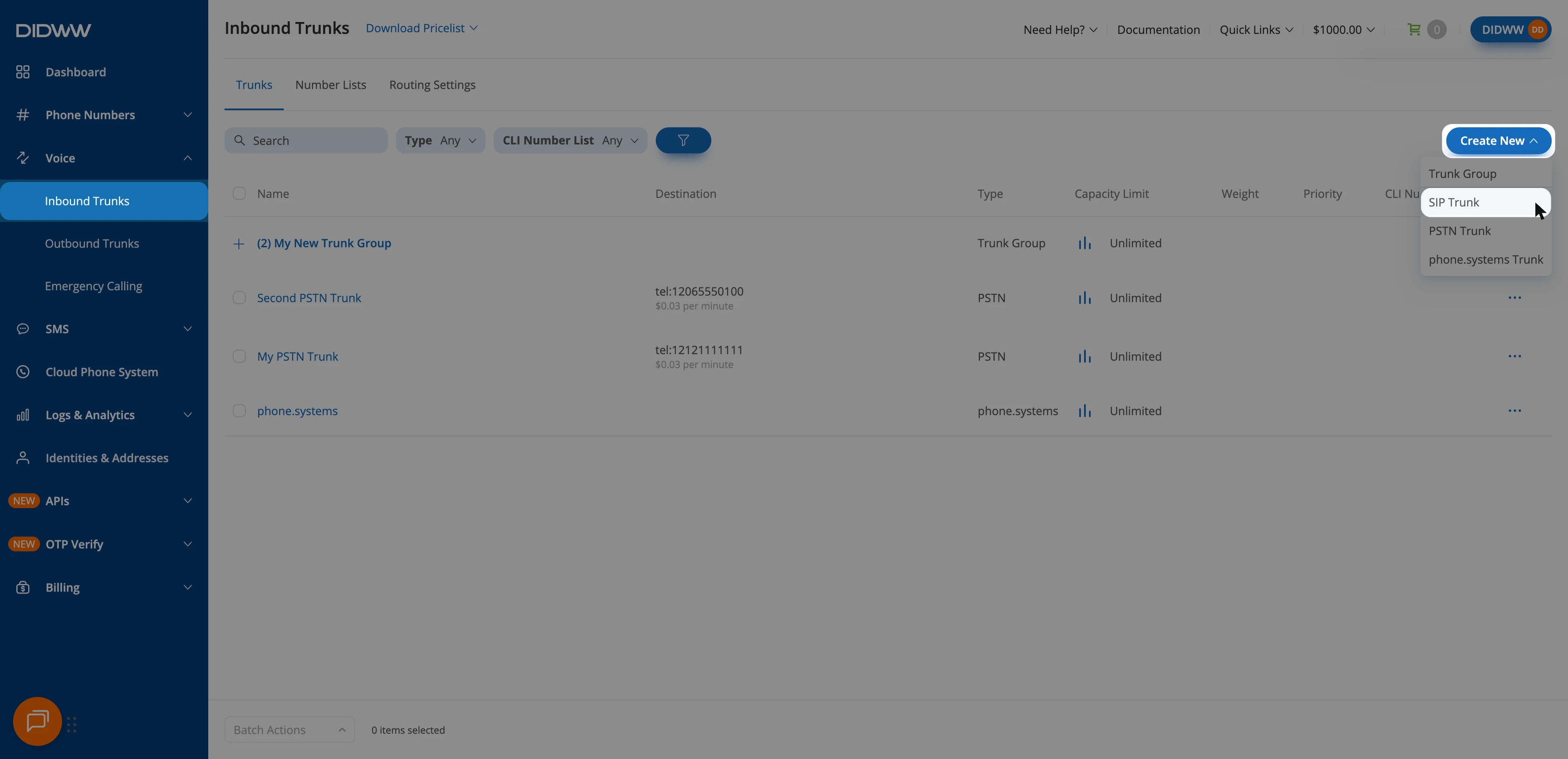
Fig. 1. Creating a new inbound SIP trunk#
Step 2: Configure General SIP Trunk Settings#
In the General tab, configure the endpoint and network settings used to deliver calls from DIDWW to Bland AI.
Important
TLS transport on port 5061 is mandatory. Bland AI rejects SIP over UDP or TCP on port 5060.
Enter a descriptive Name for the trunk (e.g.,
Bland AI).Select Static Endpoint.
In User Part of R-URI, enter
+{DID}to send the called number in E.164 format with the+symbol.In Host, enter the Bland AI SIP endpoint for the region where your Bland AI organization is hosted:
US:
us2.sip.bland.aiCanada:
ca2.sip.bland.aiEurope:
eu2.sip.bland.aiAsia-Pacific:
asia2.sip.bland.ai
In Port, enter
5061.Set Network Protocol to IPv4 only.
In Transport, select TLS.
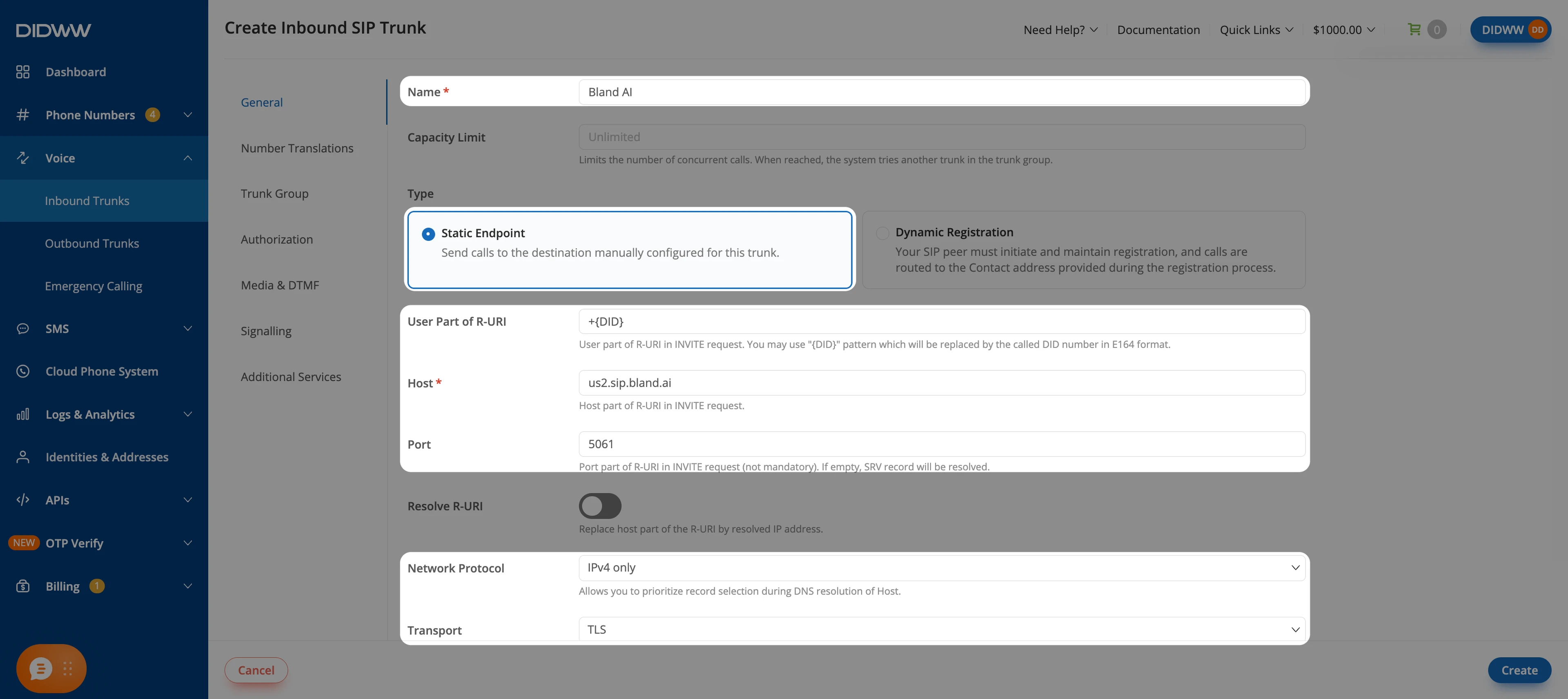
Fig. 2. SIP trunk configured for Bland AI#
Step 3: Configure Media Encryption#
Important
Bland AI requires SRTP SDES media encryption to establish calls.
Open the Media & DTMF tab.
In Codecs, keep PCMU, PCMA, and telephone-event, and remove the other codecs.
In SRTP Mode, select SRTP SDES.
Keep RFC 2833 as the DTMF Send Mode and DTMF Receive Mode.
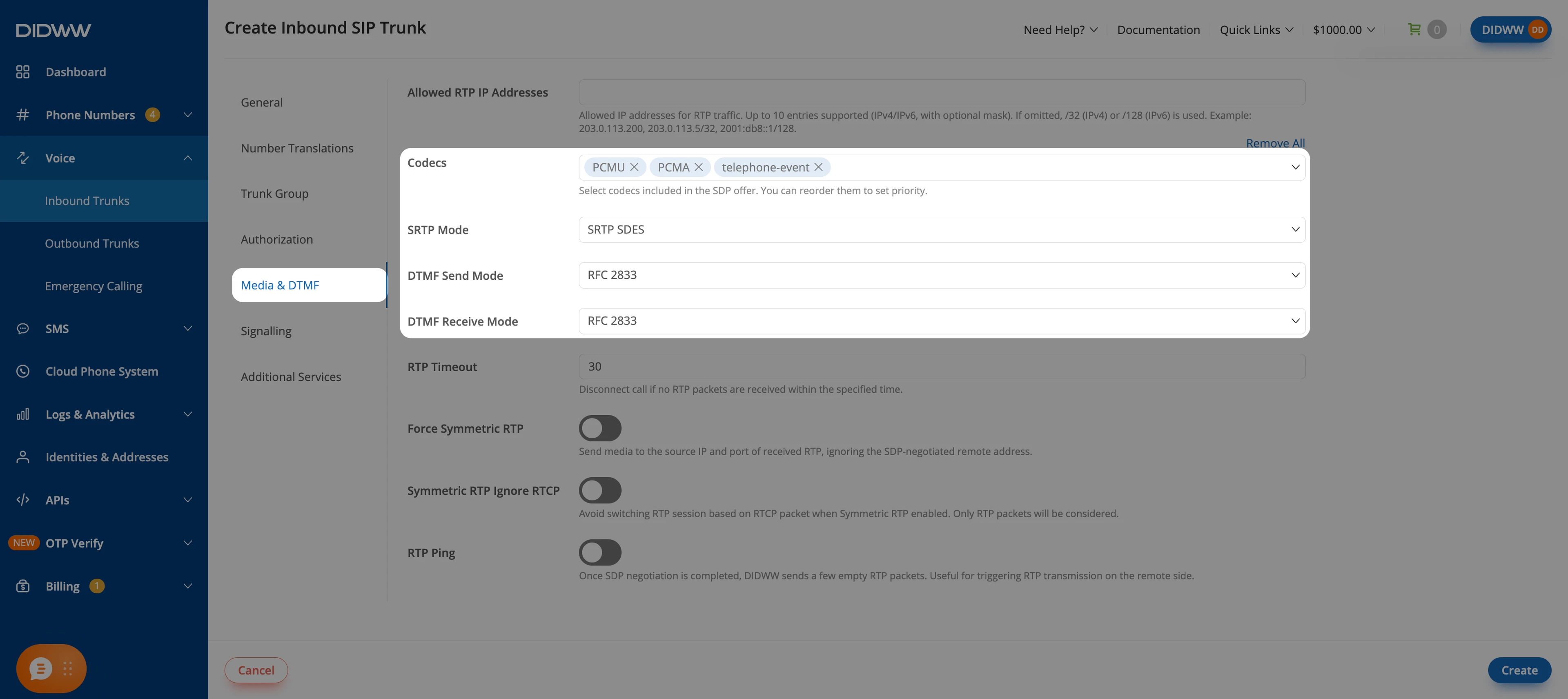
Fig. 3. Configuring codecs and SRTP for Bland AI#
Step 4: Enable Call Transfer Signaling (Optional)#
To support call transfers, configure the inbound trunk to allow in-dialog SIP REFER requests. Skip this step if you do not need call transfers.
Open the Signalling tab.
Set Max Transfers to
1or higher.
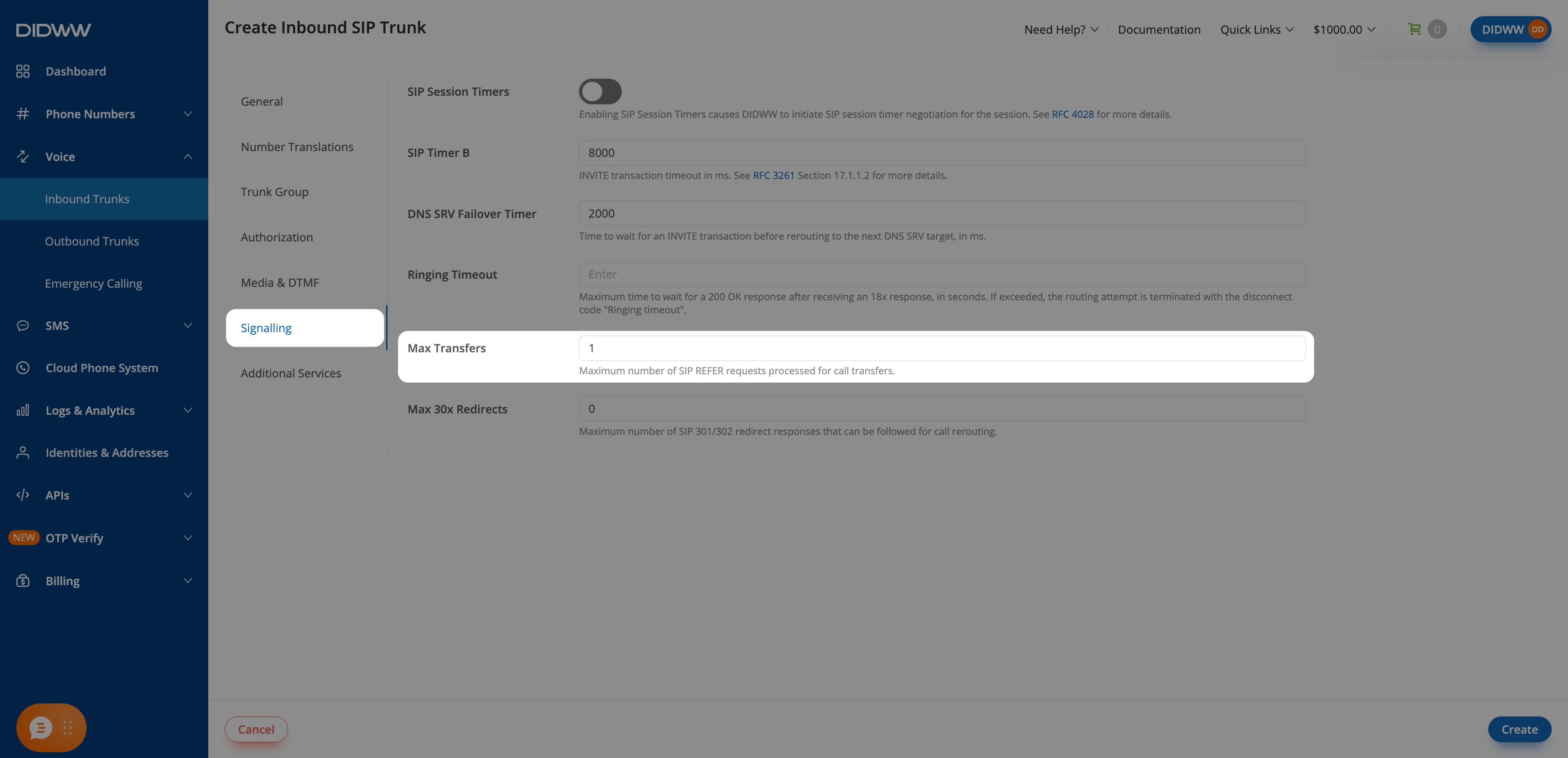
Fig. 4. Enabling call transfer signaling#
Step 5: Save the Inbound SIP Trunk#
When all required fields in the Create Inbound SIP Trunk form are filled, click Create to save your inbound SIP trunk.
Note
For advanced SIP trunk configuration, see Advanced Inbound SIP Trunk documentation.
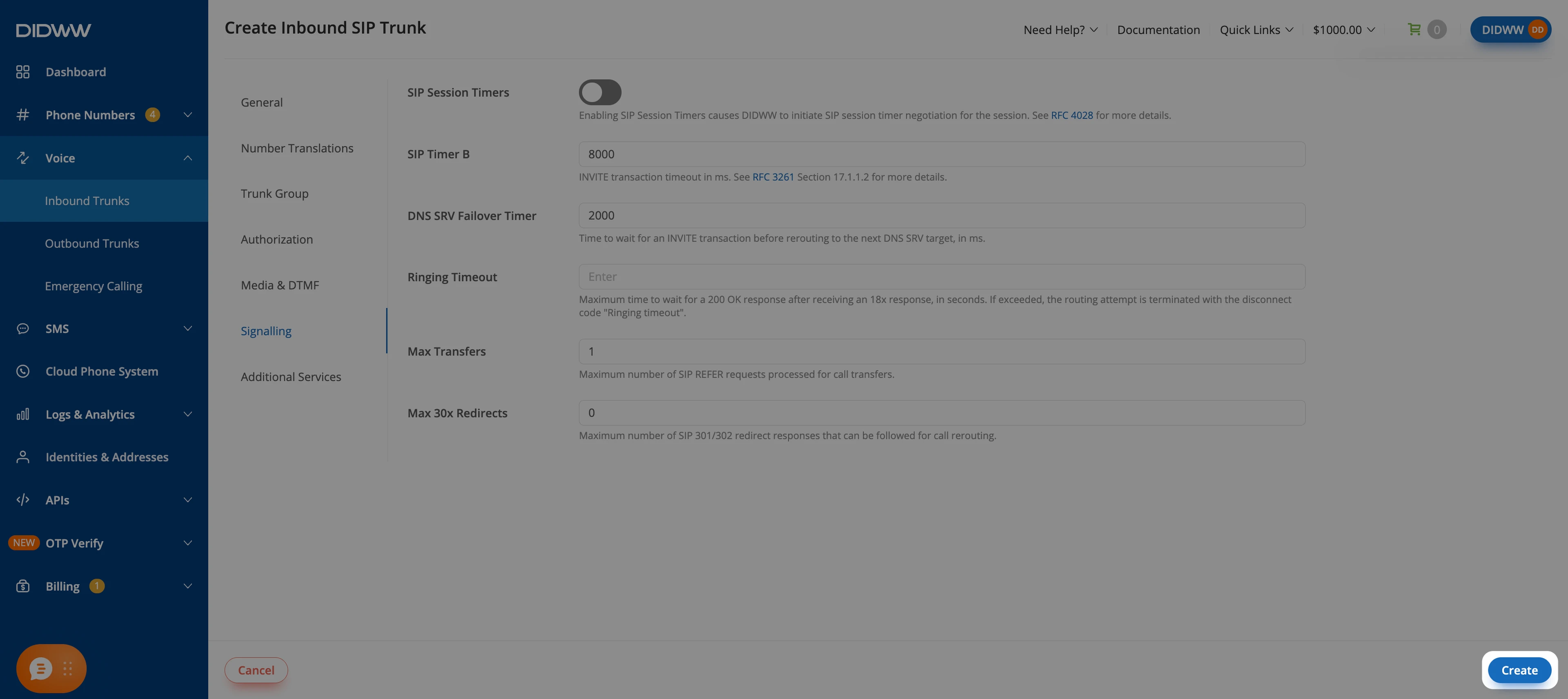
Fig. 5. Creating the inbound SIP trunk#
Step 6: Locate Your DID Numbers#
After creating the Inbound SIP Trunk for Bland AI, locate the DID number(s) that will deliver incoming calls to Bland AI.
In the DIDWW User Panel, go to Phone Numbers > My Numbers.
Find the DID number(s) you want to connect to Bland AI.
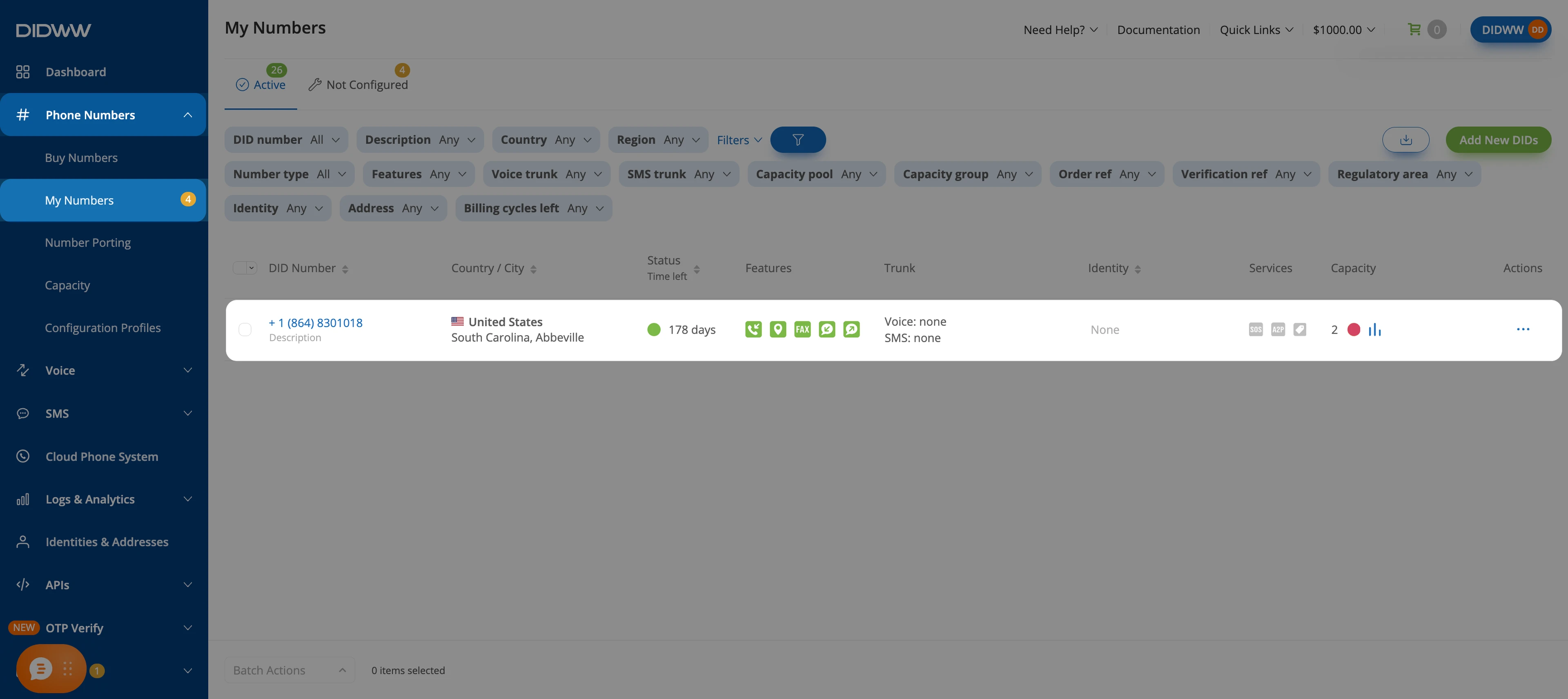
Fig. 6. Locating your DID numbers#
Step 7: Assign Inbound SIP Trunk to Your DID Numbers#
Select the DID number(s) you located in the previous step.
At the bottom of the page, click Batch Actions > Update Trunks.
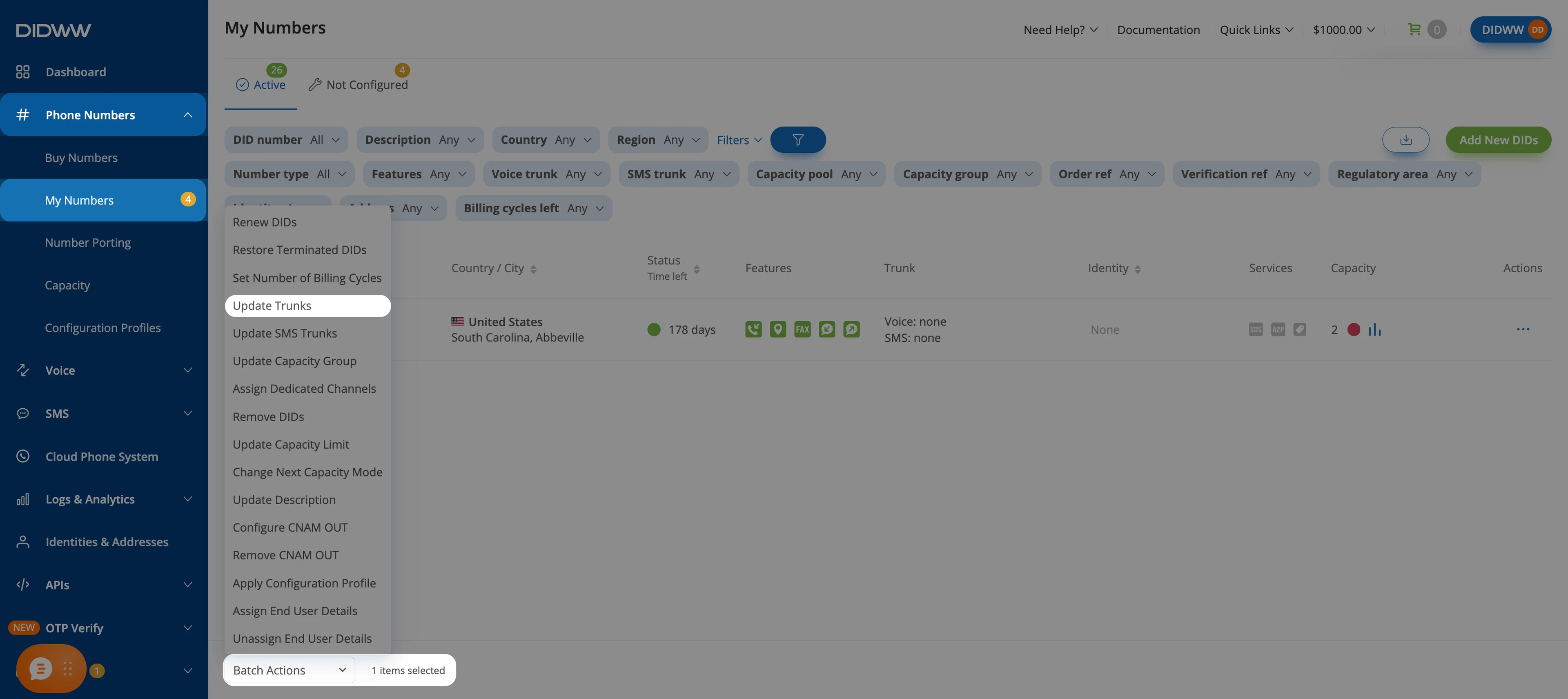
Fig. 7. Selecting Update Trunks from the Batch Actions menu#
In Voice IN trunk, select the Bland AI SIP trunk you created earlier.
Click Confirm to apply the changes.
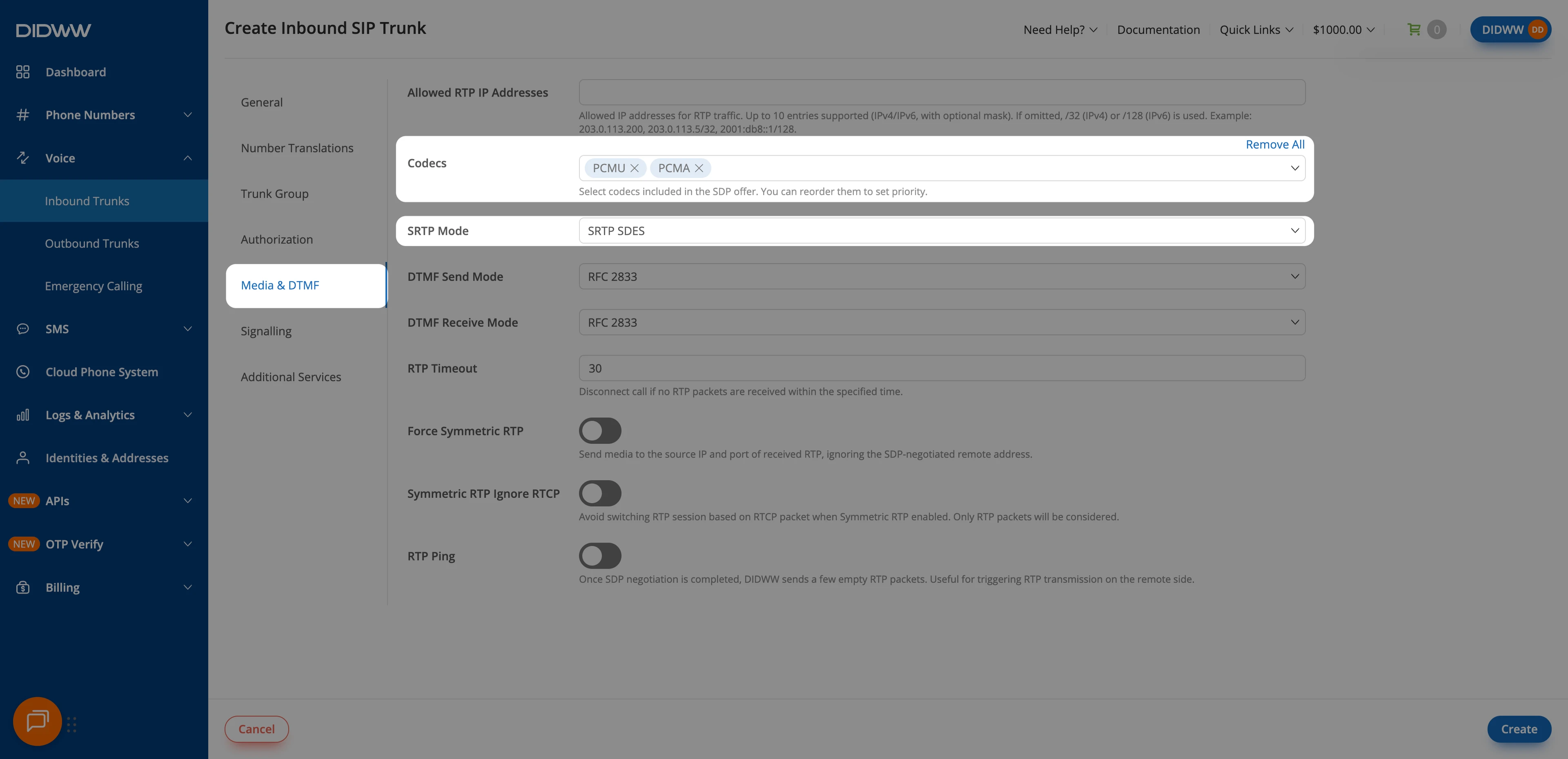
Fig. 8. Assigning the Bland AI SIP trunk to the selected DID(s)#
2. Enable Outbound Calling from Bland AI through DIDWW#
Configure an Outbound SIP Trunk in the DIDWW User Panel to allow Bland AI to place outbound calls through DIDWW. This trunk also provides the SIP credentials used for call transfers to external phone numbers.
Before You Begin#
Access to DIDWW Outbound Trunks is required for making outbound calls. See Get Access to DIDWW Outbound Termination.
Step 1: Create New Outbound Voice Trunk#
In the DIDWW User Panel, go to Voice > Outbound Trunks.
Click Create New.
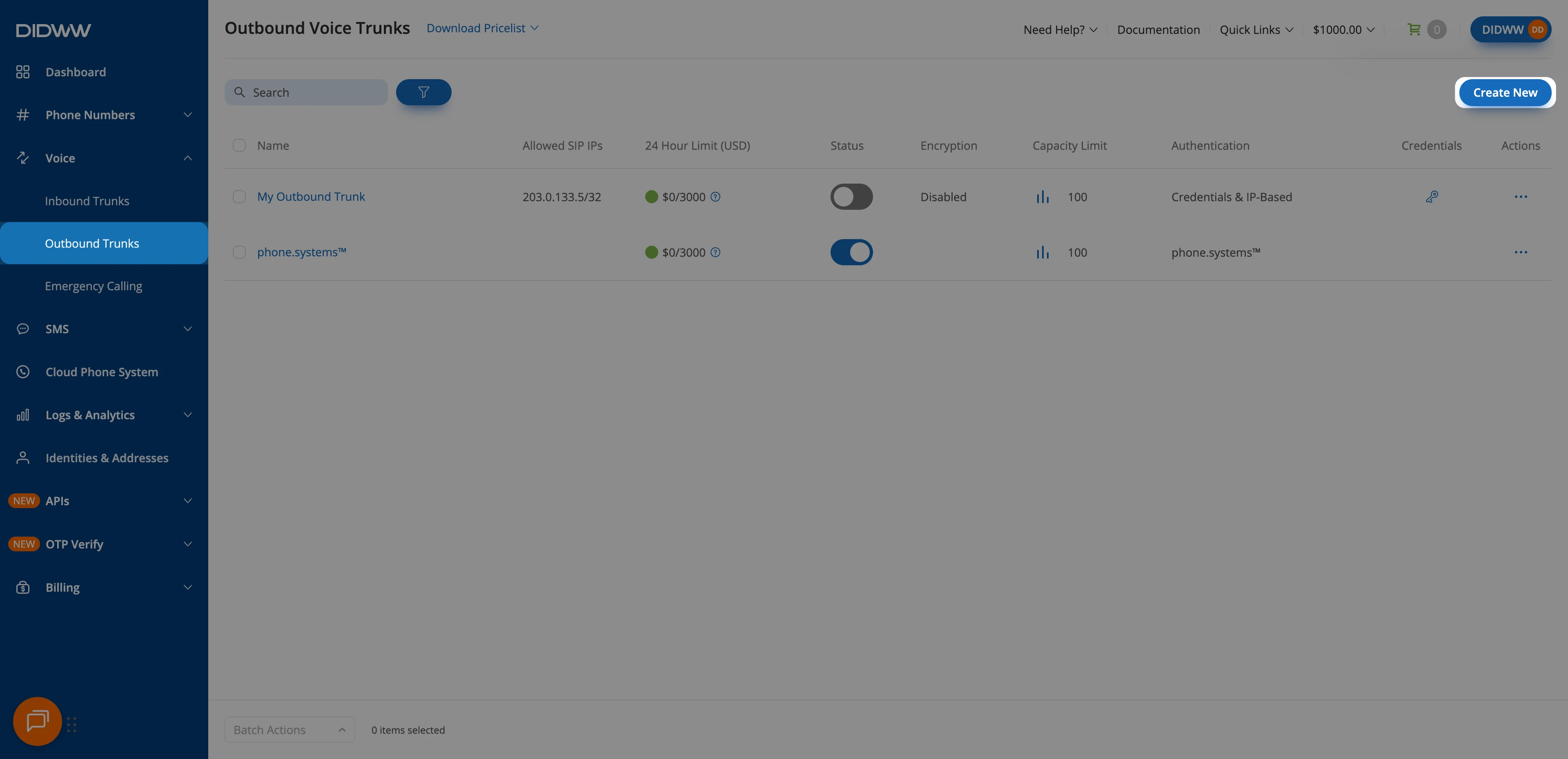
Fig. 9. Creating a new outbound SIP trunk#
Step 2: Configure Authentication#
Update the Friendly Name (e.g.,
Bland AI).Keep the default Credentials & IP-Based authentication method selected. The SIP digest credentials (username and password) will be provided after the trunk is created.
In Allowed SIP IP addresses, enter the Bland AI signaling and media IP addresses for the region where your Bland AI organization is hosted. For the US region, enter:
Signaling:
35.82.60.77/32and52.27.163.2/32Media:
52.13.231.129/32,35.160.144.213/32,44.234.13.26/32, and54.218.96.252/32
Bland AI can send outbound calls and call transfers from its media IP addresses, so add both groups. For other regions, and for the latest IP addresses, see Bland AI SIP Integration or the Firewall step of the Bland AI trunk setup.
Then add the DIDWW inbound SIP addresses used for call transfers:
New York:
46.19.209.14Frankfurt:
46.19.210.14Los Angeles:
46.19.212.14Miami:
46.19.213.14Singapore:
46.19.214.14Hong Kong:
46.19.215.14Amsterdam:
185.238.173.14
Warning
You can allow all traffic by adding 0.0.0.0/0, which removes all IP restrictions.
Although SIP Digest Authentication will still verify requests using valid credentials, this setup is not recommended.
Restrict access to known Bland AI IP addresses whenever possible.
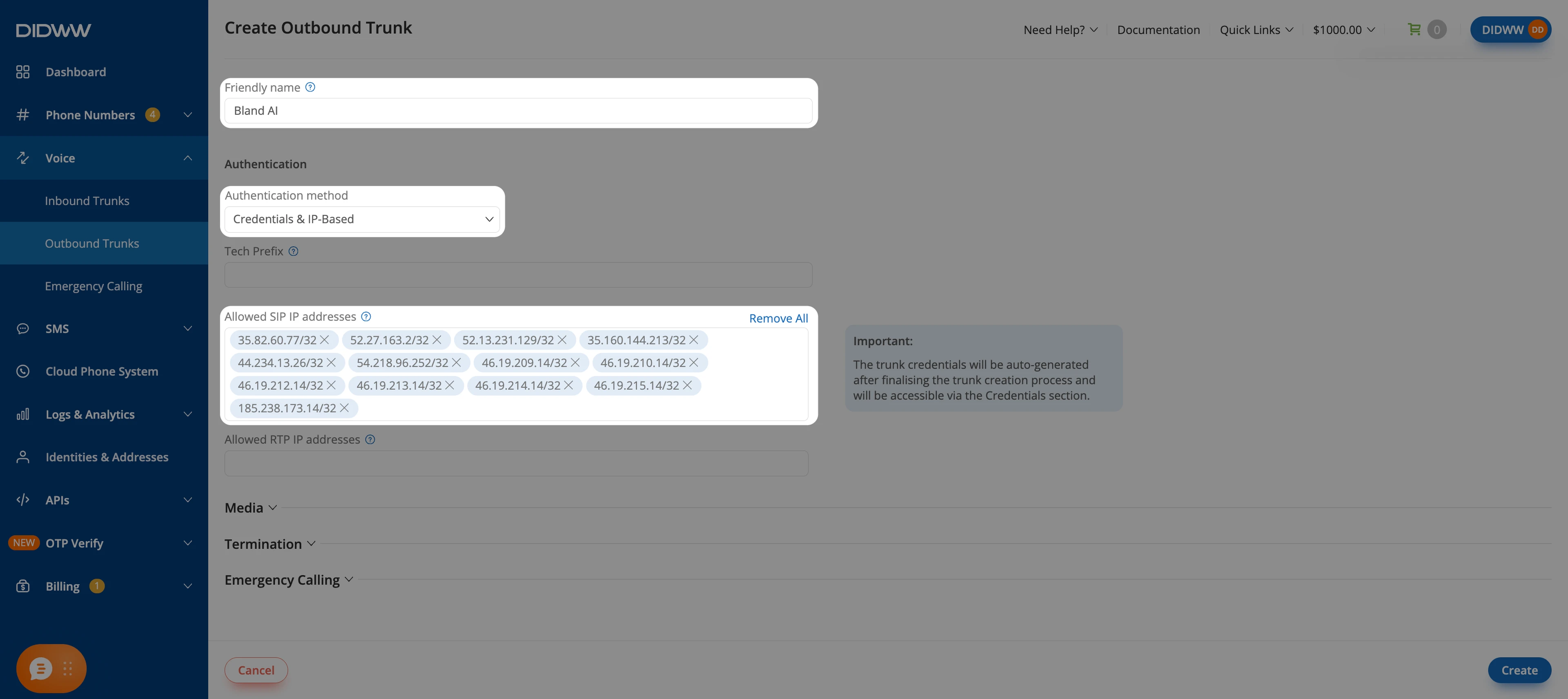
Fig. 10. Entering allowed SIP IP addresses for outbound authentication#
Step 3: Configure Media Encryption#
Important
Bland AI requires SRTP SDES media encryption for outbound calls. Configure the trunk to accept SRTP to establish calls successfully.
Expand the Media section.
In Media encryption mode, select SRTP SDES.
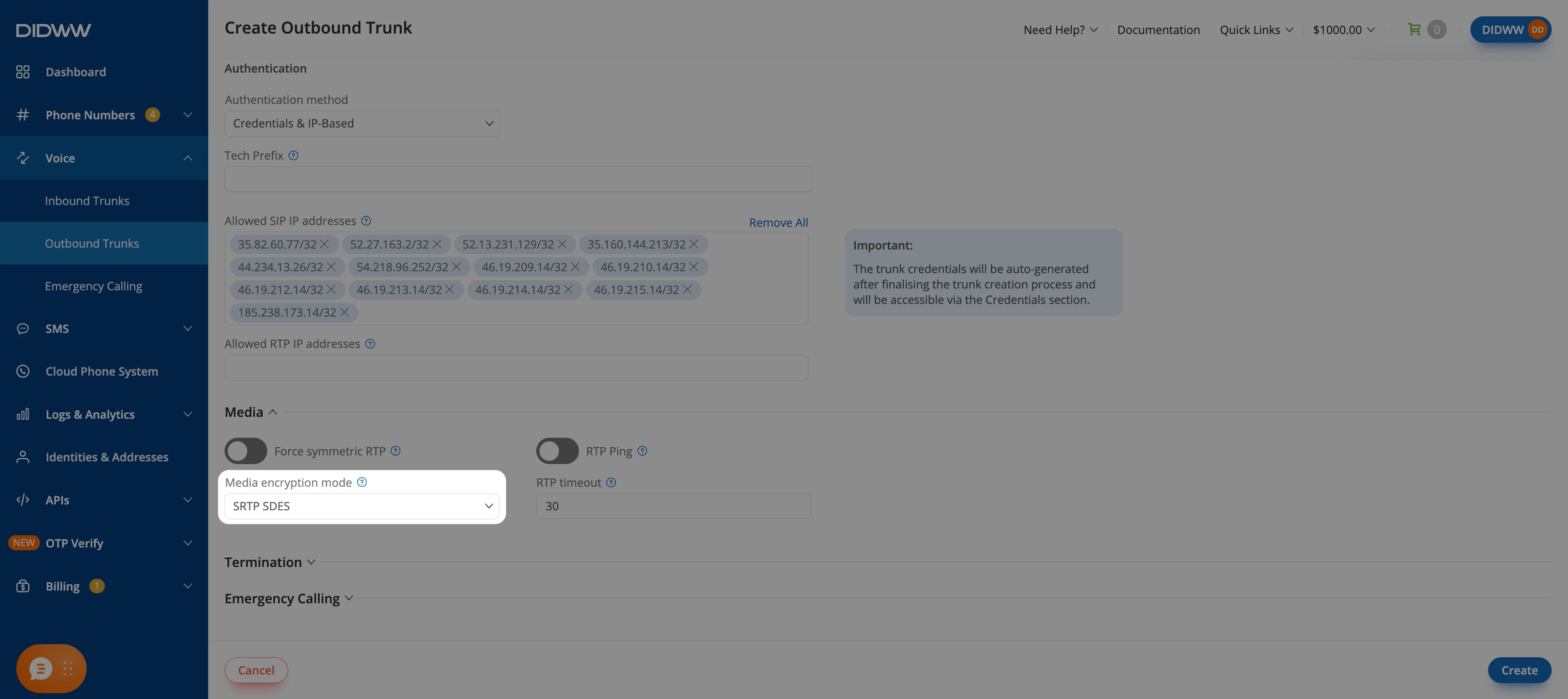
Fig. 11. Selecting SRTP SDES media encryption#
Step 4: Save the Outbound SIP Trunk#
When all required fields in the Create Outbound Trunk form are filled, click Create to save your outbound SIP trunk.
Note
For advanced outbound SIP trunk configuration, see Outbound SIP Trunk Guide.
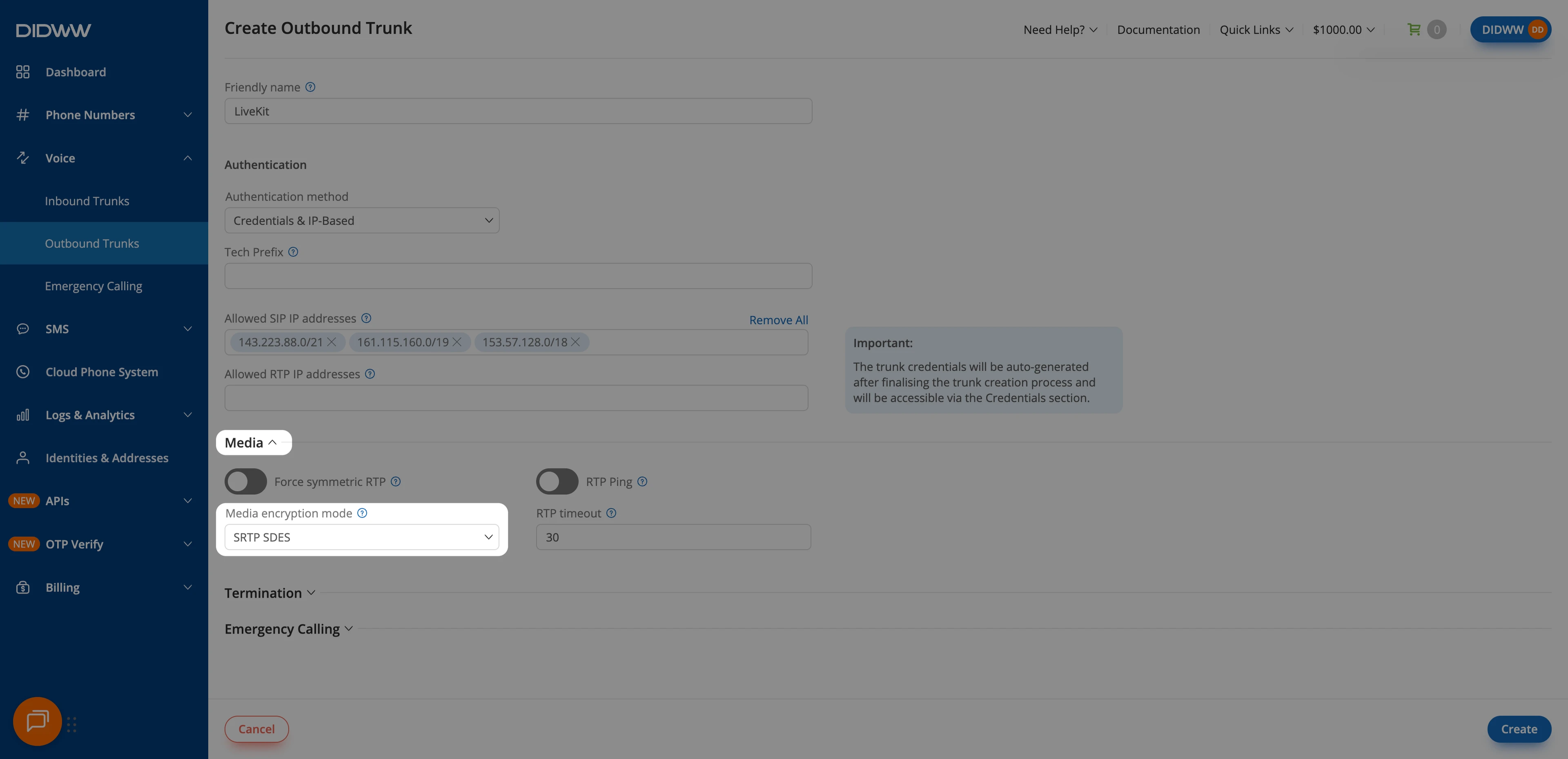
Fig. 12. Creating the outbound SIP trunk#
Step 5: Copy Outbound Trunk Credentials#
When the outbound trunk is created, you can view its credentials by selecting the key icon in the Credentials column on the Outbound Trunks page.
Go to Voice > Outbound Trunks.
Locate your outbound trunk and click the key icon in the Credentials column.
The trunk credentials will appear, showing the Username and Password (click the eye icon to reveal the password).
Copy and securely store these credentials. You will need them in Step 6: Add Outbound Credentials to the Inbound Trunk (Optional) and in Step 5: Configure Authentication and Outbound Routing.
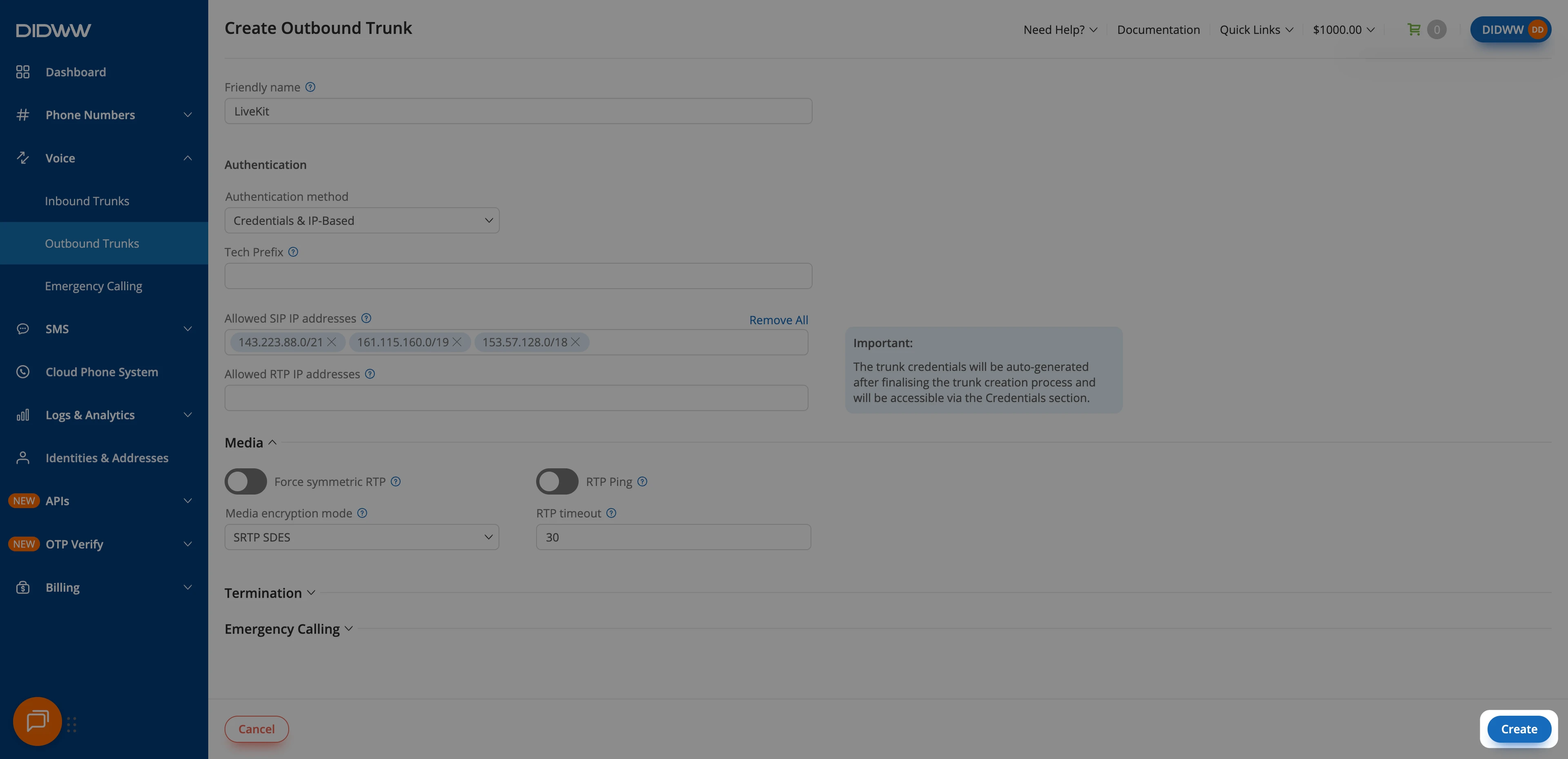
Fig. 13. Opening the outbound trunk credentials view#
Step 6: Add Outbound Credentials to the Inbound Trunk (Optional)#
To support call transfers, configure the inbound trunk with the DIDWW outbound trunk credentials. Skip this step if you do not need call transfers.
Go to Voice > Inbound Trunks and locate the Bland AI inbound trunk.
Click the Actions (⋯) icon, then select Edit.
Open the Authorization tab.
Turn on Enable Authorization.
In Auth User, paste the outbound trunk Username.
In Auth Password, paste the outbound trunk Password.
Click Submit.
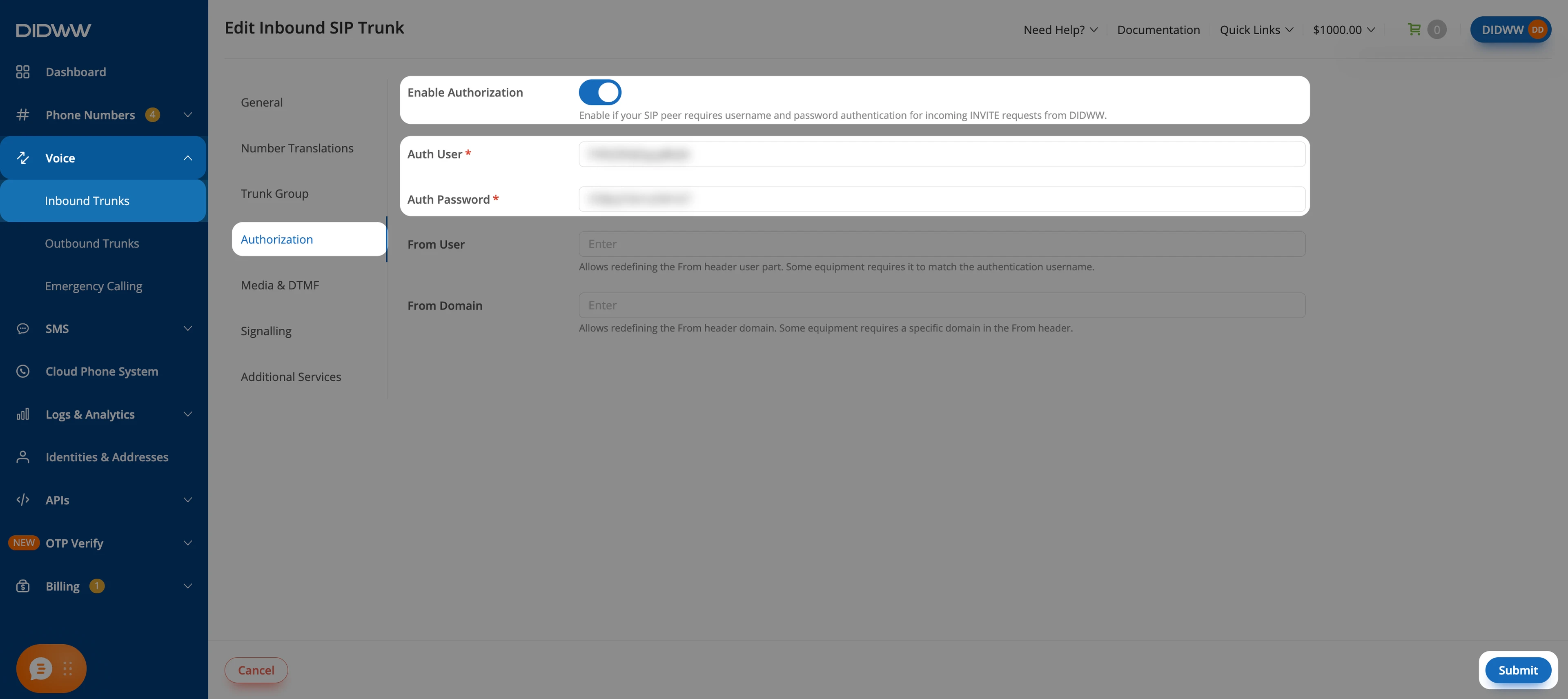
Fig. 14. Adding outbound trunk credentials to the inbound trunk#
3. Connect DIDWW SIP Trunks in Bland AI#
Create a SIP trunk in Bland AI that sends outbound calls directly to DIDWW, then attach your DIDWW number to it. The same trunk also accepts incoming calls from DIDWW for the attached number.
Before You Begin#
A Bland AI account with SIP trunking enabled is required. Sign in to Bland AI.
The DIDWW outbound trunk Username and Password from Step 5: Copy Outbound Trunk Credentials are required.
Step 1: Add a New SIP Trunk#
In the Bland AI dashboard, go to Deploy > SIP trunks.
Click Add trunk.
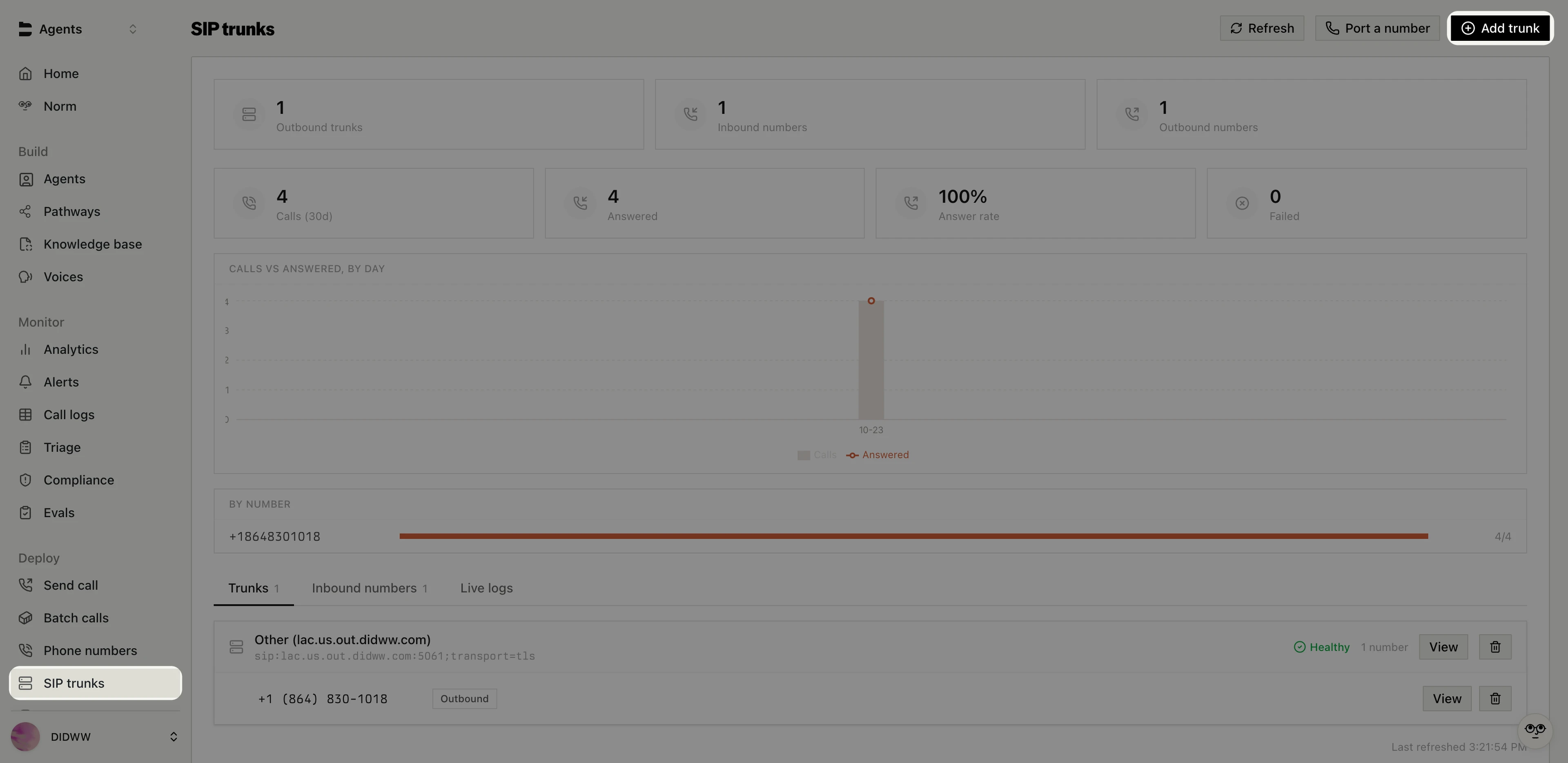
Fig. 15. Opening the SIP trunk setup wizard#
Select Connect a trunk.
Click Continue.
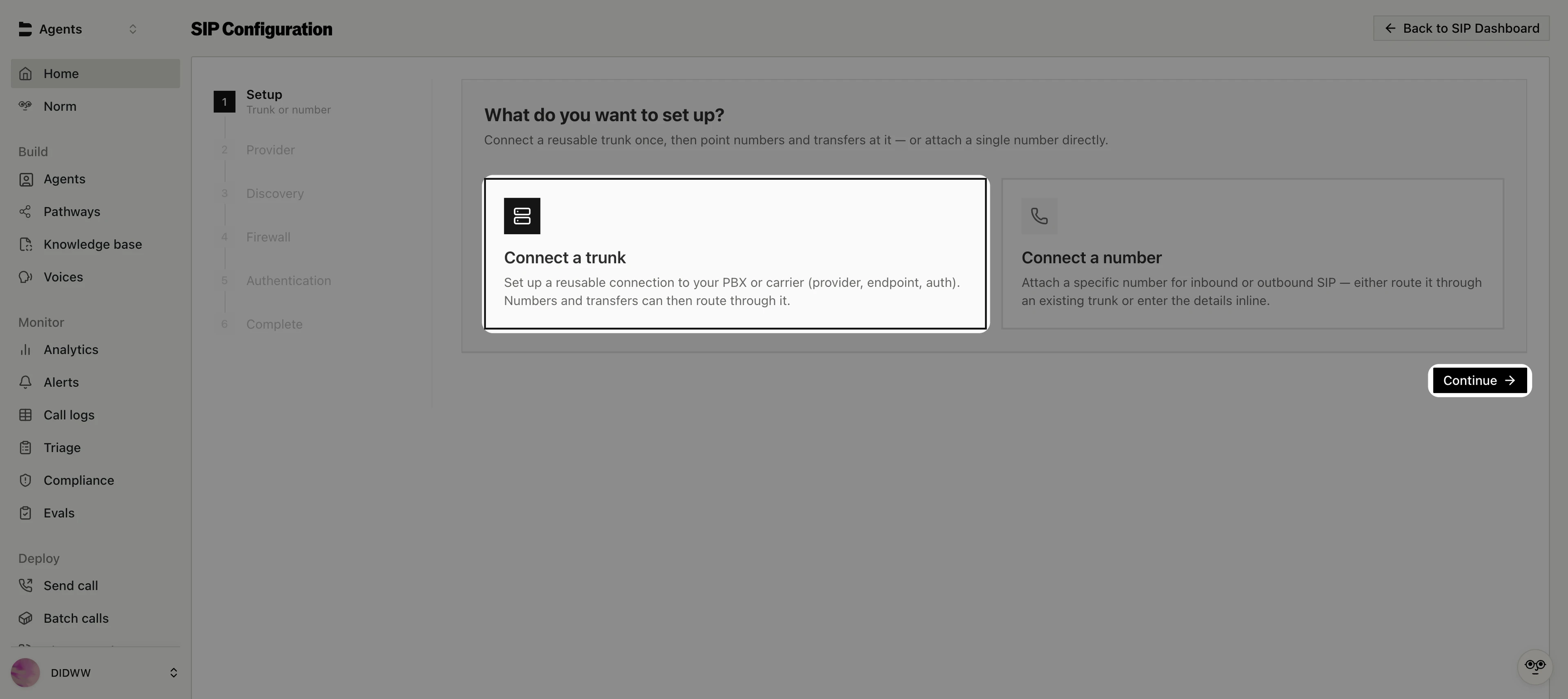
Fig. 16. Selecting the trunk setup#
Step 2: Enter the DIDWW Endpoint#
Important
The endpoint must use TLS on port 5061. Include :5061;transport=tls in the address so that Bland AI connects to DIDWW over TLS.
In Which provider are you using?, select Other.
In SIP server address, enter a DIDWW outbound signaling endpoint with TLS on port
5061, for examplesip:lac.us.out.didww.com:5061;transport=tls. Use the endpoint closest to your Bland AI region.Check that the Parsed result shows the DIDWW host, port
5061, and transport TLS.Click Continue.
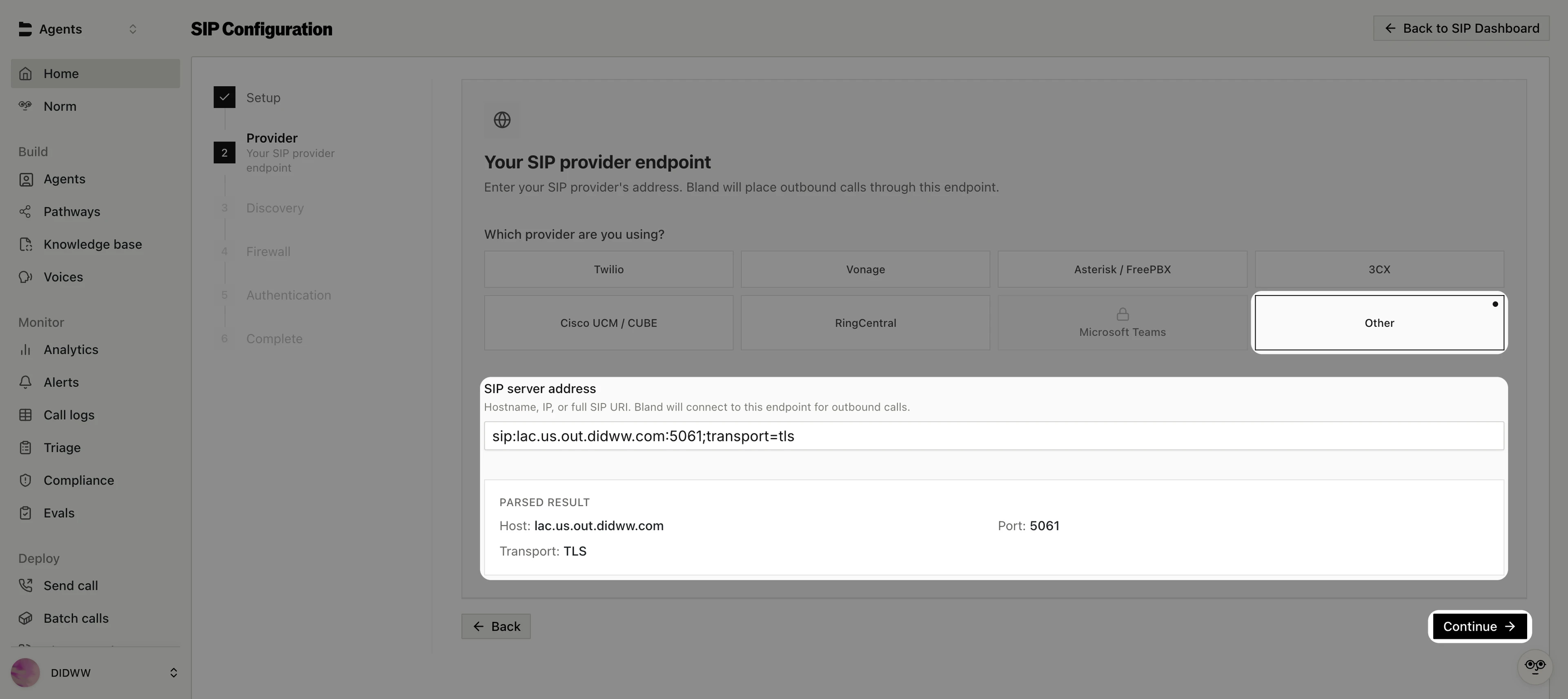
Fig. 17. Entering the DIDWW signaling endpoint#
Step 3: Confirm Endpoint Discovery#
Bland AI probes the DIDWW endpoint and detects the port and transport.
Check that the connection attempt to the DIDWW endpoint on
5061/TLSsucceeds and Endpoint detected shows port5061and transport TLS.Click Continue.
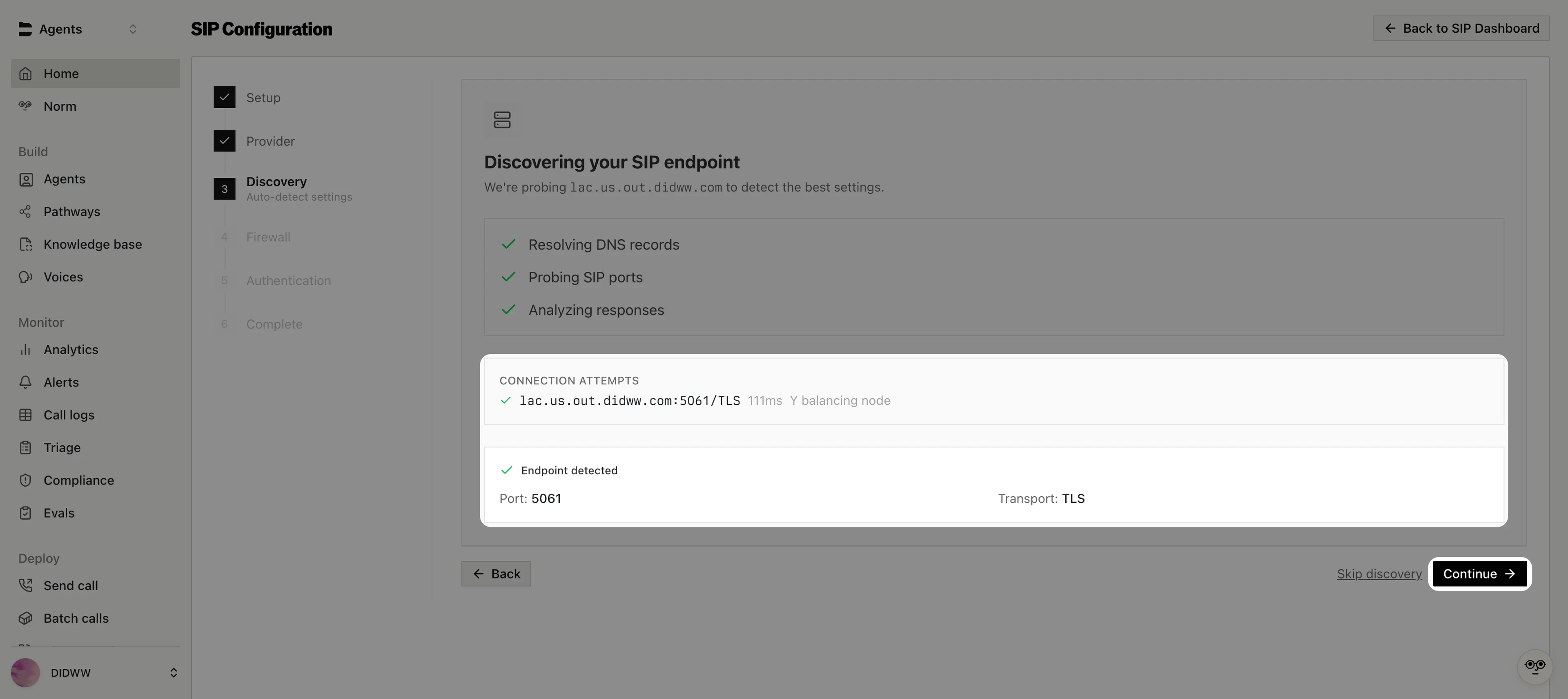
Fig. 18. Confirming the detected DIDWW endpoint#
Step 4: Review the Firewall Settings#
The Firewall step lists the Bland AI IP addresses and ports. These addresses are already allowed on the DIDWW outbound trunk from Step 2: Configure Authentication.
Select I’ve updated my firewall to allow traffic from the IP addresses above.
Click Continue.
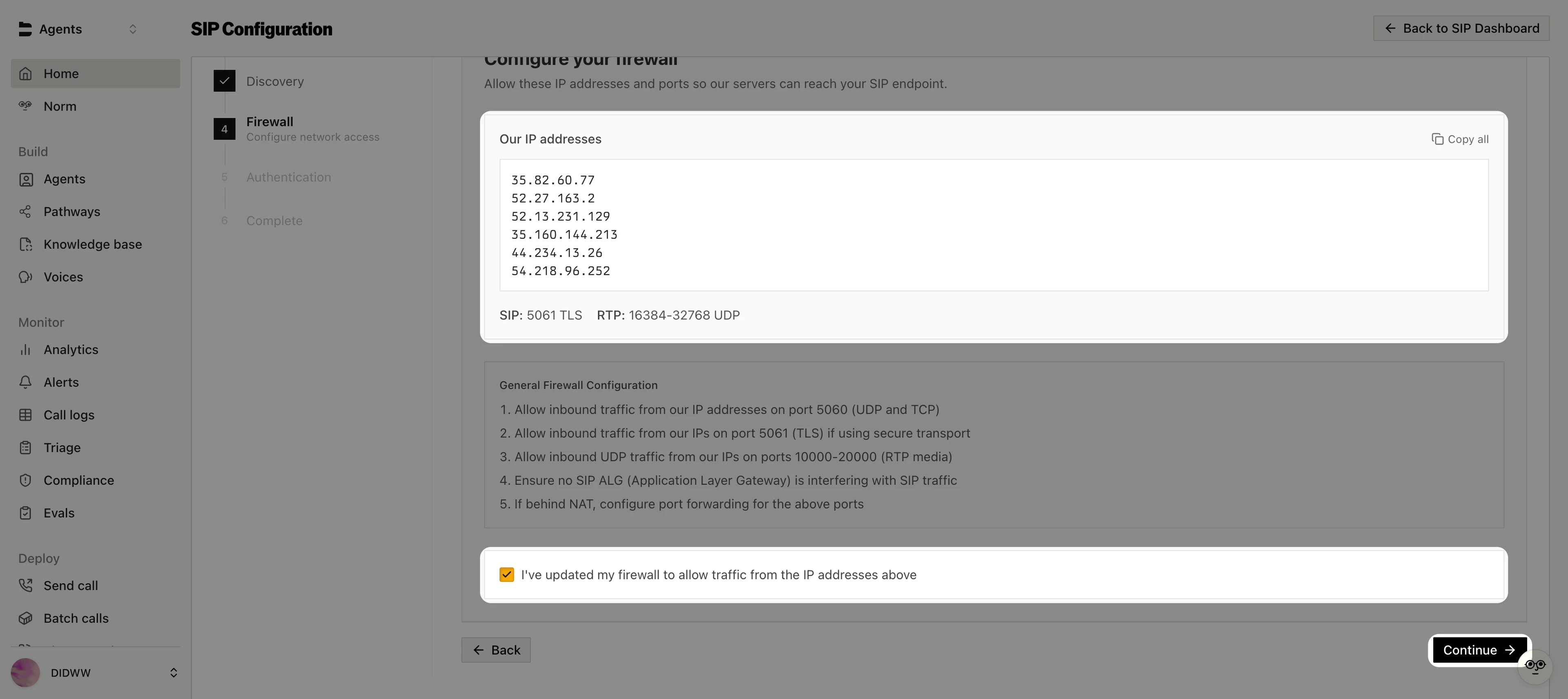
Fig. 19. Confirming the firewall settings#
Step 5: Configure Authentication and Outbound Routing#
In Authentication mode, keep IP-based (recommended) selected.
In Outbound call credentials, enter the DIDWW outbound trunk Username in SIP Username and the Password in SIP Password. Bland AI uses these credentials to answer the DIDWW digest authentication challenge.
In Outbound routing, select Direct to your carrier (BYOC). With this option, Bland AI sends outbound calls directly to DIDWW.
Click Save trunk.
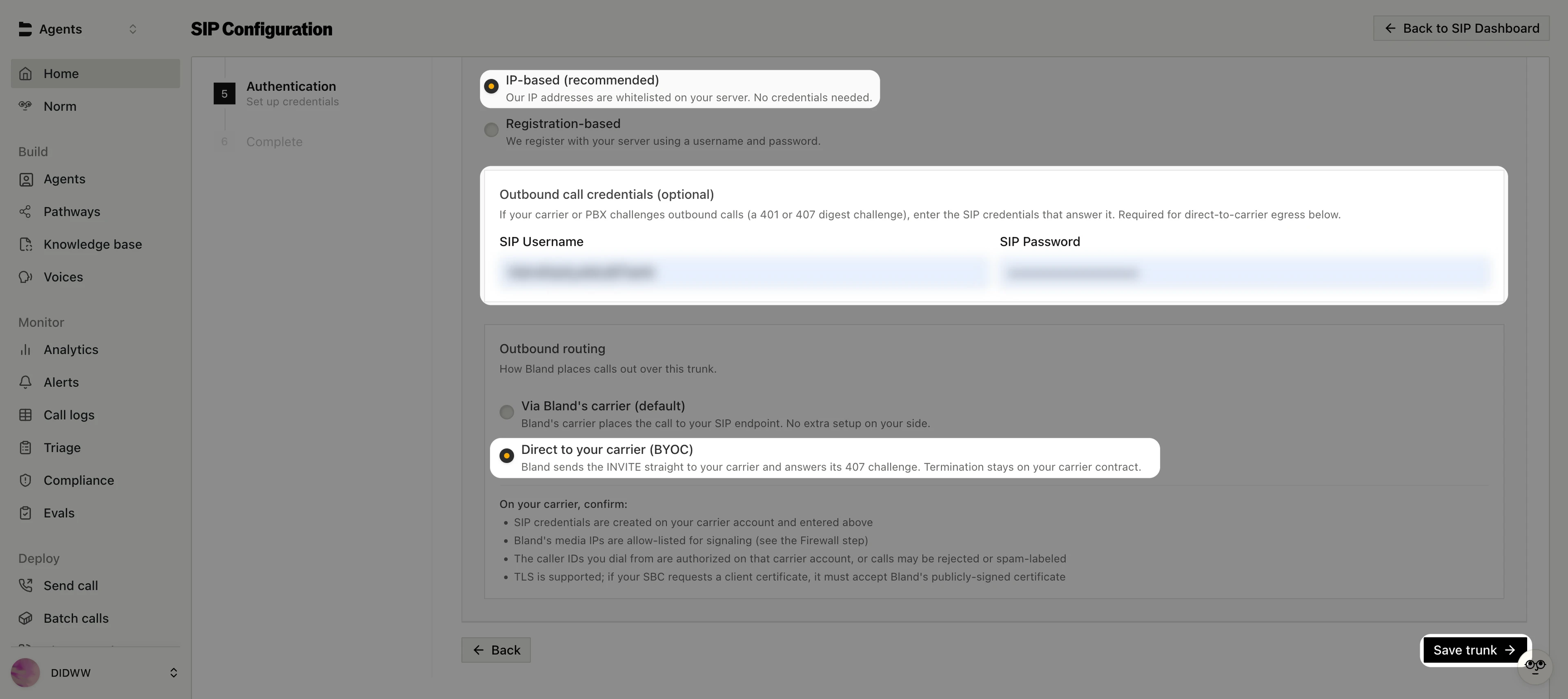
Fig. 20. Configuring authentication and outbound routing#
Step 6: Attach Your DIDWW Number#
After the trunk is saved, attach your DIDWW number to it.
On the Trunk saved screen, click Add numbers to this trunk.
In Numbers, enter your DIDWW number in E.164 format with the
+symbol (e.g.,+18648301018) and click Add to list.Click Continue.
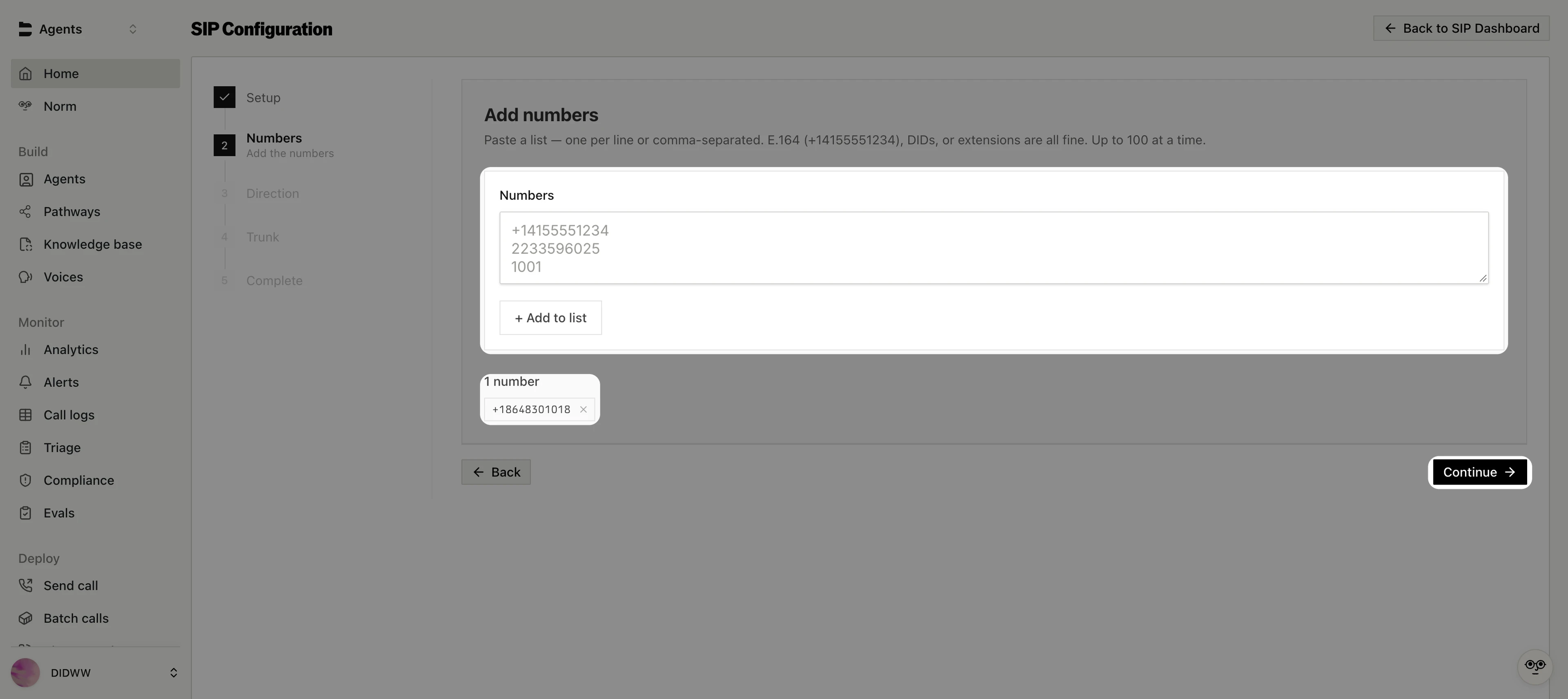
Fig. 21. Adding the DIDWW number#
In Set direction, keep Both selected so the number can receive inbound calls and place outbound calls.
Click Continue.
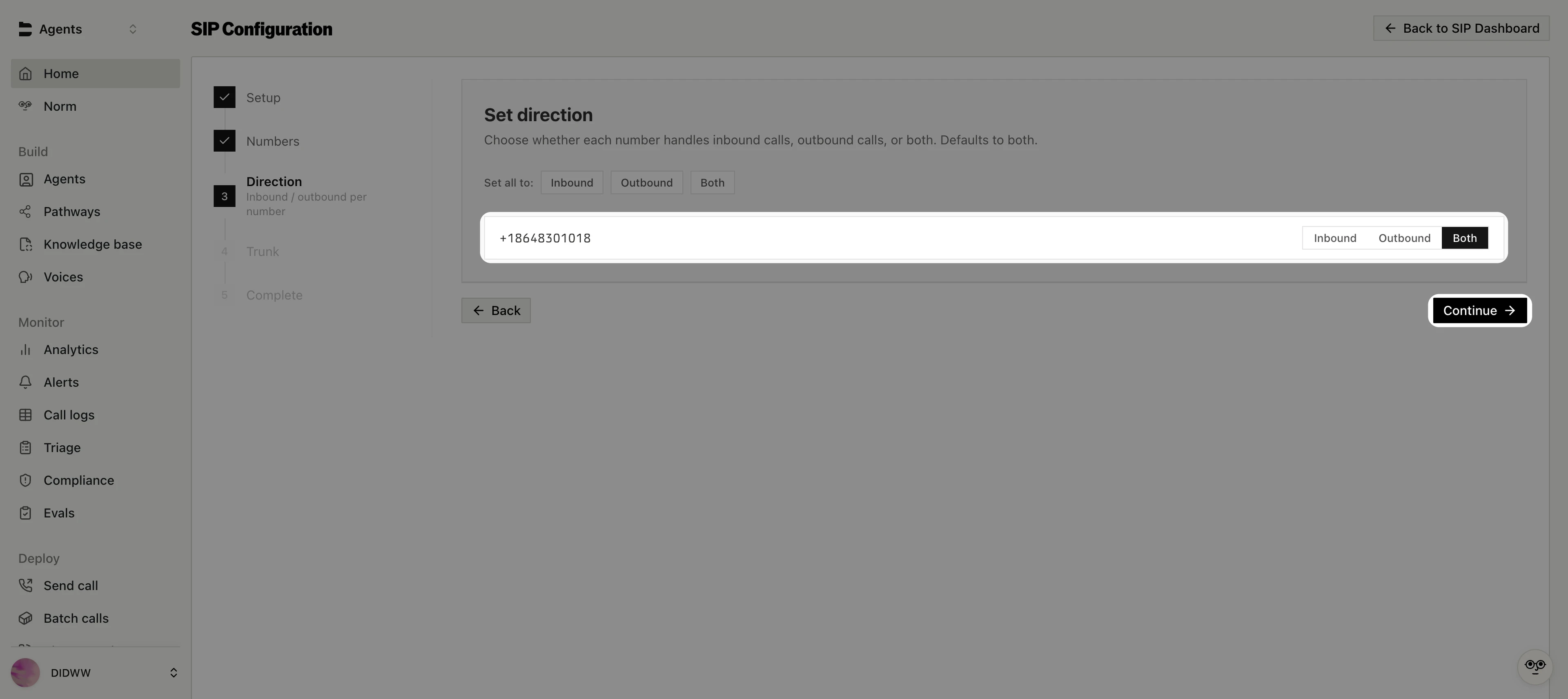
Fig. 22. Setting the number direction#
In Route via a trunk, keep Attach to an existing trunk selected and select the DIDWW trunk you created. Bland AI names the trunk after its endpoint, for example Other (lac.us.out.didww.com).
Click Save & finish.
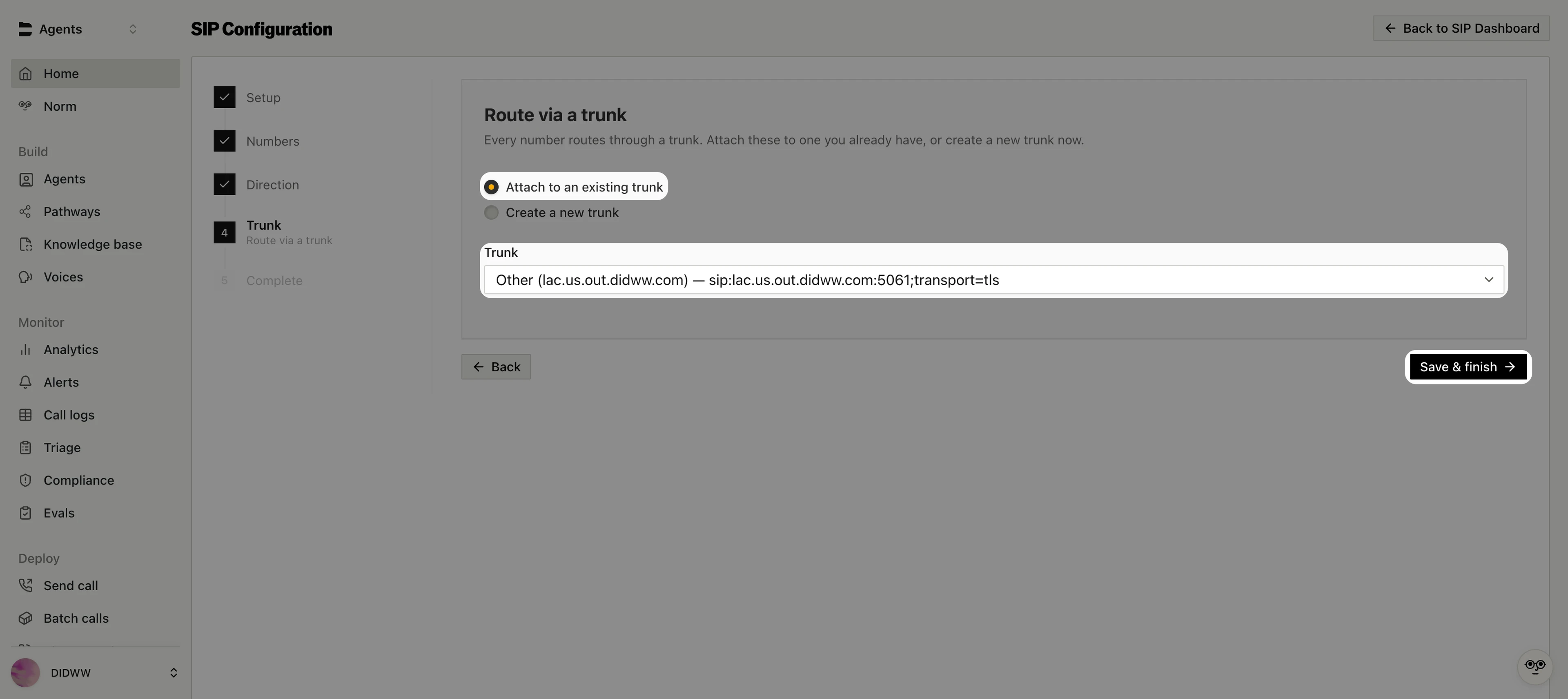
Fig. 23. Attaching the number to the DIDWW trunk#
Step 7: Verify the Trunk Status#
Go to Deploy > SIP trunks and check that the DIDWW trunk shows Healthy and lists your number.
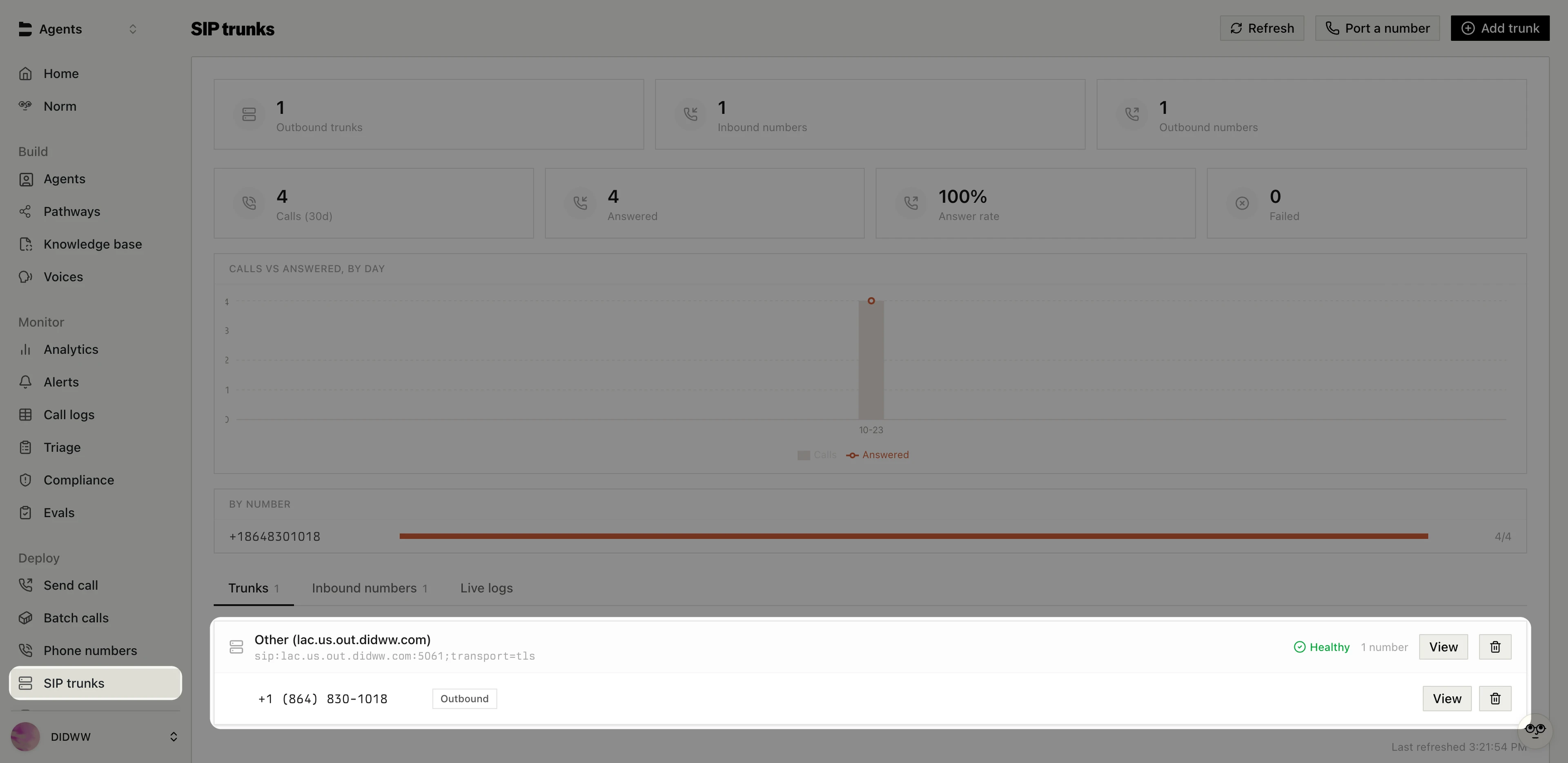
Fig. 24. DIDWW trunk connected in Bland AI#
4. Assign an Agent and Configure Call Transfers#
Assign a Bland AI pathway to your DIDWW number to handle incoming calls. Optionally, add a Transfer Call node that uses SIP REFER to transfer calls to a live agent through DIDWW.
Before You Begin#
A Bland AI pathway is required. See the Bland AI Conversational Pathways documentation for guidance on creating a pathway.
Step 1: Assign the Pathway to Your DIDWW Number#
In the Bland AI dashboard, go to Deploy > Phone numbers.
Locate your DIDWW number and click Configure.
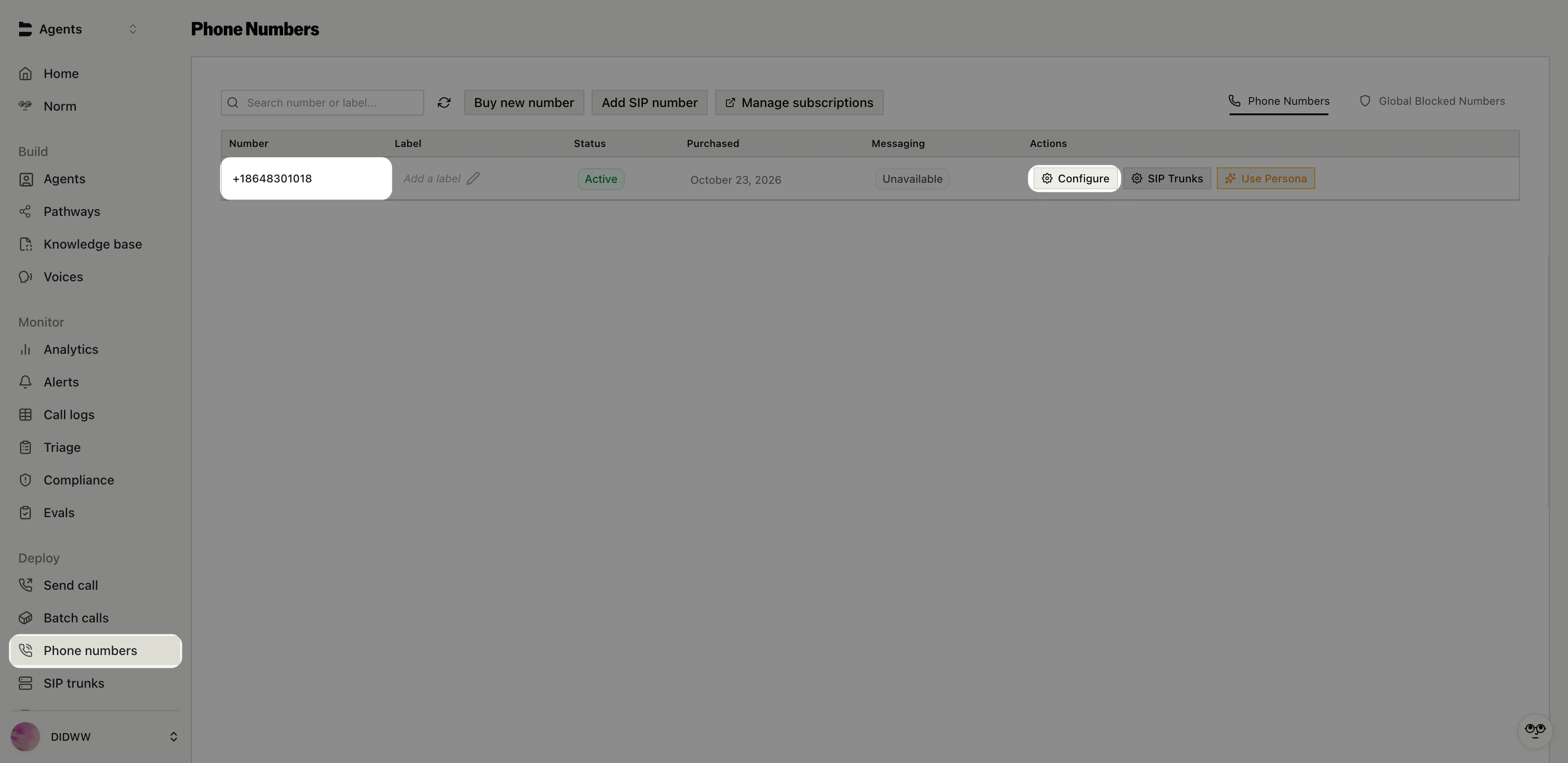
Fig. 25. Opening the number configuration#
In the Basic section, select Pathway.
Select the pathway that will handle incoming calls, and set Pathway Version to Production.
Click Save Inbound Call Changes.
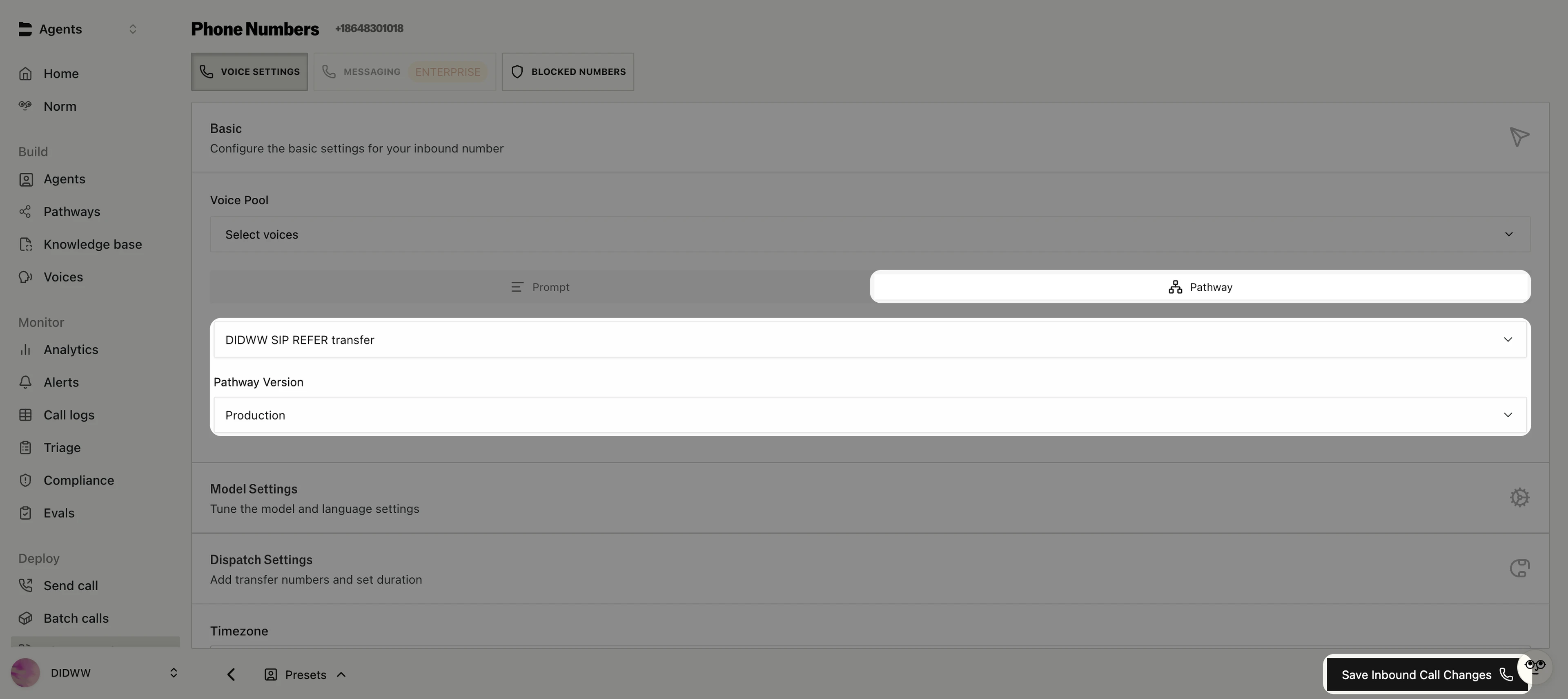
Fig. 26. Assigning the pathway to the DIDWW number#
Step 2: Add a SIP REFER Transfer Node (Optional)#
Add a transfer node only if callers should be able to reach a live agent. Inbound and outbound calling work without it.
In the Bland AI dashboard, go to Build > Pathways and open the pathway that will handle your DIDWW calls.
Add a node and connect it to the node where the transfer should start. Give the connecting edge a label that describes when to transfer, for example
user asks to be transferred.
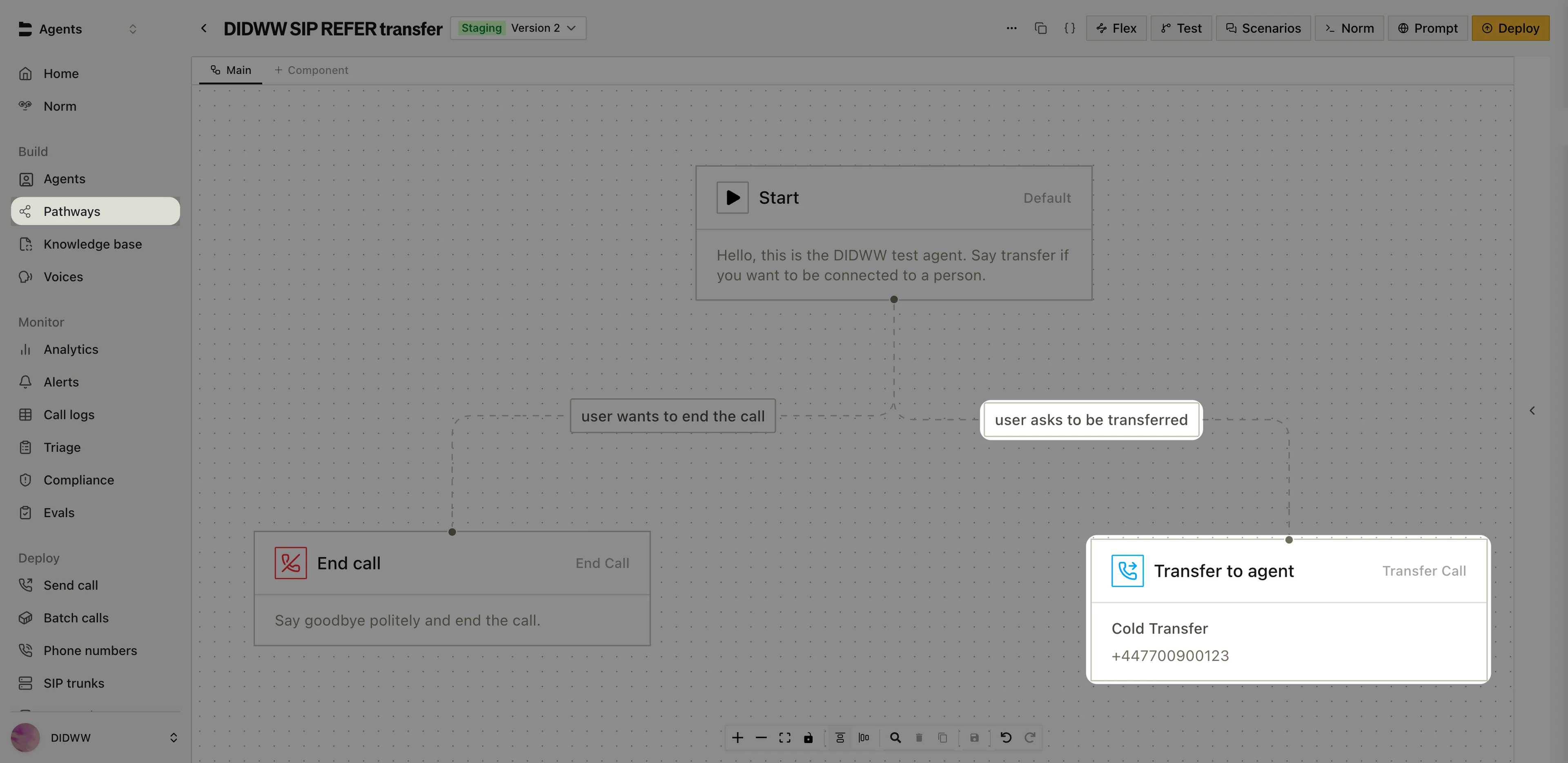
Fig. 27. Adding a transfer node to the pathway#
Open the node, enter a Title (e.g.,
Transfer to agent), and set Type to Transfer Call.In Transfer Type, select DID / SIP target.
In Transfer Target, enter the destination number in E.164 format with the
+symbol (e.g.,+447700900123).Turn on SIP REFER transfer. Bland AI then hands the call back to DIDWW with a SIP REFER request, and DIDWW connects the caller to the destination through your outbound trunk.
Keep Cold Transfer selected.
Click Sync now to save the node, then click Deploy to publish the pathway to production.
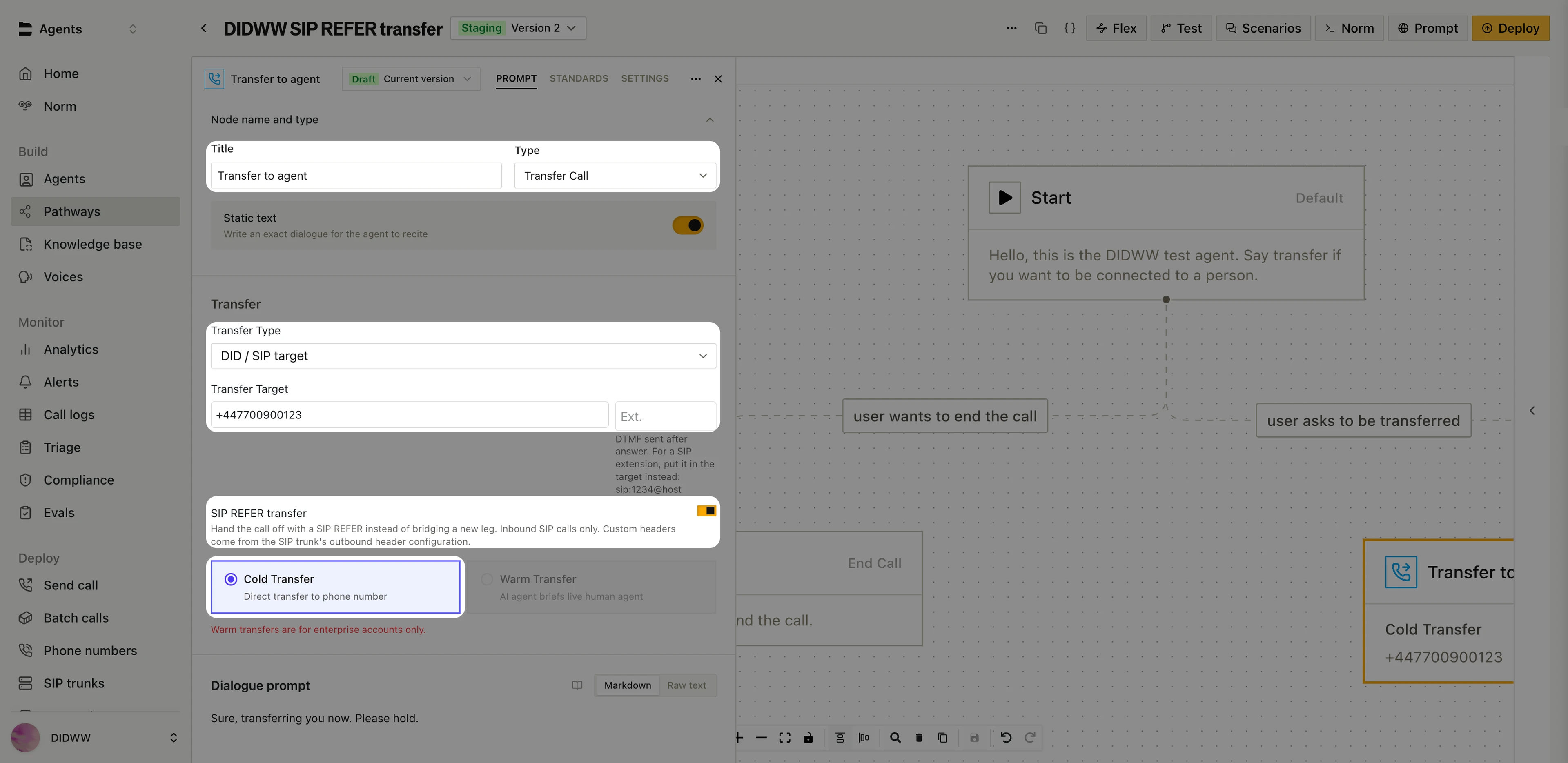
Fig. 28. Configuring the SIP REFER transfer#
Note
SIP REFER transfers work only for calls that arrive at Bland AI over SIP, such as inbound calls from your DIDWW number. The DIDWW inbound trunk must allow transfers (Step 4: Enable Call Transfer Signaling (Optional)) and use the outbound trunk credentials (Step 6: Add Outbound Credentials to the Inbound Trunk (Optional)).
5. Test the Configuration#
Verify that inbound calling, outbound calling, and call transfers are working as expected.
Place a test call to your DIDWW DID number to confirm that the call is routed to Bland AI and handled by the assigned pathway.
If you configured call transfers, trigger the transfer condition, for example by asking to speak with a live person, and confirm that the call is connected to the transfer destination through DIDWW.
To test outbound calling, in the Bland AI dashboard, go to Deploy > Send call.
In Phone Number, enter the destination number.
Select Pathway and choose the pathway, or select Prompt and enter a prompt for the call.
In Dispatch Settings, select your DIDWW number as the From Number.
Click Send Call.
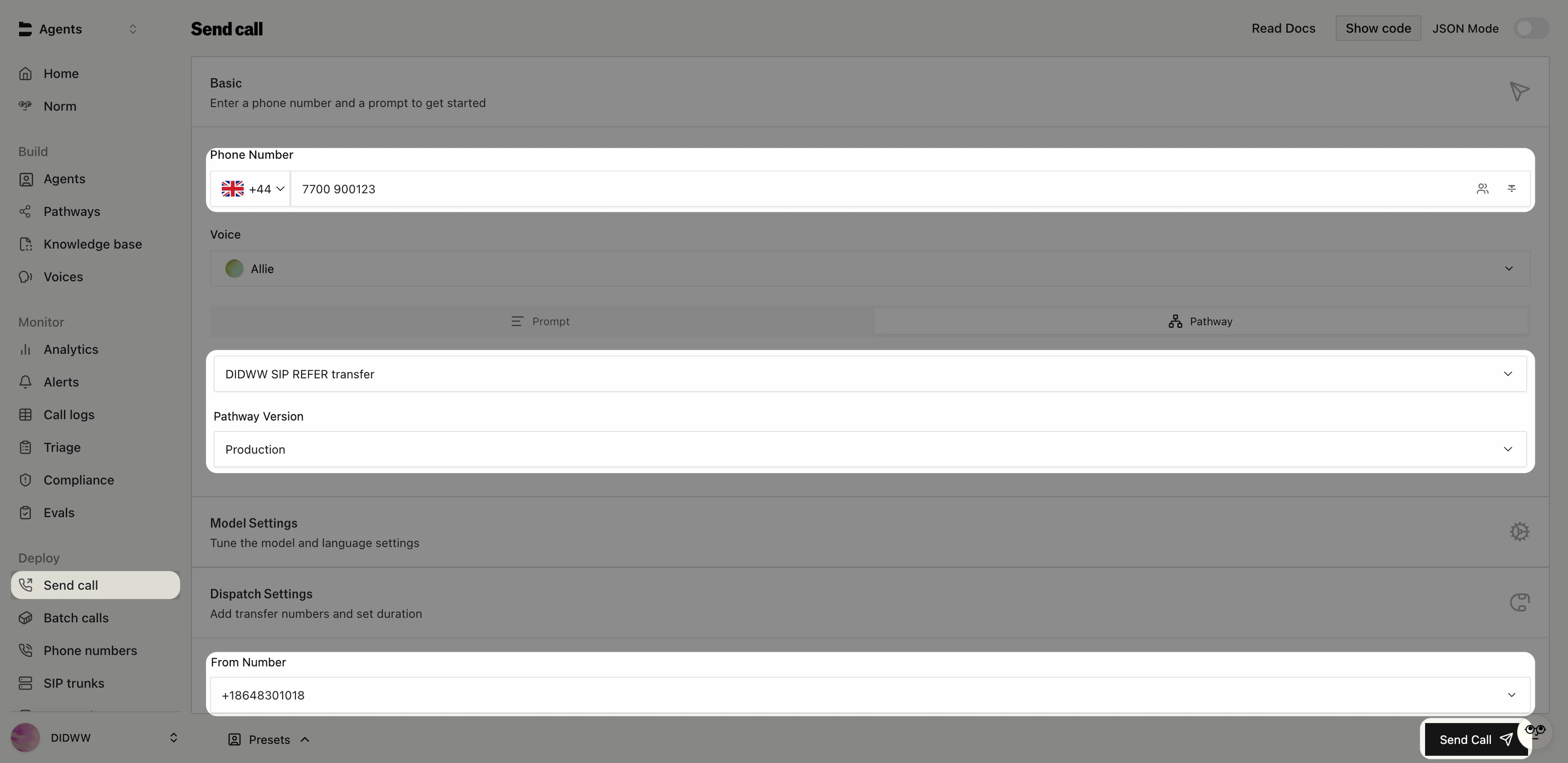
Fig. 29. Placing a test outbound call from the DIDWW number#
Ensure that calls are successfully established in both directions, that the correct pathway handles the interaction, and that transferred calls connect with two-way audio.
Note
You can review call activity and verify call status or error codes in the DIDWW Inbound and Outbound Call Logs. See Inbound Call Logs and Outbound Call Logs for more details.
Troubleshooting#
Inbound calls do not reach Bland AI
Check that the DIDWW inbound trunk uses TLS on port 5061, SRTP SDES, and the Bland AI SIP endpoint for your region.
Bland AI does not accept unencrypted SIP or RTP.
488 Not Acceptable Here
A possible cause is a media encryption mismatch. Check that SRTP Mode is set to SRTP SDES on the DIDWW inbound trunk and that Media encryption mode is set to SRTP SDES on the DIDWW outbound trunk. Also check that both trunks offer a codec that Bland AI supports, such as PCMU or PCMA.
403 Forbidden on outbound calls or transfers
If the 403 arrives immediately, without a preceding authentication challenge, a possible cause is that the request comes from an IP address that the DIDWW outbound trunk does not allow. Check that all Bland AI signaling and media IP addresses for your region are listed in Allowed SIP IP addresses on the DIDWW outbound trunk. If the 403 follows an authentication challenge, check that the SIP Username and SIP Password in Bland AI match the DIDWW outbound trunk credentials.
Calls to a destination country are blocked
Bland AI may block calls to some destination countries before the call reaches DIDWW. If Bland AI reports that calls to a country are not available, contact Bland AI support.
Call transfers fail
Check that the DIDWW inbound trunk has Max Transfers set to 1 or higher and that Enable Authorization uses the outbound trunk Username and Password.
Also check that the DIDWW inbound SIP addresses are listed in Allowed SIP IP addresses on the outbound trunk and that SIP REFER transfer is turned on in the Transfer Call node.
For Bland AI diagnostics, see the Bland AI SIP Integration documentation.