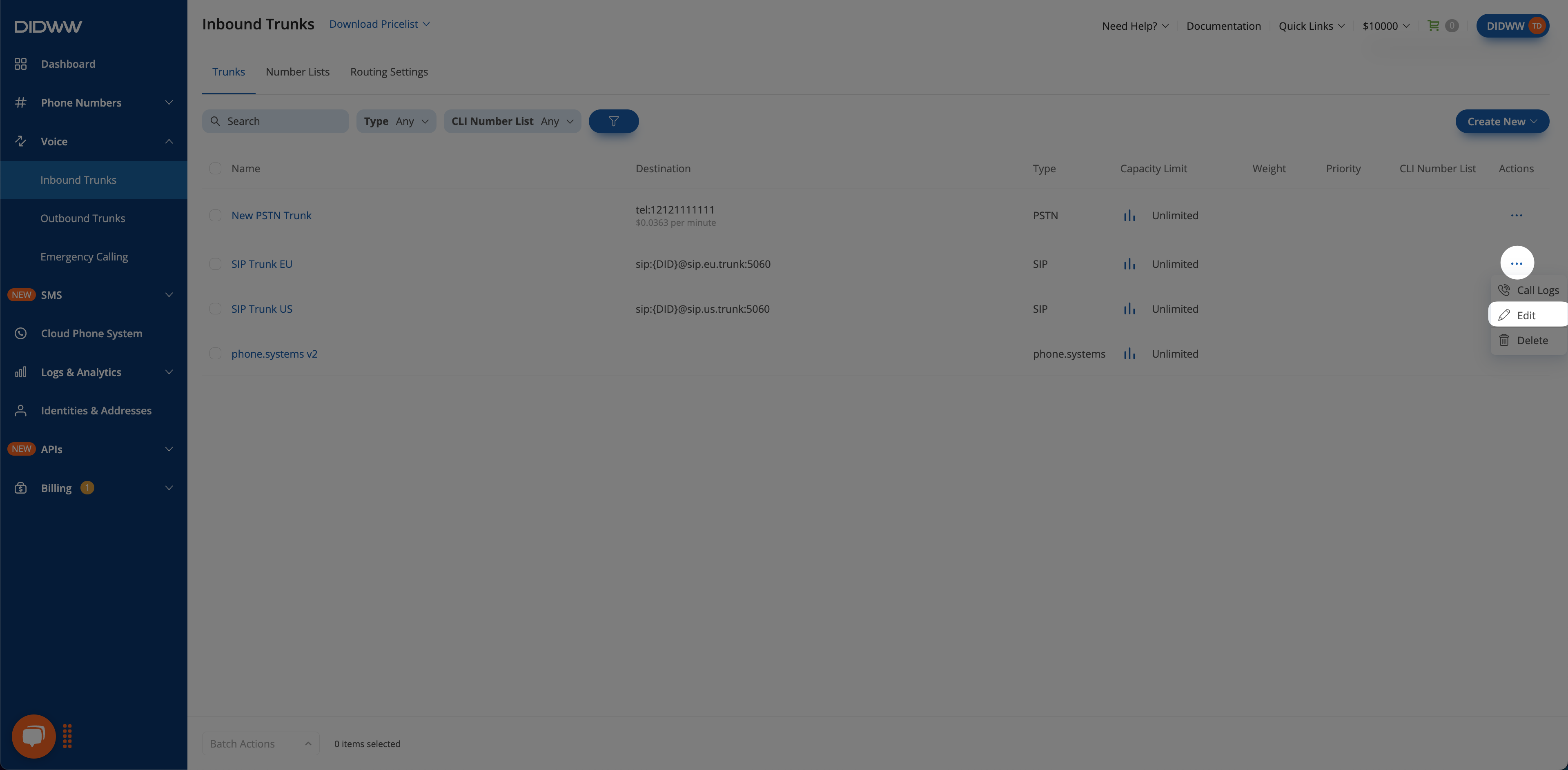
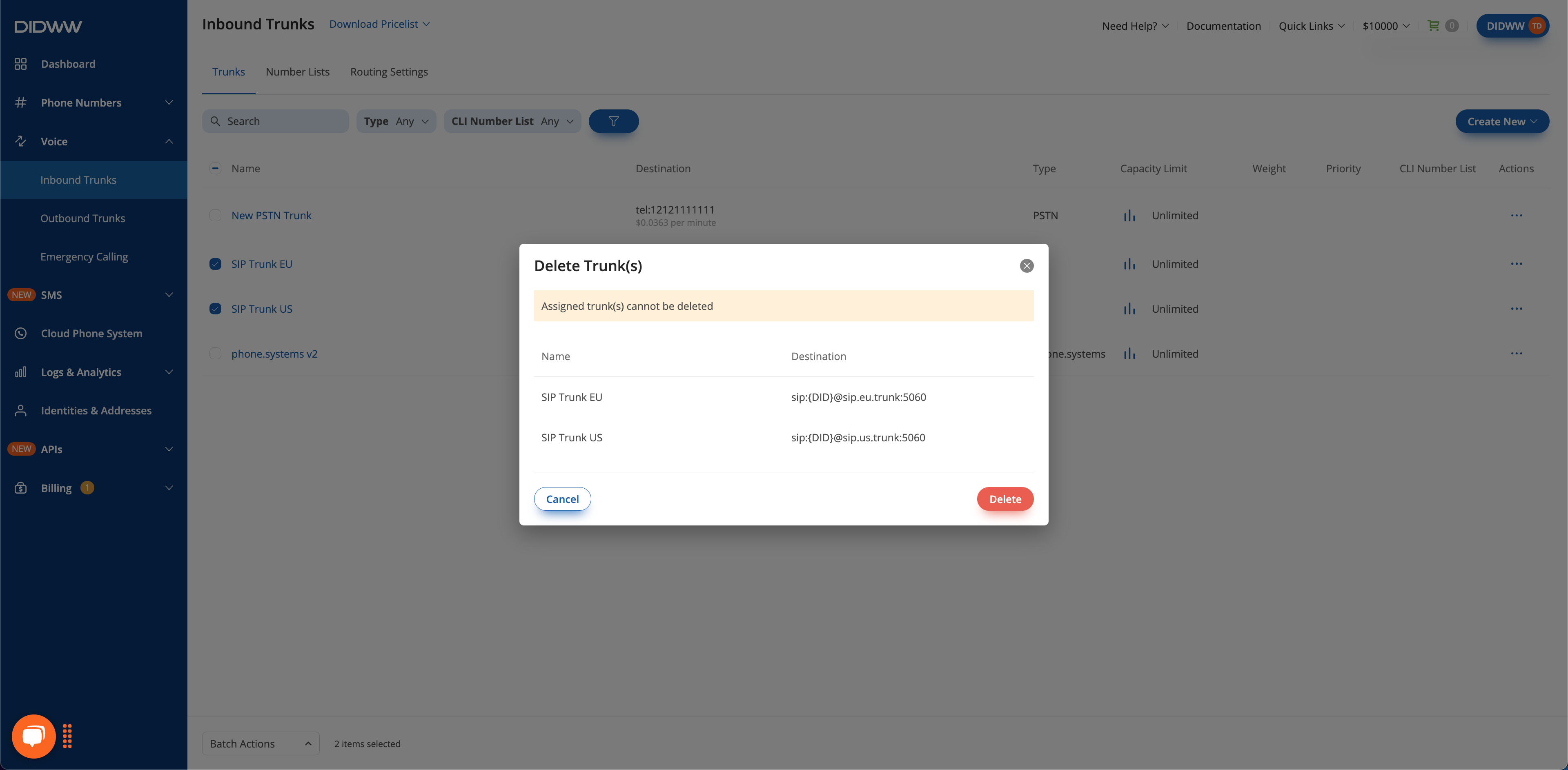
A SIP trunk is a virtual connection that delivers inbound voice calls from the public telephone network (PSTN) to an IP-based phone system over the internet.
The Type setting determines how DIDWW delivers calls to your endpoint.
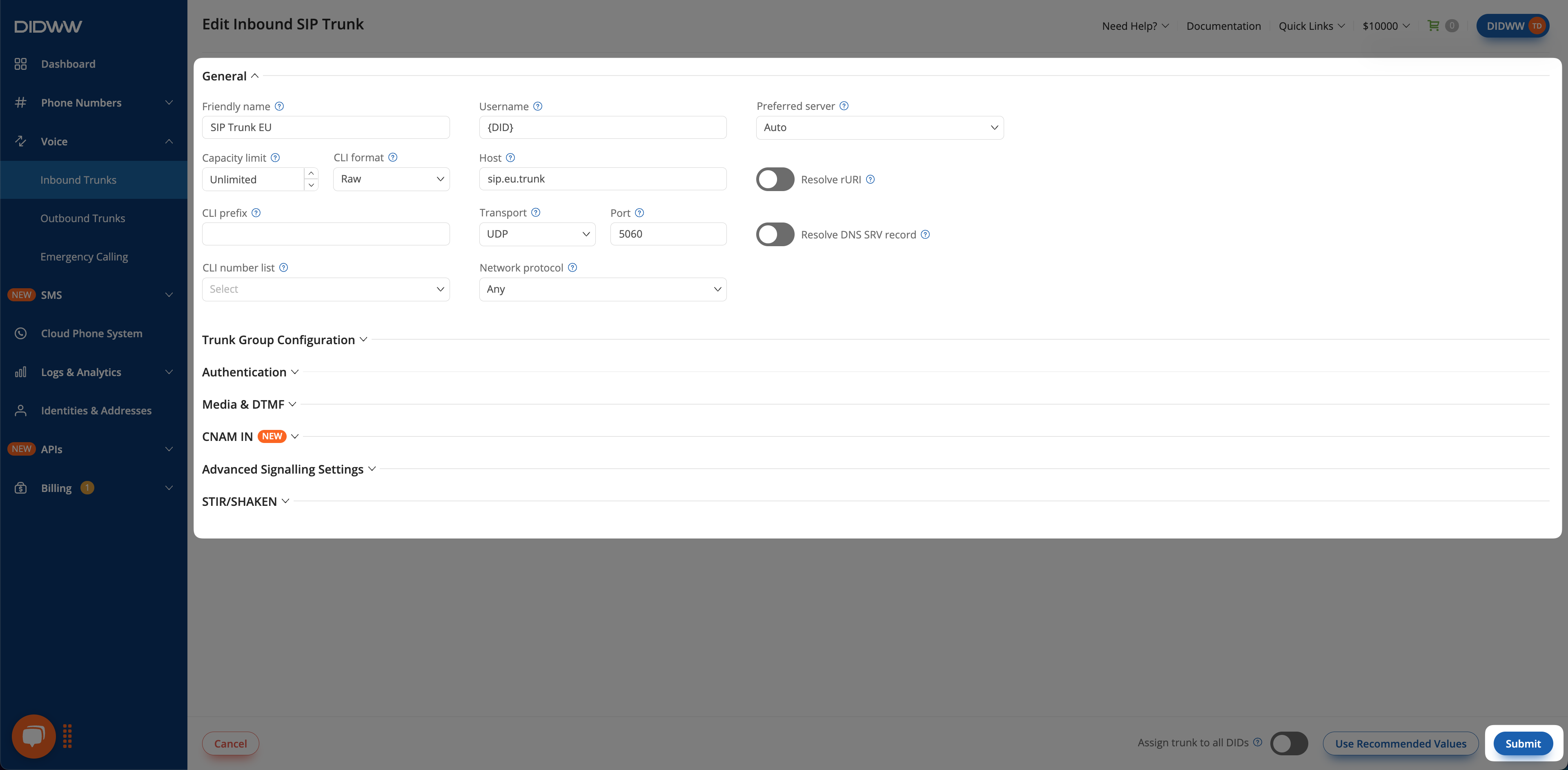
Use Static Endpoint when your SIP endpoint has a fixed, reachable address. DIDWW delivers calls
to the configured SIP URI, built from User Part of R-URI, Host, and Port.
User Part of R-URI – Define the user part of the R-URI in the INVITE request.
Placeholder Variables
{DID} – Inserts the called DID in E.164.
{CALL_CPC} – Calling party category. See CPC usage.
Host – Host part of the R-URI in the SIP INVITE request. This can be an IP address or a domain.
Port – Port part of the R-URI in the SIP INVITE request.
Port Auto-Resolution Behavior
If Port is left empty, DIDWW first attempts an SRV record lookup.
If no SRV record is found, it falls back to resolving the A record.
Resolve R-URI – Replace the host part of the R-URI with the resolved IP address.
Network Protocol – Select the IP protocol preference used when resolving the host.
Option
Description
IPv4 only
Use IPv4 exclusively.
IPv6 only
Use IPv6 exclusively.
Any
Use either IPv4 or IPv6.
Prefer IPv4 over IPv6
Prefer IPv4 but fallback to IPv6.
Prefer IPv6 over IPv4
Prefer IPv6 but fallback to IPv4.
Transport – Choose the protocol for SIP signaling: UDP, TCP, or TLS.
Preferred Server – Choose the DIDWW Point of Presence (POP) for routing:
Auto (recommended): Let DIDWW select the optimal SBC dynamically
The Auto preferred server option acts as a failover. If there is any interruption on a single POP, calls are routed through an alternative DIDWW POP to maintain call continuity.
Ensure all POPs are enabled in settings. Disabling any POP may cause unnecessary routing hops.
Routing Examples by Preferred Server
The following figures illustrate how incoming calls are routed based on the selected preferred server:
Preferred Server: FRA - Calls from the PSTN network reach the DIDWW HK SBC and are routed to the FRA POP.
Fig. 3. Routing example with FRA as the preferred server.#
Preferred Server: Auto - Calls are dynamically routed from the same DIDWW SBC that received them.
Fig. 4. Routing example with Auto as the preferred server.#
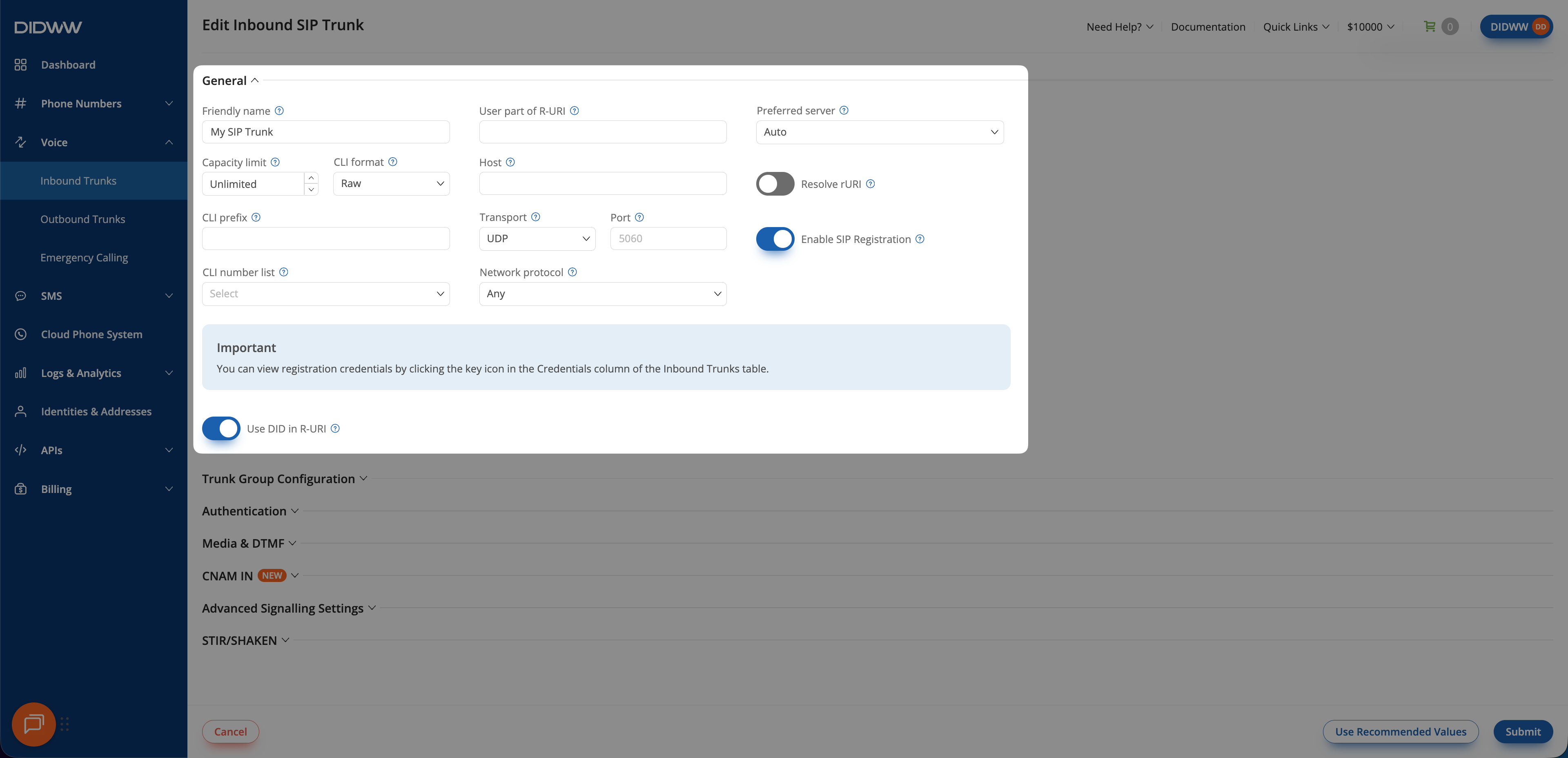
Use Dynamic Registration when your PBX or SBC has a dynamic IP address, operates behind NAT, or when you prefer registration-based routing. Your SIP peer initiates and maintains registration, and DIDWW sends incoming calls to the Contact address learned during the SIP REGISTER process.
Use DID in R-URI – Replaces the user part of the R-URI in the SIP INVITE with the DID number, instead of the user part received in the Contact header during registration.
Important
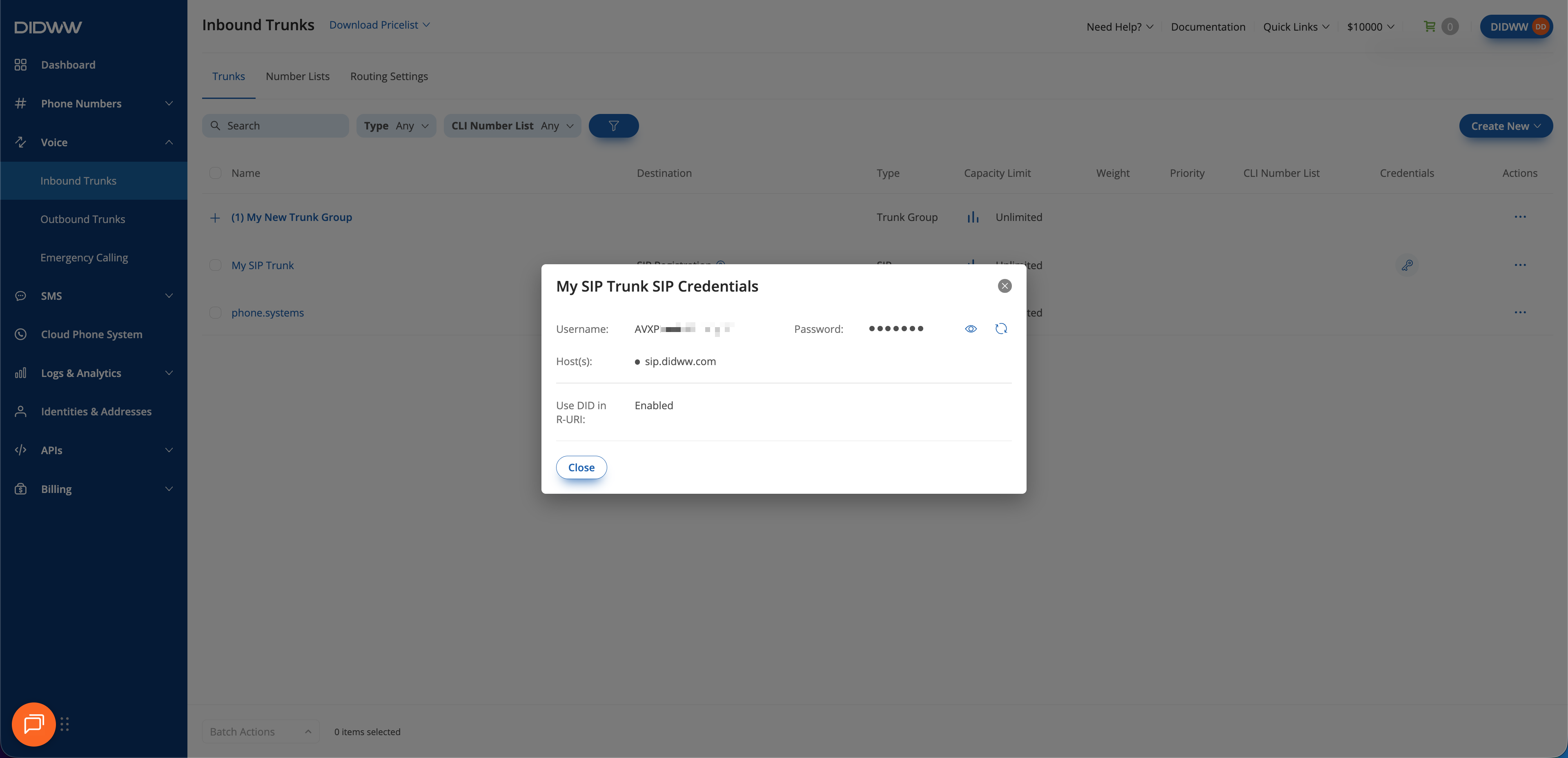
DIDWW generates the registration credentials and displays them immediately after the trunk is created.
A maximum of 10 simultaneous registrations are supported per trunk.
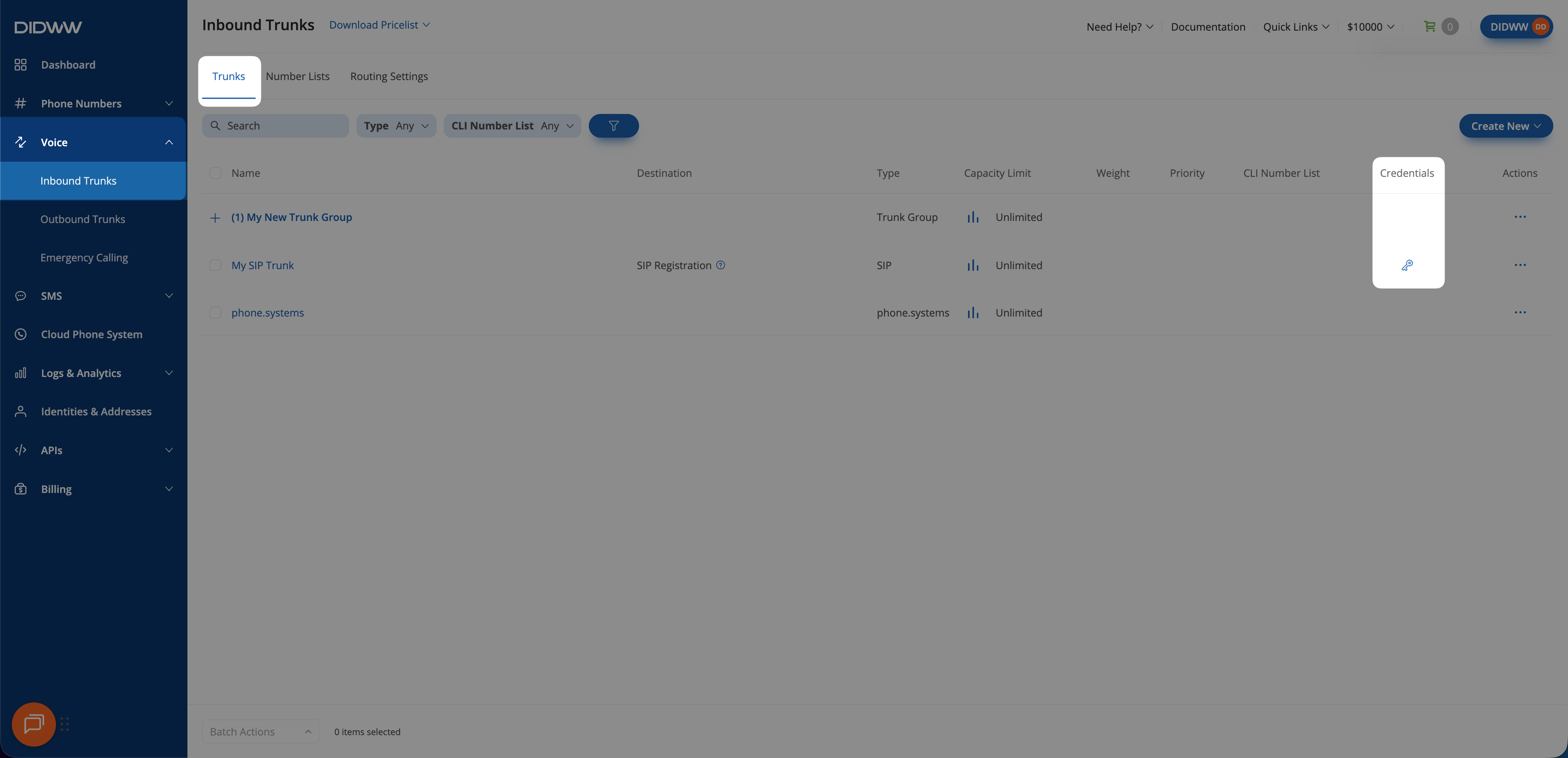
View your registration username and password by clicking the trunk name on the Inbound Trunks page. For detailed steps, see how to view credentials.
Fig. 6. General tab for dynamic registration type#
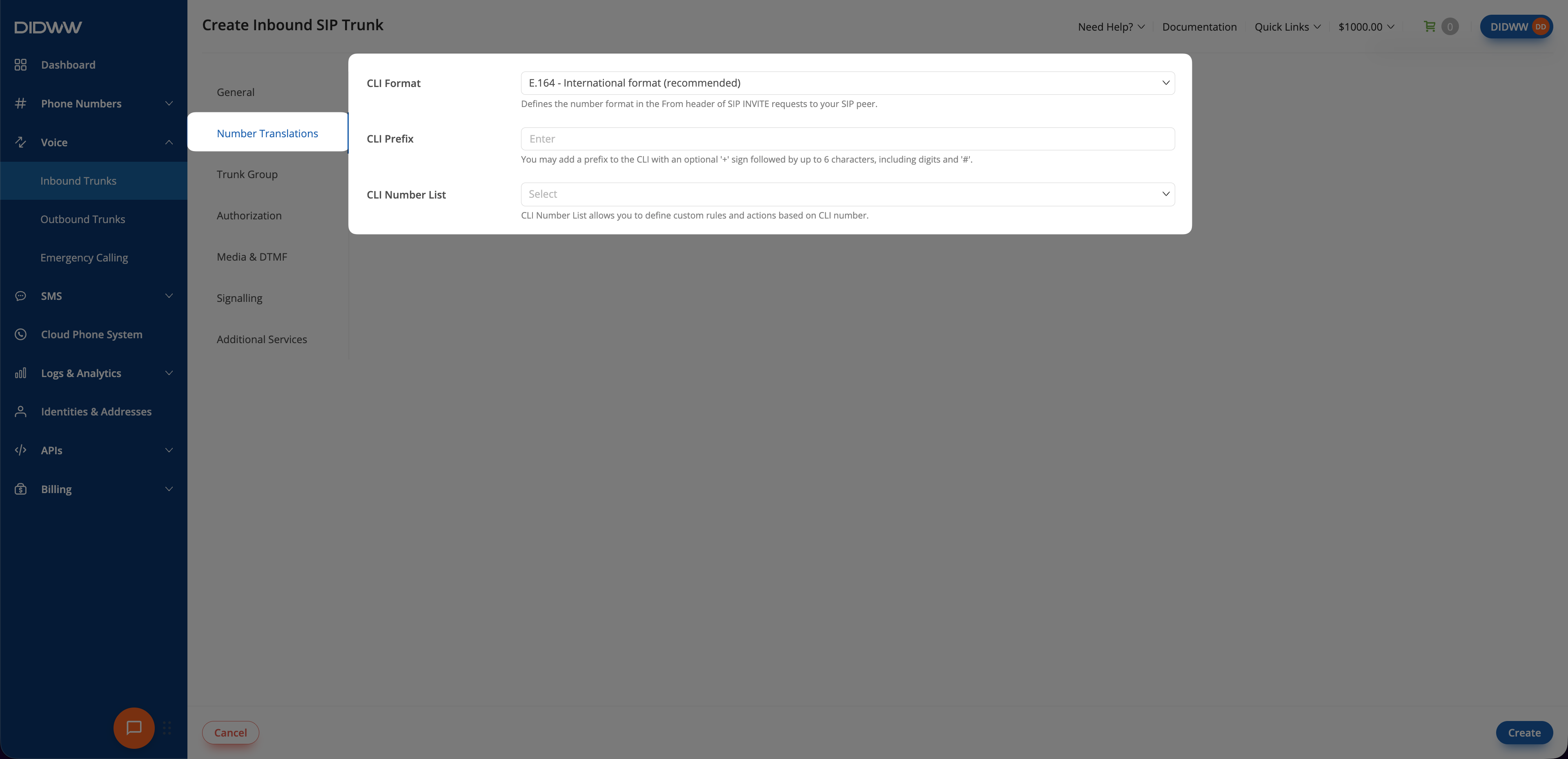
The Number Translations tab defines the caller ID format delivered to your SIP endpoint.
CLI Format – Select how the Caller ID (CLI) is formatted for incoming calls:
Option
Description
E.164
Converts the CLI to E.164 format (Country Code + Area Code + Number). This is the default option.
Raw
Passes the caller ID unchanged.
Local
Converts the CLI to local format (Area Code + Number).
CLI Prefix – Prepend a custom prefix to the incoming CLI for identification or routing purposes.
CLI Number List – Assign a Number List to allow or reject incoming calls based on full number matches, prefix matches, or length restrictions. For more information, see the Number List documentation page.
Warning
CLI format conversion may not work correctly for calls originating from outside the country of the DID.
Number Lists work by matching the inbound CLI. If you modify the CLI format and CLI prefix, you may need to adjust your numbers in the Number List accordingly.
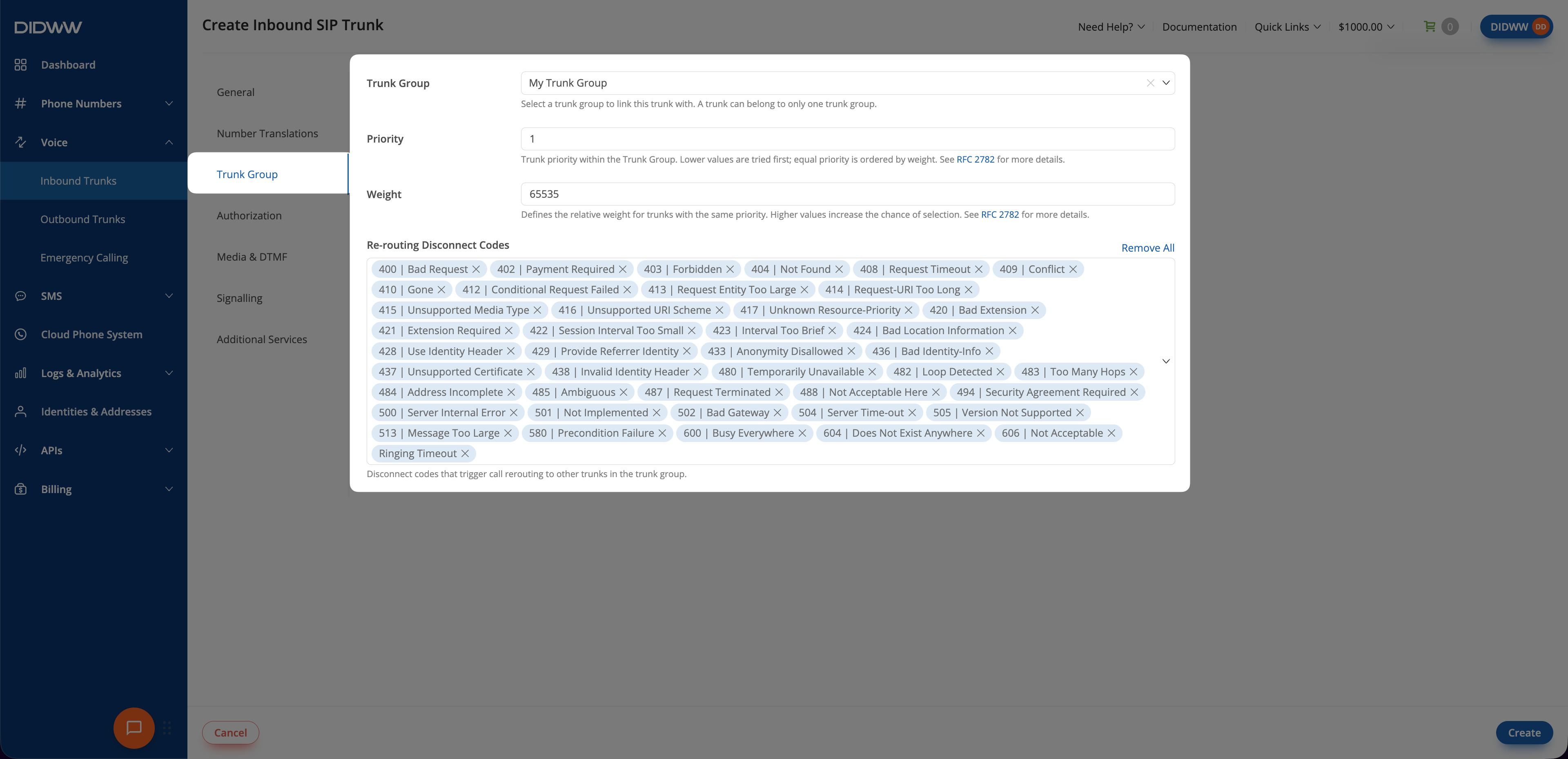
SIP Trunk group configuration is optional and should only be used when multiple trunks need to be assigned to a single trunk group for failover or load balancing.
You can configure the following settings:
Trunk Group – Select the trunk group to assign the trunk to. A trunk can belong to only one trunk group. If no trunk groups exist, refer to the Trunk Group Creation Guide.
Priority – Set the trunk priority within the trunk group. Trunks with lower values are tried first. Trunks with the same priority are ordered by weight. For more details, see RFC 2782.
Weight – Set the relative weight for trunks with the same priority. A higher value increases the likelihood that the trunk is selected. For more details, see RFC 2782.
Re-routing Disconnect Codes – Select the disconnect codes that trigger call rerouting to another trunk in the group. For available codes and their meanings, see SIP Response Codes.
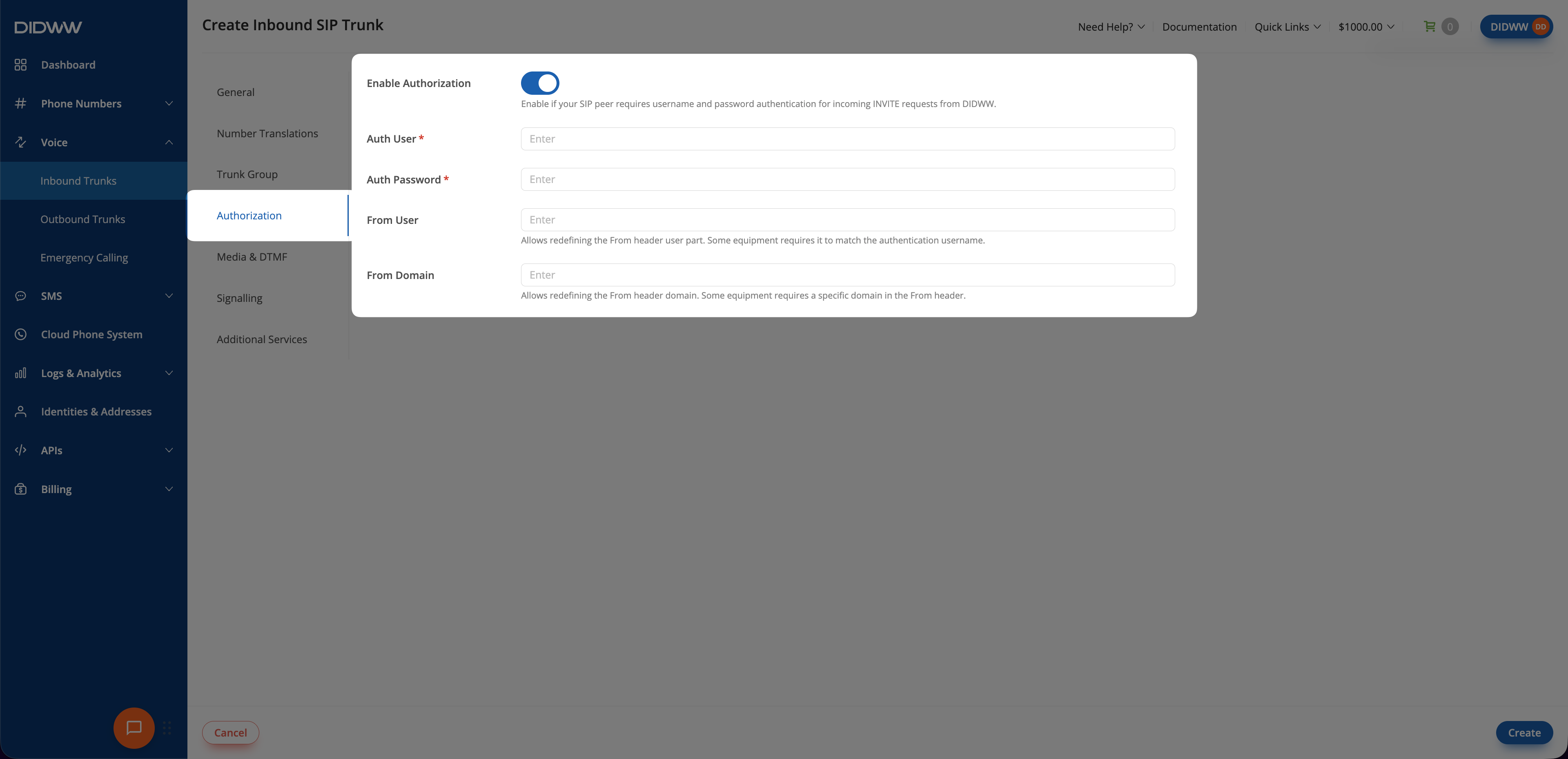
Authorization is an optional SIP Trunk setting that allows the trunk to be authenticated using digest authentication (credentials). Use this feature only if your SIP server requires authentication.
To enable authorization, configure the following settings:
Setting
Description
Enable Authorization
Enables authentication for the SIP trunk for incoming INVITE requests from DIDWW.
Auth User
Defines the username for authentication.
Auth Password
Defines the password for authentication.
From User
Specifies a custom user in the From field instead of the Caller ID.
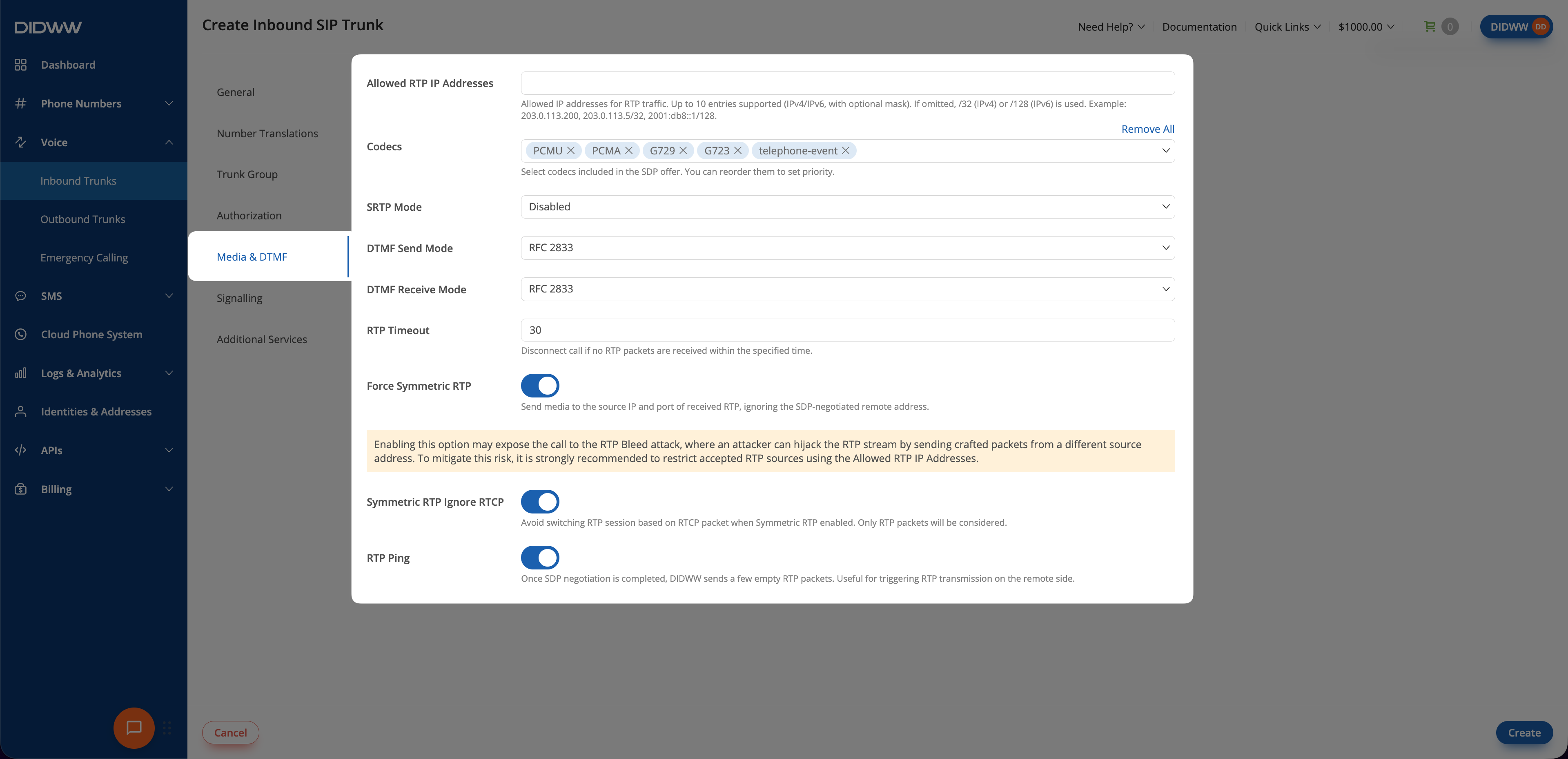
The Media & DTMF section allows you to configure codec preferences, Dual-Tone Multi-Frequency (DTMF) signaling, and real-time transport protocol (RTP) settings.
You can configure the following settings:
Allowed RTP IP Addresses – Define the IP addresses that are allowed to send RTP media packets to this SIP trunk. To restrict RTP sources, enter up to 10 IP addresses or subnets in the following format: IPv4[/mask] or IPv6[/mask], e.g., 203.0.113.5/32,2001:db8::1/128.
Note
If left blank, RTP packets are accepted from any source.
If the mask is omitted, /32 is used for IPv4 and /128 is used for IPv6.
Codecs – Select the codecs to include in the SDP offer. Selected codecs can be removed individually, or you can click Remove All to clear the selection. Reorder selected codecs to set their priority; the first codec has the highest priority. For a list of supported codecs, see Supported Codecs.
SRTP Mode – Select the Secure Real-time Transport Protocol (SRTP) mode used for media encryption. DIDWW supports TLS for secure SIP signaling and SRTP for media encryption.
DTMF Send Mode – Select how Dual-Tone Multi-Frequency (DTMF) signals are sent from DIDWW to your equipment.
Option
Description
Disable sending
Do not send DTMF signals to your equipment.
RFC 2833
Send DTMF events using the telephone-event RTP payload. This is the default option.
SIP INFO application/dtmf-relay
Send DTMF events in SIP INFO requests using the application/dtmf-relay content type.
SIP INFO application/dtmf
Send DTMF events in SIP INFO requests using the application/dtmf content type.
DTMF Receive Mode – Select how Dual-Tone Multi-Frequency (DTMF) signals are received by DIDWW from your equipment. For more details, see DTMF options.
Option
Description
RFC 2833
Receive DTMF events using the telephone-event RTP payload. This is the default option.
SIP INFO application/dtmf-relay OR application/dtmf
Receive DTMF events in SIP INFO requests using either the application/dtmf-relay or application/dtmf content type.
RFC 2833 OR SIP INFO
Receive DTMF events using either the telephone-event RTP payload or SIP INFO requests.
RTP Timeout – Define the maximum time, in seconds, before a call is disconnected if no RTP packets are received.
Note
RTP Timeout value must be between 5 and 600 seconds.
Force Symmetric RTP – Send media to the source IP address and port of received RTP packets, ignoring the remote address negotiated in the SDP.
Warning
Enabling Force Symmetric RTP may expose the call to an RTP Bleed attack, where an attacker can hijack the RTP stream by sending crafted packets from a different source address. Restrict accepted RTP sources using Allowed RTP IP Addresses to mitigate this risk.
Symmetric RTP Ignore RTCP – When Force Symmetric RTP is enabled, use only RTP packets when switching the media path and ignore RTCP packets.
RTP Ping – After SDP negotiation is complete, send several empty RTP packets to trigger RTP transmission on the remote side.
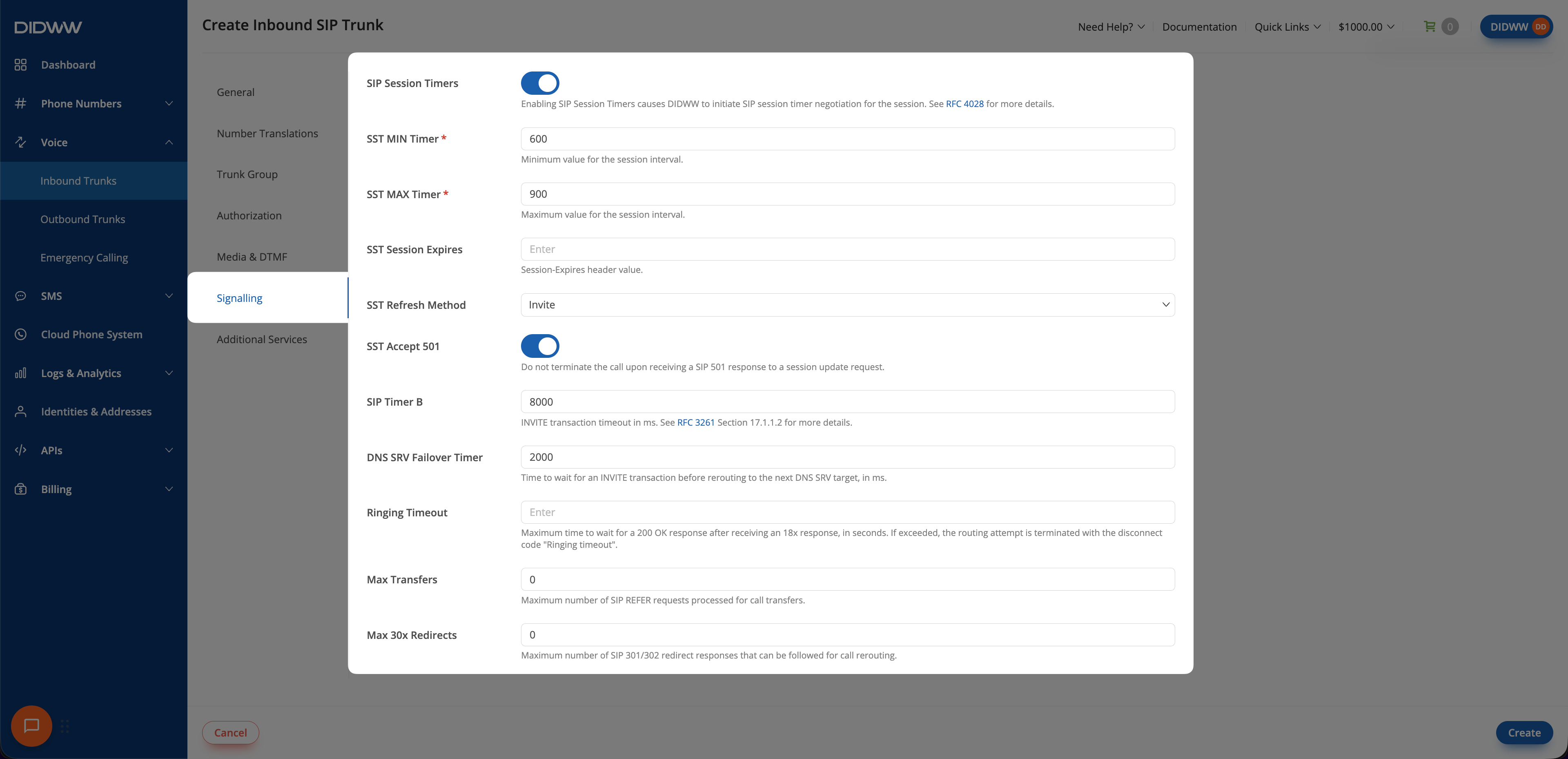
The Signalling tab allows you to configure SIP session management, transaction timeouts, failover behavior, call transfers, and redirects. These optional settings help maintain call stability, prevent unnecessary call drops, and optimize failover handling in case of network failures.
You can configure the following settings:
SIP Session Timers – Enable DIDWW to initiate SIP session timer negotiation. Session timers periodically refresh the SIP session and terminate it when the remote endpoint stops responding. For more details, see RFC 4028.
SST MIN Timer – Set the minimum session interval. The default value is 600 seconds.
SST MAX Timer – Set the maximum session interval. The default value is 900 seconds.
SST Session Expires – Define the Session-Expires header value. The value must be within the range defined by SST MIN Timer and SST MAX Timer.
SST Refresh Method – Select the SIP method used to refresh the session.
Option
Description
Invite
Refresh the session using an INVITE request. This is the default option.
Update
Refresh the session using an UPDATE request.
Update fallback Invite
Use an UPDATE request when supported and fall back to INVITE when necessary.
SST Accept 501 – Do not terminate the call after receiving a SIP 501 response to a session update request.
SIP Timer B – Set the timeout for an INVITE transaction, in milliseconds. The default value is 8000 ms. For more details, see RFC 3261 Section 17.1.1.2.
DNS SRV Failover Timer – Set how long DIDWW waits for an INVITE transaction before rerouting to the next DNS SRV target, in milliseconds. The default value is 2000 ms.
Ringing Timeout – Set the maximum time to wait for a 200OK response after receiving an 18x response, in seconds. When exceeded, the routing attempt ends with the Ringing timeout disconnect code.
Max Transfers – Set the maximum number of SIP REFER requests processed for call transfers. The default value is 0.
Max 30x Redirects – Set the maximum number of SIP 301 or 302 redirect responses followed during call rerouting. The default value is 0.
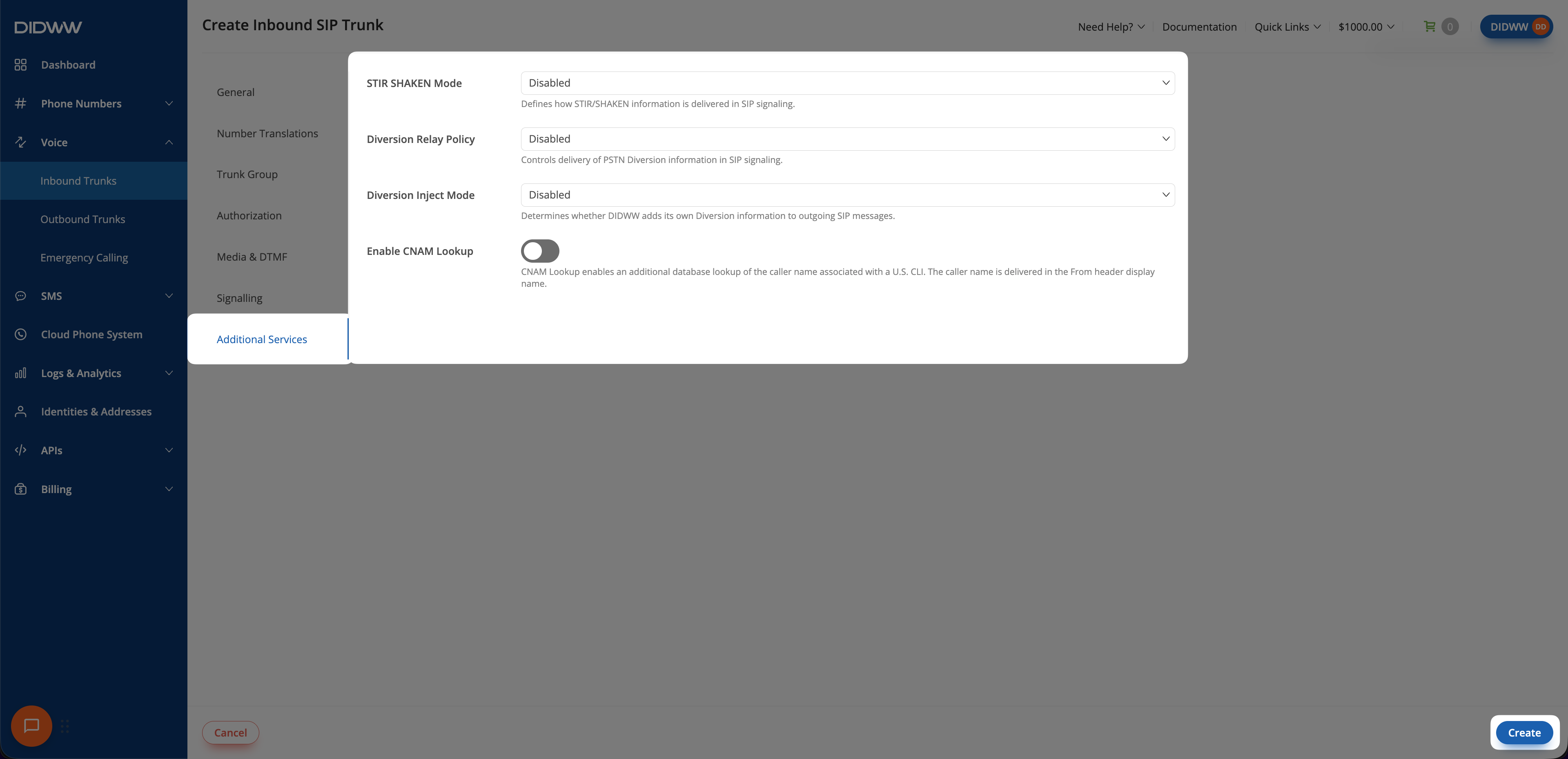
The Additional Services tab contains STIR/SHAKEN handling, diversion settings, and CNAM lookup.
You can configure the following settings:
STIR SHAKEN Mode – Select how STIR/SHAKEN information is delivered in SIP signaling. The STIR/SHAKEN framework helps prevent caller ID spoofing by verifying the authenticity of the calling number.
Add verification status and attestation headers to the SIP INVITE request.
Note
The Relay Identity header option is not enabled by default. To enable it for your DIDWW account or from the originating side, contact our sales team at sales@didww.com.
Diversion Relay Policy – Control how PSTN Diversion information is delivered in SIP signaling.
Option
Description
Disabled
Do not relay the Diversion header.
Diversion header in SIP URI format
Format and relay the Diversion header as a SIP URI, for example, sip:user@sip.didww.com.
Diversion header in TEL URI format
Format and relay the Diversion header as a TEL URI, for example, tel:+123456789.
Diversion Inject Mode – Control whether DIDWW adds its own Diversion information to outgoing SIP messages.
Option
Description
Disabled
Do not add a DIDWW-generated Diversion header.
Add Diversion header with DID number
Add a DIDWW-generated Diversion header containing the associated DID number.
Note
If both Diversion Relay Policy and Diversion Inject Mode are enabled at the same time, two Diversion headers may be included in the SIP message, which may cause unexpected behavior on your system.
Enable CNAM Lookup – Retrieve and display the caller name associated with a US CLI. The caller name is delivered as the display name in the SIP From header.
The system queries a remote CNAM database when a call originates from the US.
Billing applies only if the lookup is successful.
Warning
If a Trunk Group is used and any of its trunks have CNAM lookup enabled:
A CNAM lookup will be performed for all incoming calls.
A successful lookup will be billed additionally per call.
The retrieved CNAM value will be displayed only for trunks with CNAM lookup enabled.
CNAM in the SIP From Header
The following examples show how CNAM appears in the From header:
CNAM lookup not enabled:"12899230448"<sip:12899230448@46.19.213.14>;tag=24-6917EC3D-6453984E000C1C1E-5EA5B700
CNAM lookup enabled and lookup successful:"KRISTOTAL"<sip:15203981500@46.19.213.14>;tag=24-7EB42886-645381060002B85A-5EB5C700
CNAM lookup enabled but lookup failed:"Unavailable"<sip:15203981500@46.19.213.14>;tag=24-7EB42886-645381060002B85A-5EB5C700
The CNAM value is also displayed in the Source Name field in inbound call logs.
If your inbound SIP trunk uses Dynamic Registration, the system automatically generates a unique set of credentials. You can view these credentials by clicking on the trunk name on the Inbound Trunks page.
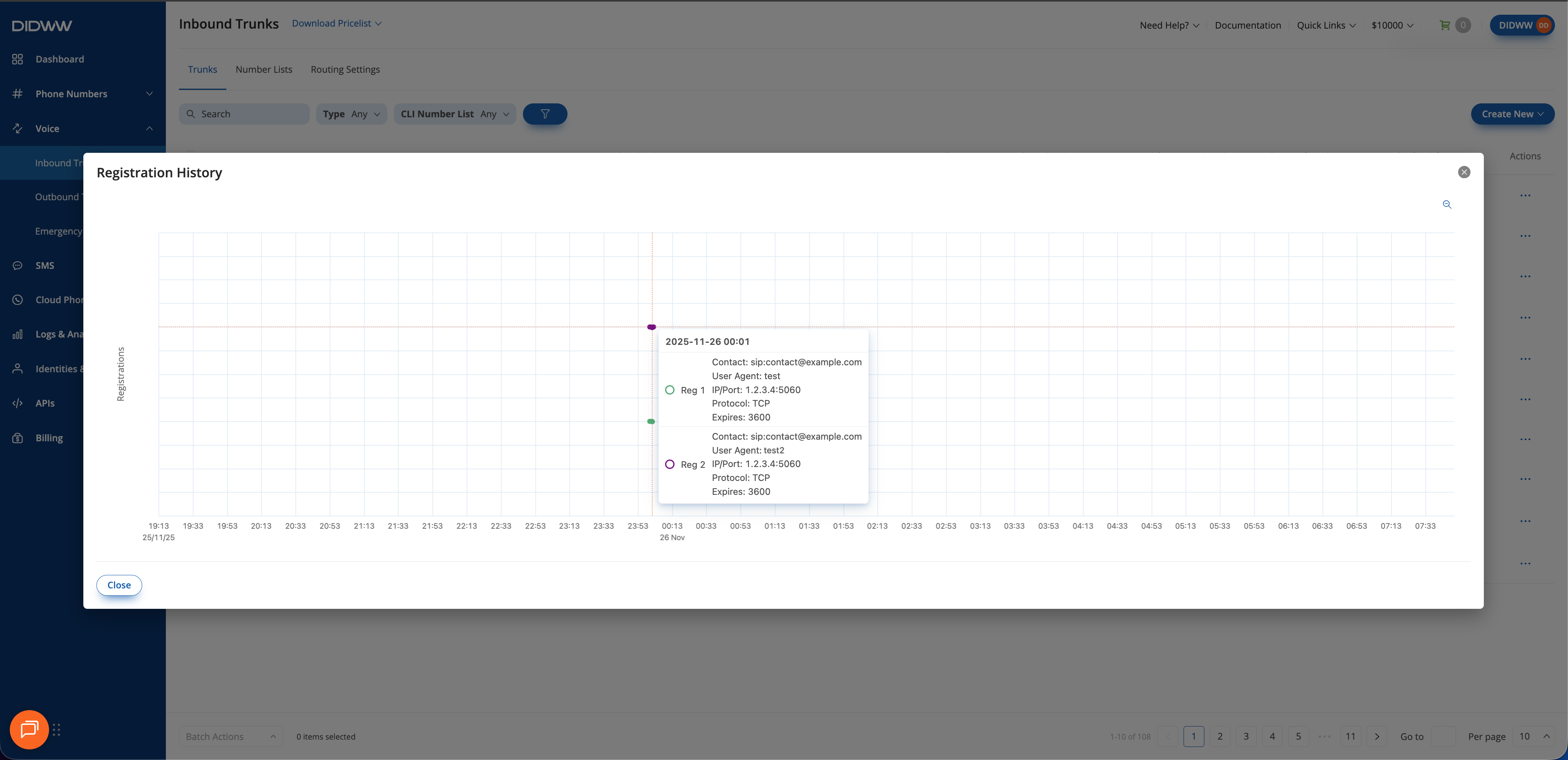
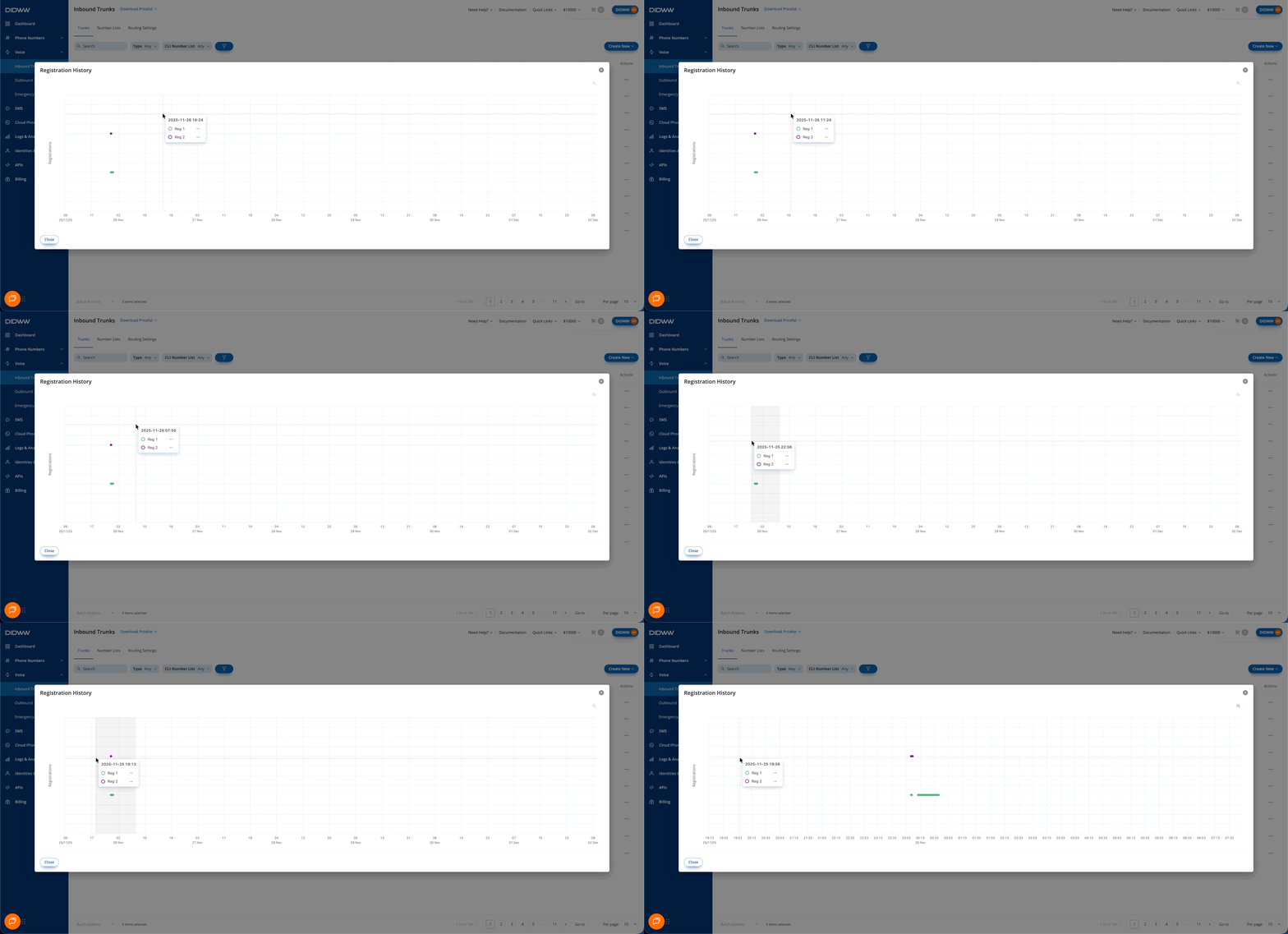
The Registration History is available only for trunks that use Dynamic Registration. It displays recent successful registration intervals for the selected trunk.
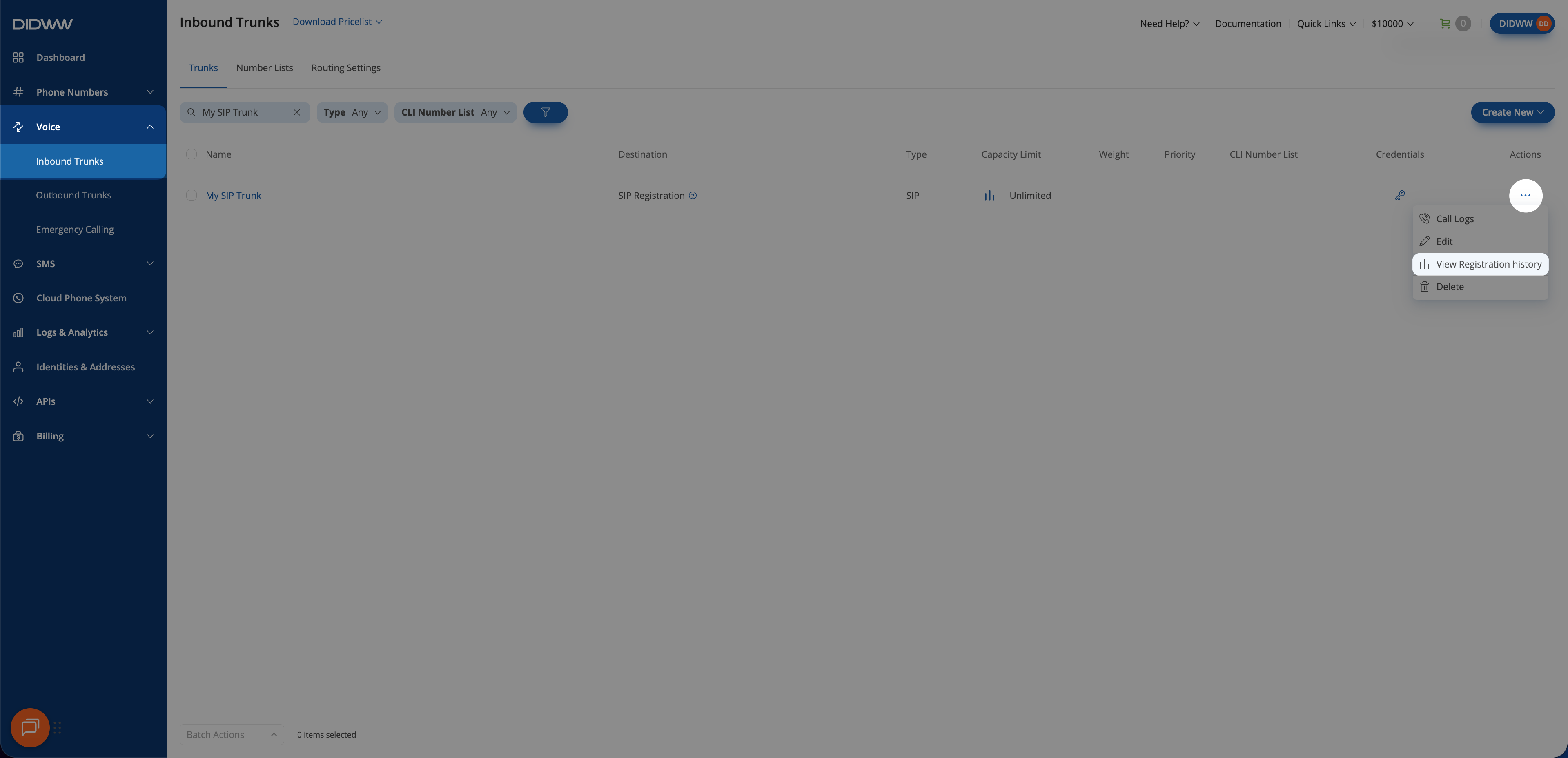
Follow these steps to view the Registration History:
Go to the Voice section in the menu.
Select Inbound Trunks.
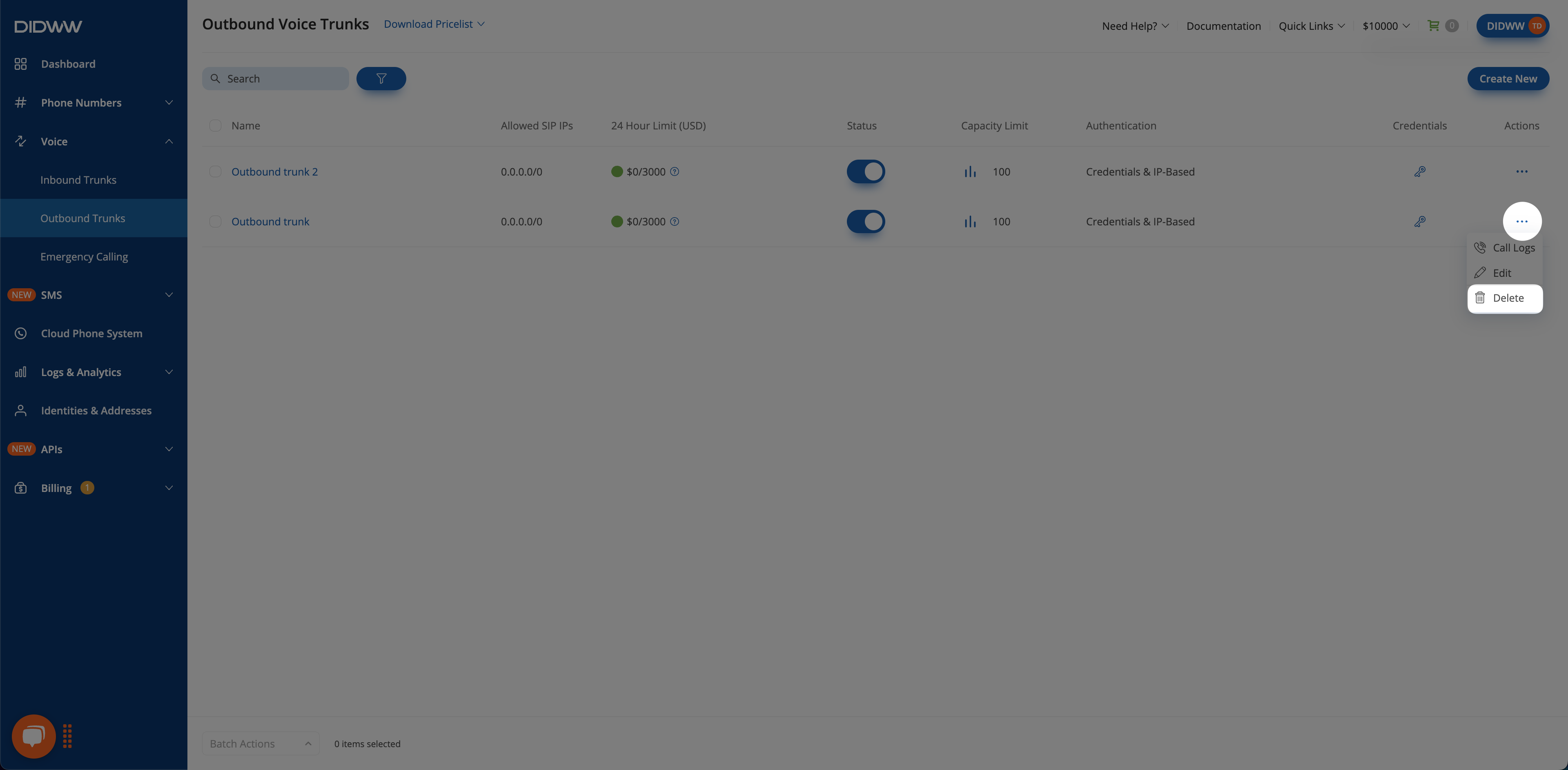
Find the trunk you want to inspect and open the Actions menu.
Click View Registration History.
Fig. 17. Opening the Registration History window.#
The Registration History chart shows successful registration intervals, indicating when a valid Contact header was active for call routing.
Note
The chart shows the times when the trunk was successfully registered and online. Individual SIP REGISTER requests or failed attempts are not displayed.
Registration data is available for the last 7 days. If no successful registrations occurred in this period, no data will appear.
Registration activity is shown in one-minute intervals.
Hover over any point in the chart to view details about that registration interval, including:
Field
Description
Contact
The Contact address used by your system during registration.
IP/Port
The source IP address and port used for the registration.
Transport Protocol
The transport protocol used for the registration (UDP, TCP, or TLS).
User Agent
The User-Agent string reported by the registering system.
Expires
The registration lifetime (Expires value) provided by your endpoint.





button.