

Manage OTP applications#
Manage existing OTP applications from the Applications page. View an application’s credentials and settings, edit its settings, pause it, limit its volume, rotate its secret, or delete applications that are no longer required. The Country blocklist tab of the same page holds the countries blocked for your whole account.
Before you begin#
An active DIDWW account is required. Sign in to DIDWW.
An existing OTP application is required. If you do not have one, see Create an OTP application.
View an OTP application#
In the DIDWW User Panel, go to OTP Verify > Applications.
Click the name of the OTP application.
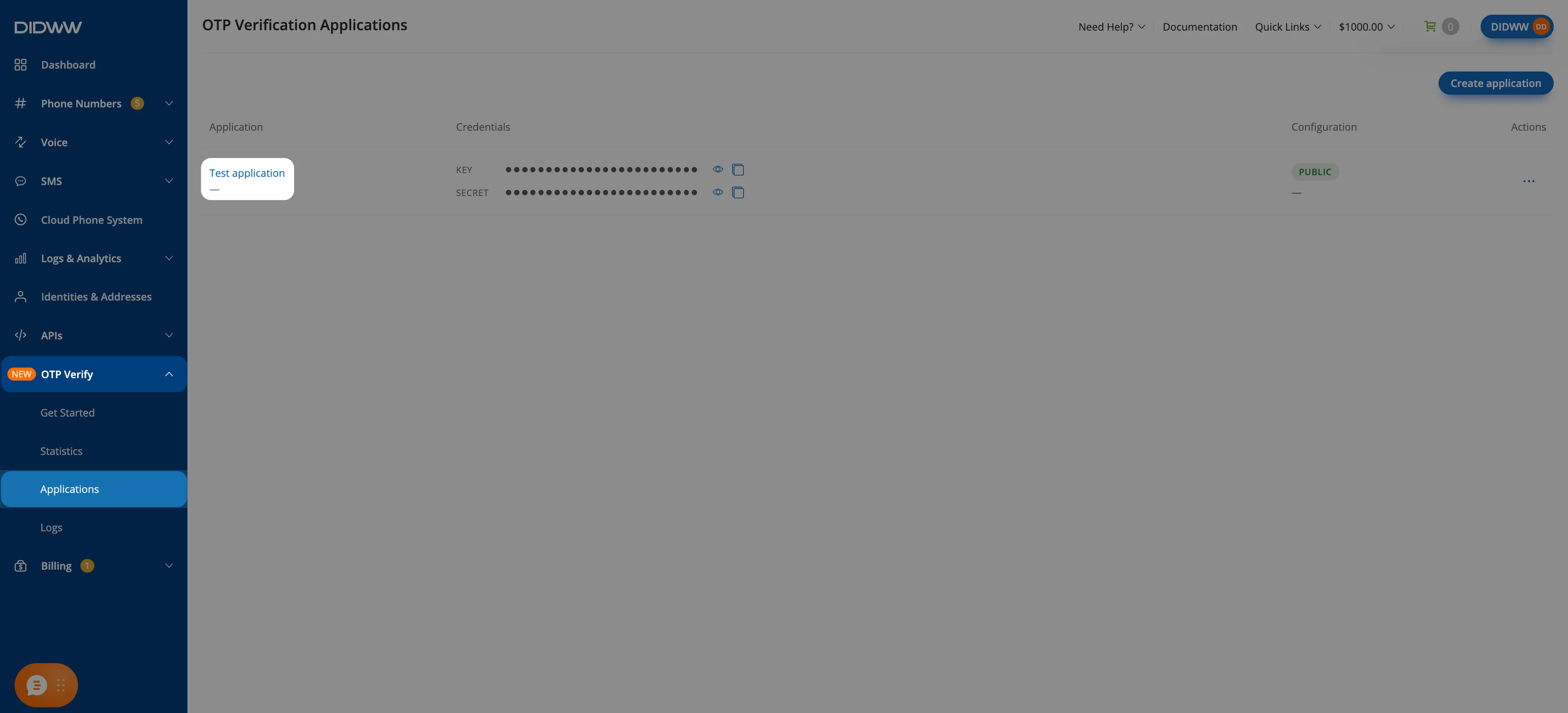
Fig. 1. Open the OTP application details#
In View Application, review the Credentials, General, Configuration, Verification settings, Volume limits, Templates, and SMS Settings in read-only mode. Click Back to return to the application list.
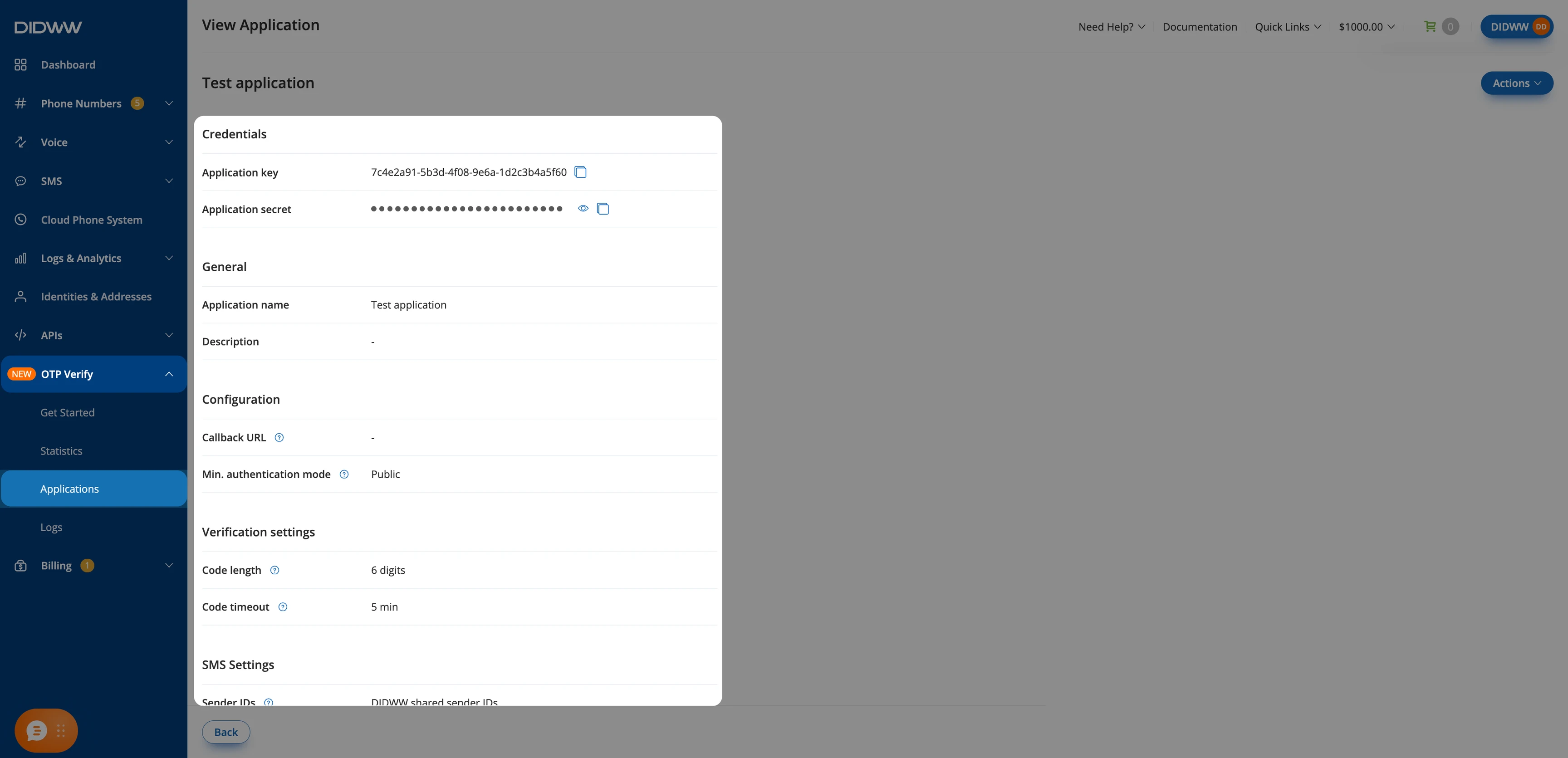
Fig. 2. Review the application settings#
Edit an OTP application#
In the DIDWW User Panel, go to OTP Verify > Applications.
Locate the OTP application and open its Actions menu.
Click Edit.
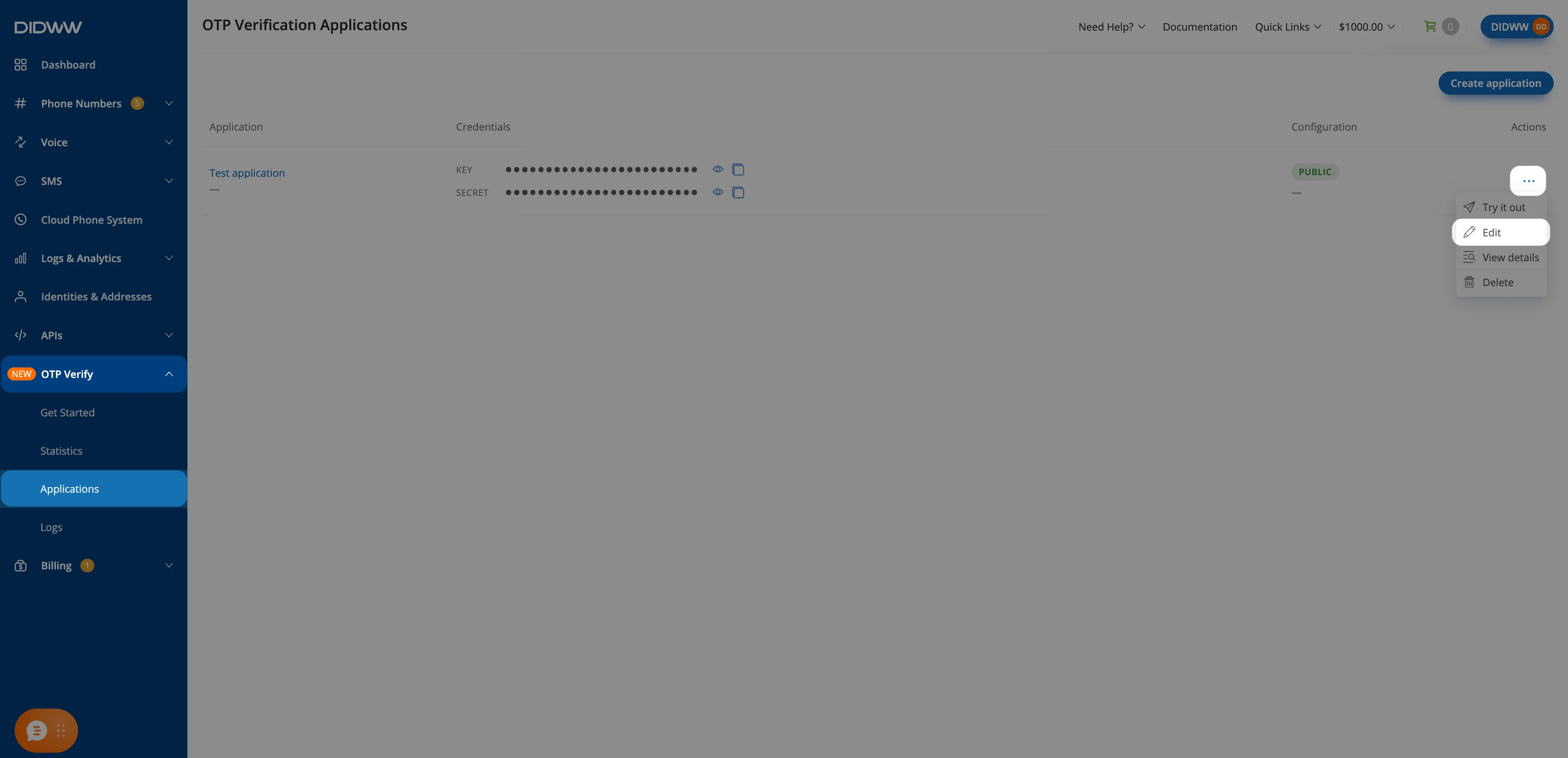
Fig. 3. Open the OTP application edit form#
Update the settings in any section. The sections match those on the creation form. See Create an OTP application for configuration guidance. Changes to the verification settings apply to new verifications only.
Review the changes and click Submit.
For definitions, defaults, and limits for all settings, see OTP application settings reference.
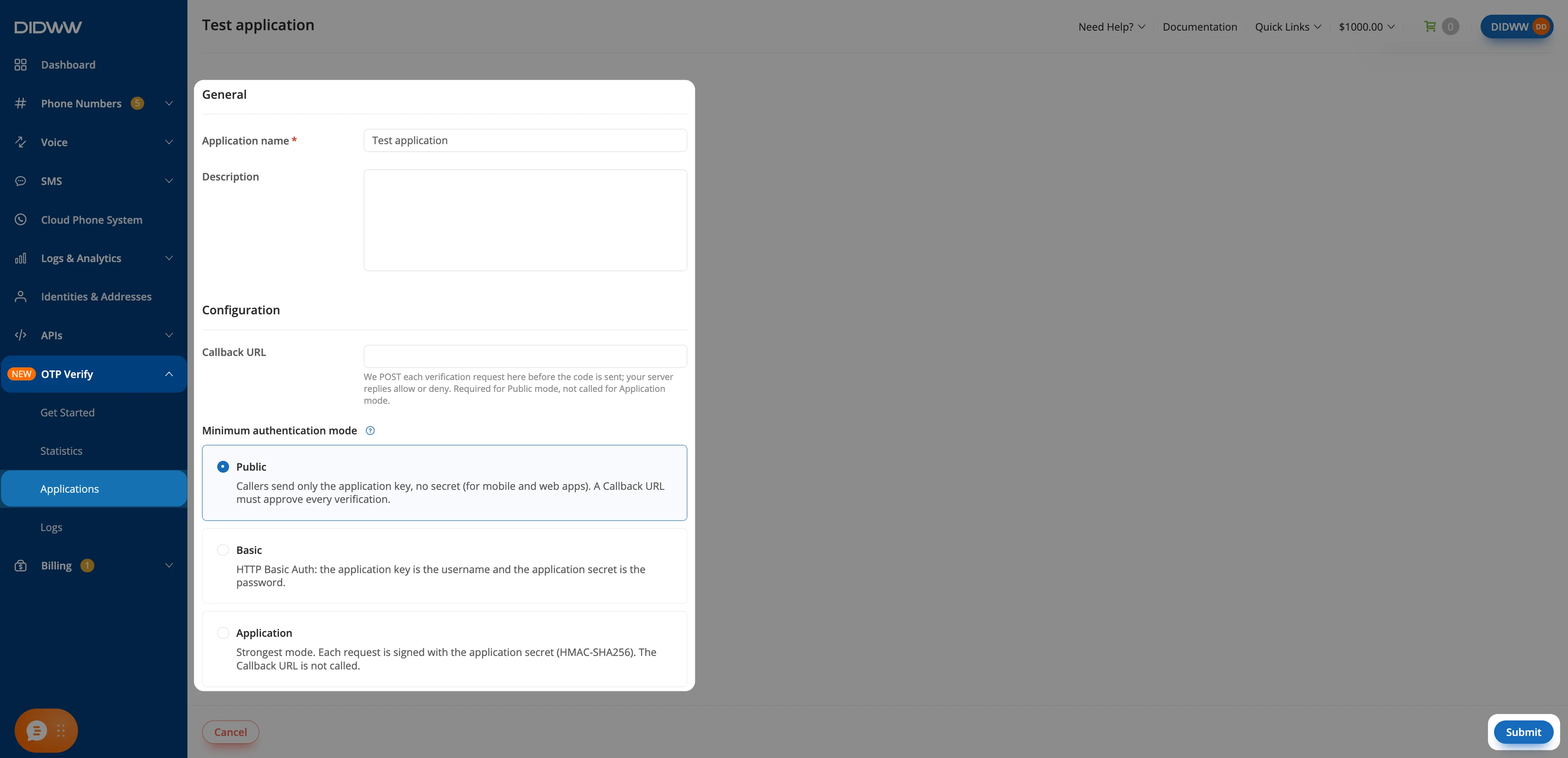
Fig. 4. Update and save the OTP application settings#
Pause or resume an application#
Pause an application to stop it from sending codes without deleting it, for example while you
investigate unexpected traffic. While the application is paused, every new verification request
returns 201 Created with status set to denied and error_code set to
application_paused. Nothing is sent or charged, no request callback is made, and no
cooldown starts. Verifications already in progress are not affected, and the credentials keep
working.
To pause an application:
In the DIDWW User Panel, go to OTP Verify > Applications.
Locate the OTP application and open its Actions menu, or open the application and click Actions.
Click Pause.
In the Pause OTP Application window, click Pause.
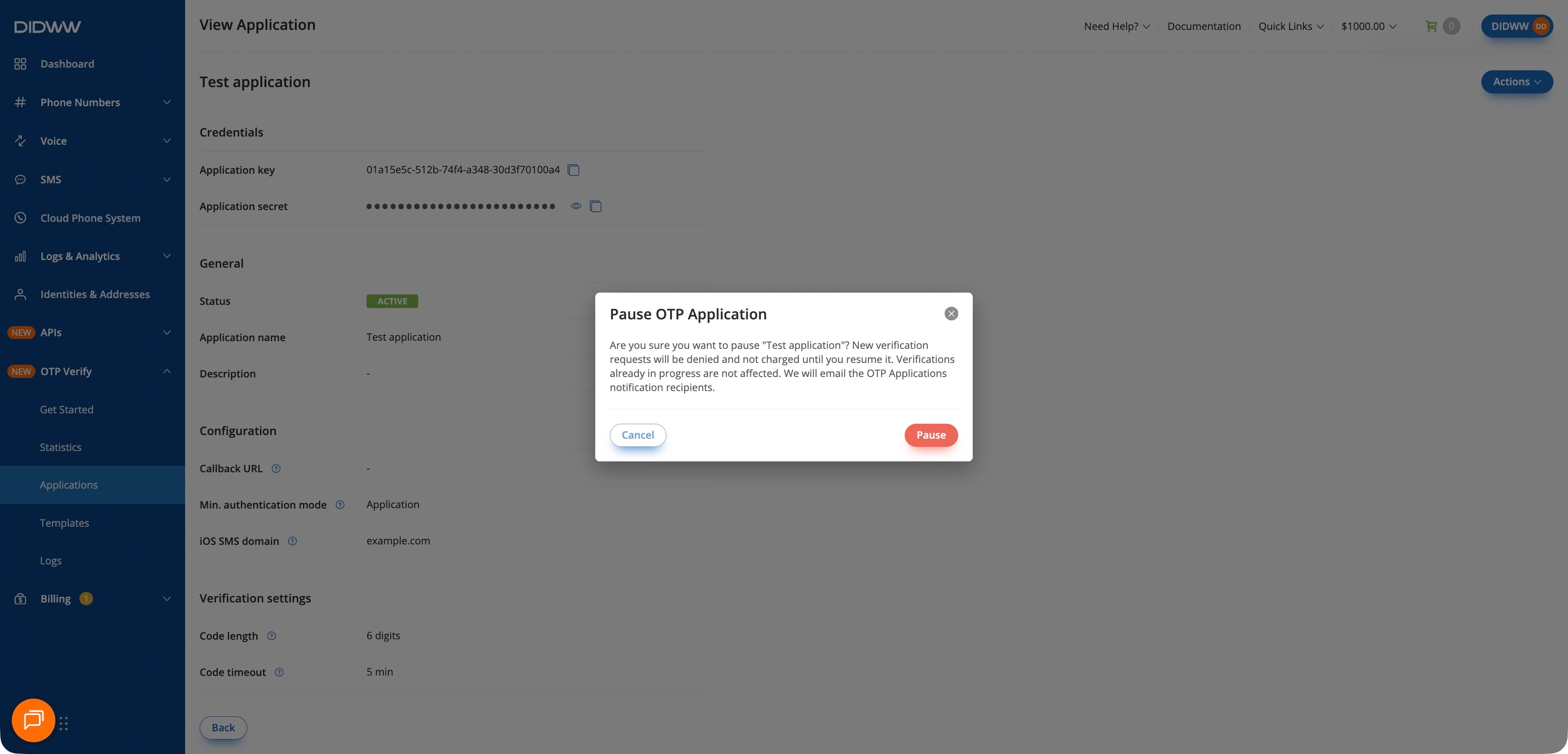
Fig. 5. Confirm pausing the application#
The application status changes to Paused, and the View Application page shows a banner with who paused the application and when. Try it out is not available while the application is paused. The recipients of the OTP Applications notification get an email.
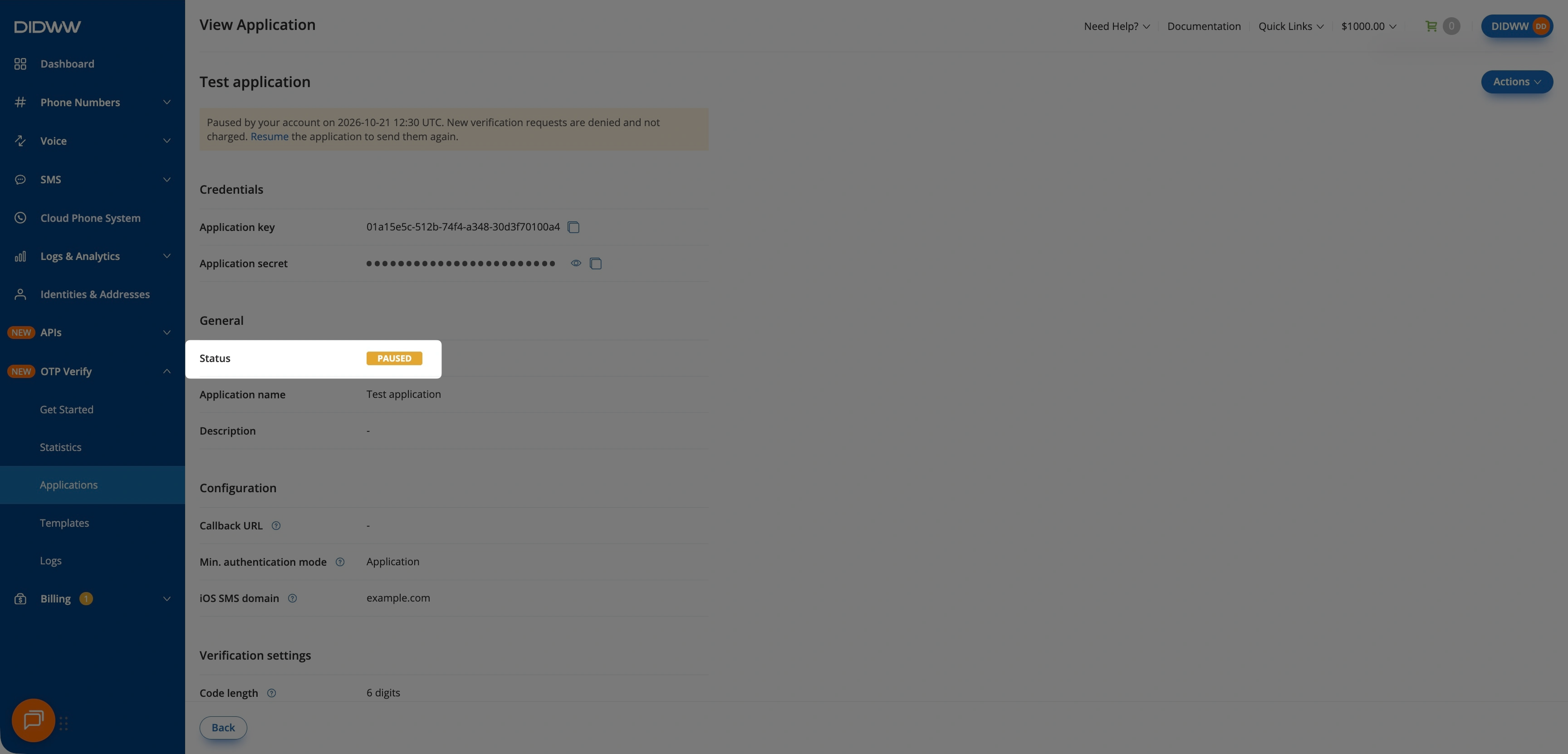
Fig. 6. Review the paused application#
To resume the application, click Actions > Resume, or Resume in the banner, and confirm in the Resume OTP Application window. New verification requests are sent and charged again.
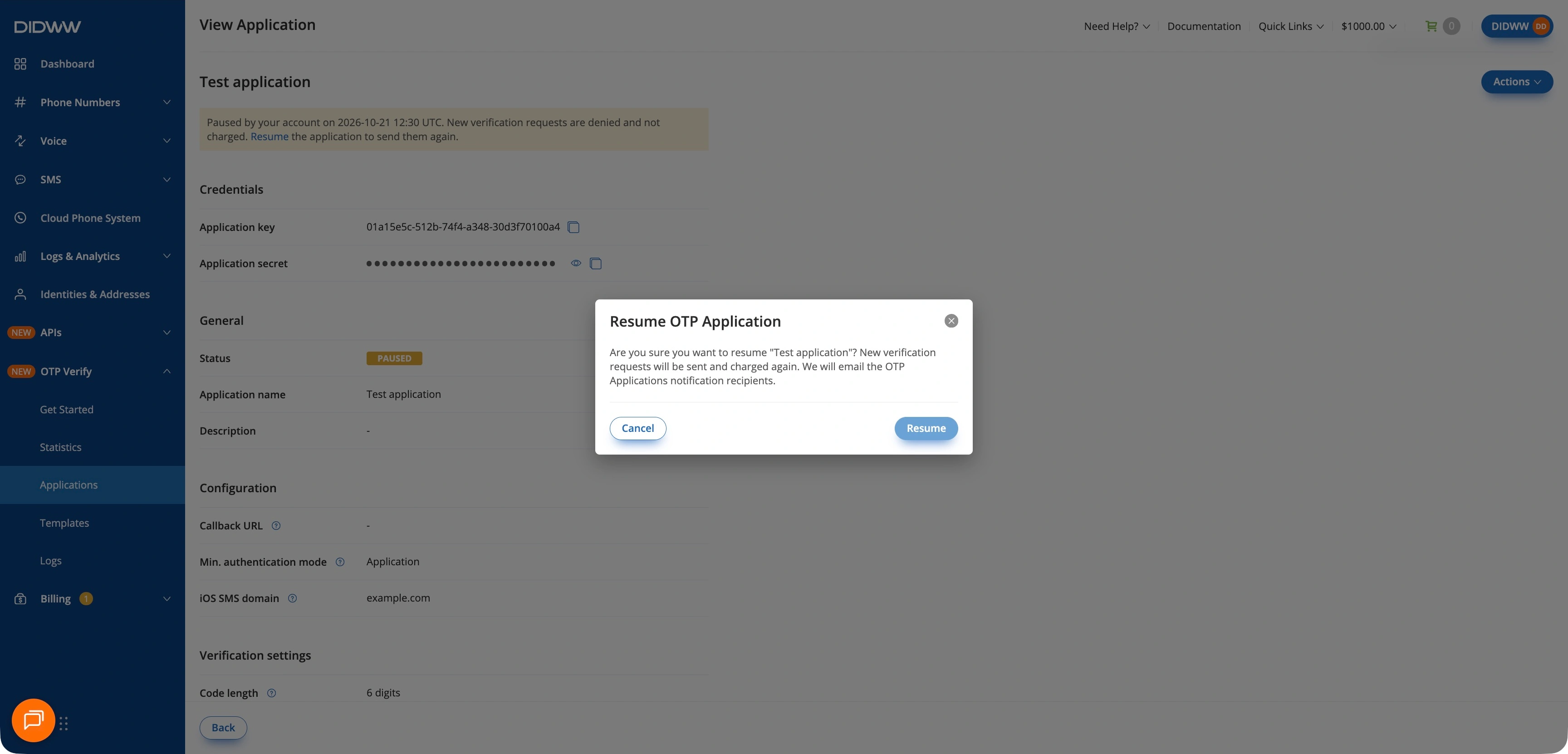
Fig. 7. Confirm resuming the application#
DIDWW support can also pause an application. The banner then says Paused by DIDWW support. You can resume it the same way.
Set the iOS SMS domain#
Set the iOS SMS domain to add a last line @<domain> #<code> to every SMS of the
application. See Domain-bound SMS.
In the DIDWW User Panel, go to OTP Verify > Applications.
Locate the OTP application and open its Actions menu.
Click Edit.
In the Configuration section, enter the domain in iOS SMS domain, for example
example.com. Enter the hostname only, withouthttps://or a path.Click Submit.
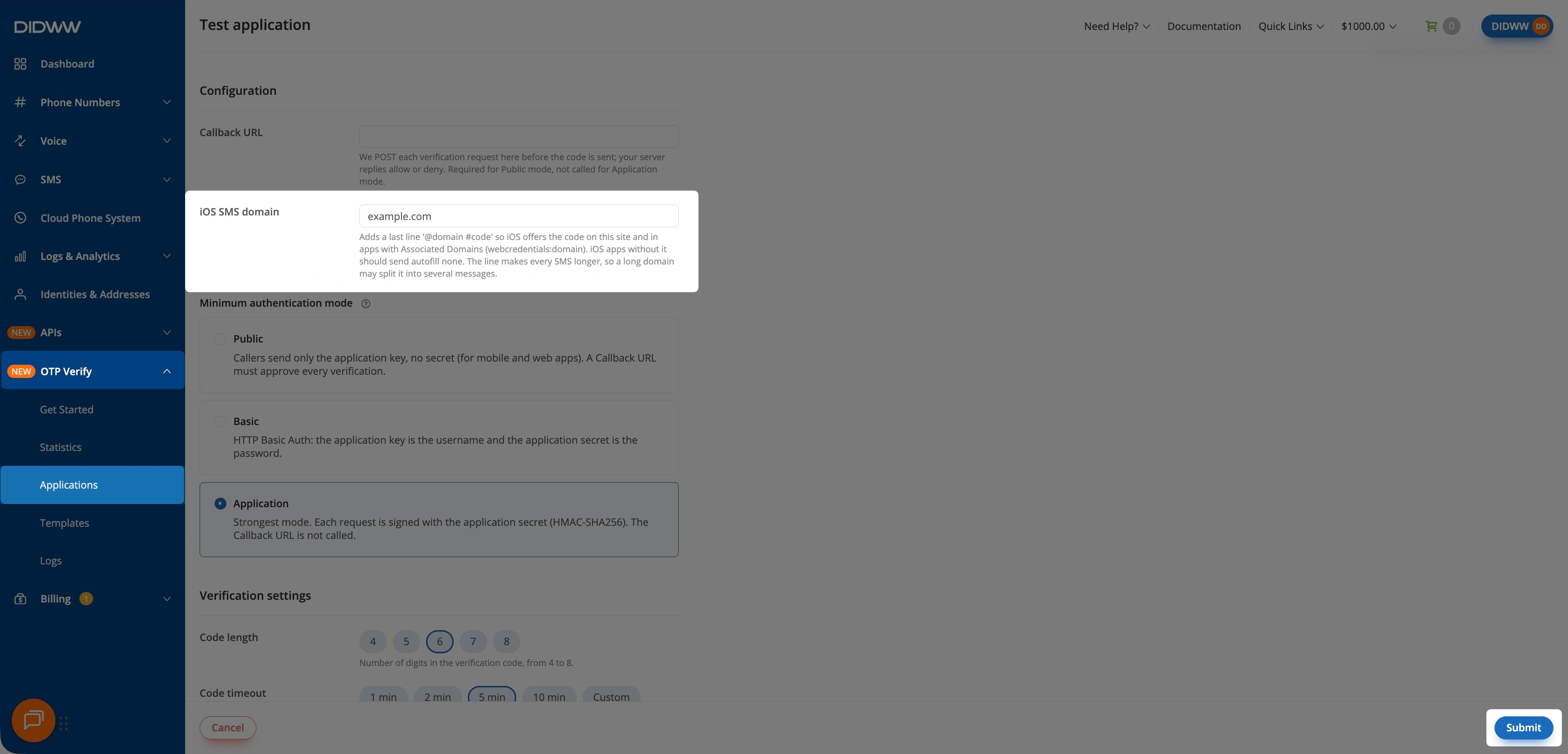
Fig. 8. Set the iOS SMS domain#
The domain applies to new verifications. To stop adding the line, clear the field.
Set volume limits#
Volume limits cap how many verifications an application can start per day and per month, to protect you from unexpected costs, for example if a key leaks or your sign-up flow is abused. New applications start with a daily limit of 1,000 and a monthly limit of 15,000. Applications created before volume limits were introduced got the same limits. If your traffic is higher, raise them before it reaches the limit.
In the DIDWW User Panel, go to OTP Verify > Applications.
Locate the OTP application and open its Actions menu.
Click Edit.
In the Volume limits section, enter the Daily limit and the Monthly limit: a whole number from 1 to 10,000,000. Leave a field empty for no limit. The daily limit must not exceed the monthly limit.
Click Submit.
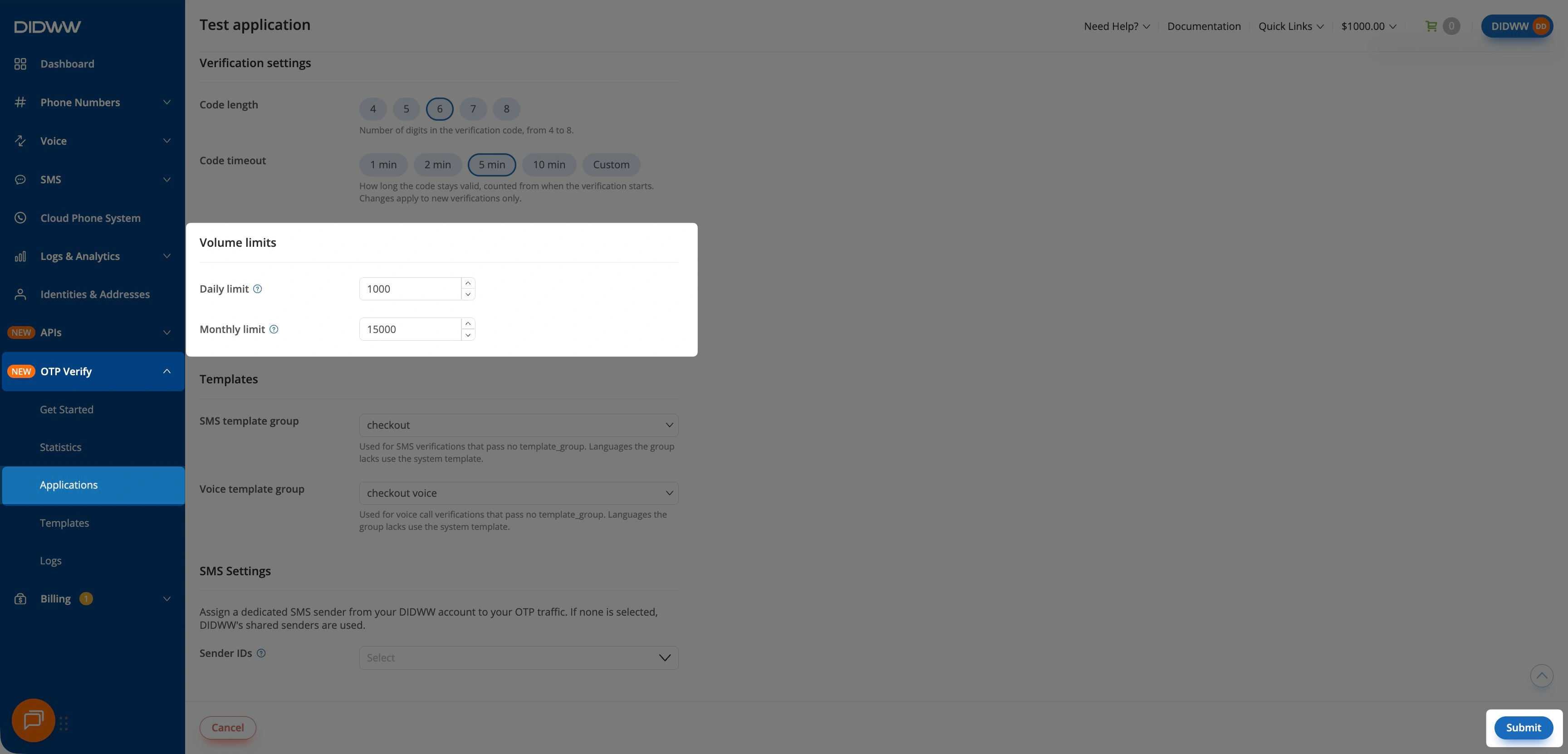
Fig. 9. Configure daily and monthly volume limits#
One limit covers SMS and phone call verifications of the application together. Only allowed starts count. Days and months reset at 00:00 UTC. The Volume limits section of the View Application page shows the usage of the current day and month.
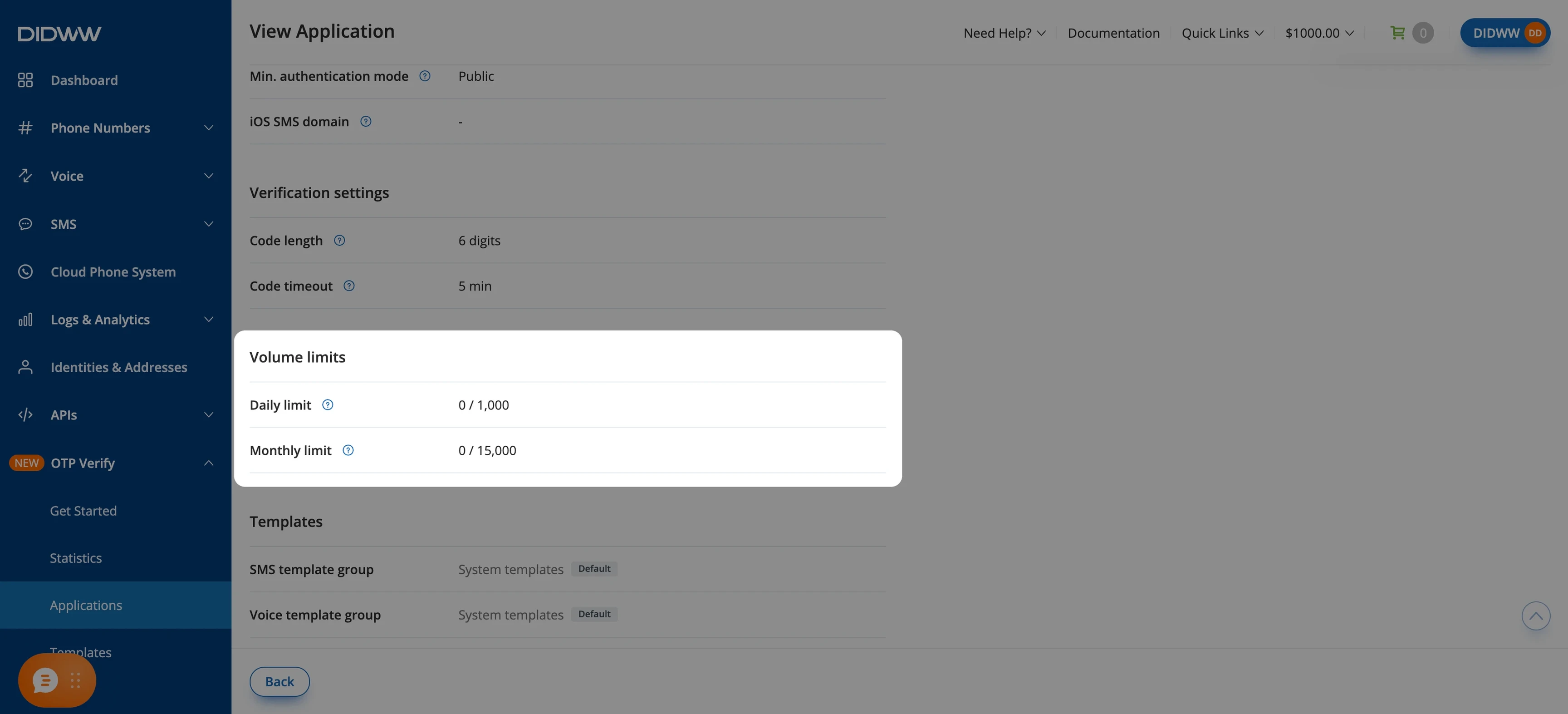
Fig. 10. Review current daily and monthly usage#
The recipients of the OTP Applications notification get an email when usage reaches 80%
of a limit and when it reaches the limit. While a
limit is reached, new verification requests are rejected with 429 Too Many Requests and
volume_limit_reached. Raise the limit to accept requests again at once. See
Limits.
Rotate the application secret#
Rotate the secret if it is leaked or compromised, or on a regular schedule. A grace period lets the previous secret keep working while you deploy the new one. See Rotating the secret for the recommended procedure.
In the DIDWW User Panel, go to OTP Verify > Applications.
Click the name of the OTP application.
Click Actions > Rotate secret.
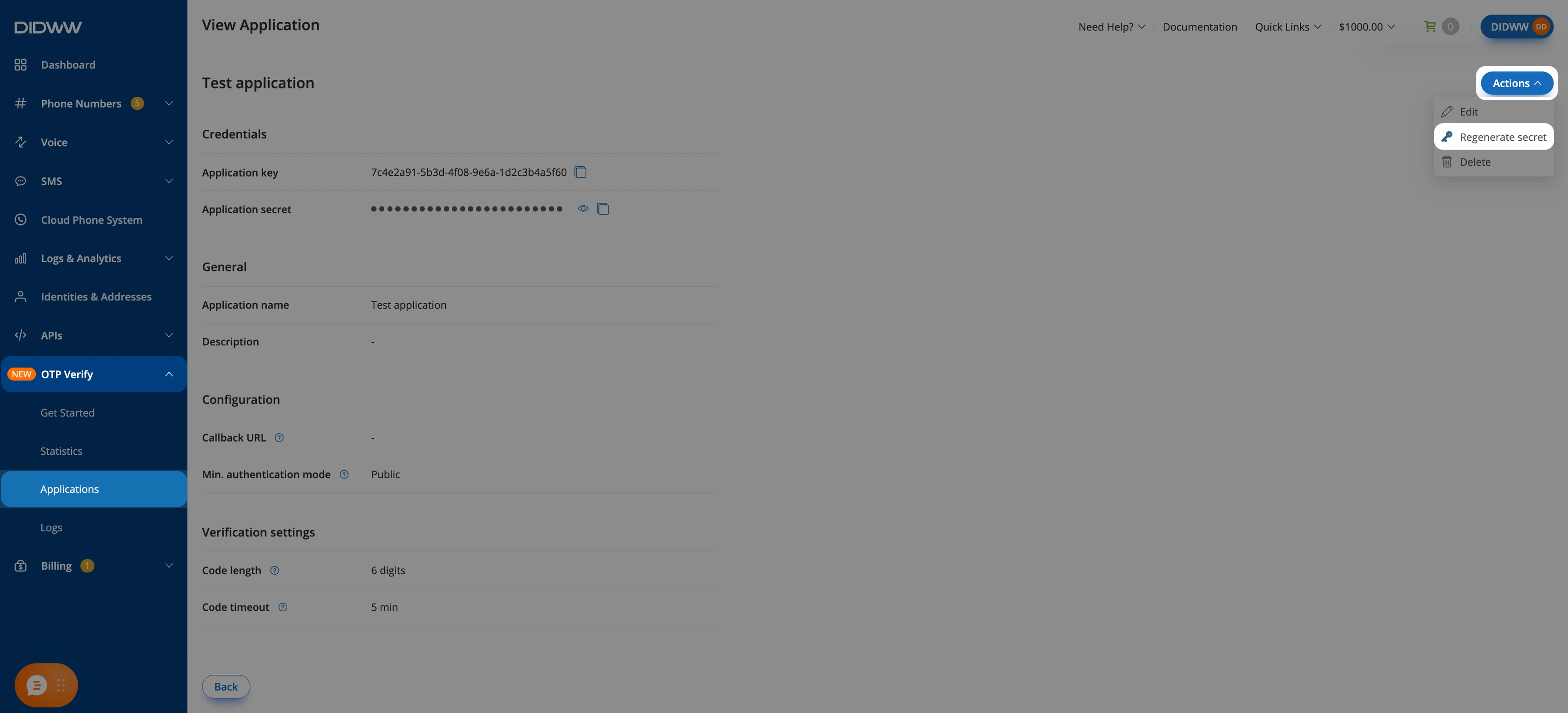
Fig. 11. Open the secret rotation window#
In the Rotate application secret window, choose how long the previous secret keeps working: Revoke now, 24 hours, 3 days, or 7 days. Then confirm. The new secret is generated and the application key does not change. Copy the new Application secret and update it in your backend.
If you choose Revoke now, every client and callback receiver that uses the current secret stops working immediately. An existing previous secret is always revoked when you rotate.
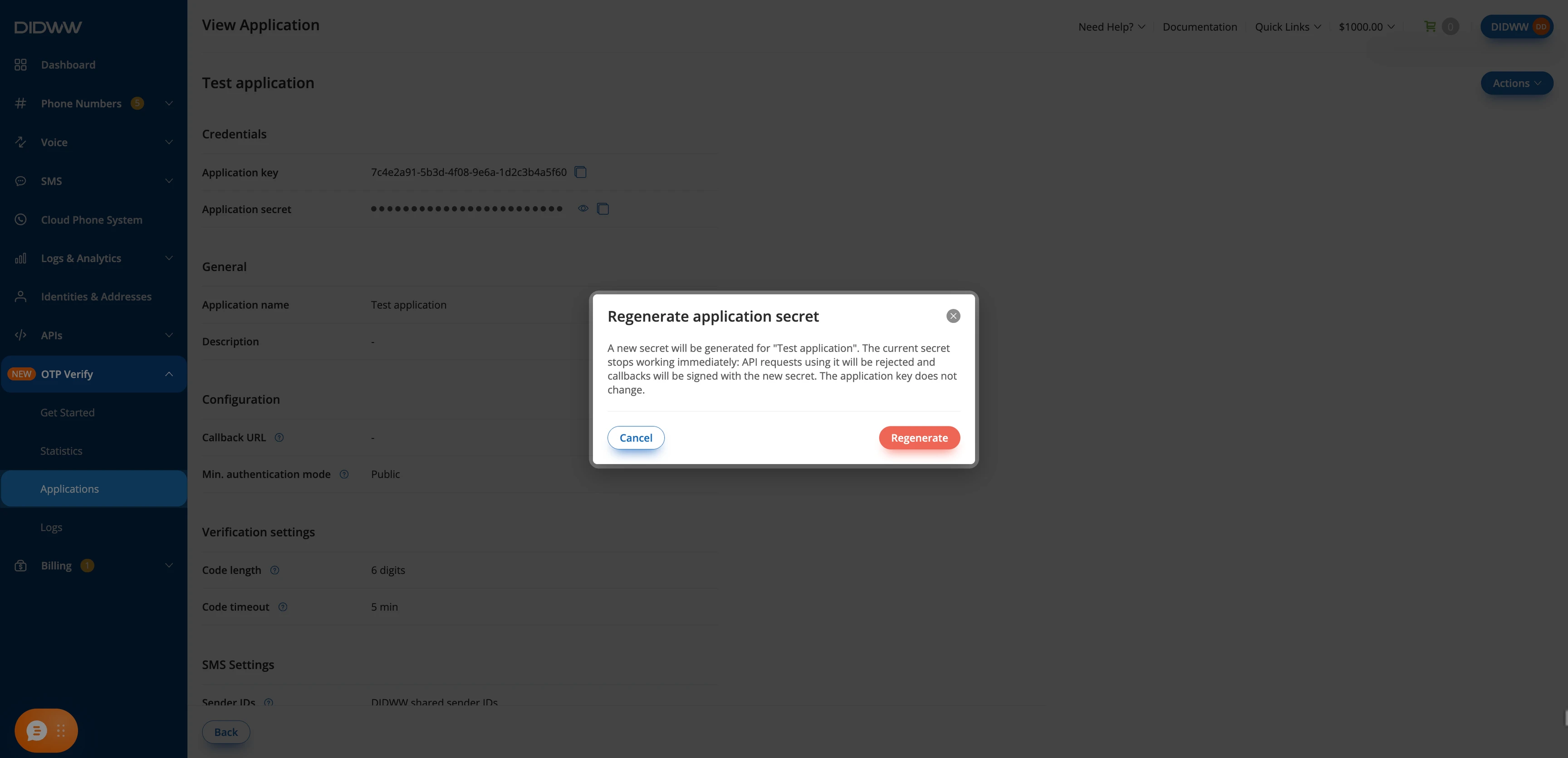
Fig. 12. Choose the previous secret’s grace period#
While a previous secret is active, the Credentials section of the application page shows a Previous secret row with:
the previous secret, masked, with show and copy actions;
when it expires;
when it was last used, or Never;
Revoke now, which ends the grace period early;
View requests, which opens the OTP Verification Logs filtered to requests that used the previous secret.
Rotate and revoke are not available in read-only mode.
Delete an OTP application#
Warning
Deleting an OTP application is permanent and cannot be undone. Its credentials are revoked, and requests that use its key or secret are rejected. Confirm that the application is no longer required before continuing.
In the DIDWW User Panel, go to OTP Verify > Applications.
Locate the OTP application and open its Actions menu.
Click Delete.
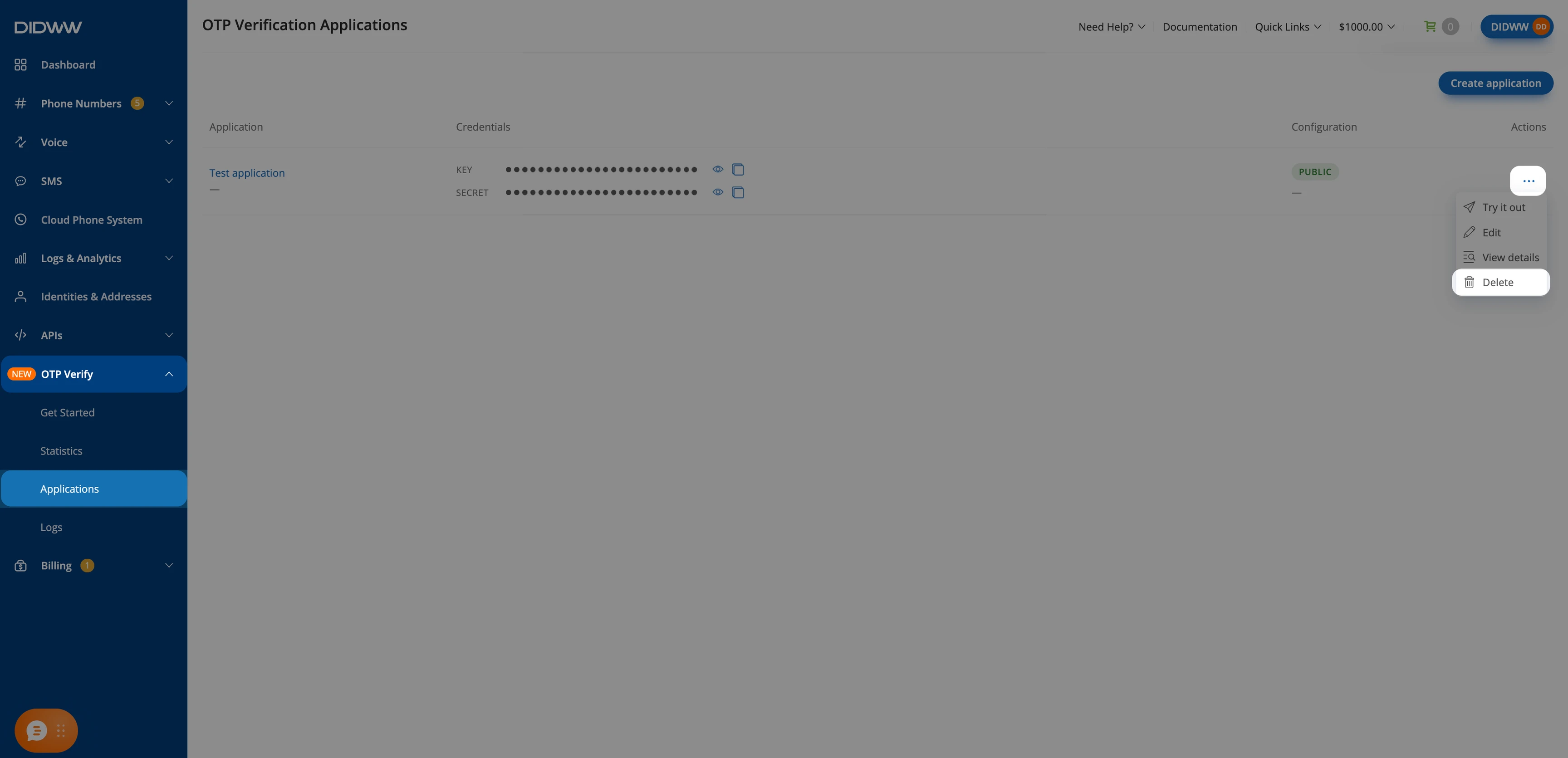
Fig. 13. Delete an OTP application#
In the Delete OTP Application confirmation window, click Delete.
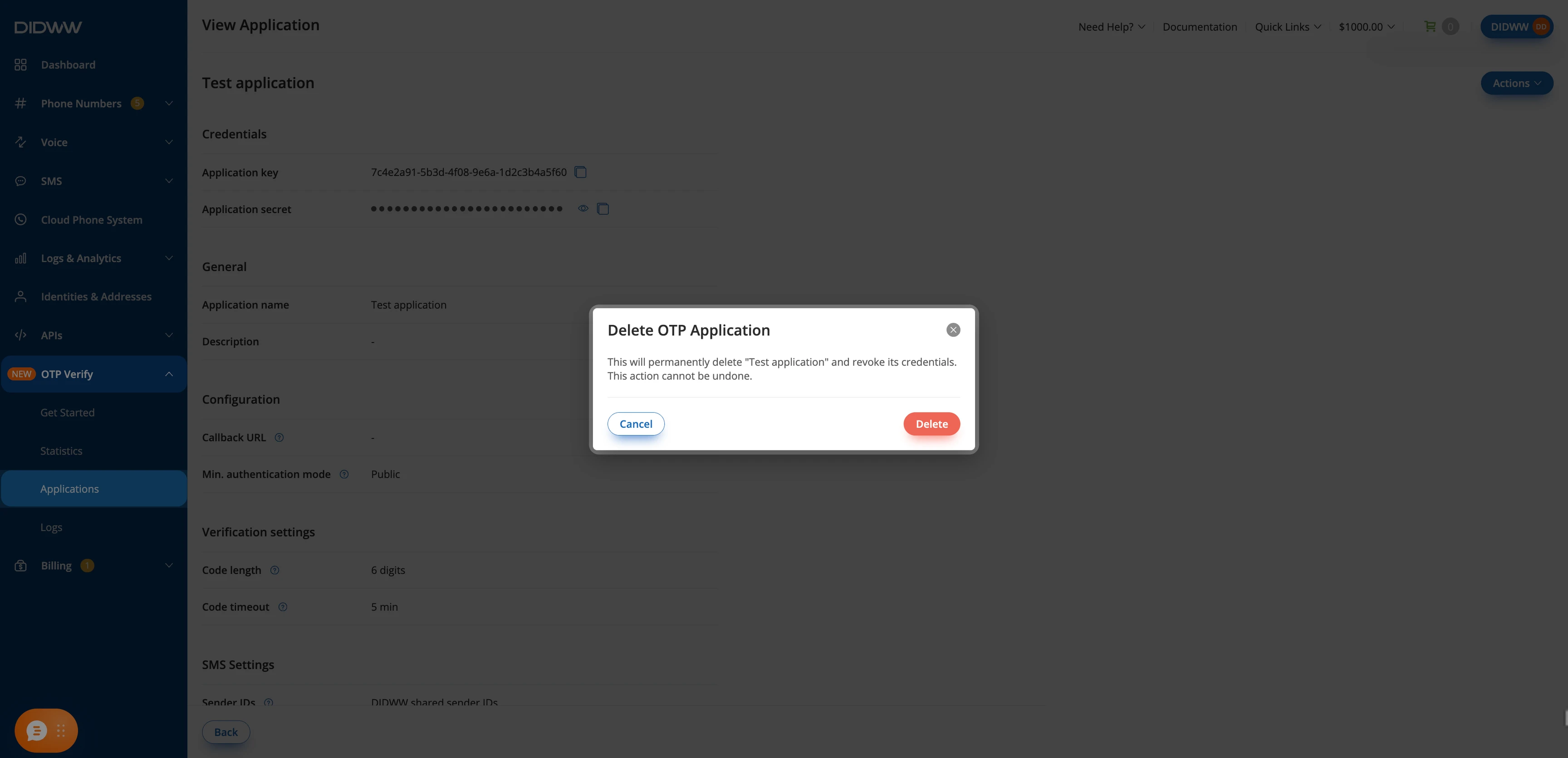
Fig. 14. Confirm the deletion#
Block destination countries#
Block countries that your users should never verify numbers in, to reduce SMS pumping and toll fraud. The blocklist applies to your whole account: all OTP applications and all delivery methods. High-risk countries are blocked by default.
A verification request to a blocked country returns 201 Created with status set to
denied and error_code set to destination_country_disabled.
Nothing is sent or charged, no request callback is made, and no cooldown starts. Denied
requests do not count toward the application’s volume limits, but they do count toward the per-second
rate limits. Reporting a code for a denied verification
returns 200 OK and leaves the verification denied.
In the DIDWW User Panel, go to OTP Verify > Applications.
Open the Country blocklist tab.
In Blocked countries, add or remove countries. The list shows each country with its dialing prefix, and marks high-risk countries. Use Add all high risk to add every high-risk country, or Remove all to clear the list.
Click Update.
The change applies as soon as you click Update. New verification requests to a newly blocked country are denied. Verifications already in progress are not affected and can still be verified.
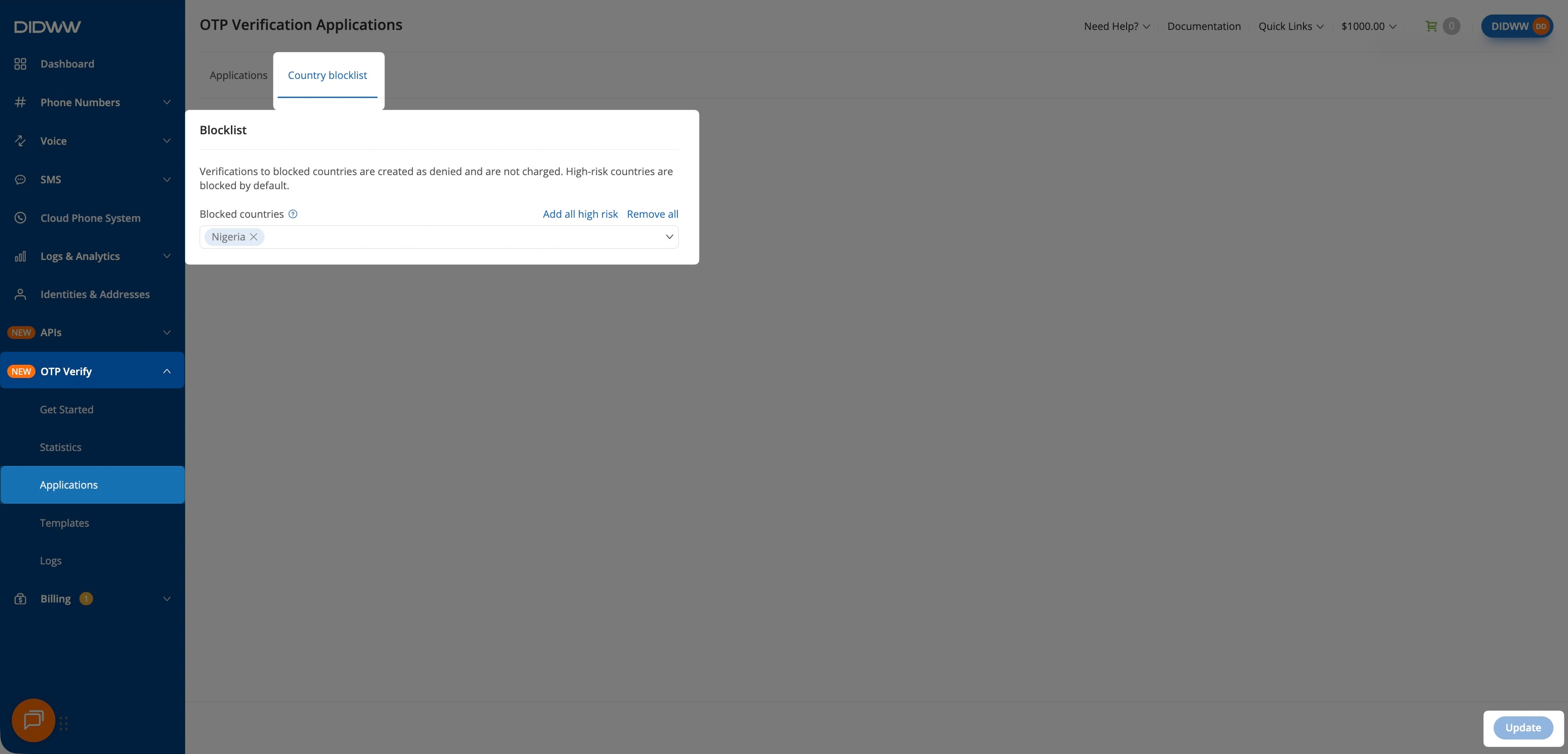
Fig. 15. Manage the account-wide country blocklist#
If the change unblocks high-risk countries, the Unblock high-risk countries window lists them. Select I understand the fraud risk of unblocking high-risk countries, then click Update.
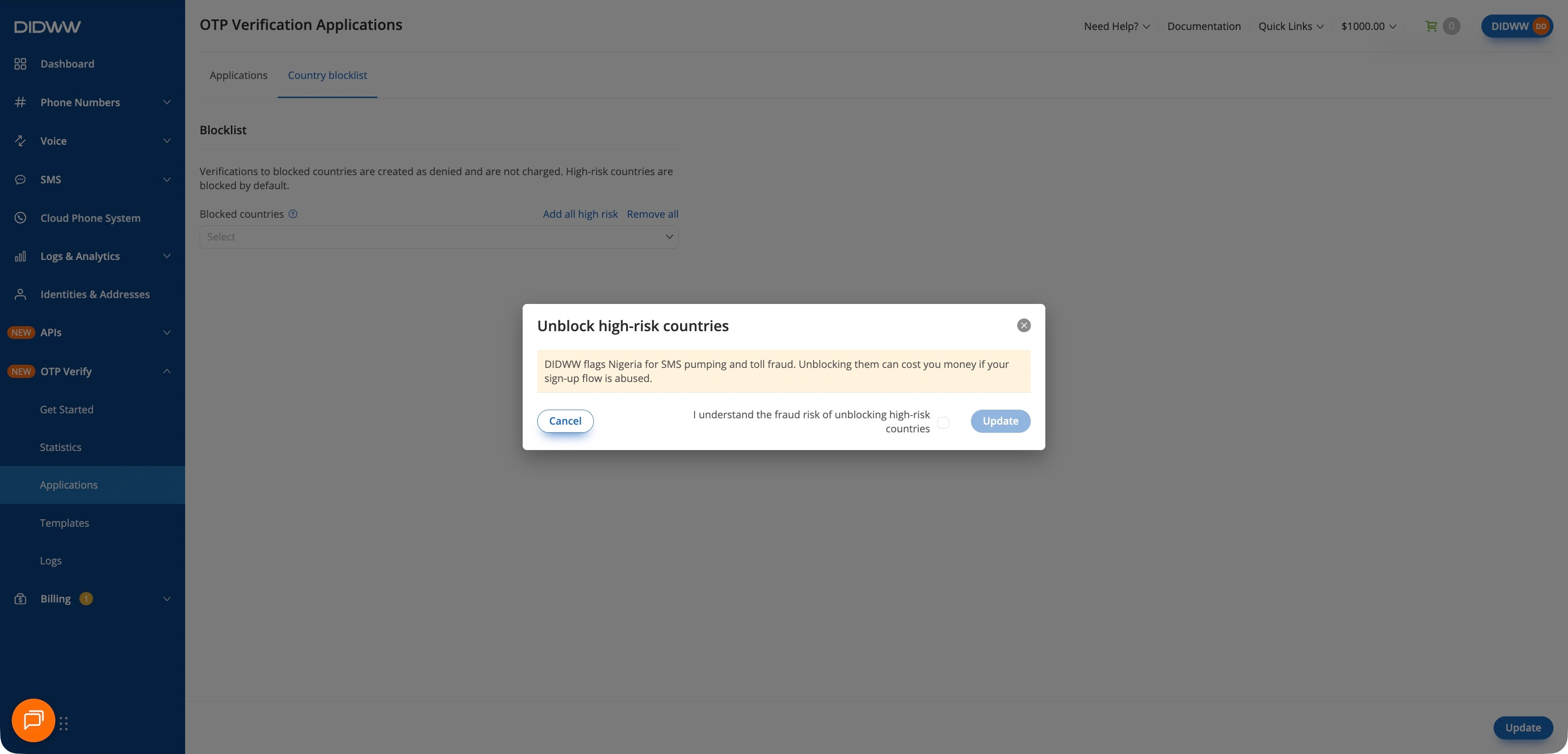
Fig. 16. Review the warning before unblocking high-risk countries#
The blocklist can be changed only after you create your first OTP application.
Example: verification to a blocked country#
With Nigeria on the blocklist, a Start verification request with the following body requests an SMS verification for a Nigerian number:
{
  "data": {
    "destination": "+2348031234567",
    "delivery_method": "sms"
  }
}
The request is denied before delivery. In the response, fee is 0.0, status is
denied, and error_code is destination_country_disabled:
HTTP/1.1 201 Created
Content-Type: application/json; charset=utf-8

{
  "data": {
    "id": "01a00000-0000-7000-8000-000000000000",
    "destination": "2348031234567",
    "delivery_method": "sms",
    "fee": "0.0",
    "status": "denied",
    "error_code": "destination_country_disabled",
    "error_detail": "destination country is disabled in account settings",
    "expires_at": "2026-10-27T14:59:24Z",
    "sms": {
      "template": "Your verification code is {{CODE}}",
      "language": "en-GB",
      "interception_timeout": 300,
      "code_length": 6,
      "template_group": null,
      "template_group_used": false,
      "template_fallback_reason": null
    }
  }
}
The blocked verification appears in OTP Verify > Logs with the Denied status, the
destination_country_disabled error code, and no fee. In OTP Verify > Statistics, it is
not counted in Verifications sent. When you start a verification to a blocked country
with Try it out, the response step shows Open Country blocklist so you can review the
list.